SSD Benchmark Guide for Windows: Measure Speed and Interpret Results
An SSD benchmark measures performance under a defined workload, not overall reliability. Sequential transfers, small random I/O, and sustained writes produce very different results. Compare numbers only when the PC, connection, test size, and drive condition are similar.
Prepare the SSD and Record Its Limits
Step 1. Back up important files. Confirm the SSD model and whether it uses SATA, NVMe, or USB. Check its available space, firmware version, and installed slot or enclosure speed.
Step 2. Close large downloads and background copies. Keep the laptop on power and use a normal cooling setup. An almost-full or overheating SSD may perform below its specification.
Run a Repeatable Benchmark
Step 1. Obtain a reputable benchmark from its publisher's official site. Select the intended SSD by model and drive letter. Choose a moderate test file that fits comfortably in free space.
Step 2. Run sequential read and write tests. Record MB/s, test size, and queue depth. Then run a small random-I/O test if responsiveness is the question; random results are naturally lower than sequential ones.
Step 3. Let the SSD cool and repeat once. Large variation between runs may indicate heat, cache exhaustion, background activity, or an interface bottleneck. Do not keep running write-heavy tests just to improve the score.
Record whether the benchmark uses compressed or incompressible data and whether it flushes the operating-system cache. Different tools can report very different peaks for the same SSD. Compare your drive with the same test settings, not a screenshot from an unrelated PC.
Interpret a Slow Result
Check the link speed and whether an NVMe drive is installed in a slower PCIe slot. For a USB enclosure, the cable and host port can be the bottleneck. Compare against the manufacturer's specification for the exact model, remembering that marketing numbers usually describe favorable sequential tests.
For an SSD that starts fast and then slows during a large transfer, check temperature and sustained-write behavior. Many drives use an SLC-like cache; performance after that cache fills can be lower without indicating a fault. A benchmark shorter than the cache may miss this behavior.
Check Health Separately
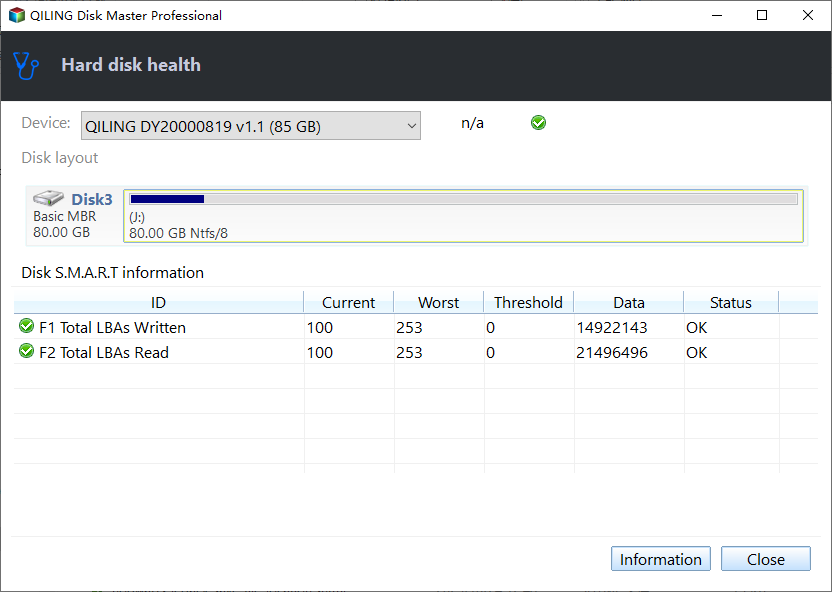
Qiling Disk Master's Disk health reads available SMART indicators; it is not a speed benchmark. Use it when a low result is accompanied by errors, disconnects, or unusual temperatures.
Step 1. Open Tools and utilities > Disk health and choose the SSD by model and capacity.
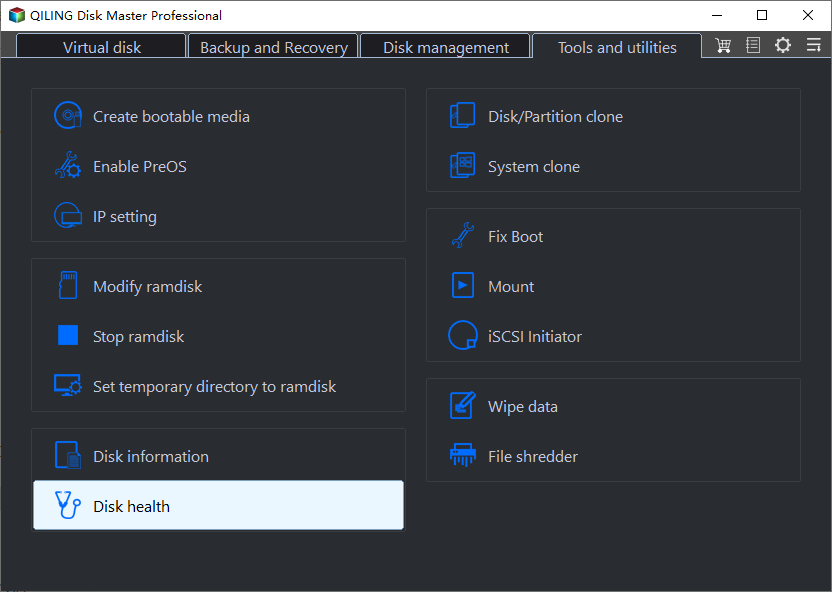
Step 2. Review the device and available SMART indicators. A warning or repeated I/O error calls for backup and replacement planning, even if one benchmark is fast.
Related Articles
- System Backup and Restore
Create and verify a Windows backup before major repairs. - Check Disk Health
Recognize storage warnings before changing a drive.
Products
Articles & Tutorials
- Data Recovery
- Data Backup
- File Recovery
- File Backup
- System Backup and Restore
- Disk and Partition Clone
- Technical articles
- Mobile articles
- Disk Master Help
- Windows Data Recovery Tutorials
- Windows Secure Delete Tutorials
- Windows Partition Management Tutorials
- Windows File Backup and Restore Tutorials
- Windows System Backup and Restore Tutorials
- Windows Disk Backup and Restore Tutorials
- Windows Clone Tutorials