Fix Total Identified Windows Installations 0
Fix Total identified Windows installations: 0 in Windows recovery. Learn boot checks, BCD repair, disk backup, and data-safe recovery steps.
Why Windows Shows 0 Installations
This message usually appears in Command Prompt inside WinRE when Bootrec cannot find a valid Windows installation. The cause may be a damaged BCD store, wrong boot mode, disconnected system disk, BitLocker lock, or file system damage.
Check Windows Recovery First
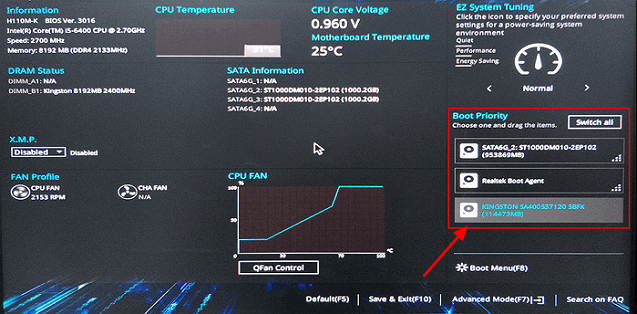
- Open BIOS/UEFI and confirm the system disk is detected.
- Check whether the PC was installed in UEFI or Legacy mode.
- Run Startup Repair from Advanced options.
- If BitLocker is enabled, unlock the drive with the recovery key before running boot commands.
- Use diskpart only to inspect disks unless your data is backed up.
Use Qiling Backup When Windows Tools Are Not Enough
Qiling tools give you a visual way to review the disk state, protect files, and confirm risky operations before Windows repair, formatting, resizing, or cloning changes are applied.
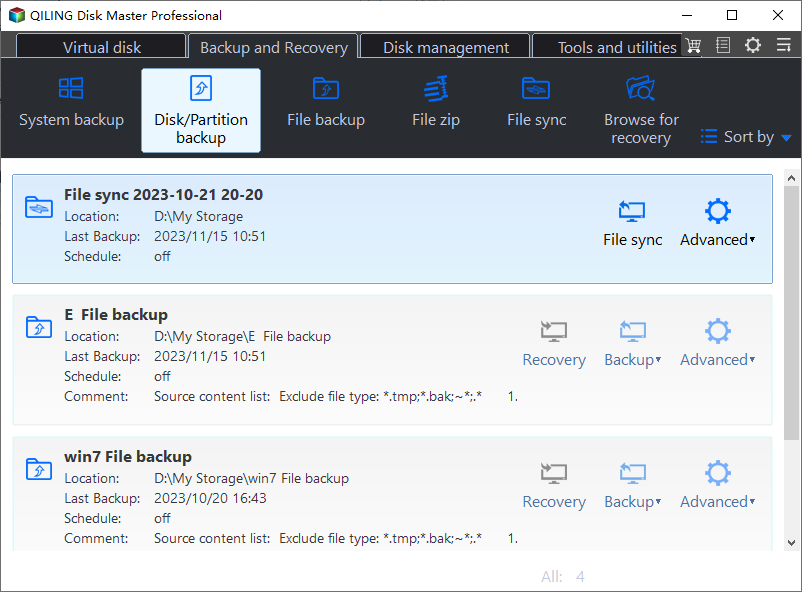
Step 1. If Windows can still start occasionally, open Qiling Backup immediately before rebuilding BCD or changing boot mode.

Step 2. Choose System Backup to include the Windows boot partitions and C drive. Boot repair often depends on EFI/System Reserved and Recovery partitions, not only C drive.

Step 3. Select an external drive as the backup destination. Make sure it has enough free space and is not the same disk that shows the boot problem.

Step 4. Review the backup summary. Confirm that the source partitions and destination path are correct.
Step 5. Click Proceed to create the backup. After it finishes, disconnect the backup drive before running Bootrec, BCD rebuild, or partition repair commands.

Step 6. If Windows cannot boot at all, connect the disk to another working PC and use Disk Backup to create a full image before attempting destructive repair commands.
Conclusion
Start with the Windows checks that match your symptom, protect important data before formatting or repartitioning, and use the Qiling workflow when you need a clearer, safer way to repair the disk or move data.
Related Articles
Products
Articles & Tutorials
- Data Recovery
- Data Backup
- File Recovery
- File Backup
- System Backup and Restore
- Disk and Partition Clone
- Technical articles
- Mobile articles
- Disk Master Help
- Windows Data Recovery Tutorials
- Windows Secure Delete Tutorials
- Windows Partition Management Tutorials
- Windows File Backup and Restore Tutorials
- Windows System Backup and Restore Tutorials
- Windows Disk Backup and Restore Tutorials
- Windows Clone Tutorials