What Is Limiting My SSD Speed in Windows?
An SSD that benchmarks below its advertised maximum is not automatically defective. The result may be limited by its SATA or PCIe connection, USB enclosure, test method, available space, temperature, or background workload. Check each layer before changing partition settings or replacing the drive.
Confirm the Exact SSD and Connection
Step 1. In Device Manager or the manufacturer's utility, record the SSD model and capacity. Determine whether it is SATA, NVMe, or an external USB drive. Compare with the specification for that exact model, not a different capacity in the same product family.
Step 2. For NVMe, check the motherboard manual for the slot's PCIe generation and lane count. Some slots share lanes with other devices or run at a lower speed. For SATA, check that the drive is on a proper SATA port rather than a USB adapter.
Step 3. For external SSDs, test a suitable cable and host port. A fast NVMe SSD inside a slower USB enclosure cannot exceed the enclosure and port's effective throughput.
Run a Comparable Speed Test
Step 1. Back up important files, close downloads and large copies, and leave adequate free space. Keep a laptop plugged in and in its normal performance mode.
Step 2. Use a reputable benchmark from its official publisher. Record test size, sequential read/write rate, random-I/O rate, and whether write caching is enabled. Repeat once after the drive cools.
Step 3. Compare sequential figures with sequential specifications only. Random I/O and long sustained writes are different workloads. A short burst can be fast while a large transfer slows after the SSD's cache fills.
Check Space, Heat, and Background Activity
Step 1. In Task Manager, check CPU, memory, and disk activity while the benchmark runs. Antivirus scans, indexing, updates, or cloud sync can compete with the test.
Step 2. Check SSD temperature with a trusted utility. If repeated tests begin fast but drop as the drive heats, improve airflow or investigate enclosure cooling rather than altering partitions.
Step 3. If the SSD is nearly full, move nonessential files to another drive and retest under the same conditions. Keep a backup before deleting files; a larger free area can help some drives sustain writes.
Separate Drive Health from Speed
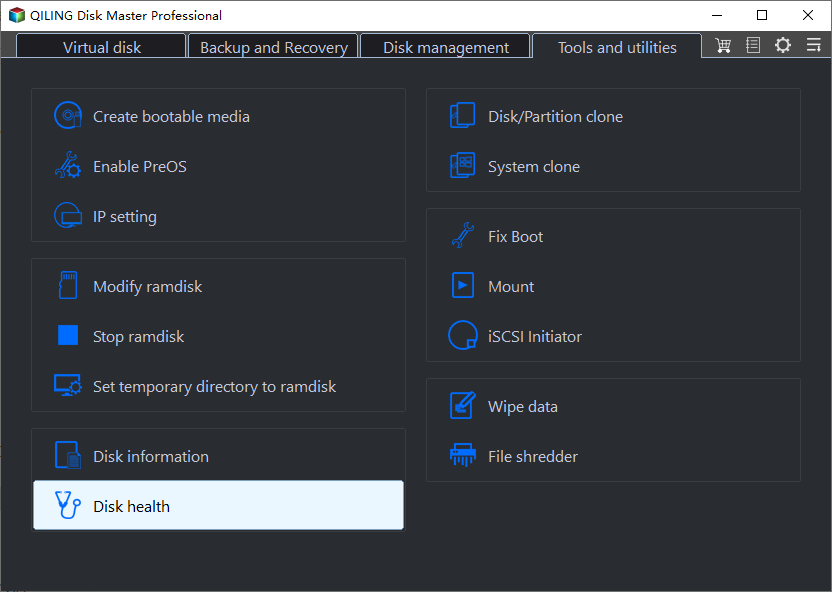
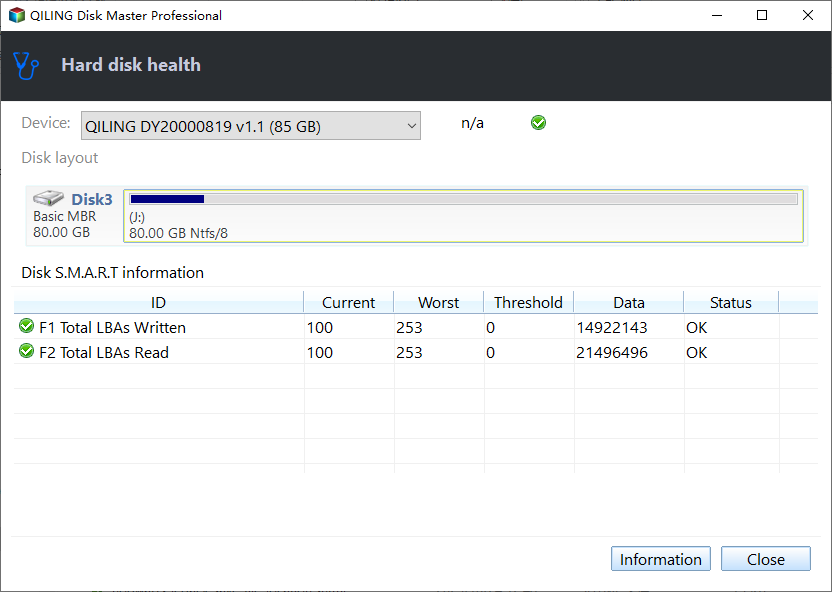
Qiling Disk Master's Disk health reads available SMART information, which can help identify warnings but does not measure throughput. Use it when slow speed is accompanied by errors, disconnects, or unusual temperatures.
Step 1. Open Tools and utilities > Disk health in Qiling Disk Master.
Step 2. Select the SSD by model and capacity, review its available health attributes, and record warnings. A failing status calls for backup and replacement planning, not more benchmark runs.
When to Escalate
If the connection and test conditions are correct yet performance is consistently far below the model's expected range, check the PC and SSD makers' firmware and driver guidance. Avoid unofficial driver packs or firmware files. Persistent I/O errors, not just a low score, are a reason to stop testing and protect the data.
Related Articles
- System Backup and Restore
Create and verify a Windows backup before major repairs. - Check Disk Health
Recognize storage warnings before changing a drive.
Products
Articles & Tutorials
- Data Recovery
- Data Backup
- File Recovery
- File Backup
- System Backup and Restore
- Disk and Partition Clone
- Technical articles
- Mobile articles
- Disk Master Help
- Windows Data Recovery Tutorials
- Windows Secure Delete Tutorials
- Windows Partition Management Tutorials
- Windows File Backup and Restore Tutorials
- Windows System Backup and Restore Tutorials
- Windows Disk Backup and Restore Tutorials
- Windows Clone Tutorials