Why Can't I Open Disk Management
Disk Management can fail to open because of a service problem, damaged system files, MMC console issues, or a stuck storage device. You can still inspect disks with another tool.
Quick Fixes
- Press Windows + R, type diskmgmt.msc, and press Enter. If nothing opens, try compmgmt.msc and choose Disk Management from Computer Management.
- Right-click Start, choose Terminal or Command Prompt as administrator, and run diskmgmt.msc again.
- Disconnect external drives, card readers, and USB hubs. Reopen Disk Management. If it opens now, reconnect one device at a time to find the drive causing the freeze.
- Press Windows + R, type services.msc, open Virtual Disk, set Startup type to Manual or Automatic, and click Start or Restart.
- If MMC errors appear, run sfc /scannow, then DISM /Online /Cleanup-Image /RestoreHealth, and restart Windows.
When to Use Another Tool
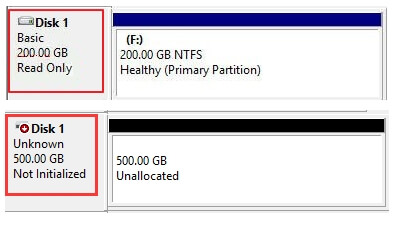
If Disk Management freezes when a specific drive is connected, the drive may be failing. Recover files before formatting or initializing it.
Use Qiling Disk Master When Disk Management Still Will Not Open
If Disk Management keeps freezing, use Qiling Disk Master to check the disk layout first. Do not initialize, format, or delete a suspicious disk before copying or recovering important files.
Step 1. Open the Disk Map
Launch Qiling Disk Master and check whether all internal and external disks appear. Note the disk number, capacity, partition style, and any partition marked as unformatted or RAW.

Step 2. Identify the Problem Drive
If Disk Management failed only when a certain USB or external disk was connected, select that disk and check whether it shows bad sectors, RAW file system, or an abnormal capacity.
Step 3. Back Up or Recover Files First
If the problem disk contains important files, copy them out or run data recovery before any format or initialization. A drive that freezes Disk Management may be failing.
Step 4. Perform the Needed Partition Operation
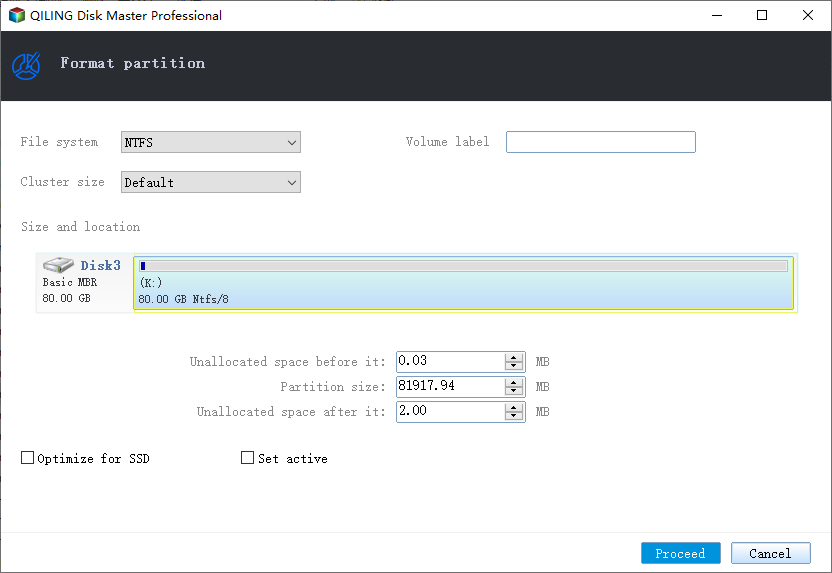
After files are safe, choose the correct action: create a partition on unallocated space, format a RAW partition, change a drive letter, or delete an unwanted partition. Review the preview before clicking Proceed.
Conclusion
If Disk Management does not open, fix Windows services and MMC first. If a specific drive causes the freeze, protect its files before you format, initialize, or repair it.
Related Articles
Products
Articles & Tutorials
- Data Recovery
- Data Backup
- File Recovery
- File Backup
- System Backup and Restore
- Disk and Partition Clone
- Technical articles
- Mobile articles
- Disk Master Help
- Windows Data Recovery Tutorials
- Windows Secure Delete Tutorials
- Windows Partition Management Tutorials
- Windows File Backup and Restore Tutorials
- Windows System Backup and Restore Tutorials
- Windows Disk Backup and Restore Tutorials
- Windows Clone Tutorials