Why Do I Have Only One Drive on My New Laptop
Many new laptops ship with one visible C drive. That is normal. You can create a D drive by shrinking C drive, but leave enough space for Windows and updates.

Should You Create Another Drive
A separate data partition can make files easier to organize, but it is not a backup. If the disk fails, all partitions on that disk are still at risk.
Safe Split Plan
- Back up important files.
- Check how much free space C drive has.
- Leave enough space for Windows, apps, and updates.
- Shrink C drive and create a new NTFS partition from unallocated space.
Use Qiling Disk Master to Split One C Drive into C and D
If your new laptop has only C drive, you can shrink C drive and create a new D drive from the unallocated space. This changes the disk layout, so back up important files first.
Step 1. Decide How Much Space to Leave on C Drive
Check the total disk size and used space on C drive. Leave enough room for Windows, installed apps, updates, and temporary files. For most new laptops, do not shrink C drive below what you actually need for daily use.
Step 2. Select C Drive
Open Qiling Disk Master and select C drive on the internal system disk. Confirm it is the correct partition by drive letter, capacity, and position near the EFI and Recovery partitions.
Step 3. Shrink C Drive
Choose Resize/Move and drag the right edge of C drive leftward to create unallocated space. The unallocated space will be used for the new D drive.

Step 4. Preview and Click Proceed
Confirm that C drive will be smaller and that no EFI, Recovery, or hidden partition is being removed. Click Proceed and wait for the resize operation to finish.
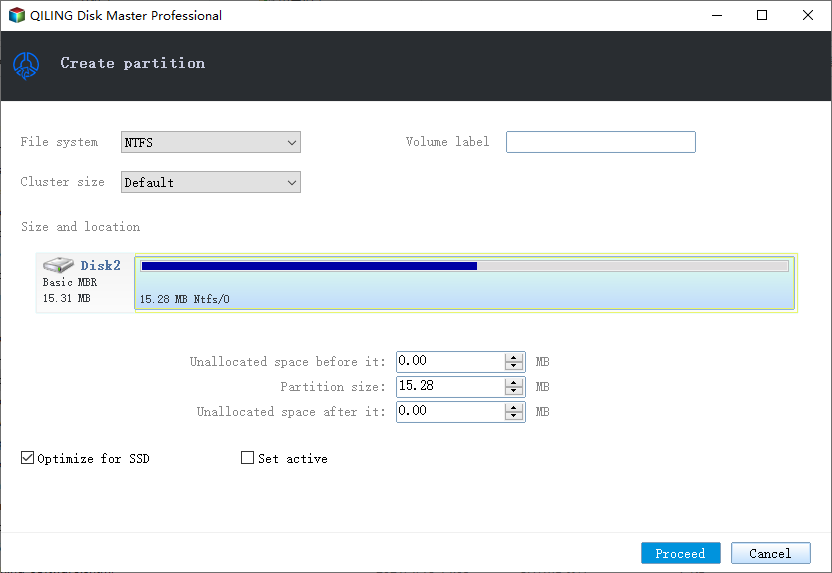
Step 5. Create the New D Drive
Select the unallocated space, choose Create, assign drive letter D if available, set the file system to NTFS, and click Proceed. After it finishes, open File Explorer and move personal folders only if you want them stored on D drive.
Conclusion
Having only C drive on a new laptop is normal. Split it only when a separate data partition helps your file organization, and remember that another partition is not a backup.
Related Articles
Products
Articles & Tutorials
- Data Recovery
- Data Backup
- File Recovery
- File Backup
- System Backup and Restore
- Disk and Partition Clone
- Technical articles
- Mobile articles
- Disk Master Help
- Windows Data Recovery Tutorials
- Windows Secure Delete Tutorials
- Windows Partition Management Tutorials
- Windows File Backup and Restore Tutorials
- Windows System Backup and Restore Tutorials
- Windows Disk Backup and Restore Tutorials
- Windows Clone Tutorials