Windows 11 Repair Tool Download and Safe Repair Guide
Find safe Windows 11 repair options, create repair media, back up data first, and use Qiling tools when boot, disk, or partition problems block startup.
Overview
A Windows 11 repair tool can mean several things: Startup Repair, System Restore, DISM/SFC commands, installation media, or a bootable recovery tool. The right choice depends on whether Windows still starts.
Before repairing boot files or partitions, protect personal data. Some repair methods are safe, but reset, reinstall, disk conversion, or partition changes can affect files.
What to Prepare First
- Try to sign in and back up files if Windows still opens.
- Prepare an empty USB drive for repair media.
- Write down BitLocker recovery keys if encryption is enabled.
- Disconnect unnecessary external drives before boot repair.
Use Windows Built-in Tools First
Start with Windows built-in repair: Settings > System > Recovery > Advanced startup. From Windows Recovery Environment, try Startup Repair, System Restore, Uninstall Updates, Command Prompt, or Reset this PC.
If Windows cannot start, create Windows 11 installation media on another PC and boot from it. Choose Repair your computer instead of Install now.
Create Bootable Media with Qiling Disk Master
Bootable media helps when Windows cannot start or when you need to restore an image to a blank drive. For a Windows installation USB, use official Windows setup files; for backup recovery, use Qiling bootable media.
Step 1. Insert an empty USB drive. Back up files on it because the bootable media process may format the USB drive.
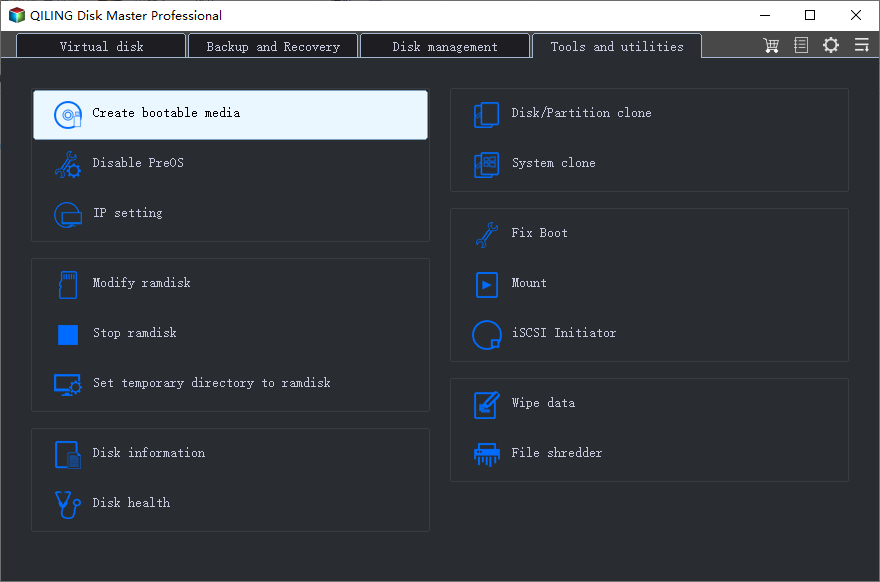
Step 2. Open Qiling Disk Master and choose Create Bootable Media.
Step 3. Choose USB as the media type and select the correct USB drive.
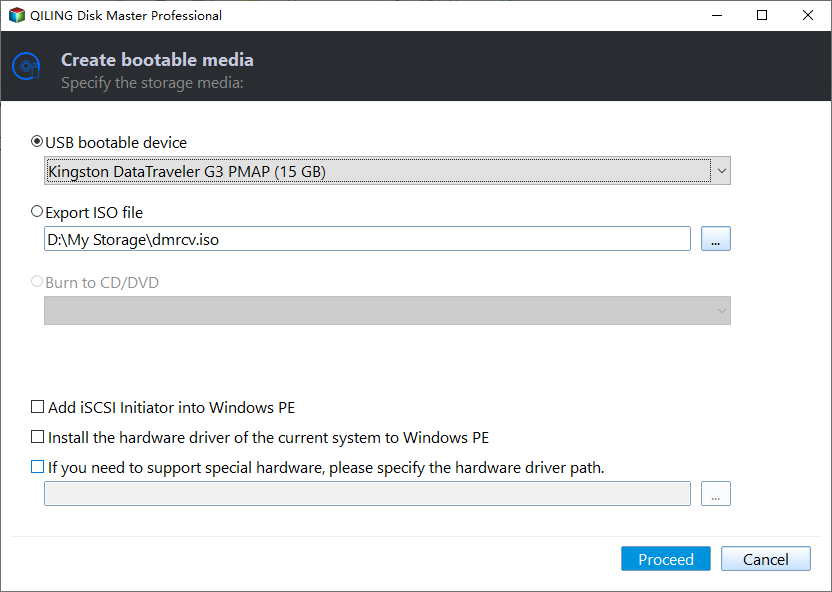
Step 4. Add storage or network drivers if the target computer needs them to detect disks or NAS locations.
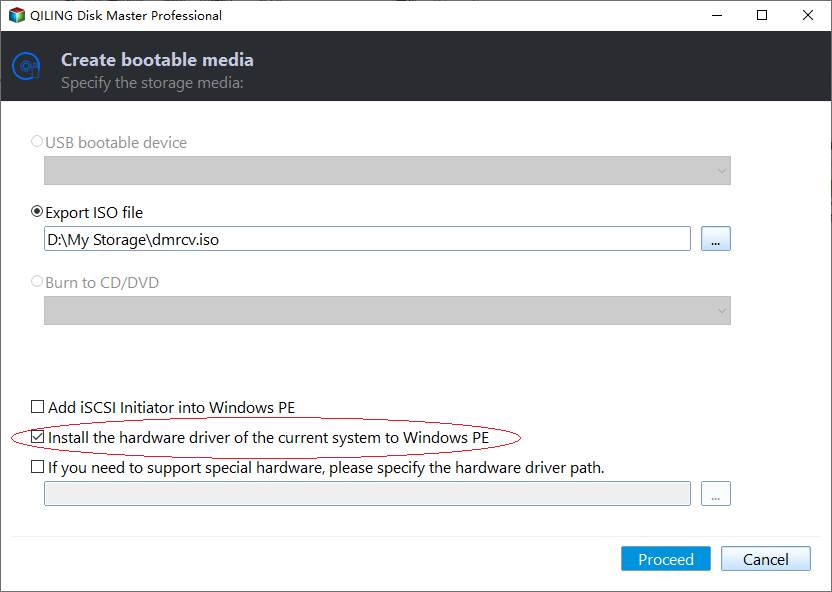
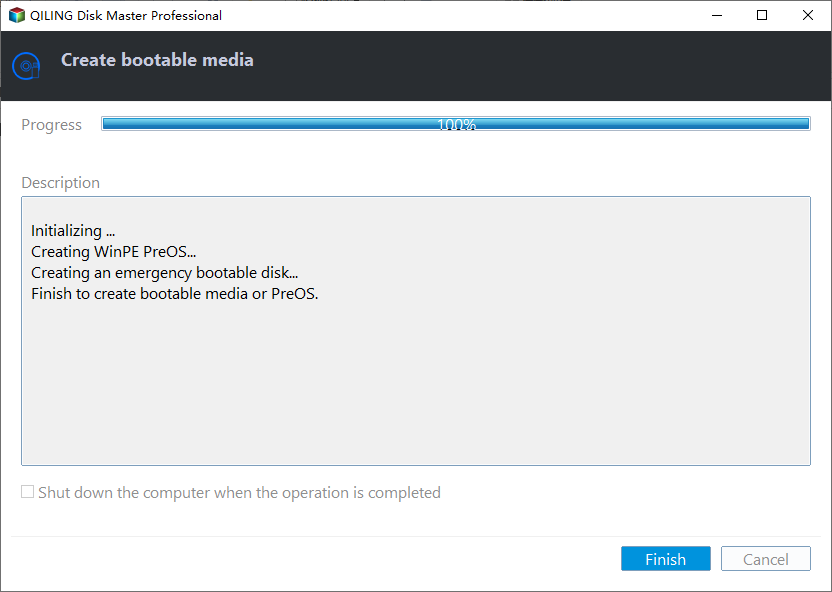
Step 5. Create the media and wait until the process finishes. Then restart the target PC and set the USB drive as the first boot device in BIOS or UEFI.
Troubleshooting Tips
- If Startup Repair loops, run SFC and DISM from recovery Command Prompt.
- If the disk is not detected, check BIOS storage mode and SSD connection.
- If repair asks for a BitLocker key, get it from your Microsoft account or saved recovery record.
FAQ
Should I back up before following these steps? Yes. If the disk is readable and the files matter, create a backup before cloning, repairing, formatting, resetting, or changing hardware.
Can I use Windows built-in tools only? Use built-in tools for simple file copy, restore points, File History, Disk Management, and Windows setup. Use Qiling tools when you need a clearer disk map, bootable recovery media, scheduled backup, or disk clone workflow.
Will these operations erase my target drive? Cloning, restoring an image, formatting, and creating some bootable media can overwrite the target drive. Read the warning message and confirm the disk number before clicking Proceed.
Conclusion
Download repair tools only from trusted sources. Use Windows built-in repair first, then use Qiling bootable media or backups when disk layout, data safety, or boot access becomes the main problem.
Related Articles
- Windows System Backup and Restore Tutorials
Browse Windows backup and restore guides for system images, recovery drives, restore points, and safe repair preparation. - Windows Disk Backup and Restore Tutorials
Find Windows disk backup, SSD image backup, external drive backup, and restore tutorials with practical Qiling workflows. - Windows Clone Tutorials
Review Windows cloning guides for system migration, disk clone, SSD upgrade, and safe boot preparation.
Products
Articles & Tutorials
- Data Recovery
- Data Backup
- File Recovery
- File Backup
- System Backup and Restore
- Disk and Partition Clone
- Technical articles
- Mobile articles
- Disk Master Help
- Windows Data Recovery Tutorials
- Windows Secure Delete Tutorials
- Windows Partition Management Tutorials
- Windows File Backup and Restore Tutorials
- Windows System Backup and Restore Tutorials
- Windows Disk Backup and Restore Tutorials
- Windows Clone Tutorials