Windows Hello PIN This Option Is Currently Unavailable
Fix Windows Hello PIN unavailable by checking account settings, policies, boot issues, and safe password reset options.
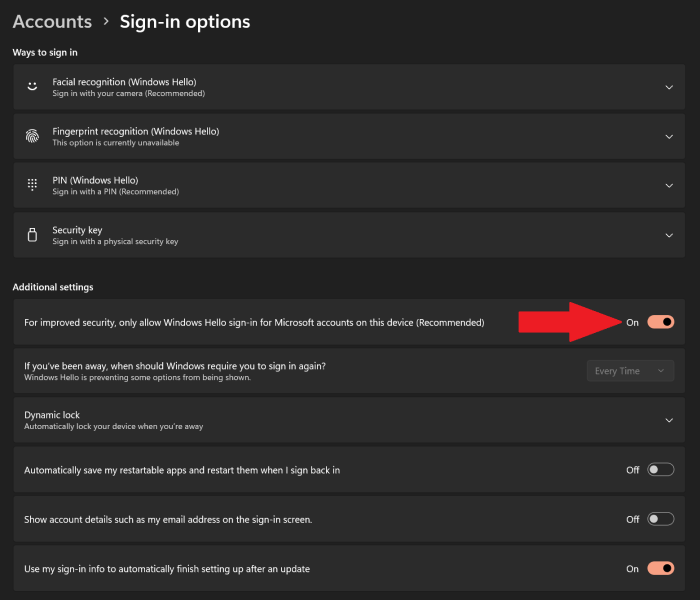
Why the PIN Option Becomes Unavailable
Windows Hello PIN may become unavailable after updates, policy changes, TPM issues, corrupted Ngc folder data, Microsoft account problems, or boot repair. If you cannot sign in, avoid reset options until your files are protected.
What to Check First
- Try signing in with the account password instead of PIN.
- Connect to the internet for Microsoft account verification.
- Check Settings > Accounts > Sign-in options after login.
- Back up files before deleting account data or resetting Windows.
Reset a Windows Password or PIN with Qiling Disk Master
Use a password reset tool only on a computer you own or are authorized to maintain. If the sign-in issue is caused by a Microsoft account, network problem, or Windows Hello policy, try account recovery first.
Start from Bootable Media
- Create Qiling bootable media on a working PC, then boot the locked computer from that USB drive.
- Open Tools and utilities and choose the password reset feature.
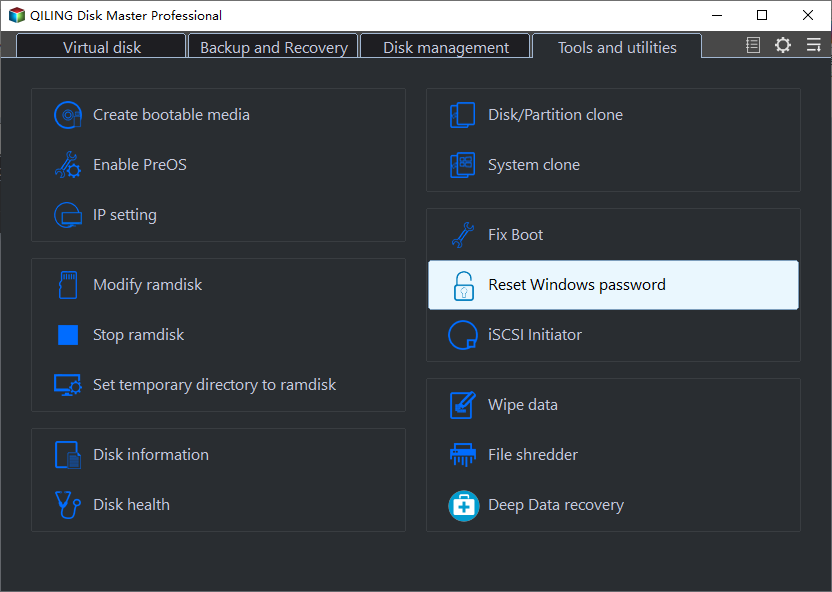
Select the Windows Account
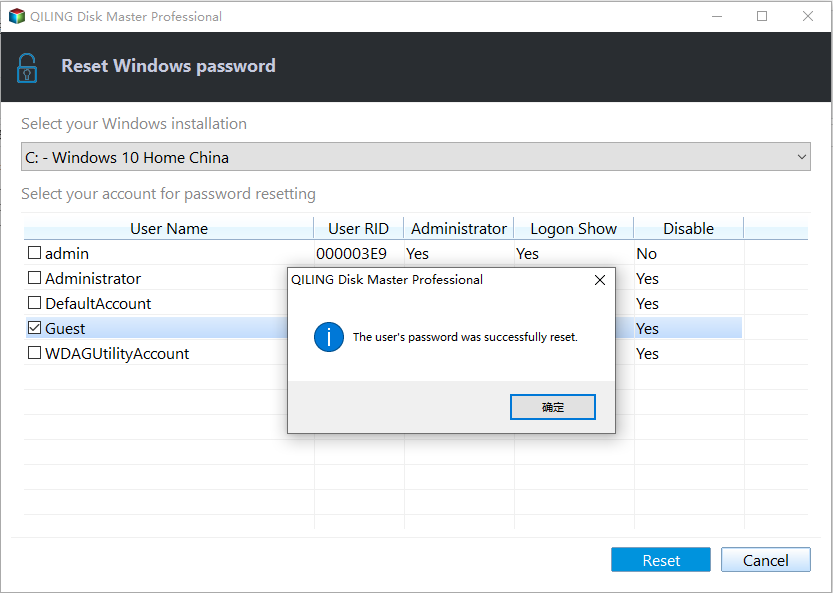
- Select the Windows installation, then choose the local user account that needs a password reset.

- Confirm the reset, remove the bootable USB, and restart the PC. Set a new password or PIN after Windows signs in successfully.
Related Articles
- Windows Partition Management Tutorials
Find practical Windows partition guides for resizing, formatting, checking, converting, and repairing disks without unnecessary risk. - Windows System Backup and Restore Tutorials
Browse Windows backup and restore guides for system images, recovery drives, restore points, and safe repair preparation.
Products
Articles & Tutorials
- Data Recovery
- Data Backup
- File Recovery
- File Backup
- System Backup and Restore
- Disk and Partition Clone
- Technical articles
- Mobile articles
- Disk Master Help
- Windows Data Recovery Tutorials
- Windows Secure Delete Tutorials
- Windows Partition Management Tutorials
- Windows File Backup and Restore Tutorials
- Windows System Backup and Restore Tutorials
- Windows Disk Backup and Restore Tutorials
- Windows Clone Tutorials