Fix Your PC/Device Needs to Be Repaired
Fix Your PC/Device needs to be repaired in Windows. Check error codes, boot files, recovery media, disk health, and backup options.
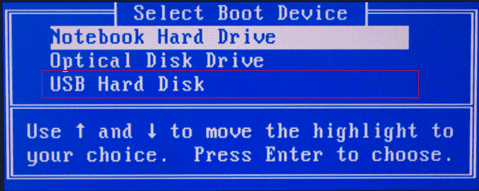
Common Causes
This recovery screen may appear after a failed update, missing BCD file, corrupted system partition, disk error, or boot mode mismatch. The error code can help decide whether to repair boot files or protect data first.
Repair Without Losing Data
- Run Startup Repair from WinRE.
- Use System Restore if a restore point exists.
- Check disk detection in BIOS.
- Back up important data before rebuilding partitions or resetting Windows.
- If the disk is failing, recover files before reinstalling.
Use Qiling Backup When Windows Tools Are Not Enough
Qiling tools give you a visual way to review the disk state, protect files, and confirm risky operations before Windows repair, formatting, resizing, or cloning changes are applied.
Step 1. If the error appeared after an update or boot repair, open Qiling Backup and protect Windows before rebuilding BCD, resetting Windows, or deleting recovery partitions.

Step 2. Choose System Backup when Windows is still accessible. Choose Disk Backup only when you need to image the whole disk from another working PC.

Step 3. Confirm that the backup includes the Windows boot partitions and C drive, then choose an external drive or another safe location as the destination.

Step 4. Review the source partitions, target location, and task summary carefully before starting the backup.
Step 5. Click Proceed. After the backup is complete, try Startup Repair, System Restore, or BCD repair with less risk to personal data.

Conclusion
Start with the Windows checks that match your symptom, protect important data before formatting or repartitioning, and use the Qiling workflow when you need a clearer, safer way to repair the disk or move data.
Related Articles
Products
Articles & Tutorials
- Data Recovery
- Data Backup
- File Recovery
- File Backup
- System Backup and Restore
- Disk and Partition Clone
- Technical articles
- Mobile articles
- Disk Master Help
- Windows Data Recovery Tutorials
- Windows Secure Delete Tutorials
- Windows Partition Management Tutorials
- Windows File Backup and Restore Tutorials
- Windows System Backup and Restore Tutorials
- Windows Disk Backup and Restore Tutorials
- Windows Clone Tutorials