3 Ways to Fix Windows 10 Photo App Not Seeing/Recognizing/Finding iPhone
Quick Navigation:
- Part 1. How to Fix Windows 10 Photo App Not Seeing iPhone
- Solution 1. Trust Computer on iPhone
- Solution 2. Check if Apple Mobile Device support is Installed, Restart or Reinstall it
- #Try updating apple mobile device support
- #Using iTunes executable file
- Solution 3. Reset and Repair Windows 10 Photo App
- Part 2. How to Solve Windows 10 Photo App Not Importing from iPhone
- Solution 1. Perform a windows 10 Photo app update
- Solution 2. Sync photos to iCloud
- Solution 3. System Restore
- Part 3. Tips: How to recover Deleted or lost Photos on iPhone
- Solution 1. Through the recently deleted photo folder
- Solution 2. Using iCloud to restore the deleted or lost pictures
- Solution 3. Using Deep Data Recovery Software
Transferring photos and videos from iPhone to Windows 10 has been made a lot easier with the use of the Windows 10 Photo App, which is a built-in feature on Windows 10 PCs. Unfortunately, the Windows 10 photo app is not recognizing or seeing your iPhone, preventing you from sharing photos between your iPhone and your computer easily. If you have come across this problem, you can try the solutions below in order to fix the Windows 10 app not detecting iPhone.
Part 1. How to Fix Windows 10 Photo App Not Seeing iPhone
Solution 1. Trust Computer on iPhone
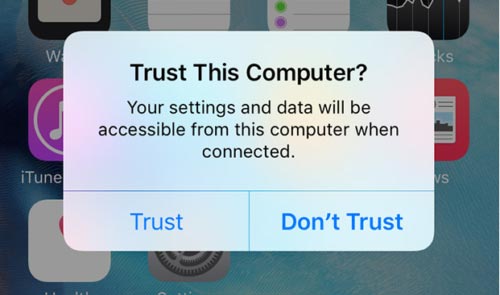
Although well-known, sometimes you may forget about the "Trust this computer?" prompt that pops up on your iPhone's screen each time you want to connect it to the computer. Well, in order to access your iPhone data, you must permit it to trust your computer by tapping on the Trust option when this prompt appears. As you do, the Windows 10 photo app will recognize your iPhone.
Solution 2. Check if Apple Mobile Device support is Installed, Restart or Reinstall it
Apple Mobile Device Support is software installed on computers that helps you to automatically detect your iPhone when it is connected to the computer. Sometimes, it is not installed yet on your computer and can cause your Windows 10 photo app not to find iPhone.
- To check this, enter Appwiz.cpl in the start search and press the enter key to proceed to Programs and Features.
- There, you will find Apple Mobile Device Support. Sometimes it may have a problem so to repair it, right-click on Apple Mobile Device Support when you find it, and then select the repair option and on-screen directions will pop up. Press the next button until the process is completed.
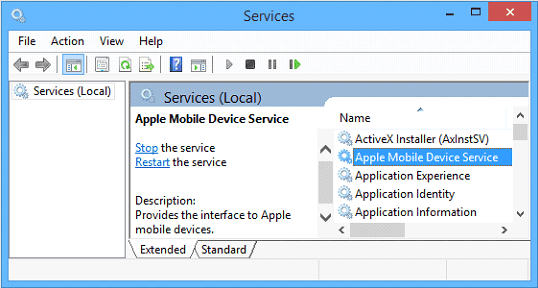
Sometimes, Apple Mobile Device Support may be present and running but not running properly as it should. In this case, try restarting it.
To restart it, Open the Services window by typing Services.msc in the start search and press the enter key. As you find it, right-click on it and select the restart option.
After this, try using the Windows 10 app to recognize your iPhone. If it doesn't recognize it, try to install Apple Mobile Device Support.
#Try updating apple mobile device support
Windows 10 has a built-in feature that automatically installs drivers for new hardware connected to the system, as long as it has an internet connection. When you connect your iPhone to your Windows 10 using an Apple data cable, the system will detect the new hardware and initiate the driver installation process.
#Using iTunes executable file
If the Apple Mobile Device Support is not installed automatically when you connect your iPhone to your Windows 10, you can try installing it manually using the iTunes executable file. This method allows you to install the necessary drivers without having to use the iTunes application.
- Download iTunes executable file most recent version from Apple's website.
- If you need to install Apple Mobile Device Support without using iTunes, you can extract the necessary files from the iTunes executable file. This process allows you to access the required drivers and install them manually.
- In the file extractor, select AppleApplicationSupport and AppleMobileDeviceSupport.
- Click the Extract button and choose folders where to extract the files to.
- Once this is done, restart Windows 10 system. Go to Apps and locate Apple Mobile Device Support. You will find it and this will permit Windows 10 photo app to recognize the iPhone.

These are two ways of manually installing Apple Mobile Device Support without iTunes on Windows 10. Sometimes installed apps may install these drivers on their own but not in every case so knowing these procedures is vital.
Solution 3. Reset and Repair Windows 10 Photo App
Sometimes, Windows 10 photo app not recognizing iPhone could be a result of the Windows 10 photo app not properly working as it should. Resetting and repairing the Windows 10 photo app can enable it to detect iPhone.
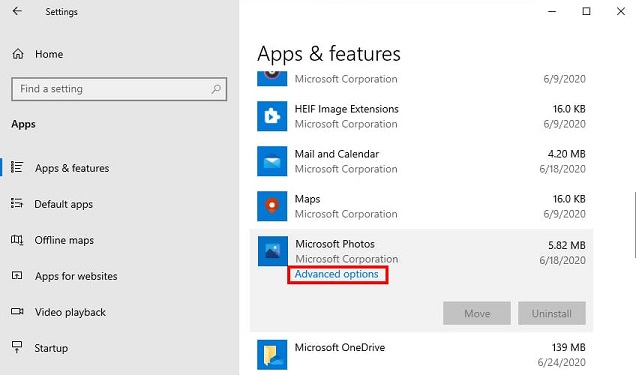
- Open the Windows 10 settings menu and select Apps.
- Scroll down the page, locate Microsoft Photos, and click on Advanced options.
- Click on the Repair button to enable Windows to automatically find and fix any problem causing Windows 10 photo app not to recognize iPhone.
Part 2. How to Solve Windows 10 Photo App Not Importing from iPhone
Solution 1. Perform a Windows 10 Photo app update
Sometimes, bugs from previous versions of the photo app may cause Windows 10 photo app not detecting iPhone. So a simple app update may permit you to fix the issue. To update it,
- Go to the Microsoft Store app, you will see the three-dotted menu icon at the top right corner, click on it and proceed to Downloads and updates.
- On the screen that appears, click get updates if you find an update for the photo app, start the download. If the download is pending, click on the three-dotted menu icon to its right and click on Download now.
Solution 2. Sync photos to iCloud
Uploading photos to iCloud will permit you to make a copy of all your photos to iCloud and keep it in sync across all your devices. To perform this action, turn on iCloud Photos on the iPhone as follow;
- Using your iPhone, go to the settings app.
- Scroll down and tap on photos.
- Turn on iCloud Photos (if off) by swiping the button to the right.
After syncing photos to iCloud, you can download photos directly from iCloud.com to your computer. This can help solve the problem of Windows 10 photo app not importing from iPhone.
Solution 3. System Restore
If you've identified that the problem with the Windows 10 photo app not importing from your iPhone is a recent development, you can try resolving it by performing a system restore. This process will revert your system to a previous state when the issue was not present. Here's how to do it:
- If you're experiencing issues with the Windows 10 photo app not importing from your iPhone, you can try creating a system restore point to potentially resolve the problem. This process will create a snapshot of your system at the current time, allowing you to revert back to this state if needed.
- After clicking on "Create a Restore Point" in the previous step, you will be directed to the System Restore window. This window will guide you through the process of selecting a restore point to revert your system to.
- To resolve the issue with the Windows 10 photo app not importing from your iPhone, you need to select a suitable restore point. This restore point should be one where the photo app was functioning correctly and did not have any issues.
Part 3. Tips: How to recover Deleted or lost Photos on iPhone
Losing photos can be a big deal for many iPhone users as this will mean losing some categorical moments you may want to keep alive in the form of images. Fortunately, it is possible to recover deleted photos from the iPhone using any one of the following ways.
Solution 1. Through the recently deleted photo folder
The Photos app on your iPhone has a feature called the "Recently Deleted" album, which serves as a temporary storage for deleted photos. This album is similar to the Recycle Bin on a PC, and it stores deleted photos for a period of 30 days. During this time, you can recover the deleted photos. Here's how to do it:
- Open the iPhone Photos app.
- Scroll down the list of other albums and select "Recently Deleted".
- Tap on Select at the top-right part of the screen.
- Choose the lost but found or deleted photos.
- Tap recover on the low-right corner of the screen.
- Restoring photos from the Recently Deleted album on your iPhone will move them back to their original location, such as the Camera Roll or a specific album. This process will not recover photos that have been permanently deleted or overwritten.
Solution 2. Using iCloud to restore the deleted or lost pictures
Restoring photos from a backup is a reliable method to recover lost or deleted photos, but it requires a backup of your iPhone to have been made when the photos were still present. If you had made a backup, you can restore your iPhone to that backup point, which will recover the lost photos.
- Restoring photos from a backup after a factory reset is a reliable method to recover lost or deleted photos, but it requires a backup of your iPhone to have been made when the photos were still present. If you had made a backup, you can perform a factory reset on your iPhone, then restore your iPhone to that backup point, which will recover the lost photos.
- Once completed, go through the photos and try to find the lost photos. If you don't find them, backup an older version of your phone and look through it again until you find the photos.
- When you find the photos but are not comfortable with the previous versions of your phone, you may send the photos to another device, or to an email and restore the newest backup of your phone.
Solution 3. Using Deep Data Recovery Software
This iPhone Data Recovery is an all-in-one iOS recovery software for data recovery on the iPhone, iPad, and iPod touch. It allows you to extract data from iTunes and iCloud backups for efficient data recovery on the iPhone. The software is ready to recover data of any form no matter the scenario that caused the loss such as a virus attack, system crash, accidental deletion, jailbreak, stuck at apple logo amongst others. Below you will learn how to use it to recover lost or accidentally deleted photos.
1. Using Qiling tool will require you to have the latest version of iTunes installed on your computer. This can be downloaded from apple official site.
2. Download and install this iPhone data recovery for Mac or Windows on your computer. With the use of a properly functioning cable, connect your iPhone to your computer. In the first window, select "Recover from iOS Device". The software will automatically detect your iPhone. (Ensure the "Trust this Computer" option is enabled). Click "Fast Scan" to recover permanently deleted photos from iPhone.

Note: You can choose different search modes based on where and why the data was lost.
3. Scanning takes some time but as soon as this is done, the software will sort all files into categories. So you can now proceed to select the images category and check through to find the lost or deleted images. During previewing, as you find the photos, select them and click Recover and they will be saved to your computer.

Related Articles
- 2 Ways to Fix Recycle Bin Corrupted in Windows 8/7/10
- 3 Ways to Wipe a USB Flash Drive in Windows 10
- How to Fix Photo App Not Working in Windows 10 [2020]
- 3 Ways for How to Fix User Profile Cannot Be Loaded
3 Ways for how to fix user profile cannot be loaded are covered in Windows 11/10/8/7: restart the computer, boot the computer in safe mode and correct the registry value, & create a new user profile. - 3 Ways to Fix Windows 11/10 Photo App Not Seeing/Recognizing/Finding iPhone
If your Windows 11/10 photo app not seeing iPhone, not recognizing iPhone or not importing from iPhone, then you can get the corresponding solutions here. - Your PC Ran into a Problem and Needs to Restart Windows 8 – Fix It
When you get the information 'your pc ran into a problem and needs to restart in Windows 8, then you need to learn the right solutions to fix it. - What Is RAID 5? RAID 5 Requirements, Benefits, and Calculator
RAID 5 is a level of RAID storage technology that improves data storage efficiency and speed. It has key features, benefits, and drawbacks, and can be recovered from if it fails.
Products
Articles & Tutorials
- Data Recovery
- Data Backup
- File Recovery
- File Backup
- System Backup and Restore
- Disk and Partition Clone
- Technical articles
- Mobile articles
- Disk Master Help
- Windows Data Recovery Tutorials
- Windows Secure Delete Tutorials
- Windows Partition Management Tutorials
- Windows File Backup and Restore Tutorials
- Windows System Backup and Restore Tutorials
- Windows Disk Backup and Restore Tutorials
- Windows Clone Tutorials