How to Recover Files Deleted by Antivirus using CMD and Software
Quick Navigation:
- Method #1. How to Recover Deleted Files by Antivirus Using CMD
- Method #2. How to Recover Antivirus Deleted Files from Quarantined Items
- Method #3. How to Recover Deleted Files by Antivirus with Software
- Step 1. Install Deep Data Recovery
- Step 2. Select Antivirus Deleted File Types
- Step 3. Select the Drive Where Target Files Were Saved
- Step 4. Recover Antivirus Deleted Files
Unfortunately, once antivirus software has deleted a file, it's usually gone for good. However, you can try running a file recovery tool like Recuva or Deep Data Recovery Wizard, which can scan your computer for deleted files and attempt to recover them. Keep in mind that the success of file recovery depends on various factors, such as the type of file, the amount of time that has passed since the deletion, and the presence of other files on your computer. If you're unable to recover the files, you might consider contacting the antivirus software's support team to see if they can provide any assistance.
Antivirus software is essential for protecting your computer and files from virus attacks, but sometimes it can mistakenly delete important files. If this happens, you may need to recover the deleted files. Fortunately, there are ways to do so. Here, we'll discuss three methods for recovering files deleted by antivirus software.
Method #1. How to Recover Deleted Files by Antivirus Using CMD
To recover deleted files by antivirus using CMD, you'll need to have some basic computer knowledge. If you're not familiar with computer techniques, it may be challenging to complete the task. However, by following these steps, you can successfully recover deleted files.
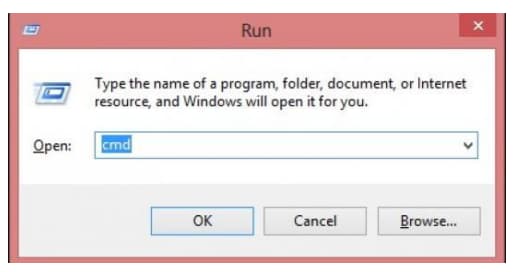
1. To open the Command Prompt, click the Windows icon at the bottom left of the screen, or use the shortcut "Windows + R" keys to open the Run dialog box, then type in "CMD" and press Enter.
2. To recover deleted files, type the letter of the hard drive where the antivirus deleted the files used to stored and click Enter. For example, if the deleted files were saved in F, you need to type in "F:".
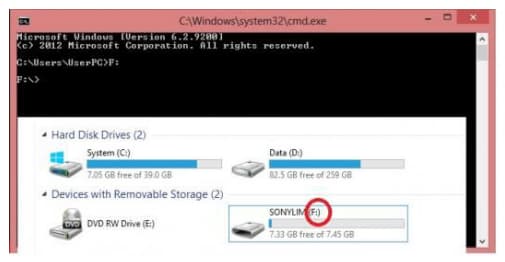
3. To recover deleted files, type the command "F:attrib -h -r -s /s/d" in the Command Prompt and press Enter. This will attempt to recover deleted files from the specified drive. If successful, you can copy and paste the recovered files to a safe location on your computer.
Method #2. How to Recover Antivirus Deleted Files from Quarantined Items
Files infected with a virus are typically saved in the Quarantine or Vault folder of antivirus software, where they are stored until they are deleted after a certain period of time. To recover files deleted by a virus from the Quarantined Items, you can follow a set of steps.
1. If you've installed external antivirus software, open it and navigate to the "Menu". From there, click on "Quarantine" or "Virus vault", find the deleted files, and click "Restore" to save them on your computer.
2. To find the default Quarantine folder of the Windows Defender program on your computer, you can follow these steps: The folder is usually located at C:\ProgramData\Microsoft\Windows Defender\Quarantine. Alternatively, you can also search for it in the Start menu by typing "Quarantine" and selecting the appropriate result.
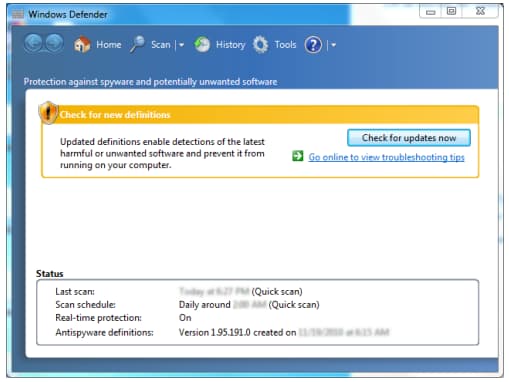
Step 1. Launch Windows Defender by clicking on it in the search results.
Step 2. Next, click the "History".
Step 3. From the History window, you need to click the "Quarantined items".
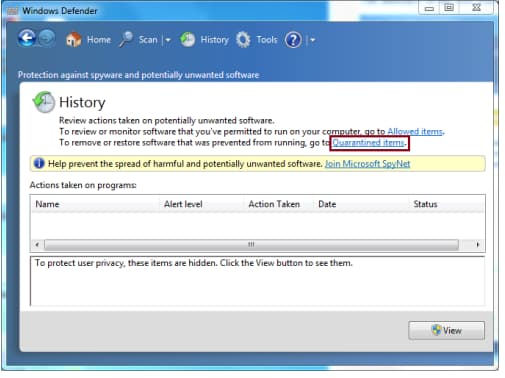
Step 4. Click the "View" button to access the deleted files, then select the target files and click "Restore" to recover them.
Method #3. How to Recover Deleted Files by Antivirus with Software
If you haven't succeeded in recovering files deleted by antivirus, try the professional software Deep Data Recovery to retrieve antivirus deleted files. It's a trustworthy software specially designed for users to recover important files from the computer, flash drives and other external hard drives.
Your Effective Recover Antivirus Deleted File Software
- The interface is simple and user-friendly, with a built-in guide that eliminates jargon, making it easy for users to recover deleted files on Mac or Windows PC.
- The software fully supports all daily used files, including videos, pictures, audio files, documents, and more.
- 3 brief steps to recover antivirus deleted files.
If you've accidentally deleted files due to antivirus software, don't panic! First, check your antivirus software's settings to see if it's configured to automatically delete files it considers malicious.
Step 1. Install Deep Data Recovery
Click the DOWNLOAD button to get the installation package of the data recovery software. Install the software on your computer afterwards.
Step 2. Select Antivirus Deleted File Types
After installing the software, launch it immediately. In the new window, you'll see all supported file types selected. Deselect the unwanted file types and only select the ones you want. Then, click "Fast Scan" to proceed with restoring files deleted by Kaspersky, AVG, McAfee, and other software.

Note: You can choose different search modes based on where and why the data was lost.
Step 3. Select the Drive Where Target Files Were Saved
In the next window, select the drive where the antivirus deleted files were saved. Click "Scan" to let the software scan this location, searching for the target antivirus deleted files.

Step 4. Recover Antivirus Deleted Files
Wait for the software to finish scanning, then filter and preview the found files, select and recover the target files.

Related Articles
- How to Recover Unsaved/Deleted Sketch File
- How to Recover Deleted Files in Windows 10
- Fix 'the file or directory is corrupted and unreadable' in windows 11/10/8/7 in 2 Ways
Check out the 2 detailed ways for how to fix the problem of 'the file or directory is corrupted and unreadable' in Windows 11/10/8/7. - 6 Ways to Fix the System Cannot Find the File Specified in Windows 11/10/7
While you back up or log in the Windows 11/10/7, you may encounter the issue "the system cann - How to Fix 'This Device is currently in Use' when Ejecting Drive in Windows 11/10/7
When it comes to the error 'this device is currently in use' in Windows 11/8/7, you can try to end the progress of the program that causes the issue, eject the device in disk manager or device manager. - How to Turn on AutoSave in Excel 2007-2019 (An Easy Guide)
To turn on AutoSave in Excel on Mac and Windows 10, go to Excel > Preferences > Save on Mac or File > Options > Save on Windows 10, and select the “Save AutoRecover files every X minutes” option. This will save your Excel file automatically at set intervals, allowing you to recover unsaved and deleted files by going to File > Open and selecting the “Recover Unsaved Workbooks” or “Recover Unprotected Workbook” option. Note that AutoSave may not be available in all versions of Excel, and it may not work as expected in some cases. However, it is a useful feature that can help prevent loss of data due to computer crashes or other issues.
Products
Articles & Tutorials
- Data Recovery
- Data Backup
- File Recovery
- File Backup
- System Backup and Restore
- Disk and Partition Clone
- Technical articles
- Mobile articles
- Disk Master Help
- Windows Data Recovery Tutorials
- Windows Secure Delete Tutorials
- Windows Partition Management Tutorials
- Windows File Backup and Restore Tutorials
- Windows System Backup and Restore Tutorials
- Windows Disk Backup and Restore Tutorials
- Windows Clone Tutorials