How to Recover Silicon Power USB Flash Drive
Quick Navigation:
- Best Silicon Power Recovery Tool for Different Loss Situations
- Steps to Recover Files from Silicon Power Flash
- About Quick Scan Mode and Deep Scan Mode
Many people, including IT professionals, students, and teachers, use USB flash drives to store and carry files, making them a convenient but potentially risky way to store important data. A common scenario is accidentally formatting a Silicon Power USB flash drive, resulting in the loss of all files. Fortunately, there are effective methods to recover lost data from a Silicon Power USB drive.
Best Silicon Power Recovery Tool for Different Loss Situations
You can recover deleted, lost, or formatted files from a Silicon Power USB flash drive using the Deep Data Recovery tool, a professional recovery software specifically designed for USB file recovery in various scenarios.
- You accidentally deleted some important files on it.
- The Silicon Power USB flash drive is recognized by the computer, but it's showing as RAW or infected with a virus, prompting a format request.
- The Silicon Power USB drive may experience issues such as "Access Denied", inability to read, or turning off storage media during the writing process, which can occur if it is improperly pulled out or turned off during the writing process.
- All files may disappear without any notice, even if you have not done anything to the drive.
- If your computer can't recognize your Silicon Power USB flash drive, you may need to format it to fix the issue. This process will erase all data on the drive, so make sure to back up any important files before proceeding.
- The Silicon Power USB Flash Drive stopped working and needed to be repaired. Unfortunately, after the repair, all the files on the drive were lost.
People often encounter various scenarios that result in lost files from their Silicon Power USB flash drive, including accidental deletion, formatting, or physical damage. Regardless of the reason, recovering lost files from a Silicon Power USB drive involves using a Windows or Mac data recovery tool to scan for the missing files and save them to your computer. The process is the same for all scenarios, and can be completed by following a few simple steps.
Your Effective SP USB Flash Drive Recovery Software
- Quick Scan and Deep Scan from Silicon Power enable you to recover every recoverable file from your USB flash drive.
- The Silicon Power recovery tool can recover over 1000 types of files, including photos, videos, documents, audio files, and emails, on Windows or Mac.
- The Silicon Power USB flash drive has a 99.5% recovery rate and is read-only, ensuring data safety and high recovery success.
You can also click this download link to get the USB Flash Drive Recovery software.
Steps to Recover Files from Silicon Power Flash
After you've found that a file is missing from your USB flash drive, stop using it immediately. The lost file remains on the device until new data overwrites it, so no data is permanently lost if you refrain from further operations. To recover the file, download the Silicon Power USB drive recovery software, which comes in separate versions for Windows PC and Mac, and select the one that matches your computer. The software is compatible with Windows 10/8/7/Vista/XP and all macOS versions. Once you've downloaded the correct version, you can proceed with the recovery process.
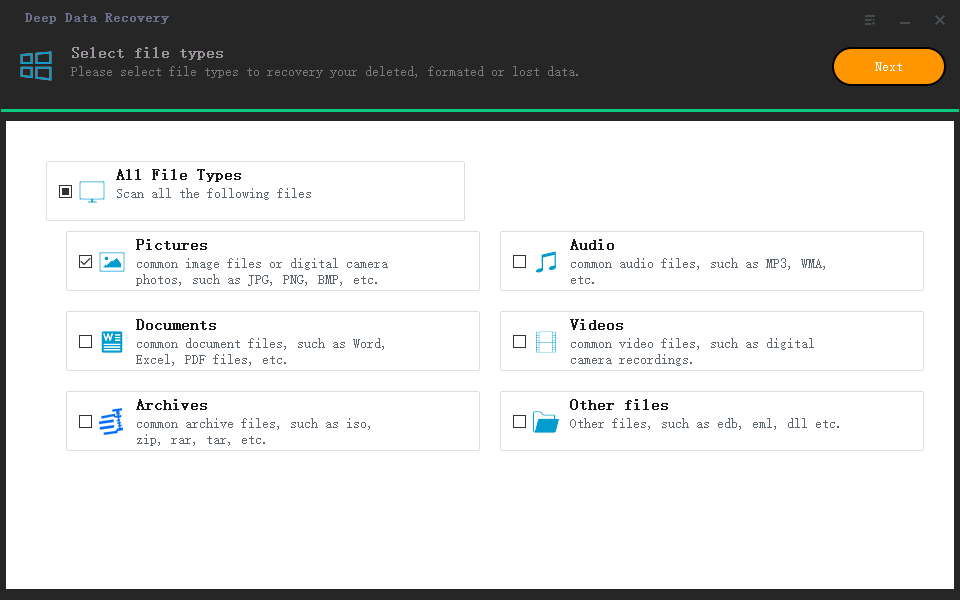
Step 1. To recover files from a Silicon Power USB flash drive, install the Silicon Power USB drive recovery tool and launch it. Confirm the file types you want to recover and keep them checked, unchecking the other types to save time, especially if the drive's storage is large. Click "Next" to proceed with the recovery process.
Step 2. To recover data from a Silicon Power USB flash drive, select the drive in the next window, then click "Scan" to begin the recovery process.

Step 3. The USB file recovery software will take some time to scan for deleted files. The process is transparent and does not collect any personal information. Let it run in the background while you wait. Once it's done, you can preview the results, select the files you need, and click "Recover" to save them to a chosen location on your computer.

Note: Don't save recovered files back to the USB drive to avoid them being deleted automatically.
About Quick Scan Mode and Deep Scan Mode
Some users reported that the Quick Scan option was not visible and the Deep Scan feature was only accessible after the last step. This is because Quick Scan is the default method for recovering deleted files from a Silicon Power USB flash drive, but it's not explicitly listed in the main window. Instead, it's the recommended approach when using the software. Deep Scan, on the other hand, is displayed in the scanning result window and can be used if the initial scan doesn't produce the desired results, requiring a more thorough and longer scanning process.
Related Articles
- Sandisk USB Recovery - Recover Sandisk Cruzer USB/Blade/Pen Drive
- Sony Pen Drive Data Recovery Software Free Download
- HP Pen Drive Recovery – How to Recover Files from HP Pen Drive
- How to Recover Deleted or Lost Files from Memory Stick?
- [Fixed] Error Code 0x80070005 on Windows Update, System Restore, or Microsoft Store
Error code 0x80070005 means access denied and it usually occurs because of lack of registry permissions when you are trying to update Windows or installing a new program. Here's how to fix the error code 0x80070005 in Windows 10. To recover lost data because of error 0x80070005, use Deep Data Recovery to restore lost files. - Ethernet Switch VS Hub: What Are the Main Differences
Want to know why Ethernet Switches and Hub are used in networking? This article provides an overview of Ethernet Switch and Ethernet Hub while presenting an Ethernet Switch vs. Hub comparison. This overview will help you select the best Ethernet network systems. - How to Clone HDD to Kingston SSD in Windows 10/8/7/XP
Are you looking for a way to clone your hard drive to a Kingston SSD? Look no further! In this article, we'll show you how to clone your hard drive to a Kingston SSD using the QILING Disk Master, a powerful and user-friendly software that makes the process a cinch.
Products
Articles & Tutorials
- Data Recovery
- Data Backup
- File Recovery
- File Backup
- System Backup and Restore
- Disk and Partition Clone
- Technical articles
- Mobile articles
- Disk Master Help
- Windows Data Recovery Tutorials
- Windows Secure Delete Tutorials
- Windows Partition Management Tutorials
- Windows File Backup and Restore Tutorials
- Windows System Backup and Restore Tutorials
- Windows Disk Backup and Restore Tutorials
- Windows Clone Tutorials