Does Updating macOS Delete Everything? No...but Yes!
Page Content:
- Part1: How Does macOS Update Work
- Part2: When macOS Update Causes Data Loss
- Part3: How to Recover Lost Data After macOS Monterey Update
No, updating macOS will not delete everything, including data and the hard drive. It is a safe process.
Everything You Should Know about macOS Update
The article provides an in-depth guide to macOS updates, covering various aspects of the process. It discusses the importance of updating macOS, the benefits of keeping the operating system up-to-date, and the potential risks of not updating. The article also explains how to check for updates, download and install them, and troubleshoot common issues that may arise during the update process. Additionally, it touches on the topic of beta updates and the risks associated with them. Overall, the article aims to educate readers on the best practices for updating their macOS and ensuring their device remains secure and functional.
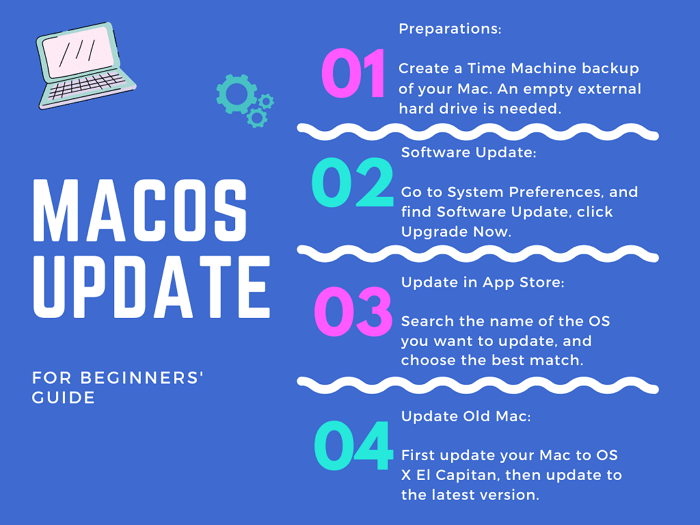
How Does macOS Update Work?
Once you've enabled automatic update notifications on your Mac, you'll be informed every time Apple releases a new macOS version. To install a recent macOS version, you can navigate to the Apple menu > System Preferences > Software Update, where you'll find two options for installation.
To get a macOS update, you can also access it through the App Store.
- Update Now
Now refers to updates within the same current system version, such as from Monterey version 12.1 to Monterey 12.2.
- Upgrade Now
Upgrades refer to updates between two different versions of an operating system, such as from Catalina to Big Sur, or from Big Sur to Monterey.
Installing the available update for macOS Monterey on a Macbook can take around 35 minutes to several hours, depending on the health and performance of the Mac disk. This update also keeps other Apple apps like Safari, Messages, Music, Photos, FaceTime, and Calendar up to date.
Before proceeding with either update option, it's crucial to create a backup of your personal data, as a regular update may not be enough to safeguard it. Never rely solely on a machine to protect your data - trust yourself to take proactive measures to ensure its security.
When macOS Update Causes Data Loss
We highly recommend making a copy of important files on a Mac using Time Machine or reliable third-party Mac backup software, as upgrading to a new major macOS release can potentially damage the hard drive, resulting in lost data.
27% of Mac users have experienced unexpected data loss during a macOS update, with over 90% of the causes attributed to insufficient free space on the internal hard drive.
10% of data loss cases are due to interrupted and failed macOS updates, resulting from various errors. This is a separate scenario from the 90% of data loss cases caused by user error, accidental deletion, or other factors. The remaining 10% of cases are a result of the specific issue of interrupted and failed macOS updates. This distinct scenario should be acknowledged and addressed separately from the other data loss cases.
- Not enough free space on the Mac hard drive
- Incomplete macOS installation
- Mac takes forever to download the update
How to Recover Lost Data After macOS Monterey Update
If you've successfully updated to the new macOS version, congratulations! However, don't forget to back up your data before the next update. If the update fails and you experience data loss, prioritize protecting the lost data and refrain from writing new data to prevent overwriting it.
To recover deleted files, unformat hard disks, or regain access to data from an unbootable Mac, download Deep Data Recovery for Mac. It's specially designed for users who need to retrieve lost data from various situations.
Recovering files on macOS Monterey, Big Sur, Catalina, and earlier versions is a straightforward process that can be completed in just three steps.
Step 1. Launch Deep Data Recovery for Mac, select the file types you want to recover, and click "Fast Scan" to begin the recovery process.

Note: You can choose different search modes based on where and why the data was lost.
Step 2. Where was data lost after operating system update? Choose the location and click Scan.

Step 3. Deep Data Recovery for Mac will immediately scan your selected disk volume and display the scanning results on the left pane.

Step 4. After the scan, select the target files that were unknowingly lost during or after the update and click the Recover button to get them all back.
Related Articles
- 5 Best Free Snipping Tools for Mac
- Proven Ways | Recover Deleted Time Machine Backup
- MacBook Pro/Air Won't Turn on? 10 Fixes + Bootable Recovery Tips
- Recuva for Mac Free Download
- Free | How to Recover Files from Formatted USB/Pen Drive
This tutorial will guide you through the process of recovering data from a formatted USB drive or pen drive. Follow the steps to safely recover files or data from a formatted USB flash drive or pen drive under Windows 10/8/7. - Download Free USB Flash/Pen Drive Repair Tool and Recover Data
Here, you can fix your USB for free. Windows chkdsk and Windows disk error checking methods can repair errors on your disk from the command line, and with Qiling data recovery software, you can recover your data from a failed pen drive without losing files.
Products
Articles & Tutorials
- Data Recovery
- Data Backup
- File Recovery
- File Backup
- System Backup and Restore
- Disk and Partition Clone
- Technical articles
- Mobile articles
- Disk Master Help
- Windows Data Recovery Tutorials
- Windows Secure Delete Tutorials
- Windows Partition Management Tutorials
- Windows File Backup and Restore Tutorials
- Windows System Backup and Restore Tutorials
- Windows Disk Backup and Restore Tutorials
- Windows Clone Tutorials