How to Export MS SQL Server Database to CSV File
MS SQL Server is an enterprise-grade database management system from Microsoft that can be easily managed relationally. However, sometimes you need to extract the database in a text-file format for importing into other data analysis tools, and the most popular format is CSV. To export your MS SQL server database to a CSV file using SQL Server Management Studio, follow these steps.
How to Export SQL Server Data to CSV by using SQL Server Management Studio
1. Open SQL Server Management Studio and connect to the database.
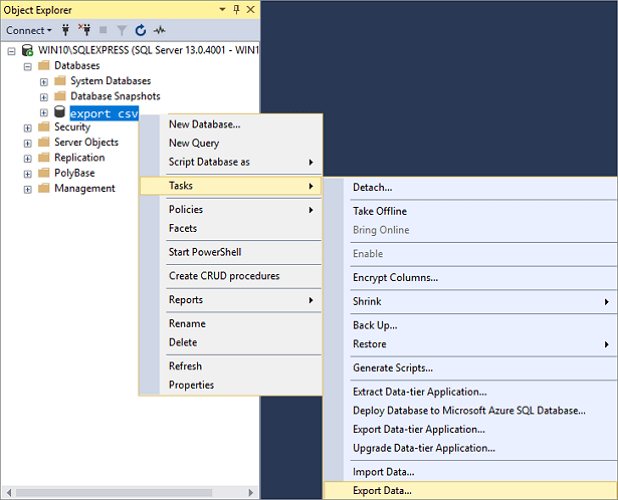
2. To export a database from SQL Server to CSV, go to the "Object Explorer", find the server database you want to export, right-click on it, and choose "Tasks" > "Export Data" to export table data in CSV. This will open the SQL Server Import and Export Wizard welcome window.
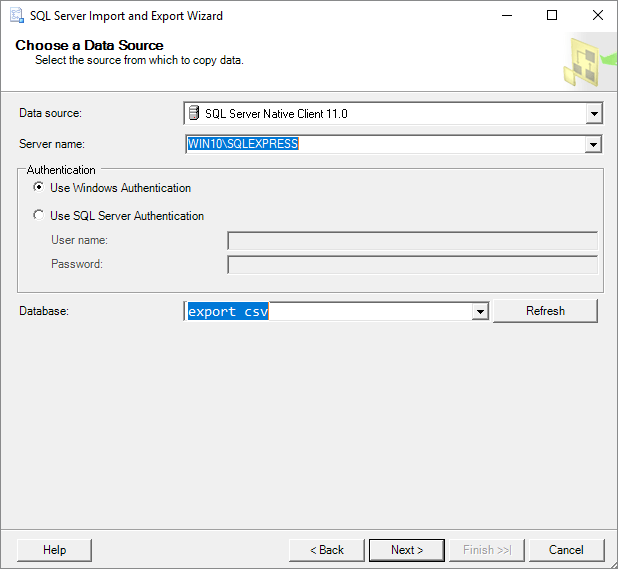
3. To copy data from a SQL Server database, click on the Data source drop-down button and select "SQL Server Native Client 11.0". Choose a SQL Server instance from the Server name drop-down box, select authentication, and pick a database from the Database drop-down box. Then, press the "Next" button.
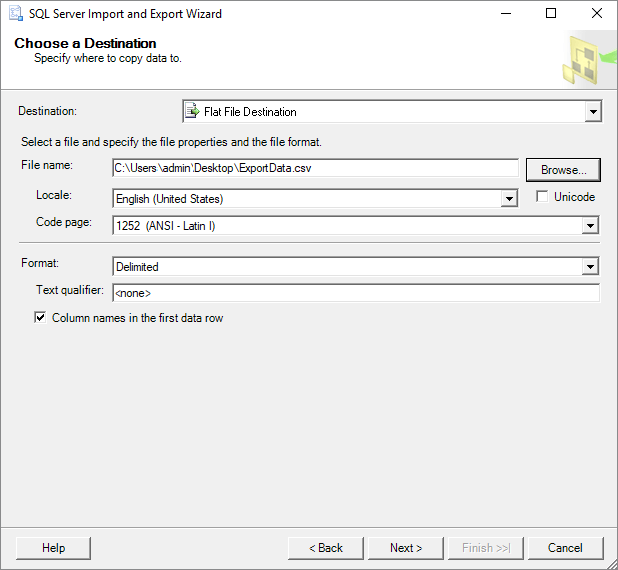
4. To copy data from SQL Server to a CSV file, select "Flat File Destination" in the "Choose a Destination" window, and specify the CSV file name where the data will be exported. Click the "Next" button to proceed.
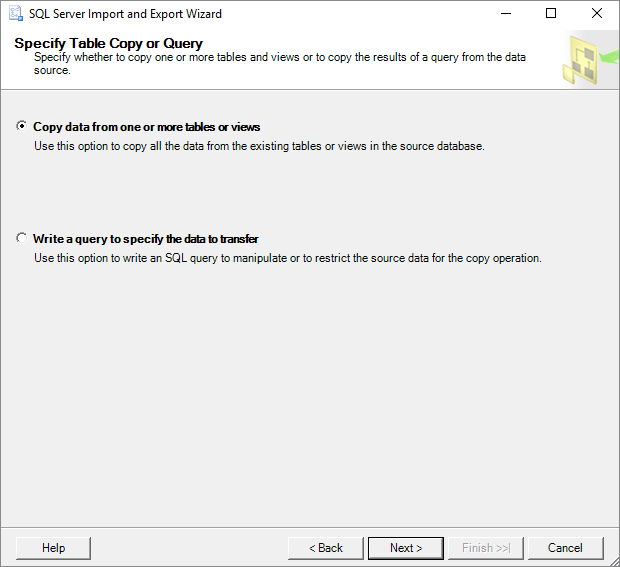
5. On the Specify Table Copy or Query screen, you can choose to export the SQL database into CSV format by either copying data from one or more tables or views, or by writing a query to specify the data to transfer. Click Next to proceed.
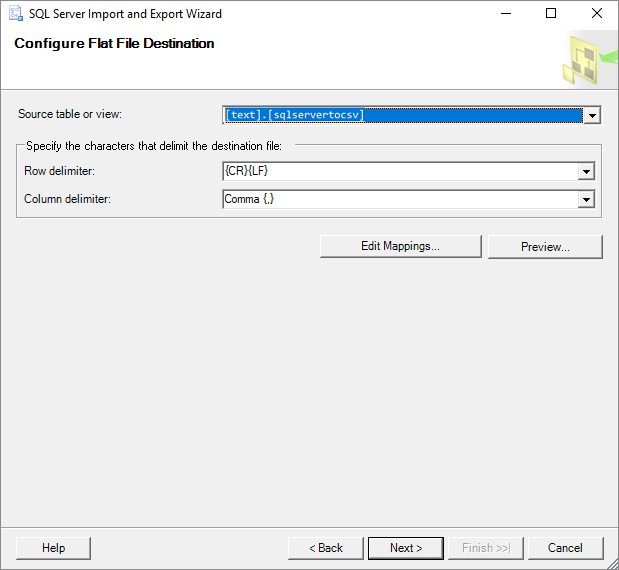
6. In the "Configure Flat File Destination" screen, you can select the table to export from using the "Source table or view" option, and also adjust the default settings for row and column delimiters. You can click the "Preview" button to see what data will be exported to the CSV file, and then click Next to proceed.
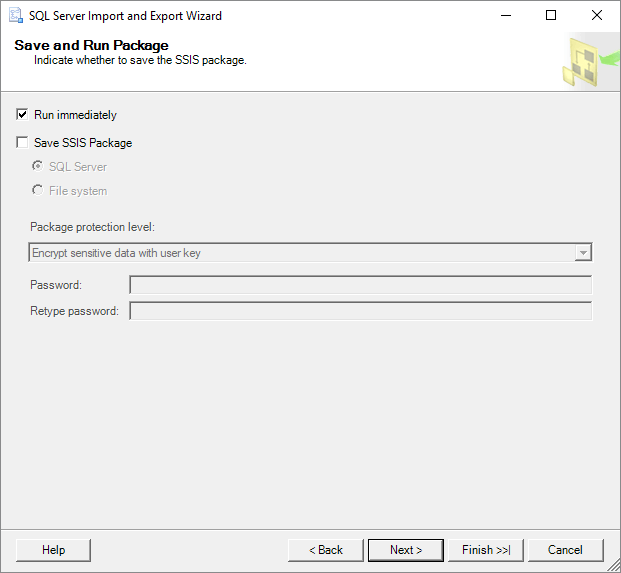
7. Here, on the 'Save and Run Package" window, you can click the "Next" button to proceed without making any changes to the settings.
8. On the "Complete" Wizard window, you can review all the settings made during the export process. If everything looks correct, click "Finish" to initiate the SQL database export to CSV.

9. When the exporting process is complete, click on the "Report" drop-down button.

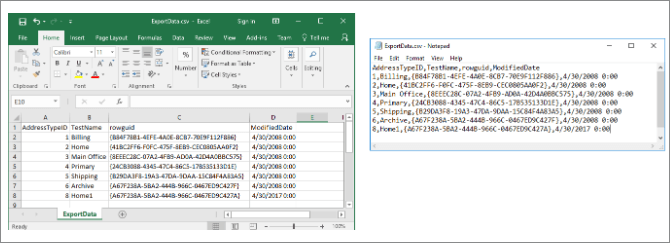
10. After running the SQL database to CSV conversion, you can save the report of the conversion process by selecting "Save Report to File..." which allows you to choose the file format, such as Excel or Notepad, to save the details of the complete conversion process. This report includes information about the conversion process.
Converting SQL Server data to CSV can be done using the Import and Export Wizard in SQL Server Management Studio (SSMS). However, if the primary database MDF file is corrupted, you'll need to use a professional MS SQL repair tool to fix the issue before exporting the database. Once the corruption is resolved, you can proceed with exporting the database to CSV using the Import and Export Wizard.
Related Articles
- 3 Ways to Open MS SQL Sever Backup .BAK File in Excel
- How to Use DBCC CHECKDB Repair Options to Repair Database
- How to Rollback DROP/TRUNCATE Table in SQL Server
- How to Rebuild Master Database in SQL Server
- How to Format USB Drive to FAT32 in Windows 10/7
If you don't know how to format a USB to fat32 in Windows 10/7 then you need to follow this article. You will find a specific reason for this action and step by step guide in here. - How to Get Back Deleted WhatsApp Messages on Computer and iPhone
How to get back deleted WhatsApp messages? The answer is quite simple: get back deleted WhatsApp messages by recovering them.
Products
Articles & Tutorials
- Data Recovery
- Data Backup
- File Recovery
- File Backup
- System Backup and Restore
- Disk and Partition Clone
- Technical articles
- Mobile articles
- Disk Master Help
- Windows Data Recovery Tutorials
- Windows Secure Delete Tutorials
- Windows Partition Management Tutorials
- Windows File Backup and Restore Tutorials
- Windows System Backup and Restore Tutorials
- Windows Disk Backup and Restore Tutorials
- Windows Clone Tutorials