'The file cannot be opened because there are problems with the contents' Fixes
Overview
There are three ways to fix the "The file cannot be opened because there are problems with the contents" issue, which can be summarized in the table below. For a detailed solution, please refer to the content for full steps.
| Workable Solutions | Step-by-step Troubleshooting |
|---|---|
| Windows Fixes - The File Cannot Be Opened |
|
| Mac Fixes - The File Cannot Be Opened |
|
When you try to open a .docx file in Microsoft Word 2013, you receive an error message saying 'The file [.docx] cannot be opened because there are problems with the contents' followed by an 'unspecified error'. This issue can be caused by corrupted file contents, so trying to recover the document or its contents might be challenging. However, you can attempt to open the file in a different version of Word, such as Word Online or Word 2016, to see if the issue is specific to Word 2013. If that doesn't work, you can try using a third-party file repair tool to fix the corrupted file. If all else fails, you might need to recreate the document from scratch.
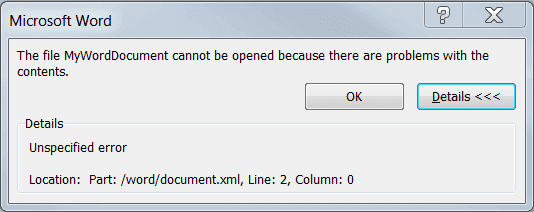
Causes of the Error
There are several reasons why Microsoft Office may not work correctly, resulting in an error message stating that .docx or .xml files cannot be opened due to problems with their contents. The most common causes of this issue include:
- The files are too large, containing non-text elements that exceed the 200KB threshold, making them unsuitable for the platform's size limits.
- Old and new versions are not compatible
- Complicated functioning and advanced operations
- Corruption or damage of the storage media that was used to save the Word document resulted in the loss of the document.
Windows Fixes - The File Cannot Be Opened Because There Are Problems with the Contents
If you're getting an error prompt saying "The file cannot be opened because there are problems with the contents," don't worry! This is a common issue that can occur when trying to open office documents like .docx or .xml files. Fortunately, there are solutions available, including professional Word file repair software that can help fix the problem. You can opt for any of these solutions to resolve the issue and access your files again.
Fix 1. Use Word Repair Software to Fix Word Documents with Problematic Content
If Word documents become corrupted, you may encounter the issue "Word cannot be opened because there are problems with the contents." To resolve this problem and repair damaged Word documents, consider using a file repair tool like Qiling.
This Office file repair software allows you to repair damaged DOCX files and recover unreadable content of MS Office 2019/2016/2013/2010/2007, resolving all types of error messages that a Word file shows while viewing its contents.
Qiling toolkit for file repair key features:
- Utilize a software or tool that can repair multiple corrupted files of various formats (Word, Excel, PPT, PDF) simultaneously, streamlining the process and saving time, rather than individually repairing each file. This feature is often available in file repair software or tools designed for bulk data recovery and repair.
- Fix damaged files saved on various storage media such as USB flash drives, SD cards, and pen drives, among others.
- The process involves using specialized software to scan and recover all file data, restoring it to its original format without any modifications or alterations. This ensures that the recovered files are identical to their original state, with no changes to their structure or content.
Step 1.Launch Deep Data Recovery on your PC, select the file types you want to recover, and click "Fast Scan" to begin the recovery process.

Note: You can choose different search modes based on where and why the data was lost.
Step 2. To repair corrupted documents, click the "Scan" button to scan the disk, and this software will enable you to fix damaged Word, Excel, PPT, and PDF files in the same steps.

Step 3. Qiling data recovery and repair tool scans for all lost and corrupted files, allowing you to find target files by type or search for them by name.

Step 4. Deep Data Recovery can automatically repair damaged documents, allowing you to preview and recover repaired Word, Excel, and PDF files to a safe location.
Qiling data recovery software can recover lost files from various scenarios, including formatted disk/partition, emptied recycle bin, lost partition, and damaged/corrupted hard drives, except for file recovery.
Don't miss: How to recover unsaved Word documents on Windows 10
Fix 2. Use Open and Repair Feature
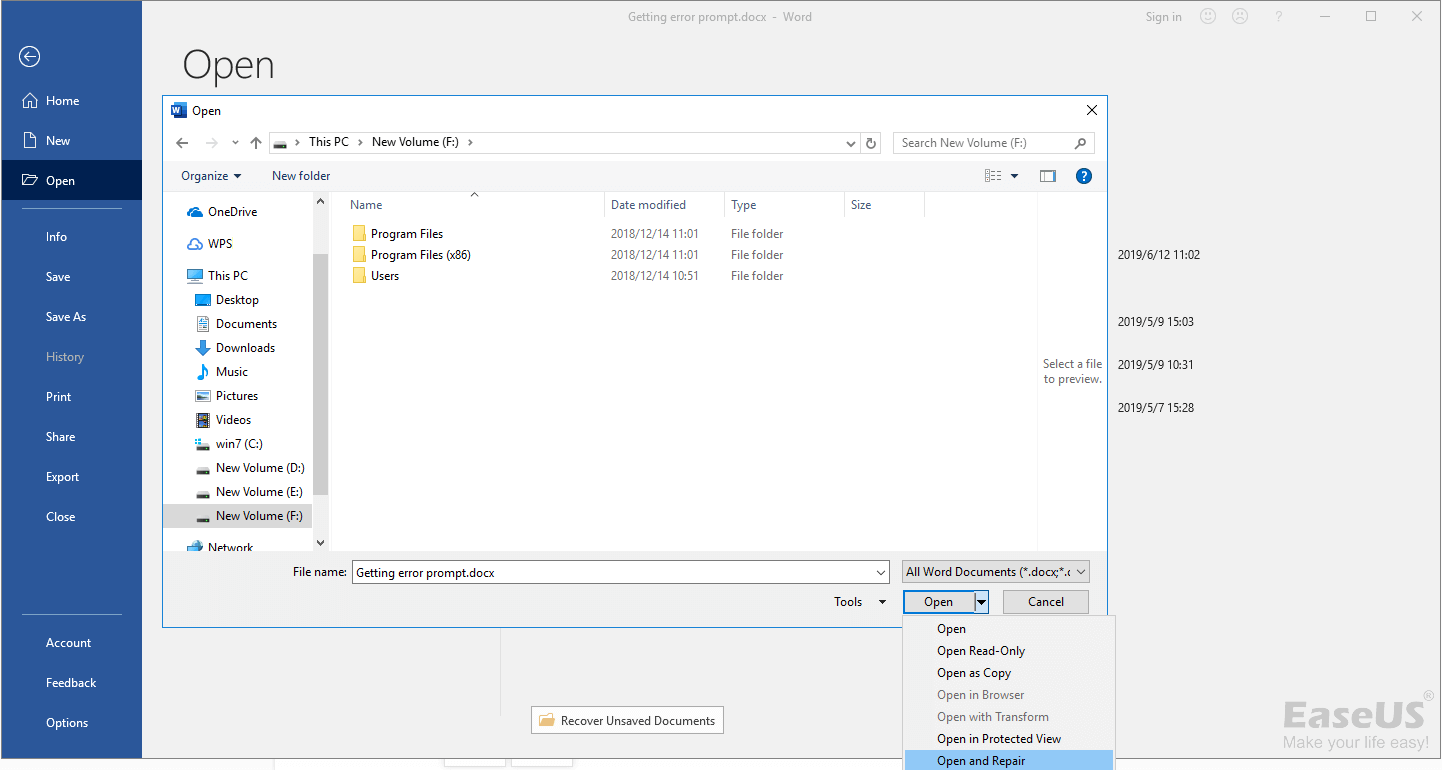
The Word built-in "Open and Repair" feature in Microsoft Office can likely resolve the issue of corruption detected on a document by automatically repairing any damaged file structures or corrupted data.
Step 1. Start Word.
Step 2. On the "File" menu or the Microsoft Office button, click "Open".
Step 3. In the Open dialog box, click to select the blank Word file.
Step 4. Click the down arrow on the "Open" button and then click "Open and Repair".
Fix 3. Use Google Doc
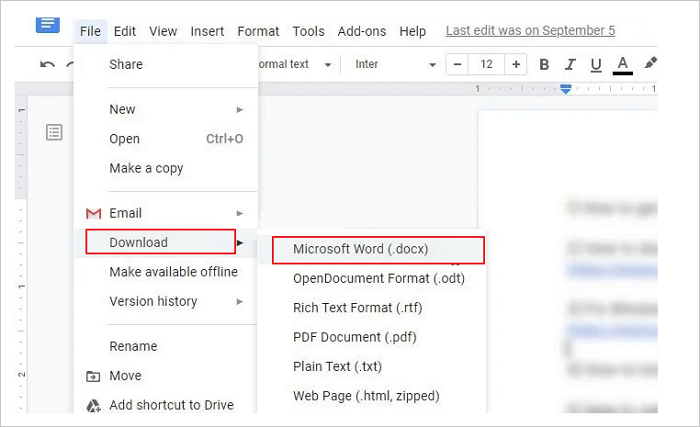
Step 1. Send the corrupted Word file to your Gmail account.
Step 2. Click the attachment to open it in the Google Docs previewer.
Step 3. To view a Google Doc, click on the "Open With Google Docs" option, and the document should open and be viewable.
Step 4. Click "File" > "Download As" > "Microsoft Word (.docx)".
Step 5. Use Microsoft Word to open the document you just downloaded.
Mac Fixes - The File Cannot Be Opened Because There Are Problems with the Contents
If you're a Mac user, you can't open or change a file because Live doesn't have the required permissions to access it, likely due to restricted access rights. This issue can occur when trying to open or save files on the same machine, an external hard disk, or another location with restricted access rights. To resolve this, you can try running Live as an administrator, resetting the permissions of the file, or changing the ownership of the file to the current user account, which should give you the necessary read/write permissions.
Solution 1. Edit the User Account Permissions
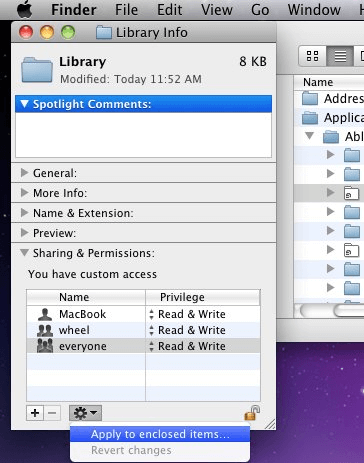
Step 1. In Finder, select the folder that contains the affected file.
Step 2. To open the Info dialog for this folder, press Command (⌘) + I on your keyboard.
Step 3. In the "Sharing & Permissions" tab, assign the current user account "Read & Write" access.
Step 4. To apply the changes to the enclosed items, click the "Apply" button. This will enable read/write access for your user account to all sub-folders within the selected items.
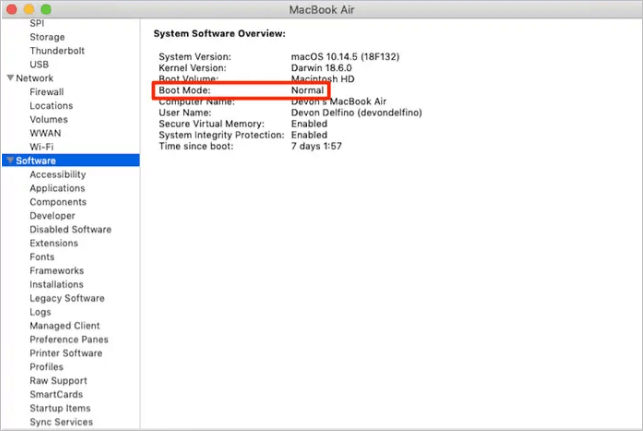
Solution 2. Restart your Mac in Safe Mode
To fix the error by booting into safe mode, follow these steps:
Step 1. To reset your Mac, turn it off, then turn it back on and hold down the Shift key. This will boot your Mac in Safe Mode, which can help resolve issues with startup programs or other system problems.
Step 2. Hold the Shift key down until the login screen appears, then release it.
Step 3. To troubleshoot the issue, try opening a file using Preview in safe mode by holding down the Command (⌘) key while clicking on the Preview icon in the Applications folder. If it works in safe mode, it suggests that the issue is related to a third-party add-on or a corrupted cache. If it doesn't work, it may indicate a deeper problem with the Preview application itself.
Conclusion
The file cannot be opened because there are problems with the contents error can be solved by using a reliable file repair tool, such as Qiling file repair tool, to fix broken Word, Excel, or PDF documents. If additional help is needed, contact us.
Related Articles
- How to Recover Deleted Worksheet in Excel
- Full and Free Solutions for CHK File Recovery
- How to Recover Permanently Deleted Emails from Gmail Account
- How to Recover Files Lost While Moving
- Accidentally Deleted Recovery Partition? Fixed!
Accidentally deleted recovery partition? Learn how to create recovery partition or another partition recovery software for partition recovery in this guide. - BitLocker Data Recovery: Recover Data from BitLocker Encrypted Drives
Learn how to recover data from a BitLocker encrypted drive with a recovery key, password, or recovery software, and what to do before formatting.
Products
Articles & Tutorials
- Data Recovery
- Data Backup
- File Recovery
- File Backup
- System Backup and Restore
- Disk and Partition Clone
- Technical articles
- Mobile articles
- Disk Master Help
- Windows Data Recovery Tutorials
- Windows Secure Delete Tutorials
- Windows Partition Management Tutorials
- Windows File Backup and Restore Tutorials
- Windows System Backup and Restore Tutorials
- Windows Disk Backup and Restore Tutorials
- Windows Clone Tutorials