Fix Unspecified Error When Copying File or Folder on Windows 10
If you're experiencing an unspecified error when copying files or folders on Windows 10, try the following fixes. First, check if the destination drive is available and not in use by another process.
| Workable Solutions | Step-by-step Troubleshooting |
|---|---|
| Fix 1. Format drive to NTFS/exFAT | FAT32 file system won't support a file larger than 4GB and you'll the error. To fix the issue, you can format your drive to NTFS or exFAT that supports large files...Full steps |
| Fix 2. Free up or extend partition | If the unspecified error is caused by not enough space on the hard drive, free up space or extend partition...Full steps |
| Fix 3. Remove write protection | A write-protected device may have an unspecified error. You can remove disk write protection in CMD. Run Command Prompt > type diskpart > type command lines...Full steps |
| Fix 4. Decrypt files to fix unspecified error | If it's the target disk or the file is encrypted, you may see the unspecified error when copying files or folders...Full steps |
| Check more useful fixes | More effective tips to troubleshoot: change the user account; change the file permission...Full steps |
'Error Copying File or Folder' with Unspecified Error on Windows 10/8/7
"Hi guys, do you know how to solve the problem when you are trying to copy a file or a folder to a target partition on your PC when an error message pop up and warn you with an unspecified error of copying file or folder? Yesterday, I was trying to copy a file folder with about 2GB of files to the F: drive. But when I clicked 'Paste', the computer warned me that I couldn't copy files to the destination partition with 'Error Copying File or Folder' warning message. I'm now using Windows 10, by the way. So is there a way that can help me fix this issue so that I can copy and save my files on target partition or hard drive? How?"
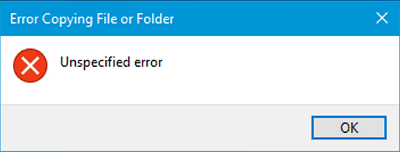
The unspecified error - Users under Windows 10/8/7 may encounter the 'Error Copying File or Folder' issue while trying to copy and paste files to a new location. This error can occur due to various reasons, making it frustrating to resolve. Some common causes include issues with the destination device, file system problems, permissions errors, and more.
Possible Causes of Unspecified Error in Windows
If you're experiencing issues with copying a file or folder on your Windows computer and the error message is unclear, there are several potential causes to consider. These might include issues with disk space, file permissions, or conflicts with other processes running on your system.
- The copied files are larger than 4GB, which exceeds the file size limit of FAT32 partitions, resulting in an error message when trying to copy them to a FAT32 partition such as a USB or SD card.
- The disk is write-protected. If the destination partition or drive is read-only or write-protected, no data can be written into it. This is likely because the drive is currently in use by another program, or it is a system drive that has been locked by the operating system.
- If the Target disk has insufficient free space, large file copies may not complete due to the lack of available space.
- Target disk is corrupted, or the file is encrypted
- System limitation
- File or folder ownership changed
When you encounter an unspecified error message while copying files or folders, it's often due to a conflict between the source and destination paths, corrupted file system structures, or issues with the file system itself. This can be caused by a variety of factors, including disk errors, file system corruption, or problems with the operating system.
How to Fix 'Error Copying File or Folder' Issue Without Losing Data
If you're experiencing the 'Error Copying File or Folder' with an unspecified error in Windows 10, don't worry! There are several ways to resolve this issue. Based on the possible causes, such as corrupted files, permissions issues, or disk errors, you can try various fixes, including checking the destination device or hard drive, restarting your computer, running a disk check, or using the built-in troubleshooter to resolve the problem.
Method 1. Format the Target Partition/Disk to NTFS or exFAT
When trying to copy a large file (over 4GB) to a FAT32 partition, the copy operation will fail due to the file system's size limit on individual files, which is 4GB, despite allowing a total file size of up to 2TB on the partition.
If the files you want to copy are over 4GB, you can compress them with WinRAR or ZIP to make them smaller. If that doesn't work or you get a 'The parameter is incorrect' message, you can format the target partition or disk to NTFS or exFAT to allow the copy.
However, since formatting will erase all the files on your target drive, you should back up the files with free backup software or copy them elsewhere in advance. To format a drive:
Step 1. Open "This PC".
Step 2. Select the target partition, right-click on it, and choose "Format" from the menu.
Step 3. Assign a Windows-compatible file system to your drive and click "Start".
Step 4. In the warning window, click "OK" to confirm the operation.
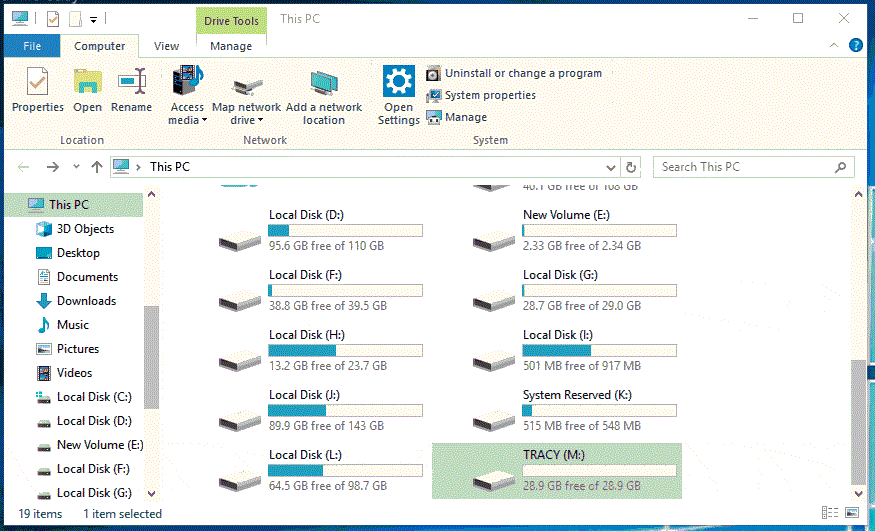
If you're having trouble with your external drive, you can try using the built-in Disk Management tool in Windows 10 to format the target partition. Alternatively, you can refer to a guide on how to format a hard drive in Windows 10 to see how to format the target partition in different ways.
Method 2. Extend the Partition Showing the Unspecified Error
If the error occurs due to insufficient free space on the target hard drive partition, you can either free up space on your computer or use free partition manager software to extend the hard drive partition, resolving the issue with simple steps.
Method 3. Remove Write-Protection on the Target Disk
If your device was write-protected when you came into the 'Error Copying File or Folder' on your computer, you could follow the steps below to remove the write-protection on your device using diskpart:
Step 1. Run "Command Prompt" as an administrator.
Step 2. To enter Diskpart, press the Windows key + X and select Disk Management. Click "Yes" in the prompt asking for notification.
Step 3. Enter the following command in order:
llist volume
select volume X (Replace "X" with the number of your write-protected hard drive.)
attributes disk clear readonly
After setting up your target hard drive partition, you should be able to save files and folders without any issues. If the "read-only" attribute persists, try other troubleshooting tips from the article to resolve the "Windows cannot run disk checking on this volume because it is write protected" error.
If you're not tech-savvy, don't worry - there are graphical solutions to remove write-protection from your hard drives, USB drives, and SD cards, making it easy to access and use them.
Qiling CleanGenius is a tool that helps fix issues on drives without needing command-line knowledge.
Here is a brief guide on how to use this tool to get your issues sorted:
Step 1: DOWNLOAD and install Qiling CleanGenius (free) on your computer.
Step 2: Run Qiling CleanGenius on your PC, select Optimization and choose the Write Protection mode.
Step 3: Select the device that is write-protected and click Disable to remove the protection.
Method 4. Format the Disk or Decrypt the Files
If you're getting an unspecified error while copying files or folders, it might be due to a corrupted target disk or encrypted files. In this case, try formatting the disk if it's corrupted, or simply decrypt the files if they're encrypted.
Method 5. Change the User Account
You may not have permission to edit files and folders with your current account, so try switching to a different account on your computer and then copy the data.
Method 6. Change the File/Folder Permission
If you're experiencing an unspecified error message while copying files or folders, it's likely due to permission issues. To resolve this, you can try changing the permissions by right-clicking on the item you're trying to copy, selecting 'Properties', and then adjusting the permissions settings to allow yourself or the desired user account to take control of the file or folder. This should enable you to copy the item without encountering the unspecified error message.
Step 1. Go to the folder that contains the files you want to copy, right-click it and choose "Properties".
Step 2. To check the permissions of a user, navigate to the "Security" tab, click on your name under "Group or user names," and verify the permissions associated with it.
Step 3. To change the permission, click "Edit", check the permission, and then click "OK".
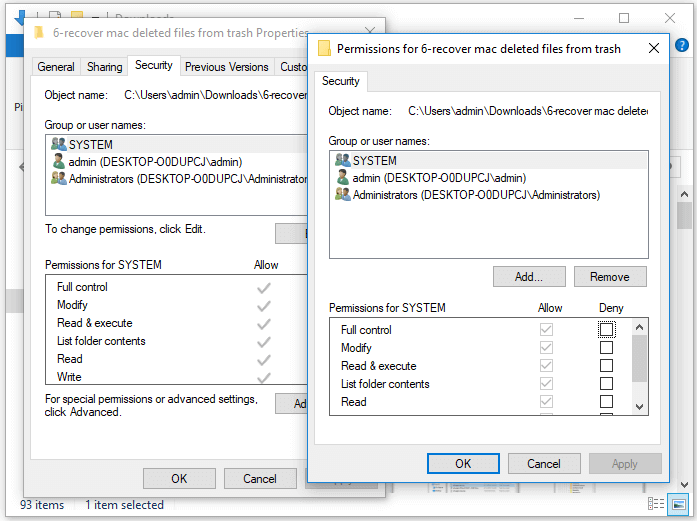
After completing the steps, you should be able to use your target hard drive partition to copy and save files and folders without any issues.
Bonus Tip. Restore Data from Hard Drive Partition with an Unspecified Error While Copying File/Folder
If you've lost important data on a hard drive partition or storage device due to an unspecified error while copying a file or folder, don't worry. You can directly follow the method here to restore data from the device before or after fixing the "Error Copying File or Folder" issue. The powerful hard drive data recovery software, Deep Data Recovery, allows you to scan and find all existing or lost files on the hard drive and recover them to a safe location on your PC with simple steps. You can download this software and apply it to find and extract data from your current hard drive partition with an unspecified error.
Step 1. Run Deep Data Recovery. Select file types and click "Fast Scan" to start the recovery process.

Note: You can choose different search modes based on where and why the data was lost.
Step 2. To recover a lost folder, navigate to the location where you think you lost it and click on "Scan" to initiate a search. This will allow the system to search for the folder in the specified location.

Step 3. To search for a specific folder, you can type its name in the search bar. Alternatively, you can use the Filter feature to narrow down the search results by selecting a specific file type, such as documents, images, or videos. This allows you to quickly locate a particular type of file within the target folder.

Step 4. After previewing the recovered folder, click "Recover" and select a new and secure location on your PC to save the recovered data.
The Bottom Line
If you're encountering an unspecified error when copying files and folders, consider downloading the Windows File and Folder Troubleshooter to resolve file and folder-related issues. Alternatively, running the sfc.exe utility can help identify and repair file system errors. If these methods don't work, you can try the additional tips provided to troubleshoot the issue.
Related Articles
- How to Convert/Change RAW File System to NTFS Without Data Loss
- How to Fix Error Code 0x80004005 Windows 10/11 in All Cases
- Ontrack EasyRecovery Review, Pros, Cons, Performance
- How to Import/Export Chrome Bookmark
- 5 Ways to Fix External Hard Drive Access Denied
External hard drive access denied? Get five solutions to fix this issue on this page. Besides, you can get related tips about external hard drive data/partition recovery. - Google Drive Recover Permanently Deleted Files
How to recover permanently deleted files from Google Drive? You can use native restore feature in Google Drive, data recovery software or backup images.
Products
Articles & Tutorials
- Data Recovery
- Data Backup
- File Recovery
- File Backup
- System Backup and Restore
- Disk and Partition Clone
- Technical articles
- Mobile articles
- Disk Master Help
- Windows Data Recovery Tutorials
- Windows Secure Delete Tutorials
- Windows Partition Management Tutorials
- Windows File Backup and Restore Tutorials
- Windows System Backup and Restore Tutorials
- Windows Disk Backup and Restore Tutorials
- Windows Clone Tutorials