Folder Is Not Accessible Access Is Denied
# 1. Quick fixes for "Folder is not accessible. Access is denied":
| Workable Solutions | Step-by-step Troubleshooting |
|---|---|
| Fix 1. Change Ownership | Right-click inaccessible folder > "Properties" > "Security" > "Advanced"...Full steps |
| Fix 2. Check Permissions | Right-click the folder > "Properties" > "Security" > "Group or user names"...Full steps |
| Fix 3. Remove Encryption | Right-click the folder > "Properties" > "General" > "Advanced" > Uncheck "Encrypt contents to secure data"...Full steps |
# 2. Fixes for "D:\ is not accessible. Access is denied." error:
| Workable Solutions | Step-by-step Troubleshooting |
|---|---|
| Fix 1. Recover Data from Drive | Run Qiling data recovery software > Scan inaccessible drive > Recover data...Full steps |
| Fix 2. Change Ownership | Right-click inaccessible drive > "Properties" > "Security" > "Advanced" > "Edit"...Full steps |
| Fix 3. Check Disk Error | Run Command Prompt as administrator > Type chkdsk N: /f /r (Replace N with the drive letter of your disk)...Full steps |
What Is Access Denied Error in Windows 10/8/7
Windows users often encounter issues when trying to open a folder or specific file types, resulting in various error messages. These errors can occur due to corrupted system files, incorrect file associations, or issues with the application responsible for opening the file. The problem may manifest differently depending on the type of file or folder being accessed, with some users experiencing issues with opening folders, while others may encounter problems with specific file types such as images, documents, or videos.
- The selected folder is not accessible. Access is denied.
- Location is not available. D:\ is not accessible. Access is denied.
- Access denied.
- You don't currently have permission to access this folder.
If you're encountering access denied issues, this guide provides solutions to help. To resolve file/folder access denied problems, try running the Command Prompt as an administrator, using the Take Ownership tool, or checking the permissions of the file or folder. For USB or external hard drive access denied issues, ensure the drive is properly connected and recognized by the system, and then try to access it again.
Issue 1. File/Folder Is Not Accessible, Access Denied
"Lately, I frequently get an error while trying to open any folder in File Explorer, it says folder is not accessible, access is denied. I cannot access, change, save, or delete files and folders with the error messages. How can I resolve these issues and access work with my files and folders? I'm so worried about losing my folder contents."
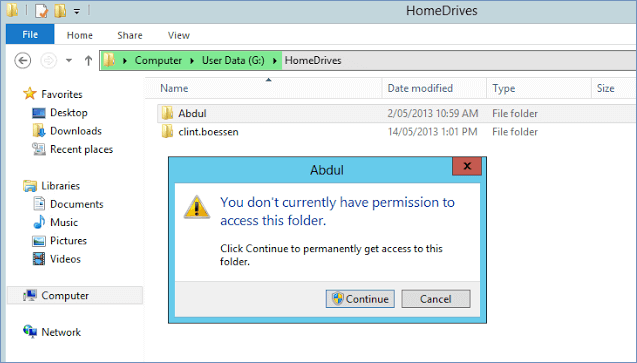
What Causes File/Folder Access Denied
- Folder ownership has changed.
- You do not have the appropriate permissions
- The file/folder is encrypted.
- The file/folder is corrupted.
- The user profile is corrupted.
Solution 1. Take Ownership of the File or Folder
If you can't open a file or folder after installing a new version of Windows, it may be due to changes in account information, resulting in you losing ownership of some files or folders. Restoring your ownership of these files and folders might resolve the issue.
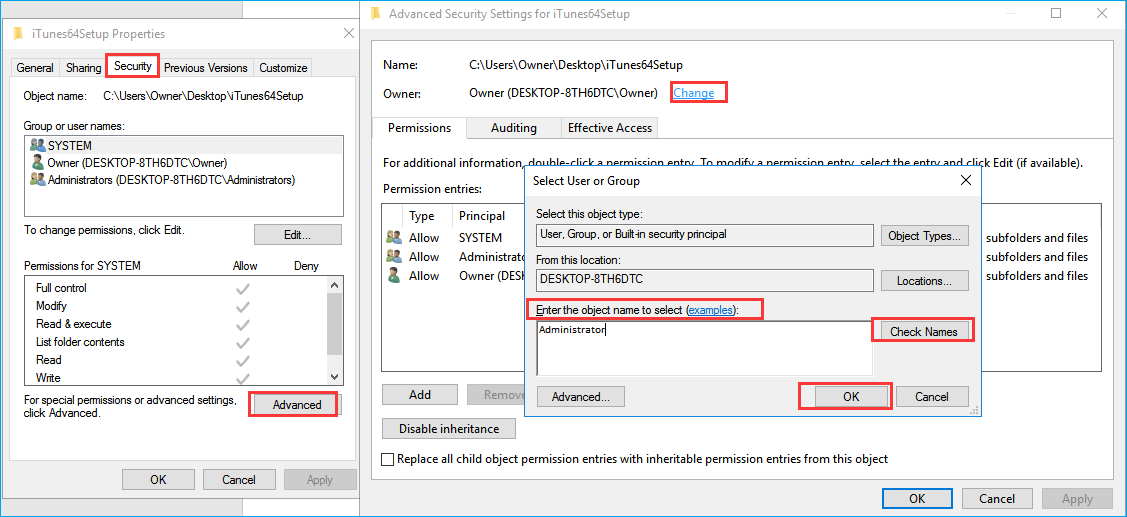
1. Right-click the folder you want to take ownership of, then choose "Properties".
2. To change the Windows Firewall settings, navigate to the "Security" tab, then click on "Advanced", and finally select "Change". If prompted for an administrator password or confirmation, enter the password.
3. Type the name of the user that you want to give ownership to, and then click "Check Names" and "OK".
4. To make this person the owner of the files and subfolders in the folder, check the box next to "Replace owner on subcontainers and objects" and click "OK".
Solution 2. Check Permissions on a File or Folder
If you're encountering an "access denied" error, it's possible that you don't have the necessary permissions to access a file or folder. To troubleshoot, check the permissions on the file or folder by right-clicking on it and selecting "Properties" or "Get Info." This will display the permissions settings, allowing you to verify that you have the required access level.
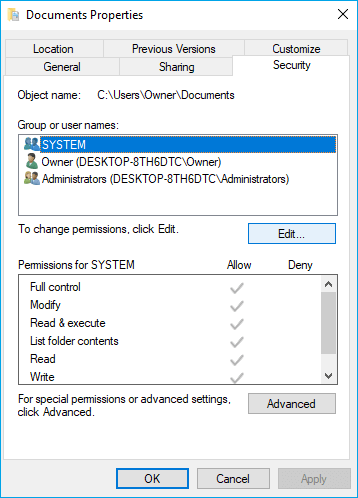
1. Right-click the file or folder, and then click "Properties" > "Security" tab.
2. To access a file or folder, click on your name under "Group or user names" to view your permissions, and ensure you have the "Read" permission.
3. To change the permissions of a file or folder, you must be logged on as an administrator, click on "Edit" under Group or user names, select your name, choose the permissions you need, and click "OK".
Solution 3. Check Whether a File or Folder Is Encrypted
You cannot open an encrypted file or folder unless using the password or certificate. To determine whether a file or folder is encrypted, you can follow these steps.
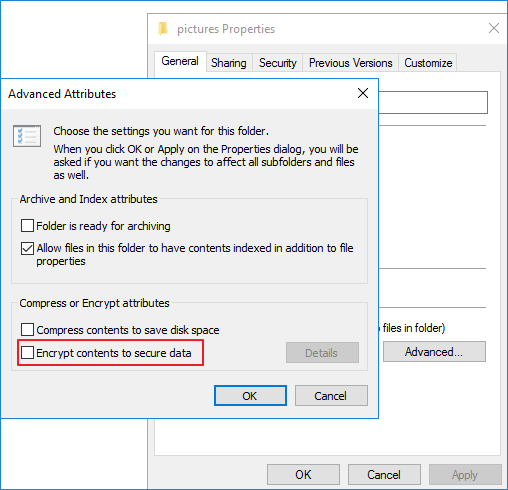
1. Right-click the file or folder, and then click Properties > General tab > Advanced.
2. If the "Encrypt contents to secure data" checkbox is selected, you need the certificate used to encrypt the file or folder to access it. To decrypt the file system, uncheck this box. To decrypt a file, read the related article.
Solution 4. Repair Corrupted Files or Folders
Files can become corrupted due to various reasons like computer crashes, repeated delete recovery, or sudden power outage. Most corrupted files are unrecoverable, but for photos, you can attempt to repair corrupted JPEG files using a file recovery tool.
If a folder is damaged, you can still recover data from the specific folder using Deep Data Recovery, a top-ranking data recovery software.
Issue 2. Hard Drive Is Not Accessible. Access Is Denied
In addition to file/folder access denied problems, you may also encounter USB flash drive or external hard drive access denied errors in Windows 10/8/7. Common error messages associated with this issue include.
- The drive is not accessible because the file or directory is corrupted and unreadable. This issue can be caused by a variety of factors, including a faulty hard drive, a virus, or a software glitch. To resolve this issue, you may need to run a disk check, scan for malware, or try to recover the file using a data recovery tool.
- Drive is not accessible. The parameter is incorrect.
- Drive is not accessible. The disk structure is corrupted and unreadable.
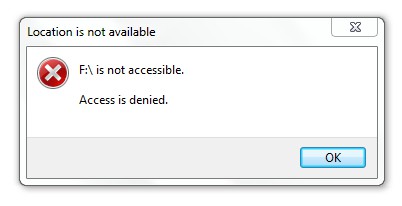
If you encounter an error message, you won't be able to access the files and folders stored on the drive. Instead, try the following approaches to troubleshoot the issue.
Solution 1. Recover Data from Inaccessible Drive
Before attempting to fix a hard drive that's not accessible, it's essential to recover the data first to ensure safety. A deep data recovery software can search through the hard disk or partition for all lost, deleted, hidden, and inaccessible files with just a few clicks, making it ideal for recovering data from an unreadable or inaccessible file on Windows.
Step 1. Select file types and click "Fast Scan" to start
Launch Deep Data Recovery, select the desired file types, and click "Fast Scan" to initiate the recovery process.

Note: You can choose different search modes based on where and why the data was lost.
Step 2. Select a folder to scan for lost files
To recover a lost folder, select "Select Folder" under Specify a location, then click "Browse" to choose the location where the folder was lost, and finally click "OK" to initiate the scanning process.

Step 3. Find and preview found files in the lost folder
If you remember the folder name, type it in the search box to quickly find the lost files. You can then open the found folder and double-click to preview scanned files, or use the Filter feature to find a specific type of file.

Step 4. Recover and save the lost folder
To recover deleted files, select the folder and files you need, click "Recover" and choose a new and secure location on your PC to keep the recovered data.
Once you have exported the data from the USB or external hard drive, you can proceed with resolving the access denied issue.
Solution 2. Take Ownership of the USB or External Hard Drive
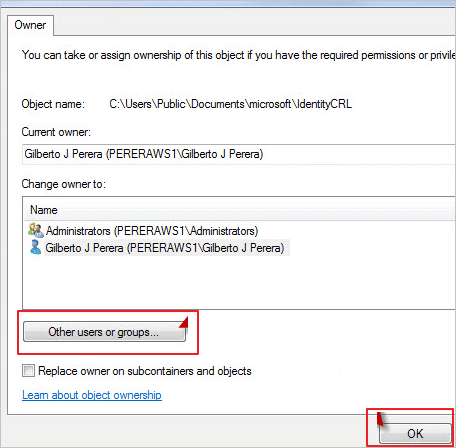
1. Right-click on the inaccessible hard drive, select "Properties".
2. To modify the ownership of the specified account, go to the "Security" tab, hit "Advanced", then click the "Edit" button, and finally, make the necessary changes on the "Owner" tab.
Solution 3. Check and Repair Disk Error
The "Drive is not accessible. Access Denied" issue might suggest file system corruption, disk errors, corruptions, or bad sectors, which can be resolved by running CHKDSK.
1. Plugin your external hard drive, USB drive, or memory card to your PC.
2. Type CMD in the Search box. Right-click and choose "Run as administrator".
3. To fix the "drive is not accessible" error, type the command `chkdsk E: /f /r` in the Command Prompt window, where E is the drive letter of the disk showing the error.
If you're not a fan of using the command line, you can use Qiling CleanGenius, a one-click tool that can help fix file system errors on your hard drive.
Step 1. Download Qiling CleanGenius on your computer for free.
Step 2. The software should be run, and on the left panel, click "Optimization" followed by selecting "File Showing".
Step 3.Go to "Choose drive" and select the drive with a file system error, then check the "Check and fix file system error" option and click "Execute".
Step 4. After the Qiling CleanGenius completes the repairing process, click the "here" link to view the result.
Summary
This article addresses access denied errors in two scenarios: when a folder is not accessible and when a drive is not. Specific reasons and solutions are provided for each case. Whether it's a folder or drive, securing your data should be the first step, and using data recovery software can help you take out your data before fixing the problem.
Related Articles
- How to Corrupt a File So It Won't Open on PC and Mac [Easy Guide]
- How to Recover Corrupted Files from a USB Flash Drive
- Ctrl+Z Deleted Files Recovery: How To Recover Files Lost by Ctrl+Z
- How to Make Files Undeletable in Windows
- 2 Solutions to Recover Lost Partition SD Card
Working to recover lost partitions SD card? Read and check two solutions on how to recover lost partitions on SD card on this page. - Guide to Restore Files from Backup in Windows 10
To restore files from a backup in Windows 10, follow this tutorial to easily recover backed up files.
Products
Articles & Tutorials
- Data Recovery
- Data Backup
- File Recovery
- File Backup
- System Backup and Restore
- Disk and Partition Clone
- Technical articles
- Mobile articles
- Disk Master Help
- Windows Data Recovery Tutorials
- Windows Secure Delete Tutorials
- Windows Partition Management Tutorials
- Windows File Backup and Restore Tutorials
- Windows System Backup and Restore Tutorials
- Windows Disk Backup and Restore Tutorials
- Windows Clone Tutorials