How to Format SD Card Without Losing Data
If your SD card becomes RAW and Windows asks you to format it, don't worry! You can still format the SD card without losing your data. Even if the SD card gets corrupted or damaged, you can follow these solutions to format it safely. The steps below will guide you through the process, ensuring that your files and data remain intact.
SD Card Becomes RAW and Windows Asks to Format It
You can't directly convert a RAW file system to NTFS or FAT32. Instead, you can use a tool like Qiling Partition Recovery or DiskGenius to recover the files from the SD card and then format it to NTFS or FAT32. Alternatively, you can use a card reader to transfer the files to your laptop, then format the SD card. Be sure to back up your files before formatting.
SD cards can become RAW and inaccessible due to various reasons, such as physical damage, logical corruption, or file system errors, making them unusable in digital cameras, mobile phones, and other devices.
- system errors
- human mistakes
- unexpected disasters
When you encounter the RAW drive error, Windows may prompt you to format the device, but this process can result in data loss. To avoid this, you can recover data from the RAW SD card first, and then format the card. This approach allows you to keep your data safe while still resolving the issue with the RAW drive.
Part 1. Restore Data from RAW/Inaccessible SD card
A RAW hard drive is one that has not been formatted with the NT file system, such as FAT and NTFS. When a drive becomes RAW, it becomes inaccessible, showing zero capacity used and unused space, resulting in the loss of all data originally saved on that disk, making it impossible to view or transfer them to a safe place.
But a Qiling disk data recovery software is an ideal choice for recovering data from a RAW drive, allowing access to the drive and retrieving data before formatting. This program is fully compatible with all Windows and macOS, and can also be used to restore data from an SD card, USB drive, HDD, and other storage devices.
Deep Data Recovery Software
- Restore files from lost partitions, RAW drives, and formatted hard drives with ease and effectiveness.
- Support data recovery for a wide range of file types, including images (.png, .jpg), documents (.doc, .pdf), videos (.mp4, .mkv), and executable files (.exe).
- You can start, stop, or restart a data recovery scanning process whenever you want, allowing you to tailor your data recovery schedule to your needs.
Step 1. To connect your SD card to your computer, ensure that the card is properly inserted into the SD card reader, which is usually a slot on the computer or a separate card reader device. Once the card is inserted, Windows should automatically recognize it and assign it a drive letter, allowing you to access and manage the files on the card. If Windows does not recognize the card, you may need to manually select it from the list of available drives or restart your computer to initiate the recognition process.
Step 2. Launch Deep Data Recovery, you can see all supported file types listed. Uncheck any unwanted file types and click "Next" to proceed.

Note: You can choose different search modes based on where and why the data was lost.
Step 3. Select your SD card according to its drive letter under the Devices section. Click "Scan" to start finding lost data on your SD card.

Step 4. After the scan, you can check and preview found files by double-clicking each one of them.

Step 5. After selecting the files you want to recover, click Recover and choose a location to save the files, making sure not to save them back to the original storage device that caused the loss.
Part 2. Format the RAW SD Card Without Losing Data
After recovering data from a RAW SD card, you can safely format the card to NTFS or FAT32 without worrying about losing any data, as the files have already been restored.
1. Manually format your SD card
Step 1. Insert your SD card into a card reader and connect the card reader to your computer.
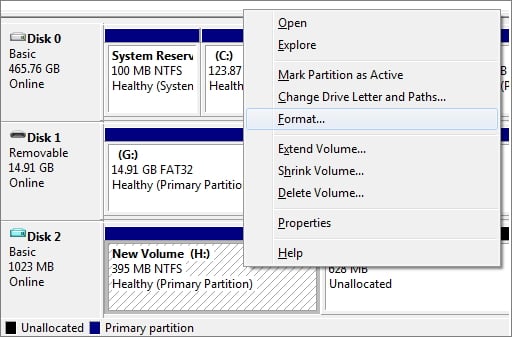
Step 2. Right-click "This PC", choose "Manage", enter "Disk Management".
Step 3. Locate and right-click on your SD card, choose "Format".
Step 4. To format your SD card, click "Yes" to confirm, then select a new label and file system - such as exFAT, FAT32, or NTFS - and click "OK".
2. Format your SD card with software
Here, we recommend a third-party SD card formatting tool that's easy and fast to use. It can format SD cards on Windows 10 and other operating systems, and can be downloaded and installed on PC.
Part 3. Back Up Files to Protect Your Data
To avoid data loss, it's best to back up your SD card before any issues arise. This way, if something happens, you'll already have a copy of your data, and you won't have to worry about losing anything. Regular backups can be a great preventive measure against data loss.
To back up files in advance, consider using free file backup software like Qiling Backup. This tool allows you to create a file backup and offers additional features, such as scheduling backups daily, weekly, or monthly. It also provides other useful functions like disk clone, partition clone, or system clone, making it a comprehensive solution for backing up and cloning data.
Step 1: Open Qiling Backup and select "File backuup" as the backup mode.

Step 2: Select the files you want to back up and quickly locate them under the "Filter" mode to narrow down your search.

Step 3: Select a destination to save your backup file, choosing a location such as an internal or external storage drive, a cloud drive, or a NAS drive, with a recommended secure and convenient location.

Step 4: Click "Proceed" to execute your operation.
Related Articles
- How to Fix USB Flash Drive Not Formatted Error Without Losing Data
- Buffalo Nas Data Recovery Software | Recover NAS Data Quickly
- Free Hard Disk Repair Software for Hard Disk | Step-By-Step Guide
- Recycle Bin Recovery Software Free Download Full Version [Step-by-Step Guide]
- How to Repair A Corrupted Word Document in Windows 11/10
If your Word document is corrupted and becomes unreadable or inaccessible on Windows 11/10/8, there are some Word doc recovery & repair solutions that can help fix it. You can try these solutions to recover your Word file. - How to Recover Files Deleted from USB Flash Drive/SD Card Not in Recycle Bin [2023]
If you deleted files from a USB drive or SD card and they're not in the recycle bin. You can use Deep Data Recovery software to try and recover the deleted files.
Products
Articles & Tutorials
- Data Recovery
- Data Backup
- File Recovery
- File Backup
- System Backup and Restore
- Disk and Partition Clone
- Technical articles
- Mobile articles
- Disk Master Help
- Windows Data Recovery Tutorials
- Windows Secure Delete Tutorials
- Windows Partition Management Tutorials
- Windows File Backup and Restore Tutorials
- Windows System Backup and Restore Tutorials
- Windows Disk Backup and Restore Tutorials
- Windows Clone Tutorials