How to Correct #DIV/0 Error in Excel | Check Your Full Guide 2022
The user is trying to calculate an average in a pivot table in Excel 2007, but it's showing a #DIV/0 error instead of values. They're seeking help to resolve this issue.
To correct the #DIV/0 error in Excel, start by checking the basic information of the error, then apply the matching solution. If you're experiencing other Excel errors, such as #N/A, #NAME?, #REF!, or #VALUE!
Quick Navigation:
What is #DIV/0 Error in Excel and How Does It Happen
How to Correct #DIV/0 Error
How to Avoid the #DIV/0 Error in Excel
FAQ about #DIV/0 Error
To remove the #N/A, #REF!, and #NAME? errors in Microsoft Excel, follow these steps: First, identify the error type and its cause. #N/A indicates a missing or non-existent value, #REF!
To Sum Up
What is #DIV/0 Error in Excel and How Does It Happen
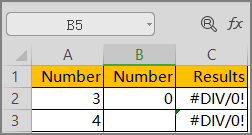
When a number is divided by zero, Microsoft Excel will display the #DIV/0 error, as seen in examples such as =3/0 or =4/blank.
How to Correct #DIV/0 Error
The easiest way to fix the #DIV/0 error is to use the IFERROR formula, which returns a specified value if a formula evaluates to an error, otherwise returning the result of the formula.
Check the tutorial here: If your formula= A2/B2, and you can type =IFERROR (A2/B2, "").
The formula will evaluate your previous formula and then returns the result of the formula.
How to Avoid the #DIV/0 Error in Excel
1. The divisor in the formula isn't blank or zero.
2. To resolve the issue, enter #N/A in the cell reference as the divisor. If the results show as #N/A, it means your divisor is invalid. This means that the divisor is not a number, which is causing the error.
3. To resolve the issue, you need to change the cell reference in the formula or function to a cell that contains a non-zero or non-blank value. This will allow the formula or function to perform the calculation or operation correctly.
4. Make sure your value is right.
Have you resolved the excel error by this method? To seek more info about Excel errors, you can read the frequently asked question and the other three errors in the next part.
FAQ about #DIV/0 Error
To get rid of the #DIV/0 error in your calculated field, you can use the IFERROR function in Excel. This function allows you to specify a value to return when an error occurs, such as #DIV/0!
The instant way to handle errors in Excel is to use the IFERROR function, which checks if a value is an error and returns a specified value if it is, using the syntax IFERROR(value, value_if_error).
If you're using =B1/C1, you can use a formula like =IFERROR(B1/C1,0) to display 0 instead of an error message. Simply press Enter and the content will display 0.
2 - How to remove #DIV/0 in Excel pivot?
Step 1. Under the ANALYZE tab, click PivotTable.
Step 2. Choose Options and the PivotTable Window will display.
Step 3. Under the "format" section, you can check "For error values show:".
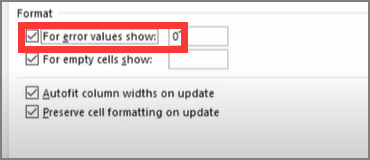
Step 4. Click OK.
Extra Tip: How to Remove Other Microsoft Excel Error (#N/A, #REF!, #NAME?)
1 - How to Fix #N/A Error
When using VLOOKUP, HLOOKUP, or similar functions, the #N/A error appears because the formula cannot find the source data in the referenced table.
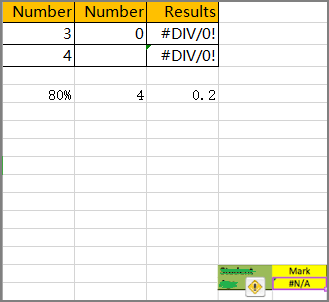
To resolve the error, find the existing text in the source data.
Causes of the error:
- Incorrect lookup value
- Extra space characters exist in the source data.
- Wrong search range
- Approximate value and exact value
- Mismatch lookup value
To handle the error by using IFERROR, for example:
If the #N/A error shows in cell C8 when using VLOOKUP, you can use IFERROR to wrap around VLOOKUP, like =IFERROR(VLOOKUP(C2, data, 2, 0), "Not found") to return "Not found" instead of the error.
2 - How to Fix #REF! Error
The #REF! error occurs in Excel when the formulas reference cells that have been deleted, making the cell data invalid.
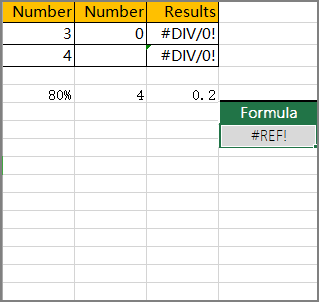
To fix the error, press Ctrl + Z to undo the delete operation, which should correct the issue if it works.
Press Ctrl +F to find the #REF! error, and type blank to replace it.
3 - How to Fix #NAME? Error
When your formula contains unrecognized text, function errors, spelling mistakes, incorrect formats, non-existent references, or other errors, the Formula Wizard can be used to correct the issue instead of manually entering the formula. This approach is recommended by Microsoft.
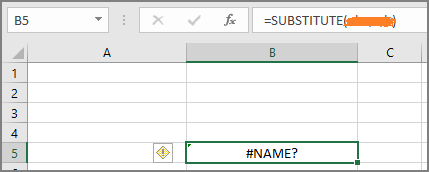
To remove #NAME? Error with the Formula Wizard:
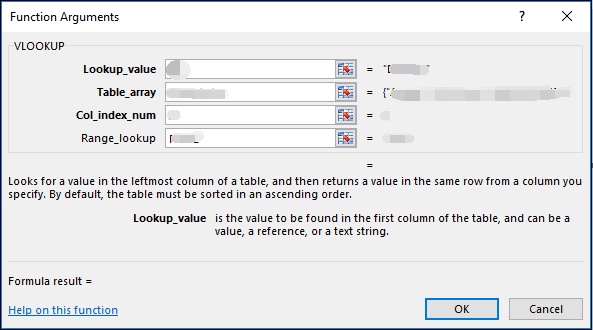
Step 1. To insert a function in Excel, go to the "Formula" tab and click on "Insert Function" which will display the Insert page.
Step 2. Choose the formula you want to insert, and click OK.
Step 3. In Excel, to load the Function Arguments window, input the context you want.
To Sum Up
We have highlighted the #DIV/0 error, but also provided solutions to other common errors, such as #NAME?, #REF!, #NULL!
Related Articles
- How to Recover Deleted Files from Laptop/PC on Windows 10/8/7
- Why is My Camera Not Working on Laptop | Fix Camera Not Working
- How to Recover PowerPoint Files Not Saved | Free PowerPoint Files Recovery Methods
- How to Disable AutoSave in Word and Excel
- Witcher 3 Missing Saves | How to Restore Witcher 3 Game Saves
Witcher 3 missing saves on PC? there is a solution! We are here to help you recover Witcher 3 missing saves; five methods will be mentioned in this guide. You'll know how to recover missing data on different devices. - The Legend of Zelda: Tears of the Kingdom File Size on PC/Nintendo Switch
The Legend of Zelda: Tears of the Kingdom has a specific file size, but we'll provide that information shortly. If you're running low on space to download the game, we can also offer tips on how to free up space.
Products
Articles & Tutorials
- Data Recovery
- Data Backup
- File Recovery
- File Backup
- System Backup and Restore
- Disk and Partition Clone
- Technical articles
- Mobile articles
- Disk Master Help
- Windows Data Recovery Tutorials
- Windows Secure Delete Tutorials
- Windows Partition Management Tutorials
- Windows File Backup and Restore Tutorials
- Windows System Backup and Restore Tutorials
- Windows Disk Backup and Restore Tutorials
- Windows Clone Tutorials