How to Open ISO File in Windows 10/11 Without Burning
What Is an ISO File
An ISO file, also known as an ISO image, is an archive file that contains a CD or DVD's contents. It can be directly burned into a system CD using burning software, and is often used for backing up optical discs or distributing large files, such as programs or operating systems, that can be mounted or burned to a DVD.
Most downloaded Linux installation files and some operating systems, including Windows, are distributed in ISO format.
How to Open ISO file in Windows 10 Without Burning to DVD
In Windows and Linux, you need to use special tools to run and operate ISO files, such as WinISO, WinImage, Daemon Tools, and WinMount. Alternatively, you can use WinRAR to view the contents of an ISO file for free.
WinRAR is a free tool that can be used to open many file types, including ISO files. To open an ISO file in Windows, you can use WinRAR to extract the files from the ISO file, or you can use the built-in Windows tool to mount the ISO file as a virtual drive. This allows you to access the files in the ISO file without having to extract them.
Step 1. Install the latest version of WinRAR x64, which is specifically designed for 64-bit computers.
Step 2. Download and save the .iso file on your computer, which may be in the Downloads folder if it was downloaded from a website.
Step 3. To open an ISO file, find the file you want to open, right-click on it, and select "Open with" from the context menu.
Step 4. Click "WinRAR archive". This may take a few minutes to fully extract the ISO file.
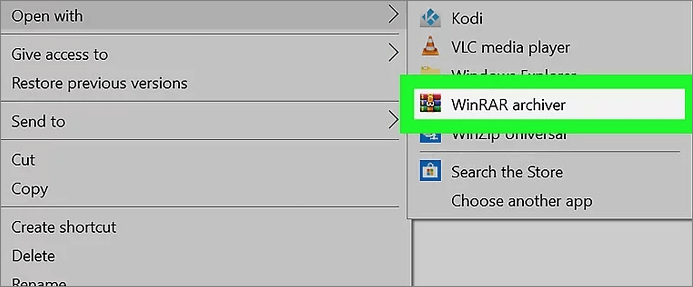
WinRAR can open ISO files by going to "File > Open" and selecting the ISO file.
Step 5. Now, you should see all the ISO files in the WinRAR window. If there is a setup file of the ISO file, you can double-click to run.
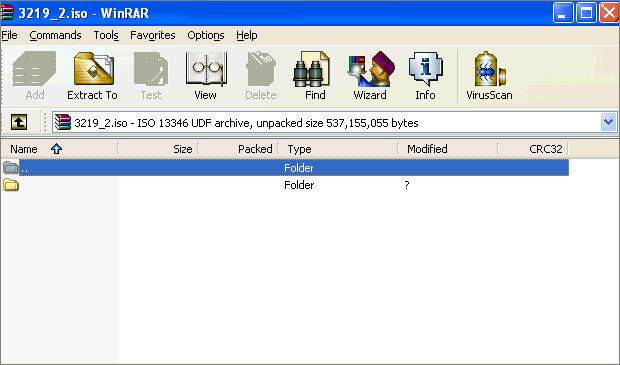
To open an ISO file for free, you can use WinRAR. Alternatively, if you want to mount or burn an ISO file on your Windows 10 or Windows 11 computer, there are other ways to do so.
Steps for Mounting an ISO File:
Step 1. To find the ISO file, right-click it and select "Properties".
Step 2. Click "General" > "Change".
Step 3. To open the ISO file, choose "Windows Explorer" and click "OK."
Step 4. Right-click the ISO file and select "Mount".
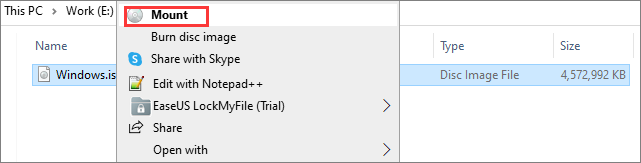
Steps for Burning an ISO File:
Step 1. Navigate to the ISO file, right-click on it, and select "Burn disk image" from the context menu.
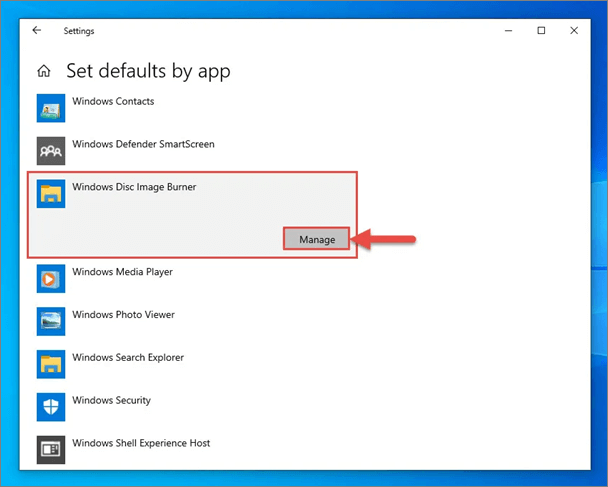
Step 2. The Windows Disc Image Burner is a built-in tool that allows you to burn ISO files to a DVD. To use it, first insert a blank DVD into your computer's DVD drive.
Addition Help: How to Restore Lost ISO File Quickly and Easily
ISO files are typically large in size, making them time-consuming to download and often reusable. If you accidentally delete or lose an ISO file, especially a crucial one, due to formatting your storage device, a reliable data recovery tool can help you easily retrieve it.
Deep Data Recovery is a file recovery program that helps restore deleted or lost files from various storage media.
Qiling data recovery software's highlights:
- Data recovery software can be used to recover deleted, formatted, and inaccessible data in various data loss situations, such as accidental deletion, formatting, virus attacks, hardware failure, and power outages. These tools can scan the device's storage media, identify recoverable data, and restore it to its original location or a new location.
- Data recovery software can repair corrupted files such as Excel, MP4, MOV, GIF, JPEG, and JPG by scanning the file's structure and rebuilding it from the remaining data. This process can recover lost data, images, and videos, even if the file is no longer accessible due to corruption or damage.
- Restore lost data on various Windows operating systems, including Windows 10, 8.1, 8, 7, Vista, XP, and Windows Server 2019 and 2003, using a reliable data recovery software.
Get this professional data recovery software for free to easily recover lost ISO files, documents, photos, and videos in just a few clicks.
Step 1. Select file types and click "Fast Scan" to start
Launch Qiling file recovery software on your Windows computer. Select file types and click "Fast Scan" to start the recovery process.

Note: You can choose different search modes based on where and why the data was lost.
Step 2. Select the location to scan
To recover permanently deleted files, select the device and drive where the files were deleted using Shift delete or emptied from the recycle bin, and then click the "Scan" button to locate the lost files.

Step 3. Check the results
The software will automatically scan the selected drive, then select the "Deleted Files" and "Other Lost Files" folders in the left panel. Use the "Filter" feature or click "Search files or folders" to quickly find the deleted files.

Step 4. Recover deleted files
Select the deleted files and click "Preview". Then, click "Recover" to save them to another secure location or device.
People also Ask Questions About Opening an ISO File
There are more questions people commonly search for online. Check the brief answers to ISO file opening.
1. How to open an ISO file on Mac?
You can open ISO files on a Mac using a free tool called The Unarchiver, which can also unarchive other formats like Zip, RAR, 7-zip, LZH, and ARC.
Step 1. To install The Unarchiver on your Mac, simply go to the App Store and download the app. This will allow you to easily extract files from archives, including zip, tar, and other formats.
Step 2. Find the ISO file you want to open.
Step3. To open a compressed file, go to the "File" menu at the top of the screen, select "Open With", and then choose "The Unarchiver.app".
Step 4. Then, the Unarchiver will begin extracting your ISO file.
Step 5. Check and view your ISO files' content.
2. Can you run an ISO file from a USB drive?
You can create a bootable USB drive with an ISO file using a tool like Rufus.
Step 1. Download and install the Rufus tool.
Step 2. Connect the USB to your computer.
Step 3. To burn an ISO file to a USB storage device, open Rufus and select the device you want to use under the Device section.
Step 4. Select your ISO files and customize the settings. Choose Start to begin the process of burning the ISO file onto the USB drive.
3. How to open ISO file on Android
To open ISO files on Android, you can either download and install an app like VLC for Android, which supports ISO files, or convert the ISO file to a format that's supported by Android.
Related Articles
- How to Recover Deleted/Overwritten/Unsaved CSV Files [Solved]
- Recuva Said File Is Unrecoverable | How to Repair or Recover
- Free Download Hidden File Recovery Software to Recover Hidden Files
- How to Open Corrupted Excel, Word, and PPT Files Without Backup
- How to Recover Unsaved/Deleted Quicktime Recordings
This how-For Mac users, guide offers full solutions to recover unsaved Quicktime recordings from temp files and deleted Quicktime videos and audios. - Your Complete Guide: How to Recover Unsaved Keynote Files on Mac
If you've lost an unsaved Keynote file on your Mac. This guide offers a complete solution to recover your unsaved Keynote file using Qiling file recovery software for Mac, as well as three reliable manual methods.
Products
Articles & Tutorials
- Data Recovery
- Data Backup
- File Recovery
- File Backup
- System Backup and Restore
- Disk and Partition Clone
- Technical articles
- Mobile articles
- Disk Master Help
- Windows Data Recovery Tutorials
- Windows Secure Delete Tutorials
- Windows Partition Management Tutorials
- Windows File Backup and Restore Tutorials
- Windows System Backup and Restore Tutorials
- Windows Disk Backup and Restore Tutorials
- Windows Clone Tutorials