How to Recover Data from a Buffalo External Hard Drive: Data Recovery Buffalo
If you want to learn how to retrieve data from a Buffalo external hard drive, install the best hard drive recovery solutions on your computer first. After that, follow the steps below for how to recover data from Buffalo external hard drive.
"How do I recover files from a Buffalo external hard drive? I had saved some important files there. However, it shows 0 byte. Where are the files? Can I restore them?" – Jack
It could be a nightmare when suddenly all your files are just gone for no reason at all. If you had backed up the Buffalo external hard drive, then you can restore the lost files. However, it's not a habit for users to backup an external hard drive.
Part 1. Data Recovery Software to Recover Files from Buffalo External Hard Drive
It's the right idea to recover data from Buffalo external hard drive the moment you realize you have lost the data. You know, no technology can guarantee recovery of lost data. However, the sooner the better the result will be since it will decrease the possibilities of data overwritten.
How to retrieve data from Buffalo external hard drive? You must know that there is no cancel deletion or command line to look for and recover data from a Buffalo external hard drive. The only option is using data recovery software to recover files from Buffalo external hard drive. You can download Deep Data Recovery to have a try.
Deep Data Recovery is used by millions of users. It's famous for its high recovery rate and supports multiple file formats, external hard drives, as well as data lost scenarios.
Best Data Recovery for Buffalo External Hard Drive
- Recover pictures, videos, audio files, documents, and other types of files from Buffalo external hard drive.
- Fully compatible with Buffalo external hard drives, recovering files lost to deletion, system errors, formatting, virus attacks, and more
- Standalone version for Windows PC and Mac. You can recover files from Buffalo either on PC or Mac.
- Easy-to-use. 3 simple steps to recover files from Buffalo external hard drive: target file types and Buffalo external hard drive -> scan files -> recover files.
Download the Buffalo Data Recovery to scan lost files!!!
Part 2. Guide for How to Recover Data from a Buffalo External Hard Drive
To use the data recovery software to recover files from a Buffalo external hard drive, you first need to connect the Buffalo external hard drive with your computer and ensure it is detected by your computer as an external hard drive. Then follow the steps below.
Step 1. Install the data recovery software for Buffalo
Click the Download button to get the right version for your computer. It depends on whether you perform the recovery on a Windows PC or a Mac. Then install it on your computer. If you want to recover files from Buffalo on Mac, before installing it, set System Preferences to allow apps from the App Store and identified developers.
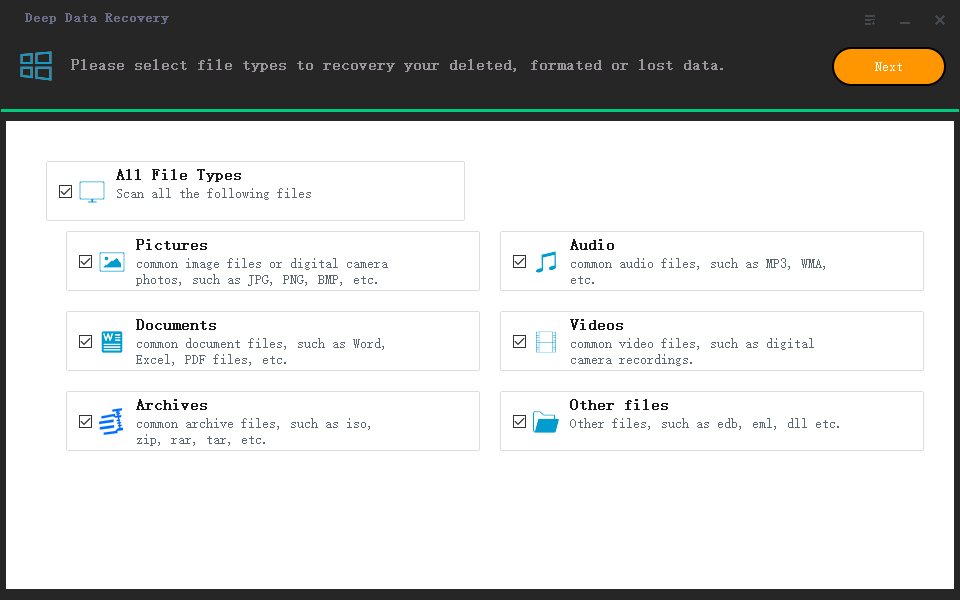
Step 2. Select file types and target Buffalo external hard drive to scan
Launch the Buffalo data recovery software. In the first window, please select the file types you want to recover from the Buffalo external hard drive. Then click "Next". In the next window, you can see drives on your computer as well as the connected Buffalo external hard drive. Please select the Buffalo external hard drive and click "Scan" to external hard drive data recovery.

Step 3. Preview and recover data from Buffalo external hard drive
If there are many lost files on the Buffalo external hard, it will take longer for the scanning process to finish. Wait patiently. When the scanning process is done, you can select file types on the left side and preview the details of the found files on the right. When finding the target files, select them, and click "Recover" to save them.

By default, the Buffalo data recovery software scans for deleted files. If the files you need are not in the result list, then you need to try the "Deep Scan" in the resulting window. It scans more thoroughly to look for additional files. The process is similar to the default "Quick Scan", but takes longer.
Tips: How to Increase the recovery rate from Buffalo external hard drive
- If you want to recover more files from the external hard drive, keep your Buffalo drive idle until the recovery is complete. Any operation on the drive may overwrite the lost files.
- Start the Buffalo data recovery as soon as possible.
- Try Deep Data Recovery as soon as possible. It's trustworthy and works very well.
Related Articles
- HP External Hard Drive Data Recovery Software Free Download
- How to Recover Data from Damaged External Hard Drive
- Western Digital External Hard Drive Data Recovery Software Free Download
- Recover Data from WD My Book Essential/Live
- Best Hard Drive Recovery Software
Products
Articles & Tutorials
- Data Recovery
- Data Backup
- File Recovery
- File Backup
- System Backup and Restore
- Disk and Partition Clone
- Technical articles
- Mobile articles
- Disk Master Help
- Windows Data Recovery Tutorials
- Windows Secure Delete Tutorials
- Windows Partition Management Tutorials
- Windows File Backup and Restore Tutorials
- Windows System Backup and Restore Tutorials
- Windows Disk Backup and Restore Tutorials
- Windows Clone Tutorials