SD Card Not Showing Up or Working in Windows 11/10/8/7
If your SD card isn't showing up or working on your PC, try these solutions: check if the card is properly inserted, update the SD card driver, disable and re-enable the SD card in Device Manager, and format the card if it's not detected. If data loss occurs, use Deep Data Recovery for fast and effective data recovery on your SD card.
SD Card Not Showing Up or Working Solutions Overview
Fixing an SD card that's not working or showing up on a PC can be achieved through several effective methods, including testing the SD card on another PC, changing the drive letter, running a CHKDSK scan, and more. By trying out these solutions, users can determine which one works best to resolve the issue.
If you're experiencing issues with your SD card, try testing it on another computer or with a different card reader to rule out any compatibility problems. This simple step can help determine if the issue lies with the SD card itself or with your current setup.
Solution 2. Change the Drive Letter of Unrecognized SD Card
Solution 3. Run CHKDSK to Make the SD Card Detectable
Solution 4. Update the SD Card Driver
Solution 5. Recover Data and Format SD card
SD Card Not Showing Up Symptoms
If you're experiencing issues with your SD card, such as data corruption, inability to access files, or unexpected formatting, it may indicate that the card has developed problems that could potentially lead to data loss.
- SD card is not recognized
- The SD card is not being recognized by any device, including the PC, Android phone, camera, or camcorder, which means it's not being detected. This could be due to a variety of reasons such as a faulty SD card, a malfunctioning SD card reader, or a corrupted file system on the SD card.
- A non-readable SD card can be frustrating. Here's a possible reason and solution: The SD card might be damaged, corrupted, or not properly initialized.
- If an SD card doesn't show up on a PC, camera, Android phone, or other devices, it may be due to various reasons such as the card being damaged, corrupted, or not properly initialized. To troubleshoot, try using the SD card in a different device or slot to rule out hardware issues.
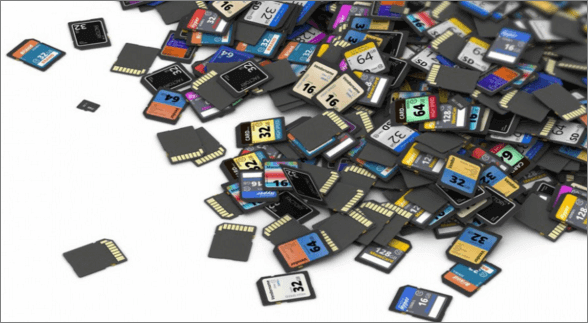
If you're experiencing issues with your SD card, start by figuring out why it's not being detected or recognized. This will help you identify the root cause of the problem and find a solution to fix it.
Why Is SD Card Not Showing Up
SD cards not showing up on Windows PCs is a common issue. The problem may be due to various reasons, and checking the list of possible causes may help identify the exact reason why your SD card is not recognized or showing up.
- Poor contact between SD card and computer.
- The drive letter of your SD card is missing.
- The SD card's file system is not being recognized or is corrupted, which can be caused by various factors such as physical damage, improper ejection, or software issues. This can result in the SD card being inaccessible or unusable.
- The device driver is outdated.
- The SD card is infected with a virus.
Mac users also experience this issue, you can refer to this link to solve the problem on your SD card: flash drive not showing up on Mac.
We've collected a list of solutions to fix the issue of a corrupted memory card not being detected, with no risk of data loss. You can try them one by one to repair the issue.
Solution 1. Test SD Card on Another PC or A New Card Reader
If you're experiencing issues with the computer interface or SD card reader, it's likely due to a hardware problem. The SD card reader might be faulty or the computer's USB ports could be malfunctioning.
When your SD card or hard drive is not showing up on your PC, first check if the SD card has a connection issue. You can test this by trying two methods: using a different USB port or using a different SD card reader. If neither of these methods work, the issue may be with the SD card itself.
- If your SD card reader or USB adaptor is not working properly, it may be due to a faulty device. In this case, you can try replacing it with a new one.
- Connect the SD card to another PC
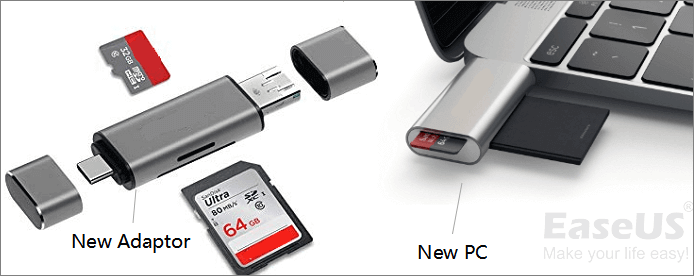
To determine if the SD card reader is faulty, you can test the SD card in a different computer or with a new SD card reader. If the SD card works with the new device, it indicates that the original card reader was faulty. This can be a cost-effective and efficient way to troubleshoot the issue without having to replace the SD card.
If your SD card is not working on either your other PC or a new card reader, the issue is likely with the SD card itself. You can try to resolve this problem by using a data recovery software to recover your data, or by formatting the SD card and then using it again. You can also try to contact the manufacturer or the seller of the SD card for assistance.
Solution 2. Change the Drive Letter of Unrecognized SD Card
The SD card does not have a driver letter disk or there is a drive letter conflict problem. This issue can be resolved by reassigning the drive letter or by using a third-party driver to assign a unique drive letter to the SD card.
If your SD card is connected to the computer well but fails to show up in File Explorer, you can check if its drive letter is missing or disappearing in Disk Management.
If it's so, you can assign a new drive letter to your card and make it recognizable again with the steps below:
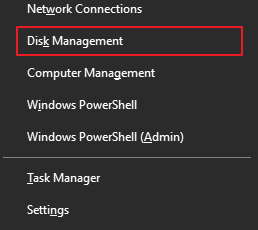
Step 1. Right-click the Windows Start button, choose "Disk Management".
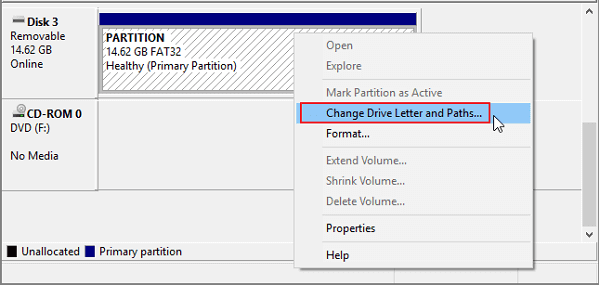
Step 2. Located the SD card, right-click the partition on it, and select "Change Drive Letter and Path…".
Step 3. In the pop-up window, click "Add" to assign the drive letter to your SD card.
Solution 3. Run CHKDSK to Fix the SD Card Error
If your SD card is not being detected due to a corrupted file system, you can try to fix it by using professional data recovery software to recover your files, and then formatting the SD card using a tool like SD Formatter to restore its original file system. This will erase all data on the card, so be sure to back up any important files before proceeding.
Step 1. To check if your computer can detect your memory card, right-click on My Computer/This PC, select "Manage", then click on "Disk Management". Look for the device in the drive viewer, which will indicate whether the computer can detect and recognize your memory card.
If it is not detectable, continue the process with the CHKDSK command with the following steps.
Step 2. Press "Win+R" keys > Type: cmd and hit Enter.
Step 3. Type: chkdsk g: / f and hit Enter. (g is the drive letter of your memory card).
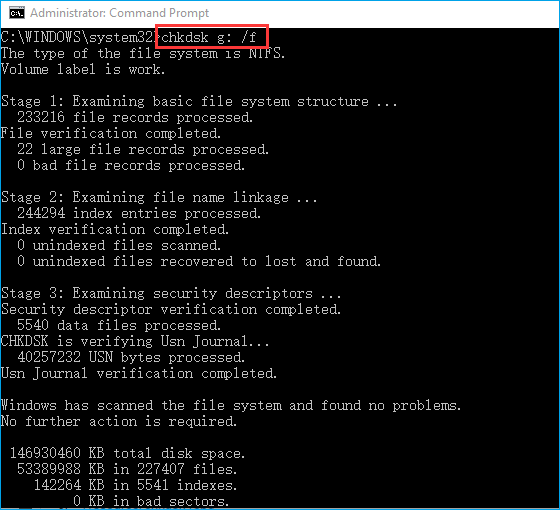
Run the command `chkdsk D:/f /offlinescanandfix` in Command Prompt to check and fix errors on your SD card. This will automatically detect and repair any issues, making the card readable again.
Solution 4. Update the SD Card Driver
The SD card is not functioning properly due to an outdated or problematic disk driver. This can be resolved by updating the disk driver to the latest version or reinstalling it to ensure compatibility and proper functionality.
To resolve the issue with your card reader, go to the Device Manager, where you'll find the card reader listed. If it's accompanied by a yellow exclamation mark, the problem is likely due to a driver issue. To fix this, update the driver by following these steps:
Step 1. Connect the SD card to the PC.
Step 2. Navigate "Control Panel > System > Device Manager > Disk drivers".
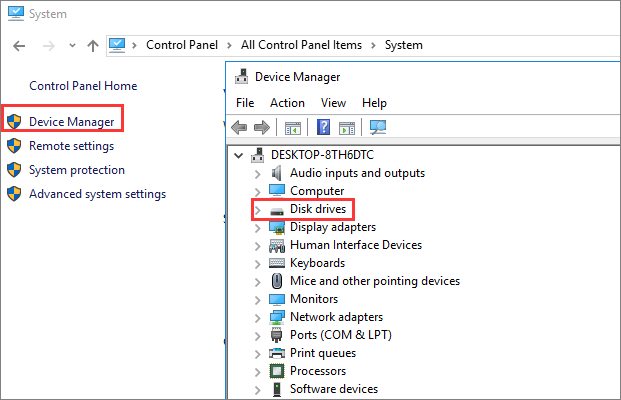
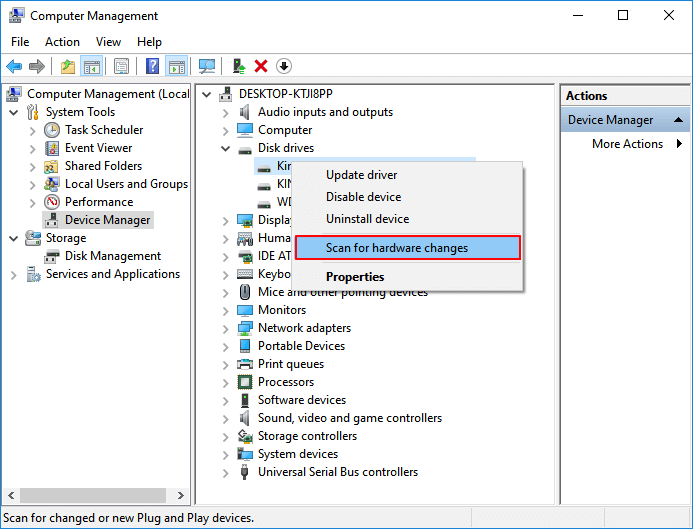
Step 3. Right-click on the SD card, choose "Uninstall" and then "Scan for hardware changes" to refresh the drivers.
Solution 5. Recover Data and Format SD Card for Reusing
If basic troubleshooting steps fail to resolve the issue, formatting the SD card may be the last resort. This involves deleting all data on the card, so make sure to back up any important files before proceeding.
If the SD card is still not working or recognized, or important files were lost after attempts to fix it, use a data recovery software like Deep Data Recovery to retrieve data from the SD card, and then format it to make it reusable again.
Your Safe SD Card Recovery Software
- Data recovery from an SD card is possible even after sudden deletion, formatting, file system corruption, or a virus attack. In such cases, specialized software can be used to scan the card and recover lost data, including photos, videos, documents, and other files.
- You can recover files from various storage devices, including SD cards, emptied recycle bins, memory cards, flash drives, digital cameras, and camcorders. These devices often have built-in data recovery capabilities, and you can also use third-party software to retrieve deleted or lost files.
- Recover deleted photos, documents, videos, audio, music, emails, and other files from an SD card using data recovery software, a card reader, and a computer.
Note: If your SD card can be detected in Disk Management, Deep Data Recovery will work for fast data scanning and restoring.
To recover data from an SD card, follow these steps:
Step 1. Download and Install for Recovery SD Card Online
To install the software, click the download button to get the installation package and run it on your computer. Follow the on-screen instructions by clicking "USB/SD Scan". Meanwhile, connect your SD card to your laptop via the SD card slot or use a SD card reader plugged into a USB slot, ensuring it's securely connected.

Note: You can choose different search modes based on where and why the data was lost.
Step 2. Select the SD Card to scan
In the next window, select the SD Card to scan. If it's connected successfully, the software will detect and display it. Click "Scan" to track down lost or deleted files on the SD card.

Step 3. Preview and Recover SD Card Data
In the result window, all the found files are listed. You can choose the files you need to recover from the SD card and click "Recover" to save them to your computer. If you still can't see the needed files, try the "deep scan" which will likely find more lost files on your SD card.

After backing up your data, format the SD card and convert its file system to FAT32 or NTFS, making it usable for saving data again.
Final Verdicts
The issue of an SD card not showing up in Windows 10 can be resolved using one of five methods. The problem may be caused by a faulty SD card, incorrect SD card reader settings, or outdated drivers, among other reasons. To solve the issue, users can try updating their SD card reader drivers, enabling the SD card reader in Device Manager, checking the SD card for physical damage, or using a different SD card reader. Additionally, users can try formatting the SD card, checking the SD card for viruses, or using a different computer to see if the issue is specific to their device.
If your SD card is not connecting to your computer, try plugging it into another computer with a new card reader to rule out any issues with the card itself. If that doesn't work, you can try changing the SD card drive letter, running a disk check (CHKDSK) to repair any corrupted file system, or updating the SD card driver to see if that resolves the problem.
If basic solutions don't work, you can try formatting your SD card for reuse, but be sure to use Deep Data Recovery software to restore data from the SD card before doing so, as formatting will result in data loss.
Related Articles
- Deep Data Recovery 2.6 Crack + License Code
- Your File History Drive Was Disconnected for Too Long, How to Reconnect File History Drive
- Unlimited Data Recovery Software Free Download Full Version [2022]
- Data Recovery Software Full Version Free Download (in 2022)
- Ace Data Recovery Services Near Me in Houston, TX | Top 10
How to find the best data recovery services near me in Houston? You can learn ten ace data recovery services in Houston, TX, in this guide. You'll get detailed information after reading the guide. - The Top 9 Data Recovery Services in Washington, DC (2024)
Do you need assistance finding data recovery services and recovering photographs, documents, and emails from computers or laptops in Washington, DC? Your problems will be resolved once you read this post.
Products
Articles & Tutorials
- Data Recovery
- Data Backup
- File Recovery
- File Backup
- System Backup and Restore
- Disk and Partition Clone
- Technical articles
- Mobile articles
- Disk Master Help
- Windows Data Recovery Tutorials
- Windows Secure Delete Tutorials
- Windows Partition Management Tutorials
- Windows File Backup and Restore Tutorials
- Windows System Backup and Restore Tutorials
- Windows Disk Backup and Restore Tutorials
- Windows Clone Tutorials