The Add-In Template Is Not Valid in Word? 4 Fixes Here!
If you're unable to open a Word file due to the error message "The add-in template is not valid," you can resolve the issue by following a simple guide. This guide will help you repair your Word files to function normally again, eliminating the error message and allowing you to access your files without any issues.
- Error: Microsoft Word The Add-in Template Is Not Valid
- How to Fix 'The add-in template is not valid' Error in Microsoft Word
- Method 1. Use Microsoft Word Repair Tool
- Method 2. Change Microsoft Word Startup File Location
- Method 3. Disable In-Valid Word Add-in
- Method 4. Reinstall Microsoft Office Word & Enable Add-in Templates
Error: Microsoft Word The Add-in Template Is Not Valid
Error Message 1: "Microsoft Word. The add-in template is not valid. (C:\ysers\......\....\....dot)".
Error Message 2: "Microsoft Word. The add-in template is not valid. (C:\...\STARTUP\.....dot)".
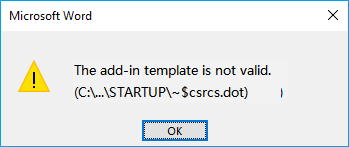
When you get either message popping up on your computer, it means that you can neither open the Word file nor access its content.
Cause: When an add-in in the startup folders is incompatible with Word, it can cause an error saying the add-in template is not valid, leading to issues with Word's functionality.
How to Fix 'The add-in template is not valid' Error in Microsoft Word
To resolve the Microsoft Word file becoming un-openable with an add-in template invalid error, consider the following tips: ensure the Word add-in is enabled, try disabling and re-enabling it, check for any corrupted or missing template files, and consider resetting the add-in to its default settings. Additionally, avoid using outdated versions of Word, and refrain from modifying the add-in files manually.
| Dos: | Don'ts: |
|---|---|
|
|
4 Ways to Fix Word File Add-in Template Not Valid Error
- #1. Use Microsoft Word Repair Tool
- #2. Change Microsoft Word Startup File Location
- #3. Disable In-Valid Word Add-in
- #4. Reinstall Microsoft Office Word & Install Add-in Templates
- Editors' Pick:
- Method 1 and 2 are two official methods provided by Microsoft's support team to resolve the issue. You can try them directly.
- As for corrupted or inaccessible Word files, you can turn to Method 3 for help.
Let's get started now.
Method 1. Use Microsoft Word Repair Tool
Mostly, when you have an add-You're experiencing a "template not valid" error in your Word file, which might be caused by a corrupted document. To resolve this, you can try using a Word repair tool to fix the issue. This tool can help identify and correct any errors within the document, allowing you to access and edit your file again.
Here, Qiling file repair software with its repair feature can help:
- Repair Microsoft Office Documents
- Repair a Corrupted PDF File
- Repair Office Files in a Batch
- Preview the Repaired File
Let this file repair software scan and repair the inaccessible Word file now:
Step 1. Launch Deep Data Recovery. Select file types and click "Fast Scan" to start the recovery process.

Note: You can choose different search modes based on where and why the data was lost.
Step 2. To repair corrupted documents, click the "Scan" button to scan the disk and identify damaged files. This software allows you to fix Word, Excel, PPT, and PDF files in a single, streamlined process.

Step 3. Qiling data recovery and repair tool scans for all lost and corrupted files, allowing you to find target files by type or search by name in a search box.

Step 4. Deep Data Recovery can automatically repair damaged documents, allowing you to recover and save repaired Word, Excel, and PDF files to a safe location after previewing them.
Method 2. Change Microsoft Word Startup File Location to Fix Word Add-in Not Valid Error
Source: Microsoft support team
https://support.microsoft.com/en-us/topic/you-receive-error-messages-when-you-start-word-8229b6c3-de7a-e7d8-2aa3-bdb1d1f57ad8
Step 1. Follow the paths to open the Word startup location:
- Word 2016: Program Files\Microsoft Office\Office16\Startup
- Word 2013: Program Files\Microsoft Office\Office15\Startup
- Word 2010: Program Files\Microsoft Office\Office14\Startup
- Word 2007: Program Files\Microsoft Office\Office12\Startup
- Word 2003: Program Files\Microsoft Office\Office11\Startup
- Word 2002: Program Files\Microsoft Office\Office10\Startup
- Word 2000: Program Files\Microsoft Office\Office\Startup
Step 2. Move all files in the Startup folder to your desktop.
Step 3. Open the following folder:
- On Windows 10/8: C:\user\username\Application Data\Microsoft\Word\Startup
- On Windows 7/XP: C:\Documents and Settings\username\Application Data\Microsoft\Word\Startup
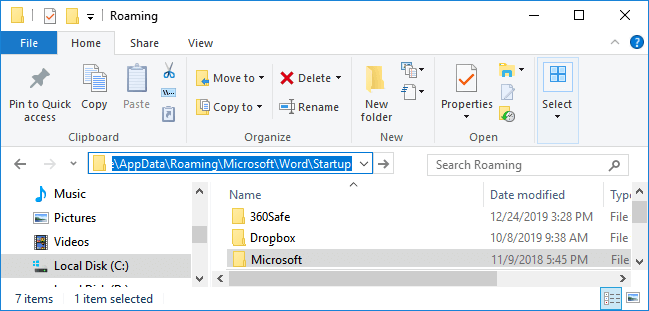
Step 4. Move all Microsoft Word startup files from your Desktop to the target folder.
Step 5. Restart Word.
Method 3. Disable In-Valid Word Add-in
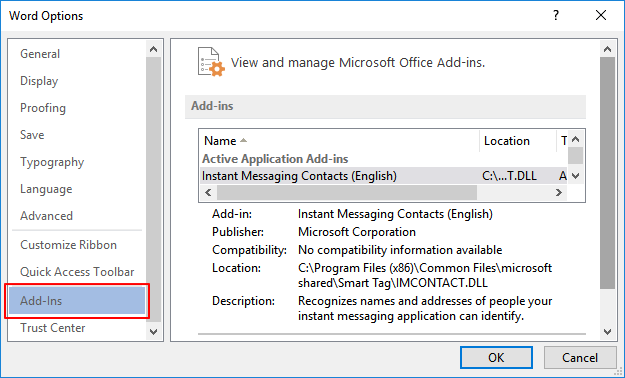
Step 1.To access the Add-ins settings in Word, go to "File" > "Options" > "Add-ins" within the application.
Step 2.To access the Word Add-in, click "Manage" at the bottom of the dialog box, then select "Word Add-in" from the resulting menu.
Step 3. Click "Go" and see if you can find the problematic add-in in the first category. If you can't find it, click "Go" again and check the next category.
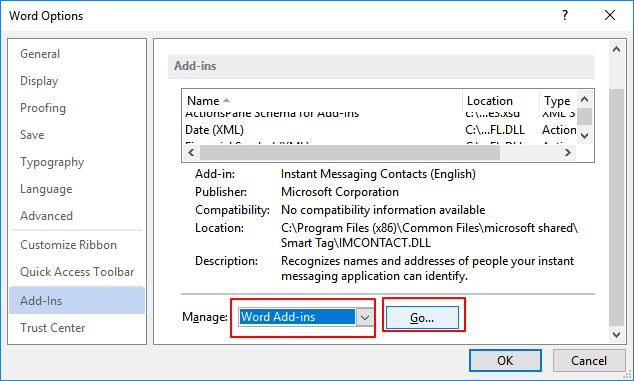
Step 4. If yes, uncheck the Add-in to turn it off.
If not, go to the next category in the Manage drop menu. Go through the categories until find and turn off all the problematic add-ins.
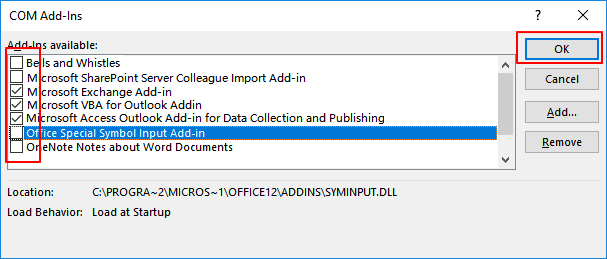
Step 5. Click "OK" to save all changes and restart the Word application.
After this, you can open and view the Word file on your computer again.
Method 4. Reinstall Microsoft Office Word & Enable Add-in Templates
When the Microsoft Word file add-in template becomes invalid, it may be due to a compatibility issue between the template and the Word application, which can cause problems with the template's functionality.
To resolve the issue, you can try reinstalling Microsoft Office Word and installing add-in templates. This may help resolve the problem of the add-in not loading properly.
#1. Uninstall Old Microsoft Office
Step 1. To find your Office activation key, you can check the email that was sent to you by Microsoft when you purchased the software. If you can't find the email, you can also check the Microsoft account associated with your Office purchase.
Step 2. Copy all useful Word, Excel, etc., files to another location.
Step 3. Search Control panel in the search box and click "Control Panel".
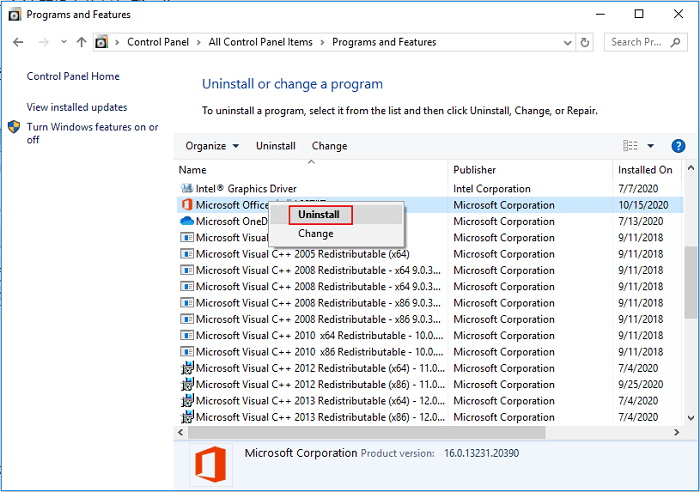
Step 4.To uninstall Microsoft Office, go to the "Programs" section, then click on "Programs and Features" and right-click on Microsoft Office, selecting "Uninstall" from the menu.
#2. Reinstall Microsoft Office Word
Step 1. To access your Microsoft account, go to the Microsoft Account Dashboard at https://account.microsoft.com/ and sign in with your account credentials.
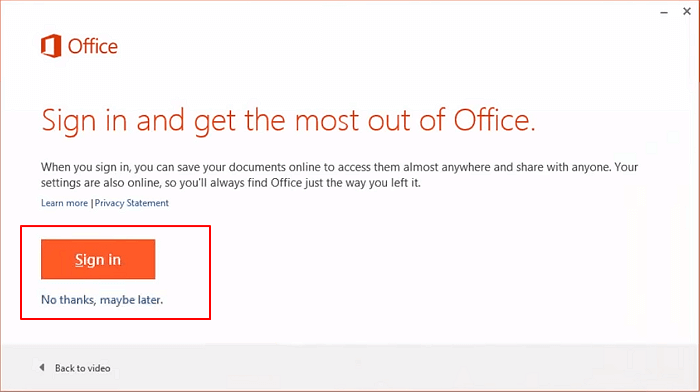
Step 2. To install Microsoft Office, go to the top of the page and select "Services and subscriptions". From there, find the Office product you want to install, and click "Install".
Step 3. To complete the installation process, follow the on-screen instructions and activate the software with your license key.
#3. Add & Enable Word Add-ins
Step 1. Launch Microsoft Word application and go to "File" > "Options".
Step 2. Click "Add-ins".
Step 3. On the new window that pops up, click "Manage" from the bottom menu and select "Word Add-ins", then click "Go".
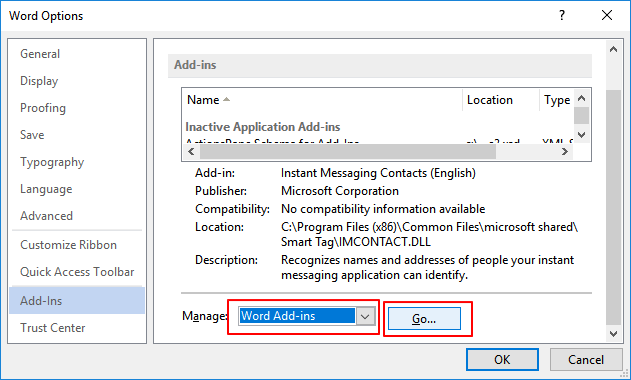
Step 4.To add add-ins on your computer to the Templates and Add-ins window, click "Add", then browse to select the .dotm file extension, and finally click "OK".
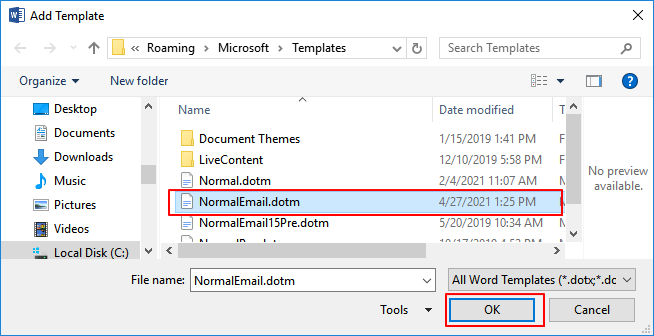
Step 5. Then click "OK" to confirm.
To resolve the issue of Microsoft Word not responding or freezing, try closing all instances of Word, then restart your computer. Once your computer has restarted, open Microsoft Word and check if the problem persists.
IMPORTANT: If you've tried all the above fixes, but none of the methods worked, you have the last option which is to contact the Microsoft support team and ask for help.
Invalid Word Add-in Template Error Is Fixable, Follow to Make Your Word Work Now
The "Word add-in template is not valid" error can be frustrating, but we've can help. We've identified the cause of this issue and provided 4 methods to help you resolve it. To pick the most effective method, consider the specifics of your situation and the steps you've already taken. By choosing the right approach, you can get back to using your Word add-in without any further issues.
Here is Editor's Pick:
Among the solutions, it's recommended to first try the officially recommended methods, Method 1 and Method 2, by the Microsoft support team.
If you've tried various methods to open a Word file but it's still inaccessible or corrupted, consider using the Qiling toolkit's Word Repair feature for assistance.
To avoid potential Word document file loss, we recommend creating a timely backup of important files to an external storage device. This way, if errors occur, you can quickly recover the Word file from the backup.
Related Articles
- What is GPT Disk? How to Recover GPT Partition Data
- Where Do My Downloads Go? Find & Open Downloads on PC, iPhone/iPad, or Android [Beinners' Guide]
- 2022 Quick Format Recovery: Recover Data/Files from Hard Drive after Quick Format
- How to Fixed There Is No media in The (Specified) Device Issue
- Qiling MobiSaver 7.6 Crack with Serial Key, Code [Latest]
Learn how to activate Qiling MobiSaver 7.6 safely with an official license key and avoid unsafe third-party activation files. - Free Download Qiling MobiSaver Full with Serial Key
Qiling MobiSaver, a top-rated iOS data recovery software, has been updated to a new version with exciting features. You can now download the full version of Qiling MobiSaver for free, complete with a serial key, number, or torrent, to easily recover more iOS data.
Products
Articles & Tutorials
- Data Recovery
- Data Backup
- File Recovery
- File Backup
- System Backup and Restore
- Disk and Partition Clone
- Technical articles
- Mobile articles
- Disk Master Help
- Windows Data Recovery Tutorials
- Windows Secure Delete Tutorials
- Windows Partition Management Tutorials
- Windows File Backup and Restore Tutorials
- Windows System Backup and Restore Tutorials
- Windows Disk Backup and Restore Tutorials
- Windows Clone Tutorials