Word Cannot Complete the Save Due to a File Permission Error Mac/Windows 10
On a Mac, if Word is unable to complete the save due to a file permission error, try the following: Open the Terminal app on your Mac, then enter the command `sudo chmod 755 /Users/your_username/Documents` (replace "your_username" with your actual username). This will reset the permissions on your Documents folder, which should resolve the issue.
A user is experiencing a file permission error when trying to save a Word 2010 document on their iMac, even after trying to open Word in Safe Mode. This error can be caused by a variety of issues, including permissions problems with the document itself, conflicts with other programs or system files, or issues with the user's account permissions. To resolve the issue, the user may need to troubleshoot the problem by checking the document's permissions, running a virus scan, or adjusting their account permissions. They may also want to consider reinstalling Word or seeking further assistance from Microsoft support.
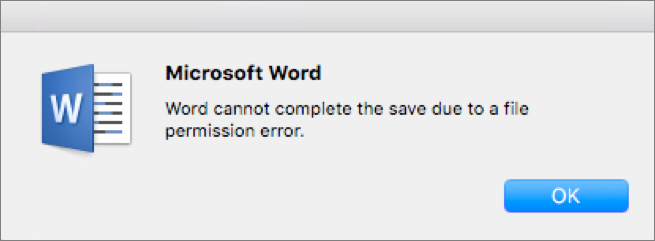
Word cannot complete the save due to a file permission error. If your Word document is not saving, there could be several reasons behind this issue. This problem can occur randomly or under specific circumstances on both Mac and Windows computers. The main causes include corrupted files, issues with the Word application itself, problems with the operating system, or conflicts with other software. Additionally, factors such as insufficient storage space, incorrect file permissions, or outdated software can also contribute to this issue.
| Workable Solutions | Step-by-step Troubleshooting |
|---|---|
| Open Word in Safe Mode | Try every USB port available; Determine you\'re using USB 2.0 or 3.0...Full steps |
| Get Ownership of the Word | Find the Word file, right-click on it and select "Properties". Click "Security"...Full steps |
| Repair Microsoft Office Suit | Right-click the Windows Start button, open Control Panel. Click "Programs and Features"...Full steps |
| Disable Antivirus Software | In this case, you can temporarily turn off the anti-virus software to see if Word...Full steps |
| Update Microsoft Office | Open the Word application. Click "File" > "Account" > "Product Information"...Full steps |
Word Cannot Complete The Save Due to a File Permission Error Causes
- The filename has been taken or the file name isn't corrected or allowed.
- The add-ins in the configuration prevent you from saving Word files.
- You haven't obtained full ownership of the computer.
- Antivirus software is designed to protect your computer and prevent malicious files from being saved, not the other way around. It scans your system for potential threats and blocks any suspicious activity to keep your device safe.
- Issues with Office and operating systems are preventing Word from saving files.
If you encounter a Word file permission error when saving a Word document, first check if the file has the same name or if the file name is incorrect. Try using the "Save As" option instead of "Save". If these tips don't resolve the issue, you can try troubleshooting Word's inability to complete the save due to a file permission error on Windows 10 by implementing additional fixes.
Fix 1. Open Word in Safe Mode and Disable Add-ins
Starting Word in Safe Mode disables all add-ins and loads a minimal set of drivers, allowing you to determine if a plug-in is the cause of an issue. This can be done to troubleshoot problems and isolate the source of the issue.
Open Word in Safe Mode
To run Microsoft Word in Safe Mode, press the Windows key + R to open the Run utility, then type "word /safe" and click "OK".
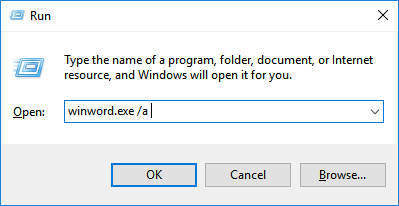
If Word opens correctly in safe mode, it may be some plugins that are causing the problem, and you can troubleshoot by disabling add-ins.
Disable Add-ins in Word
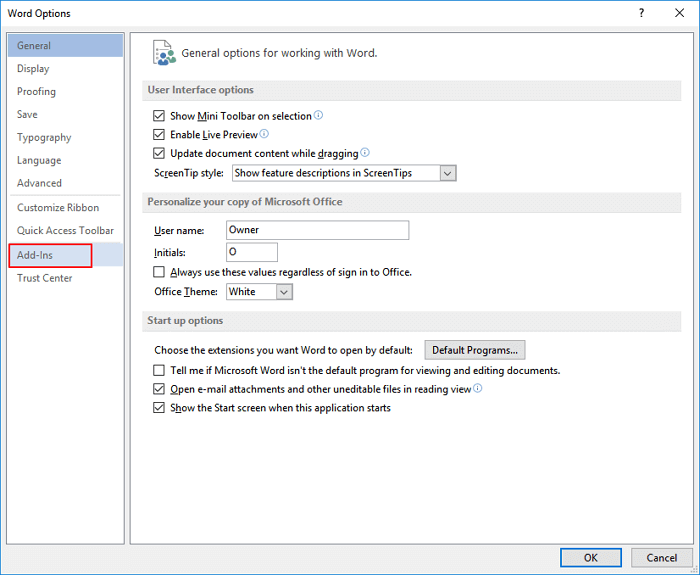
Step 1. Open the Word file. Click "File" > "Options" > "Add-ins".
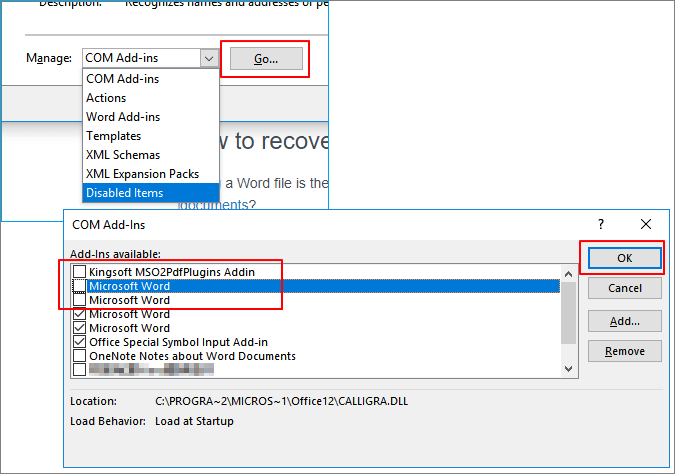
Step 2. To resolve the issue, go to the Word Options, select the "COM Add-ins" tab, click "Go", disable all add-ins, and then restart Word to ensure you can save the document without any permission issues.
Fix 2. Get Ownership of the Word File in Windows 10
When you encounter an "access denied" issue while opening, editing, copying, or saving files, it's often due to a lack of permission to save the file to the desired location for your user account. This can occur when you try to save a file to a location where your user account does not have full access rights.
Take the steps below to obtain ownership of the Word files.
Step 1. Find the Word file, right-click on it and select "Properties".
Step 2. Click "Security" > "Advanced", and then find the "Owner" option.
Step 3. To change the user, click "Change" on the popped-up window, enter the new user name under "Enter the object name to select", then click "Check Names" to verify the change. If everything is correct, click "OK" to save the changes.
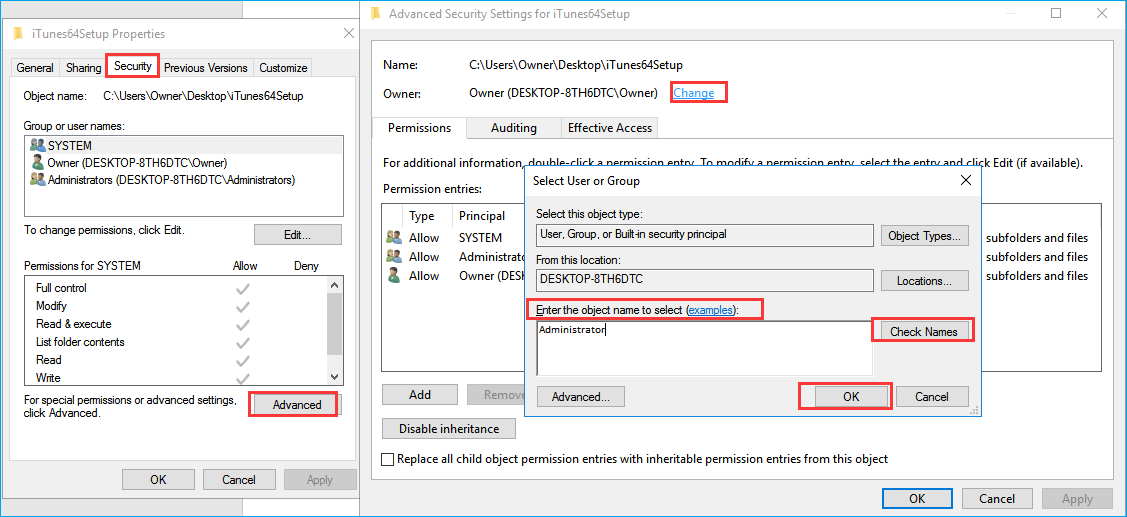
Step 4. To change the owner section, check "Replace owner on subcontainters and objects" and click "Apply" and "OK" to save changes, or select the "Replace all child object permission entries" option instead.

After completing the process, save your Word document again to see if the file permission error has been resolved. If it persists, the issue may be related to the file itself, and you may need to investigate further.
Fix 3. Repair Microsoft Office Suit
If you're experiencing issues with Microsoft Office Word, such as file permission problems when saving documents, you may need to troubleshoot and fix the application to resolve the issue.
Step 1. To access the "Programs and Features" section, right-click the Windows Start button, open Control Panel, and then click on "Programs and Features".
Step 2. Click "Microsoft Office" and click the "Change" tab.
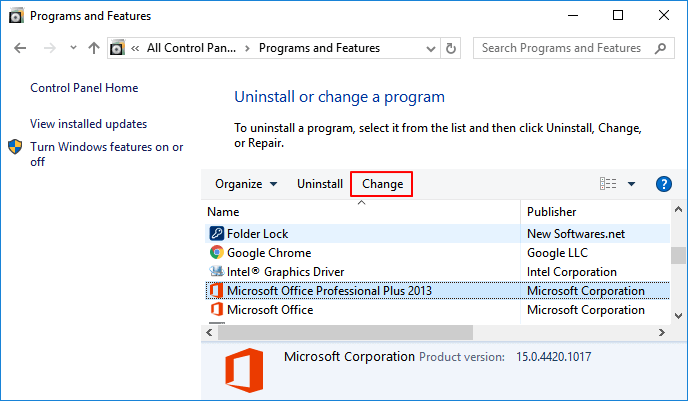
Step 3. Click "Repair" and then click "Continue" on the installation repair windows.
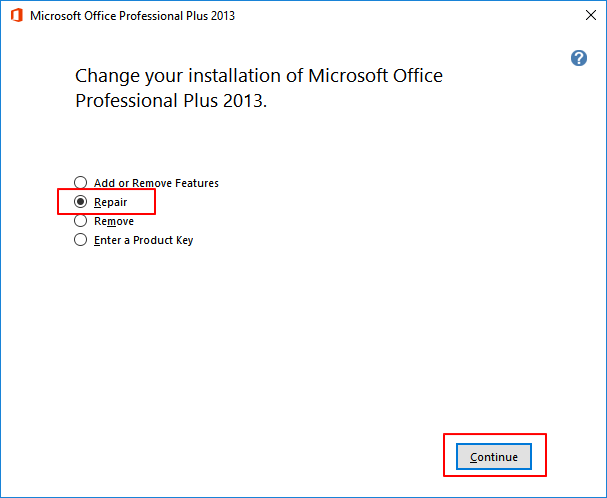
Step 4. If you're unable to save a document in Word, wait for the repair process to finish, then restart your computer and Word to check if you can save it now.
Fix 4. Disable Antivirus Software Temporarily
Some users have reported issues with permissions missing due to certain anti-virus software, which tries to protect personal files and folders from being altered by other software or users.
Microsoft recommends against disabling antivirus software, as it can leave your computer vulnerable to viruses. However, you can try temporarily disabling the software to see if it resolves the issue, and then enable it again once the problem is fixed.
Fix 5. Update Microsoft Office to the Latest Version
Another effective way to solve Word cannot save problem is updating the Office to the recent version.
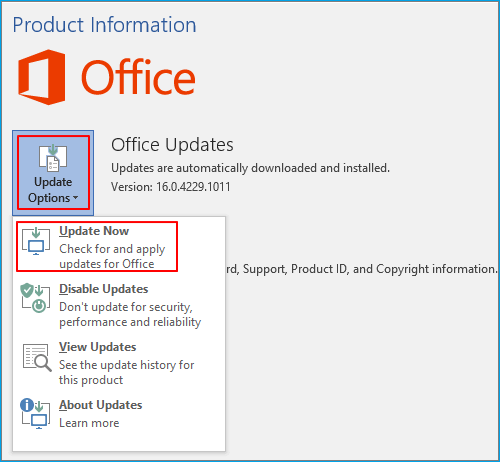
Step 1. To update the Word application, open Word and click on "File" in the top left corner, then select "Account" from the dropdown menu. From the Account page, click on "Product Information" and then choose "Update Options" to initiate the update process.
Step 2. Click "Enable Update" and then select "Update Now".
Fix Word Cannot Complete The Save Due to a File Permission Error on Mac
The ways to fix Word 2010/2013/2016/2019's inability to complete the save due to a file permission error are the same for both Mac and Windows computers.
- Restart your Mac and Word.
- Uninstall and reinstall Microsoft Office Word for Mac.
- Gain or change the ownership on your Mac.
- Open Word in Safe Mode and turn off add-ins.
- Make sure that the Microsoft Office applications and the macOS are updated.
How to Recover Unsaved Word Document on Windows 10 and Mac
If Word is unable to save a document due to a file permission error, and you lose the unsaved Word document, you can recover it by following these steps. First, try saving the document in a different location or with a different file name.
Word offers the autosave function, which keeps your work saved while you're working, so it's essential to turn it on to protect your files.
Recover Unsaved Word in Windows 10
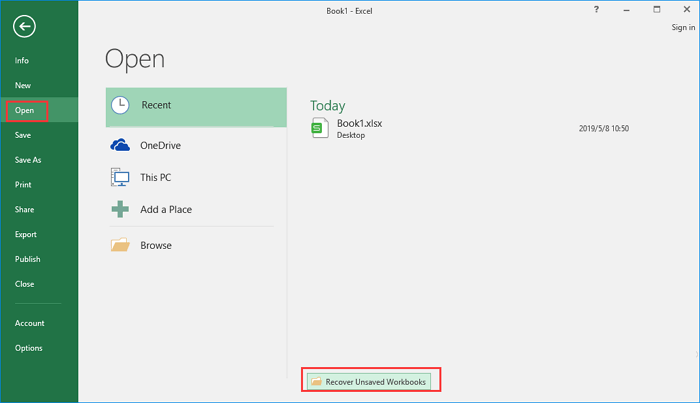
Step 1. To recover an unsaved Word document on Windows 10/8/7, open Word and go to "File" > "Open" > "Recover Unsaved Workbooks".
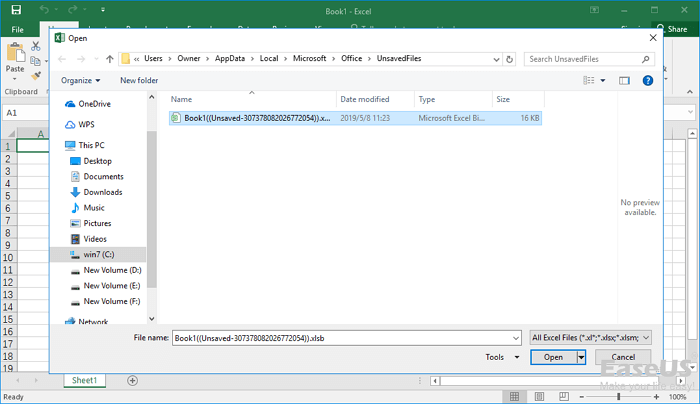
Step 2. To securely save an unsaved Word file, select it from the list, click "Open", and then save it to a safe location.
Restore Unsaved Word on Mac
Step 1. To access the "Go to Folder" option on your Mac, open the "Finder" and select "Go" from the top menu bar, then click on "Go to Folder".
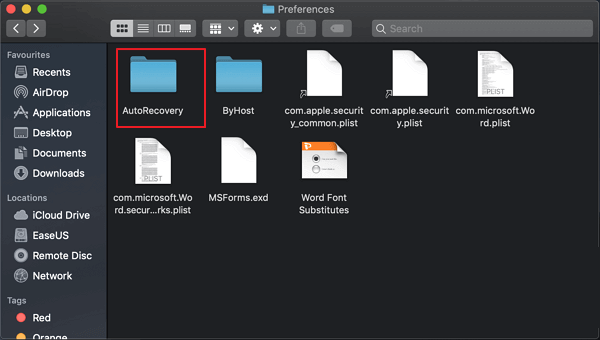
Step 2. Type~/Library/Containers/com.microsoft.Word/Data/Library/Preferences/AutoRecovery and click "Go".
Step 3.To recover a lost Word document, find the unsaved Word document in the AutoRecovery folder, rename the file, and then add the ".doc" filename extension to save your Word file.
Additional Tip: How to Recover Deleted Word Document on Mac and Windows 10/8/7
Word document loss is a common issue caused by various reasons such as human error, computer crashes, or storage device formatting. To recover deleted, formatted, or corrupted Word documents, you can utilize Deep Data Recovery software on Mac or Windows devices.
Qiling file recovery tool is one of the best data recovery software, supporting data recovery in various scenarios and allowing users to repair corrupted files such as Word, Excel, PPT, PDF, photos, and videos.
To recover lost Word documents, follow these simple steps. First, check if the file has been saved automatically by Word, as this can often be the case.
Step 1. Choose file types and click "Fast Scan" to start
Launch Deep Data Recovery, select the file types you want to recover, and click "Fast Scan" to initiate the recovery process.

Note: You can choose different search modes based on where and why the data was lost.
Step 2. Choose the Word file location
To begin the scanning process, select the drive or a specific folder you want to scan and then click the "Scan" button.

Step 3. Locate your Word files
The software will immediately start scanning all lost data on the selected drive, and after the scan, you can click the "Documents" option in the left panel, choose "Word" from the category bar, and then click "Preview" to view the recovered files.

Step 4. Recover Word files
After previewing the lost Word files, select the desired Word files and click "Recover". Then, select a folder to store the Word files.
Final Verdicts
This guide provides solutions to fix the "Word cannot complete the save due to a file permission error" issue on Mac and Windows 10. To resolve the issue, you can try starting Word in Safe Mode, disabling add-ins and antivirus software, or gaining file ownership, among other troubleshooting steps.
Tutorials on recovering unsaved Word documents and restoring deleted Word files using Qiling data recovery are provided, offering comprehensive guidance on how to retrieve lost Word files. Additionally, step-by-step instructions on how to recover unsaved Word documents and restore deleted Word files are demonstrated, providing users with a clear understanding of the process. This information is intended to be helpful and informative, allowing users to find the answers they need.
Related Articles
- How to Choose and How to Use Online Repair Word Document Tool
- Text Recovery Converter Word | Fix Corrupted Word and Recover Text
- How to Enable/Disable Windows Boot Manager in Windows 11/10
- How to Restore Desktop Background/Wallpaper in Windows 10/11
- Free Download JPEG Recovery Software to Recover Your Photos
You can recover deleted, formatted, and inaccessible JPEG photos with the free download Qiling JPEG recovery software, which allows you to do so with simple steps. - SD Card Recovery Software Free Download Full Version with Crack
If you're trying to recover data from a memory card, stop using cracked serial keys and instead try Qiling's free memory card recovery software or the full version with an official license code. This is a safer option.
Products
Articles & Tutorials
- Data Recovery
- Data Backup
- File Recovery
- File Backup
- System Backup and Restore
- Disk and Partition Clone
- Technical articles
- Mobile articles
- Disk Master Help
- Windows Data Recovery Tutorials
- Windows Secure Delete Tutorials
- Windows Partition Management Tutorials
- Windows File Backup and Restore Tutorials
- Windows System Backup and Restore Tutorials
- Windows Disk Backup and Restore Tutorials
- Windows Clone Tutorials