What Is Pagefile.sys? Is It OK to Delete It?
Pagefile.sys is a key element in computers. So, what is it, and how do you tweak it?
Pagefile.sys is a file in Windows that allows a computer to use virtual memory, which is a technology that lets the computer put lighter loads on physical memory, freeing up space for other programs and applications. This file is used when the physical memory (RAM) is full and the computer needs more space to run programs smoothly. It's like a temporary storage area that helps the computer to run more programs simultaneously without running out of memory.

Pagefile.sys is a system file in Windows that acts as a virtual memory, allowing the PC to run larger programs and files by temporarily storing data on the hard drive when the RAM is full. It's essential for the system's performance, but it can take up space on the hard drive. If it's taking up too much space, you can reduce its size, but it's not recommended to delete it as it's a system file. It's best to let the system manage it automatically.
What Is Pagefile.sys?
The paging file, also known as Pagefile.sys, is a virtual memory allocation in Windows that helps the computer handle larger loads when physical memory is full or under stress.
Your computer uses virtual memory as an alternative bandwidth when it reaches the limits of its physical memory, typically around 8GB of RAM, and allocates disk space to compensate.
When computers are under stress for a long time, the operating system increases the size of the Pagefile.sys to provide more space for applications and other operations. However, this virtual memory is much slower than physical RAM.
The difference between physical and virtual computer memory is significant, and it's evident when the operating system resorts to using virtual memory, such as Pagefile.sys, to prevent the computer from crashing when the physical memory is fully utilized. This means that the operating system is essentially borrowing space from the hard drive to supplement the physical RAM, ensuring that the computer can continue to run smoothly even when the physical memory is stretched thin.
How to Delete Pagefile.sys?
Deleting Pagefile.sys is never a good idea, even with ample physical memory. This file is crucial for the computer's smooth operation, and attempting to delete it can cause problems, despite the system's ability to function with sufficient RAM.
When computer memory is frequently depleted, the operating system may need to expand the size of the Pagefile.sys file to compensate, which can be problematic for computers with limited storage capacity. This can lead to a significant increase in file size, putting a strain on smaller storage devices.
To check the size of the Pagefile.sys, you can use the built-in System Information tool in Windows. To do this, follow these steps:
Step 1. Go to C drive
Step 2. Click on "View" in the top bar and open "Options"
Step 3. In Folder Options, switch to the View tab
Step 4. Scroll down and check Show hidden files, folders, and drives
Step 5. Scroll further down and uncheck Hide protected operating system files
Step 6. Click on "Yes" when you see a warning prompt
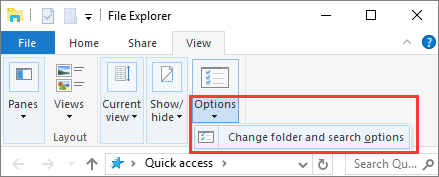
Step 7. Click on "Apply" and "OK"
When you're done, you can see the Pagefile.sys in your C drive and its size is displayed.
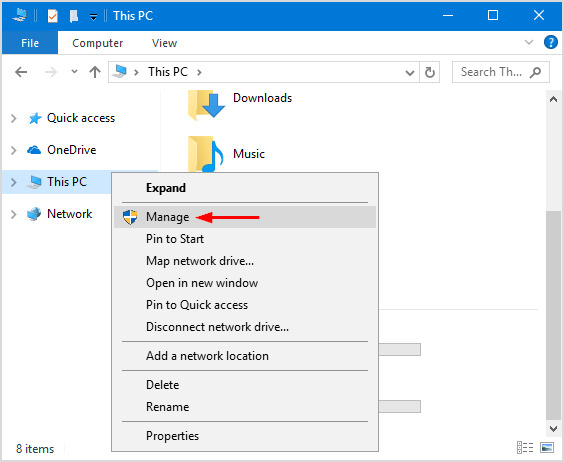
It is advised that you hide these files once again once you're done checking them.
How to Increase or Reduce Pagefile.sys Size?
If you want to increase or decrease the size of Pagefile.sys, you can do so by following the right procedure. However, it's essential to be aware that making changes to the file size might cause a few issues, such as affecting system performance or requiring a reboot. To safely adjust the file size, you'll need to follow the proper steps, which may involve modifying registry settings or adjusting system settings. It's crucial to approach this process with caution to avoid any potential problems.
- Slowed performance if you decrease it too much
- Cause applications to crash if there's not enough room
On the contrary, it can also provide a few benefits, such as:
- Quickened performance if you keep it to an adequate amount
- Save disk space by providing more than enough headroom
- Ensure the file size doesn't exceed an adequate amount
To tweak the file size of Pagefile.sys, you can follow these steps: 1. Press the Windows key + R to open the Run dialog box. 2.
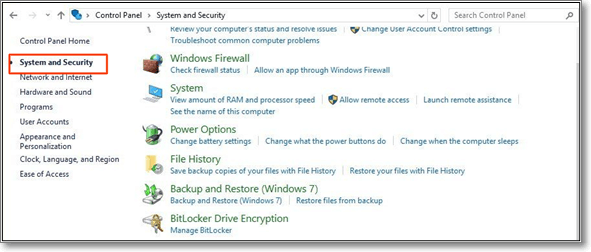
Step 1. Press Windows + X on your keyboard to open the Power Menu, and head into Control Panel.
Step 2. Head into System, then find Advanced System Settings
Step 3. Click on "Settings" under the Performance area
Step 4. Head into the Advanced tab settings
Step 5. Under virtual memory, find and click "Change"
Step 6. In the Virtual Memory settings, uncheck the box next to "Automatically manage paging file size for all drives" to prevent Windows from automatically adjusting the virtual memory settings.
Step 7. To change the size of a window, scroll down and click on "Custom size" while unselecting "System managed size".
Step 8. Enter a size in Initial and Maximum size, according to your requirement
Step 9. Click on "Set"
Step 10. Press "OK"
Step 11. Done
To free up space on your C drive, you can move the Pagefile.sys to another drive. This process involves changing the virtual memory settings in the System Properties. If you're using Windows 10, you can follow these steps:
Step 1. Go back to virtual memory settings
Step 2. Pick the original "Pagefile.sys" location – C drive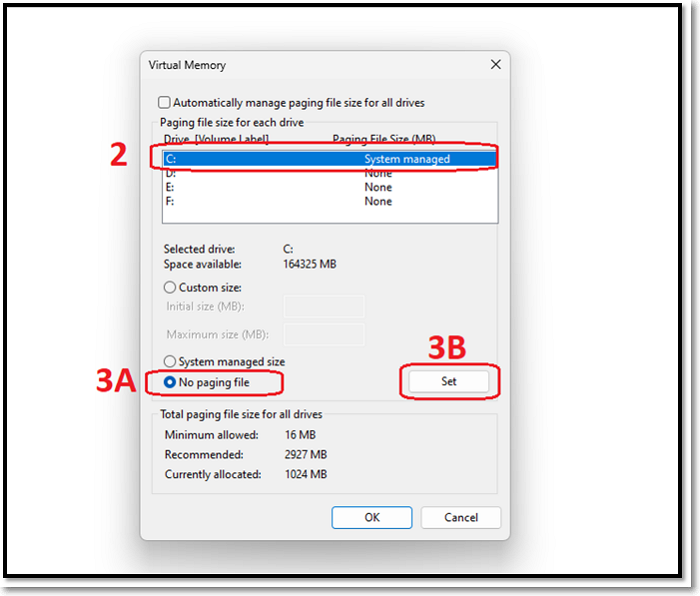
Step 3. Select "No paging file" and press "Set"
Step 4. Enter the initial and maximum size of the paging file, then click "Set" and "OK" to apply the changes.
Step 5. To change the file size, click on "System managed file size" to allow the system to automatically manage the file size, or use the "Custom size" option to set a specific file size.
Step 6. Press Set
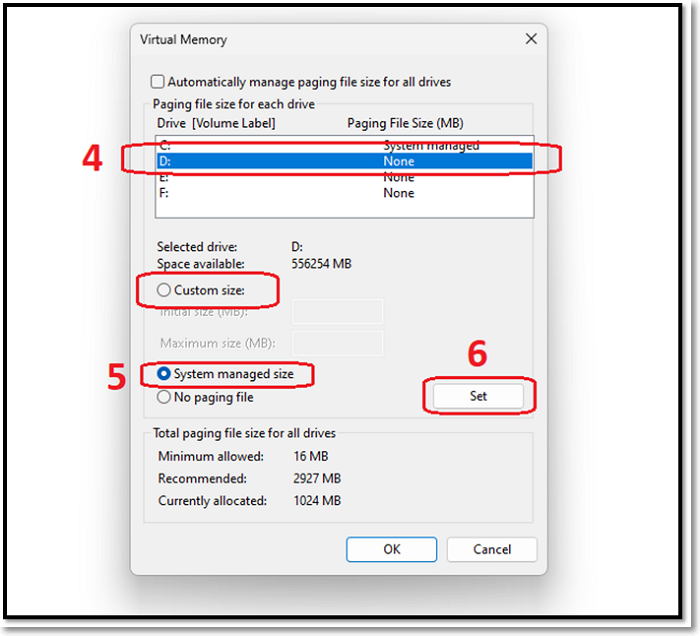
Step 7. Done
This will help you shift your Pagefile.sys to another drive without taking up any space on your primary drive.
Bottom Line
The Pagefile.sys file is a crucial system file that should not be deleted. However, its size can be adjusted or its location changed. This can be done by following specific steps, which allow for flexibility in managing the file's settings.
Related Articles
- What Is DRM? Introduction to Digital Rights Management [2022 Updated]
- What Is A NAS Storage? How Does NAS Work?
- What Is Werfault.exe and How to Fix Werfault.exe Error in Windows
- What Is PowerShell ISE? [Updated 2022]
- How to Recover Overwritten Word Document No Previous Version [Full Ways]
If you've accidentally replaced a Word document, you can recover the overwritten file with these practical solutions. Whether it's a Word document or any other type of file, you can easily recover it by following this guide. - Recover Saved Game Data on Xbox Series X [ 5 Proven Ways]
If you've lost your game data on Xbox Series X, - there are three effective methods to recover it. You can recover saved game data from an external hard drive, use cloud gaming to access your saved games, or restore from a backup.
Products
Articles & Tutorials
- Data Recovery
- Data Backup
- File Recovery
- File Backup
- System Backup and Restore
- Disk and Partition Clone
- Technical articles
- Mobile articles
- Disk Master Help
- Windows Data Recovery Tutorials
- Windows Secure Delete Tutorials
- Windows Partition Management Tutorials
- Windows File Backup and Restore Tutorials
- Windows System Backup and Restore Tutorials
- Windows Disk Backup and Restore Tutorials
- Windows Clone Tutorials