Is Your SD Card Not Working Camera? Here Is Why and How to Fix It!
If your camera's SD card becomes unreadable or stops working without warning, it's likely due to physical damage, corruption, or a faulty card reader. To fix the issue, try removing the SD card from the camera and inserting it into a computer or another device to see if it's still readable. If not, try formatting the card or using a card reader to recover any data. If the problem persists, the SD card may be damaged and should be replaced. Regularly backing up your data to a secure location can also help prevent data loss in case of a card failure.
To get rid of the issue, follow this page to learn the reasons and take action on your own.
The SD card may not be working in your camera because it's not compatible with the camera, the card is damaged, or the camera's SD card slot is faulty. To troubleshoot, try using a different SD card, and if that works, the issue is likely with the original card. If not, check the camera's SD card slot for any signs of damage or corrosion. If the issue persists, it may be a problem with the camera itself and you may need to consult the user manual or contact the manufacturer for further assistance.
Why Is My SD Card Not Working in My Camera?
Here are the possible reasons why your camera SD card may not be working:
- Camera SD card slot is broken
- SD card is broken
- SD card is locked or write-protected
- SD card not recognized
- An SD card that won't format or is unable to format may be due to a variety of reasons, including a corrupted file system, a faulty SD card, or a problem with the device it's being used in. To resolve the issue, you can try using the built-in formatting tool on your device, or a third-party formatting software.
- SD card cannot be accessed
What to Do When SD Card Is Not Working in Camera? Test SD Card and Locate Exact Error
To determine the main cause of your SD card not working error, test the SD card and identify the exact issue you're facing. This will help you pinpoint whether the problem lies with the SD card itself, the device it's being used in, or the way it's being used. By isolating the root cause, you can then take targeted steps to resolve the issue and get your SD card working properly again.
Here are the steps and solutions
| Steps to Check SD Card | Solutions to Fix Not Working SD Card |
|---|---|
| 1. If the SD card is not working, try formatting it in the camera or using a different card reader to see if it's the issue. If it's still not working, it might be damaged and you should consider replacing it. | Yes: Replace It with A New SD Card |
| 2. The SD card lock is enabled or on the Lockside, check if it is enabled or on the Lockside. This can be done by looking for a physical switch or button on the device that controls the SD card, or by checking the device's settings menu to see if the lock is enabled. | Yes: Unlock It |
| 3. To check if the SD card is working in a new camera or PC, insert the SD card into the camera or PC's SD card slot or reader. If the camera or PC recognizes the SD card and allows you to access its contents, it's likely working properly. | Yes: Repair the Camera SD Card Slot |
| 4. The camera is displaying an error message stating that the card is not formatted. To resolve this, you can format the card using the camera itself. This typically involves navigating to the camera's settings, selecting the memory card option, and choosing the format option. | Yes: 1. Reinsert SD card 2. Access Files & Format card with camera or PC |
| 5. The card reader is not recognizing the card. Try reinserting the card or formatting it with the camera. This should resolve the issue and allow you to access the card. |
To get your SD card working again in Camera, follow the guide step by step. First, ensure your camera is turned off and the SD card is safely removed.
#1. Replace Broken or Damaged Camera SD Card
Error: SD card is physically damaged or partially broken.
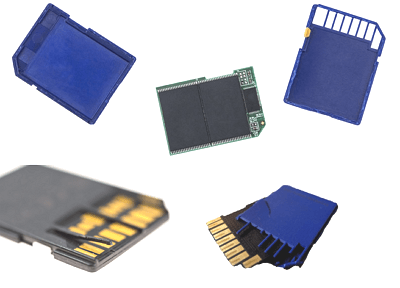
How to Fix:
Step 1. If your old SD card is full, you can free up space on your device by replacing it with a new one that has the same capacity or more storage space. This will give you more room to store your photos, videos, and other files.
Step 2. Replace the broken card and format the new SD card to a proper format.
Suggested SD card formats:
- SD/SDHC Card - FAT32
- SDXC or Shooting Movie - exFAT
#2. Unlock SD Card - Switch SD Card Lock to the Off Side
Error: The SD card is locked, with the lock switch on the 'ON' position.
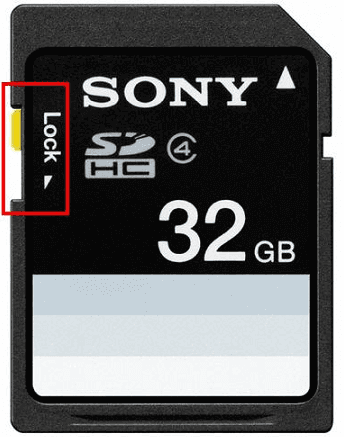
How to Fix:
Step 1. Unplug or remove the SD card from the camera in a proper manner to prevent any damage or data loss.
Step 2. To unlock the SD card, locate the lock switch on the SD card and move it to the "Off" position. This will allow you to access the contents of the SD card.
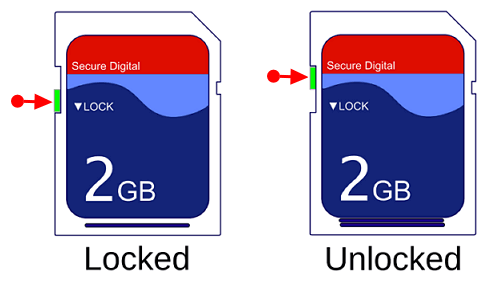
Step 3. After this, reinsert the SD card into your camera and see if it's working.
#3. Repair the SD Card Slot in the Camera
Error: The camera's SD card slot is not functioning properly, but the computer's SD card slot is working fine. This suggests that the issue might be specific to the camera's hardware or design. You may want to try cleaning the SD card slot or checking for any physical obstructions that might be causing the problem. If the issue persists, it might be worth contacting the camera's manufacturer or a professional repair service for further assistance.
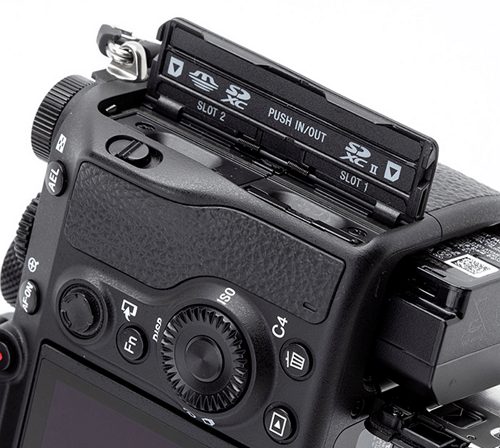
How to Fix:
Step 1. Open the SD card slot case in the camera.
Step 2. Check if there is dust covering in the slot.
Clean the surface with a cotton swab, then use an alcohol pad if needed to disinfect, and finally dry it.
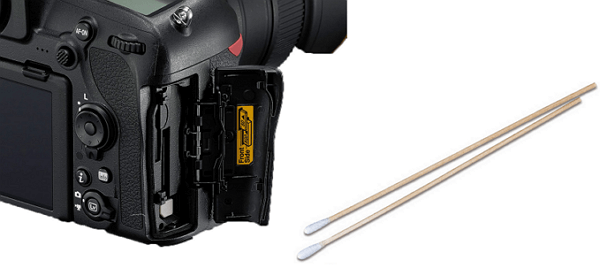
Step 3. If the camera is not detecting the SD card, try cleaning the SD card slot. Use compressed air or a soft brush to remove any dust or debris.
#4. Reinsert SD Card & Reboot Camera
Error:The camera is displaying an error message saying the memory card cannot be accessed. To resolve this, try reinserting the card or replacing it with a new one. Alternatively, you can format the card using the camera.
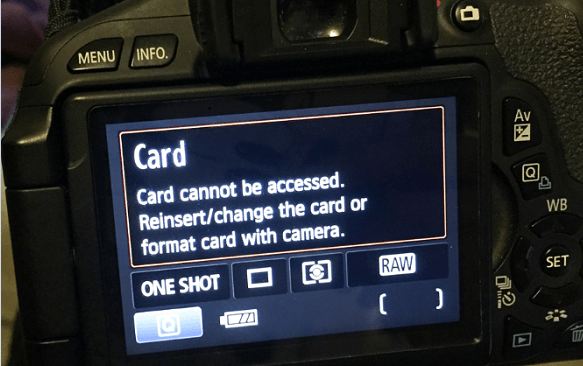
How to Fix:
Step 1. Take the SD card out of the camera.
Step 2. Shut down the camera and wait for 2-3 minutes.
Step 3. Re-insert the SD card into the camera and reboot it.
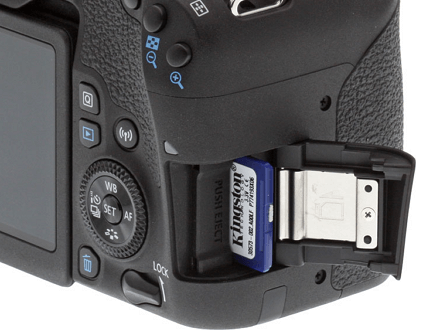
To check if the SD card is working in the camera, insert the SD card into the camera and turn it on. Take a few photos or record a short video to see if the camera is able to write data to the SD card. If the camera is able to write data to the SD card, the issue is likely with the camera's settings or the SD card is not properly formatted.
#5. Access SD Card Files and Format SD Card
Error: SD Card Not Formatted. Format card with this camera.
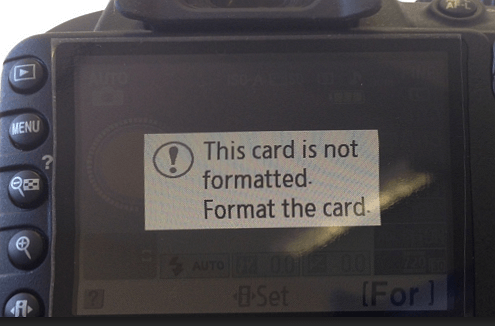
How to Fix:
1st. Access and Restore Files from SD Card
If your files on the Camera's SD card are important, it's a good idea to follow the guide to recover your photos and videos to a secure location before anything happens to the card.
Here is how to do it:
To recover deleted or lost data from an SD card, you can use Deep Data Recovery. First, download the software and then connect your SD card to your PC.
Step by Step Guide:
Step 1. Select file types and click "USB/SD Scan" to start
- Download and install Deep Data Recovery on your Windows PC.
- Use the proper way to connect your SanDisk/Lexar/Transcend SD card to the computer.
- Open Qiling SD card recovery software, select file types, and click "USB/SD Scan" to initiate the recovery process.

Note: You can choose different search modes based on where and why the data was lost.
Step 2. Select the SD card to scan
- Select the SD card you want to scan and click the "Scan" button.

Step 3. Check for scan results
- Wait for the scanning process to complete.
- To narrow down the search results, click on the "Filter" button and select one or multiple file types to display, such as Pictures, Word documents, Excel spreadsheets, PDFs, videos, and more.
- Click "Preview" to check if they are the wanted files.

Step 4. Recover SD card data
- Choose desired files and click "Recover".
- To prevent overwriting the original SD card, save the recovered files to a different location, such as an external hard drive, a cloud storage service like Google Drive or Dropbox, or even a different folder on your computer. This way, you can keep the recovered files safe and organized, and avoid any potential data loss or corruption.
Once you save the files out of the SD card, you are now good to follow the tips below to fix the SD card not working error in your camera.
2nd. Format SD Card to a Supported Format for Camera
You can either choose to format the SD card in Camera or in PC. Here is the guide:
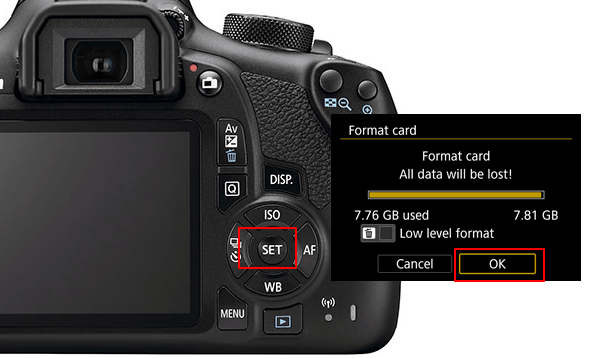
Format on Camera:
1. Insert an SD card into the camera and turn on your camera.
2. Go to the Settings, find the Format or Format SD card option.
3. Press the confirm button to format the card on your camera. This will ensure that the card is properly formatted and ready for use with your camera.
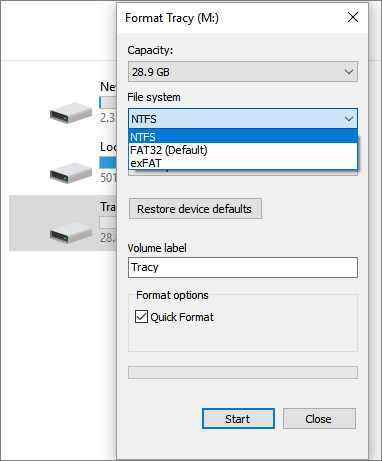
Format on PC:
1. To format an SD card, insert it into your PC, open File Explorer, right-click on the SD card, and select the "Format" option.
2. To format a drive, set the file system to "FAT32 or exFAT" and tick the box for "Quick Format" before clicking "OK".
Last, Back-Up Camera Photos and Videos Timely
On this page, we explained the causes of the SD card not working in camera error and offered 5 fixes for this issue. Which is the most effective method?
Editor's Recommendation: If you're not getting the desired result, try one of the fixes below. If it's not a physical error, take your time to try Fix 2 to Fix 4 one by one.
Formatting the SD card is the most effective tip for improving the performance of a slow SD card. This simple step can make a significant difference in the card's speed and overall functionality. By formatting the card, you're essentially giving it a clean slate, allowing it to read and write data more efficiently.
Before formatting the card, make sure to access and restore all files from the card using Deep Data Recovery.
Make sure to regularly back up important videos and photos from your camera to a local device to prevent loss in case of future errors or problems.
Related Articles
- Getting Word Runtime Error 53? Here Is How to Fix Run-Time Error
- Media Storage on Android: Can You Disable Data in Media Storage
- [Solved] Disk Unknown Not Initialized in Windows 10/8/7
- Sticky Notes Not Available Error in Windows 11, 10, 8, 7 Without Losing Data
- SanDisk Unveils 4TB Extreme Portable SSD V2 for Lightning-Fast On-The-Go Storage
If you would like to know about SanDisk 4TB Extreme Portable SSD V2 Review, this post will tell you all you need to know about SanDisk 4TB Extreme Portable SSD V2 with detailed information. - Ultimate Guide to Choosing the Right SD Card for Nintendo Switch
Are you using a Nintendo Switch and running out of space? You need to know what an SD Card for Switch is. Read this post to find the answer and also learn about the best SD Card for Switch.
Products
Articles & Tutorials
- Data Recovery
- Data Backup
- File Recovery
- File Backup
- System Backup and Restore
- Disk and Partition Clone
- Technical articles
- Mobile articles
- Disk Master Help
- Windows Data Recovery Tutorials
- Windows Secure Delete Tutorials
- Windows Partition Management Tutorials
- Windows File Backup and Restore Tutorials
- Windows System Backup and Restore Tutorials
- Windows Disk Backup and Restore Tutorials
- Windows Clone Tutorials