[Solved] Disk Unknown Not Initialized in Windows 10/8/7
What's Top 10 Best Data Recovery Software in 2022? Here's the List
The best data recovery software for Windows and Mac users can quickly retrieve deleted or lost data. These tools can recover data from various devices, including hard drives, solid-state drives, and USB drives, and can be used to recover files, documents, and other types of data.

To fix the issue of a disk being not initialized and showing "unallocated", you can try Solution 1, Solution 2, and Solution 3. However, if the disk shows nothing about its capacity, you can try Solution 4, Solution 5, and Solution 6 instead. You can also refer to the quick guide for a summary of the solutions.
Disk 1 Is Unknown, Not Initialized, Unallocated
"When I plugged in my external hard drive, Western Digital My Passport 0740 (500GB), PC said that it's successfully installed however it did not appear on My Computer. Also when I went into system tools it said that disk 1 is unknown, not initialized, unallocated. Does anyone know how to recover data when a hard drive is not initialized or how to initialize disk without losing data?"
Symptoms
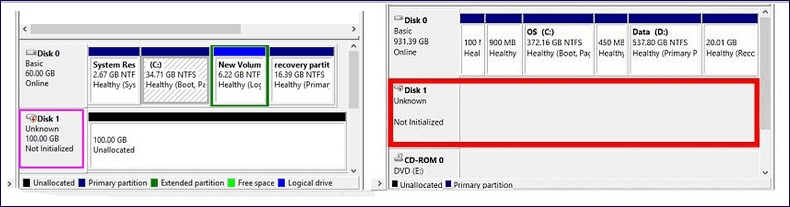
The "Disk Unknown Not Initialized" issue typically occurs unexpectedly in all Windows versions, including Windows 10, 8, and 7. When this happens, the external hard drive may show "unallocated space" or no information about its capacity in Disk Management, making it impossible to access the data on the disk.
Causes
Although the disk shows "Unknown, Not Initialized" in both cases, the two situations differ in the information they provide about the hard drive's capacity, indicating they are caused by distinct reasons.
If a disk shows as "Not Initialized" and "unallocated", the likely cause is MBR corruption on the hard drive, which can be caused by various factors such as disk formatting issues or virus attacks, resulting in the disk being unable to load Windows and display its partition.
If a disk, such as disk 1 or disk 2, becomes "Not Initialized" without any details about its storage, the possible causes are connection issues, disk driver problems, or physical damage to the disk itself.
How to Fix Disk Unknown Not Initialized in Windows 10/8/7
Depending on your situation, you may have to use an appropriate solution for the "disk not initialized" issue on your computer, whether it's a local hard drive or external hard drive.
To fix a disk from turning into "Not Initialized", you can initialize the disk directly, which rebuilds the master boot record but doesn't erase data. However, to make the disk usable again, you need to further partition and format the disk, which will erase the files on your hard drive.
- Initialize the hard drive
- Recover data from the disk and create new volumes
- To prepare the disk for data storage, you would partition it, which involves dividing the disk into smaller sections, or partitions, to organize and manage the data. Then, you would format the disk, which involves creating a file system on the partitioned disk to prepare it for storing files.
Solution 1. Initialize Disk
Applies to: Fix disk is not initialized and shows unallocated.
Fixing the "disk unknown not initialized" issue is a straightforward process. It also works to initialize a brand new hard drive, making it a convenient solution for various disk-related problems.
Step 1. Right-click "My Computer" > "Manage" to run Disk Management.
Step 2. Here, right-click the hard drive and click "Initialize Disk".
Step 3. In the dialogue box, select the disk(s) to initialize and choose MBR or GPT partition style.
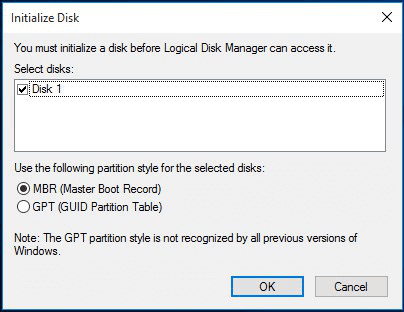
After initializing the disk, you can proceed with recovering data from it. Depending on your needs, you can choose to recover either the data from the disk or both the partitions and the files on it.
Solution 2. Recover Data from Hard Drive and Create New Volumes
Applies to: Fix "disk is not initialized" and shows "unallocated".
If you have important files on the external hard drive that is not accessible, you can try using Deep Data Recovery software to recover the files.
Step 1. Select file types
Launch Deep Data Recovery, select file type and click "Fast Scan".

Note: You can choose different search modes based on where and why the data was lost.
Step 2. Select and scan the lost partition
To recover lost data, select the "Lost Partition" option and click "Scan" to search for all lost data. If multiple lost partitions are found, you can identify them by their partition size.
Since the Windows system doesn't support the Linux file system, the Ext2 or Ext3 partition will be recognized as a lost partition with no drive letter. To recover data from Ext2/Ext3 partitions, follow the steps: 1. Use a third-party tool to access and recover data from the Ext2/Ext3 partition.

Step 3. Filter the scanned results
You can quickly filter scanned files by category, such as Pictures, Videos, Documents, Audio, and Others, or search for a specific file by name in the top right search box.

Step 4. Preview and recover data from the lost partition
Before recovering the data, you can preview the file to ensure it's the correct one. Select all the files you need and click "Recover" to restore them.
If you only recover data, you will need to partition the disk by yourself following the steps below.
Step 1. Right-click "This PC" and choose "Manage" > "Disk Management".
Step 2. Right-click the unallocated space and choose "New Simple Volume..."
Step 3. In New Simple Volume Wizard, click "Next" to continue.
Step 4. To create a new volume, follow the wizard to specify the desired volume size, assign a drive letter to the volume, and then format the partition. This will prepare the newly created volume for use.
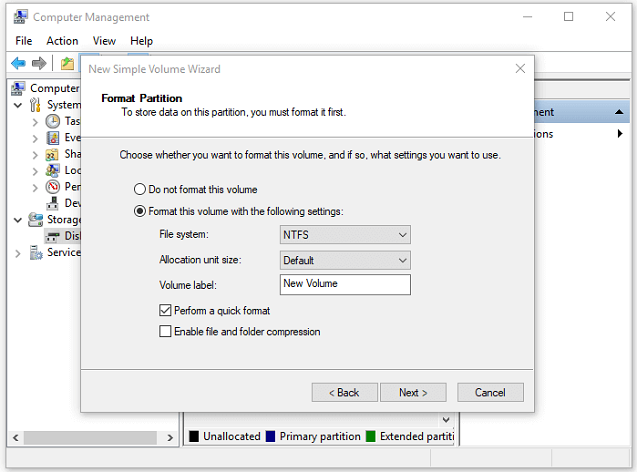
If your hard drive shows "Not Initialized" and you don't want to create partitions manually, you can recover the original partitions to restore the disk to its original state.
Solution 3. Perform a Partition Recovery
Applies to: Fix "disk is not initialized" and shows "unallocated".
Download and launch the reliable partition tool, Qiling Partition Master, on your computer, which can help you recover the partition on your hard drive with ease.
Step 1. Open Qiling Partition Master, click "Partition Recovery" on the "Disk management" page, select a disk to start searching for lost partition(s), and click "Scan" to begin the process.
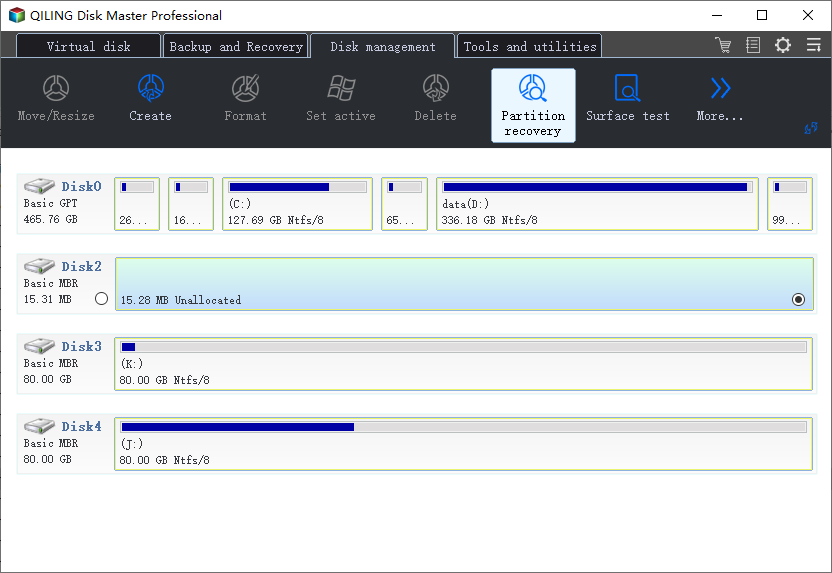
Step 2. A quick scan will immediately start, and you can pause the scanning process at any time by clicking "Proceed" when the lost partition shows up, allowing you to start your data recovery.
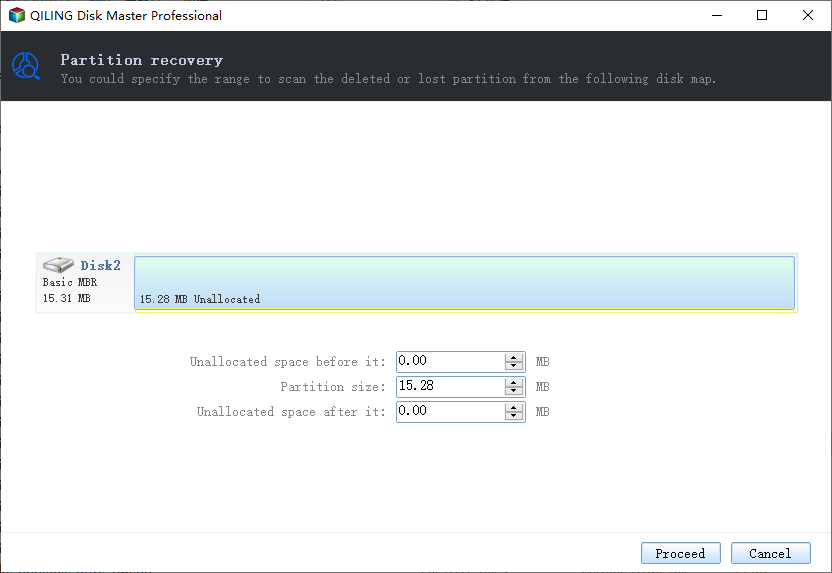
You can double-click on the partition you're looking for to preview its content.
Step 3. Once the lost partition and data have been found, click "Recover" to initiate the recovery process.
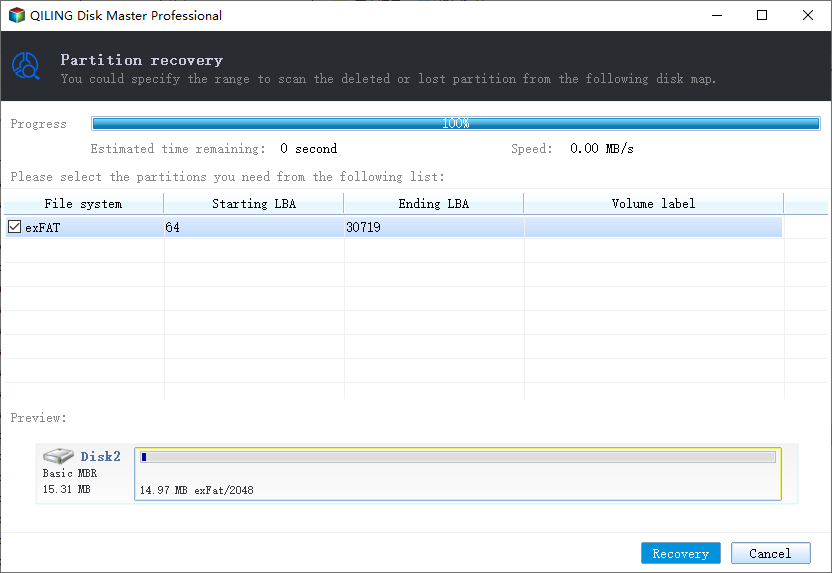
Step 4. After the recovery process, click "Finish". Your lost partition should reappear in your drive.
You can also rebuild the Master Boot Record (MBR) to try to fix the issue of "disk unknown not initialized".
Situation 4. Check Disk Connection
To fix the "disk is not initialized" issue and display disk capacity, follow these steps: First, ensure your computer is turned off. Next, locate the disk you want to initialize, which is usually denoted as a small, removable drive or an external hard drive.
Minor connection issues can cause serious problems like the one in the discussion above. To check your disk's connection:
- Connect your external hard drive to a different USB port, including the rear ones, on your computer.
- Use the original cable to connect your hard drive
- Use another cable to connect your external hard disk
- Connect your external hard drive to another computer
Situation 5. Update Device Driver
To fix the issue where the disk is not initialized and shows nothing about disk capacity, you can try running the command `diskutil list` in the Terminal app to see if the disk is recognized by the system. If it is, you can then run `diskutil initdisk /dev/diskX` (replace X with the actual disk number) to initialize the disk.
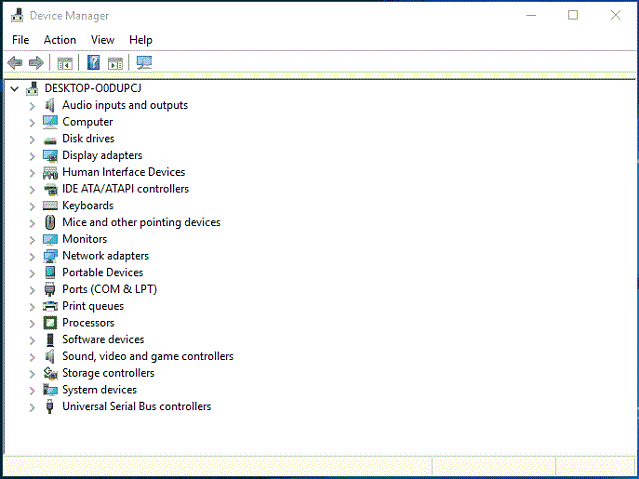
An outdated or corrupted disk driver may also be the cause of the issue. To resolve this, you can update the device driver using Device Manager, which may resolve the problem.
Step 1. Right-click on "This PC" (in Windows 10) and choose "Properties".
Step 2. To update the driver for a problematic disk, click on "Device Manager" and expand the "Disk drives" section. Then, find the disk in question and right-click on it, selecting the option to "Update driver".
Step 3. Click "Search automatically search for driver software online".
Step 4. Wait for the driver to be updated, then reboot your computer. After rebooting, try reconnecting your USB drive to the PC and check if it shows up.
Situation 6. Send for Manual Repair
The issue can be resolved by initializing the disk using the Disk Management tool in the Control Panel. To do this, go to Control Panel > System and Security > Disk Management, right-click on the unallocated disk, and select "Initialize".
If a storage medium suffers physical damage, it will likely cause serious issues, including the error "disk unknown not initialized". If the methods above fail to resolve the problem, it's advisable to have a professional repair the device manually.
Extra Tip: How to Fix Cannot Initialize Disk in Windows
A common reason for "disk unknown not initialized" is that the drive fails to initialize, resulting in an error message saying "The request could not be performed because of I/O error", which causes the disk to be shown as Unknown or Not Initialized.
When a hard disk cannot be initialized, issues such as "disk unknown not initialized" may arise. For detailed explanations and corresponding solutions, refer to the article on how to fix the I/O device error.
If the guide didn't help you solve the problem, you are highly recommended to seek help from experts for manual repair or directly replace the disk with a new one.
The Bottom Line
Initializing a disk won't erase data, but further operations will. To fix a not initialized disk without losing data, data recovery software is needed. However, if the disk shows "Unknow, Not Initialized" due to physical corruption, no data recovery software can help and manual data recovery services are the only option to rescue your files.
FAQs About Disk Is Not Initialized
1. How do I fix disk 1 unknown is not initialized?
To fix the "Disk Unknown is not initialized" error, there are six potential solutions. These include checking the disk for errors, running a disk check, verifying the disk's connection, checking for malware, updating drivers, and using a disk repair tool. By trying out these methods, users can troubleshoot and resolve the issue with their disk.
- 1). Initialize the disk with Disk Management
- 1) Recover data from the unknown hard drive. 2) Create new volumes from the recovered data.
- 3) Perform partition recovery from the unallocated and not initialized drive.
- 4). Check the hard drive connection
- 5). Update hard drive driver
- 6). Send the hard drive for manual repair.
For detailed instructions, you can refer to the main content on this page and try any method to make your disk work again.
2. How do I force a hard drive to initialize?
To initialize a new hard drive, simply follow these steps:
To reuse a used hard drive, you may need to back up any existing data to another device first. Then, use Disk Management to delete all existing partitions, and finally, initialize the drive using the built-in disk management tools or a third-party software, following the manufacturer's instructions.
Step 1. Open Disk Management.
Step 2. Right-click the not initialized HDD/SSD and select "Initialize Disk".
Step 3. Select the disk to initialize in the dialog box and set the disk partition style to MBR or GPT.
3. Will initializing a disk erase it?
Initializing a disk doesn't erase data, but partitioning and formatting it will cause data loss.
If you don't want to lose files stored on your hard drive, using data recovery software is necessary. You can refer to the article "Recover Data from Unknown Not Initialized Hard Drive" for detailed instructions.
Related Articles
- Windows 10 Free Download Full Version 32 or 64 Bit ISO
- 5 Ways | How to Fix Data Error Cyclic Redundancy Check
- Files/Folders Keep Reappearing After Deletion in Windows 10/8/7
- 2022 Guide: What Is Hard Drive Recovery? 7 Things You Need to Know About It
- How to Fix 'The semaphore timeout period has expired'
People get the error “The semaphore timeout period has expired” on two occasions: when the location is not accessible and when the semaphore timeout period has expired. To resolve these issues in Windows 10/8.1/8/7, this guide will provide a solution without requiring much effort. - [Solved] There Are No Previous Versions Available Windows 10/8/7
When the “Restore Previous Versions” feature is not working properly, the “Previous Versions” tab may show that there are no previous versions available, making it difficult to recover lost files.
Products
Articles & Tutorials
- Data Recovery
- Data Backup
- File Recovery
- File Backup
- System Backup and Restore
- Disk and Partition Clone
- Technical articles
- Mobile articles
- Disk Master Help
- Windows Data Recovery Tutorials
- Windows Secure Delete Tutorials
- Windows Partition Management Tutorials
- Windows File Backup and Restore Tutorials
- Windows System Backup and Restore Tutorials
- Windows Disk Backup and Restore Tutorials
- Windows Clone Tutorials