Windows 10 Free Download Full Version 32 or 64 Bit ISO
Windows 10 is one of the most user-friendly operating systems, combining the best of Windows 7 and 8 with new features that are easy to navigate. If you don't have Windows 7 SP1 or Windows 8.1, you can still get a free Windows 10 full version, and this post provides five effective ways to download the 64/32 bit version for free.
Windows 10 ISO 64/32 Bit Free Download Full Version – 5 Ways
To obtain the free Microsoft Windows 10 operating system, you can download the ISO file directly from Microsoft's official website. Users with a valid Windows 7, 8, or 8.1 license can upgrade to Windows 10 for free. The process involves downloading the Windows 10 Media Creation Tool, running it, and following the prompts to create installation media or upgrade your current system.
| Windows 10 Free Download - 5 Ways |
|---|
|
Fix 1. Buy Windows 10 To get started, you will need a license to install Windows 10, which you can purchase online or through a retail store. Once you have the license, you can download the Windows 10 installation media from Microsoft's website, and then create a bootable USB drive or DVD to install Windows 10 on your computer. You will also need to back up your important files and data before installing Windows 10, as the installation process will erase all data on the computer. It's also a good idea to ensure your computer meets the minimum system requirements for Windows 10, which include a 64-bit processor, at least 4 GB of RAM, and a 64 GB hard drive. Once you have everything ready, you can follow the on-screen instructions to complete the installation process. |
|
Fix 2. Download Windows ISO File To create a Windows 10 installation media file, you'll need to download the Media Creation Tool from Microsoft's official website. Once downloaded, run the tool and select the language, edition, and architecture of Windows 10 you want to install. Then, choose the media type you want to create, such as an ISO file, USB flash drive, or DVD. The tool will then download the necessary files and create the installation media. You can also use the tool to upgrade your current Windows installation to the latest version. |
|
Fix 3. Run Media Creation Tool To create a Windows 10 installation media, download the Windows 10 Media Create Tool and run it. This will guide you through the process of creating a bootable USB drive or DVD that can be used to install Windows 10 on a computer. Follow the full steps for detailed instructions. |
|
Fix 4. Migrate Windows 10 If you have Windows 10 installed on an old PC, you can use Windows 10 cloning to create a duplicate of your operating system on a new computer. This process allows you to transfer your Windows 10 installation, along with all your settings, programs, and files, to a new device, preserving everything exactly as it was on the old PC. To do this, you'll need to use the Windows 10 cloning feature, which can be accessed through the Windows 10 settings. Simply follow the on-screen instructions to create a clone of your Windows 10 installation, and then transfer it to your new PC. This method is a convenient and efficient way to migrate your Windows 10 setup to a new device, saving you time and effort. |
|
Fix 5. Run Windows 10 Downloader Install Qiling OS2Go on your Windows computer. Plug in a USB drive or external drive, and then download the Qiling OS2Go software from the official website. Follow the on-screen instructions to create a bootable USB drive or external drive with the Qiling OS2Go operating system. Once the installation is complete, you can boot your computer from the USB drive or external drive and start using the Qiling OS2Go OS. |
Windows 10 System Requirements for 32/64 Bit
Before downloading Windows 10 64-bit for free, you need to know the system requirements to install it on your PC or tablet. To do so, you must meet the following requirements:
Latest OS: Make sure you're running the latest version—either Windows 7 SP1 or Windows 8.1 Update.
Processor: 1 gigahertz (GHz) or faster processor or SoC
RAM: 1 gigabyte (GB) for 32-bit or 2 GB for 64-bit
Hard disk space: 16 GB is the minimum required for 32-bit operating system, while 20 GB is the minimum required for 64-bit operating system.
Graphics card: DirectX 9 or later with WDDM 1.0 driver
Display: 800 x 600
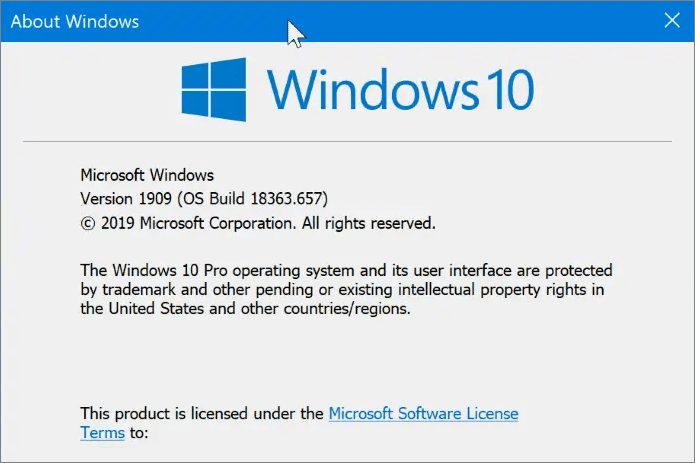
To find out which version you're running:
- To check your Windows version, press the Windows logo + R keys on your keyboard to open the Run dialog box. Type winver in the text box, then select "OK" to open the Windows version window, which will display your current Windows version.
How to Free Download Windows 10 ISO 64/32 Bit Full Version
Windows is the most widely used operating system, with almost 90% of computers running on it. In this section, you'll learn how to download Windows 10 64/32 bit full version for free, and you can also watch a video to learn how to download Windows 10 full version.
- 0:00 Intro
- 0:46 Register for Insider Program
- 1:42 Download ISO
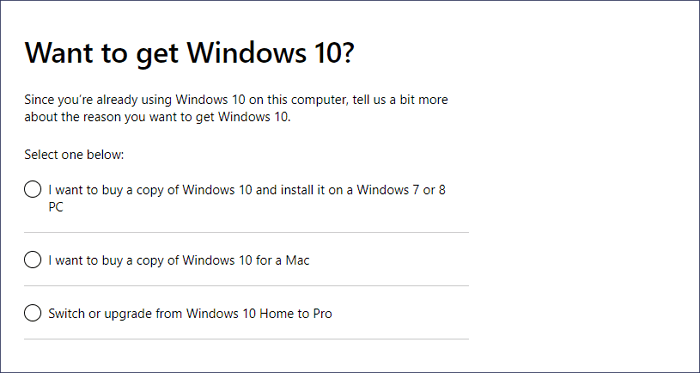
Method 1. Buy Windows 10 License from Microsoft
To get started with Windows 10, you'll need to purchase a license, which can be done on the Microsoft website. This will allow you to install the operating system on your PC.
Method 2. Free Download Windows 10 64/32 Bit ISO File
To run Windows 10, you need to meet the system requirements, which include a 64-bit or 32-bit processor, at least 4GB of RAM, and a 20GB of free space on your hard drive. Once you have met these requirements, you can proceed to download the Windows 10 64/32-bit ISO file.
Step 1. Download Windows 10 Media Create Tool.
Step 2. To create a Windows 10 installation media file, you can follow these steps: You can download the Windows 10 installation media creation tool from the Microsoft website. Once downloaded, run the tool and select the media type you want to create, such as an ISO file, USB flash drive, or DVD.
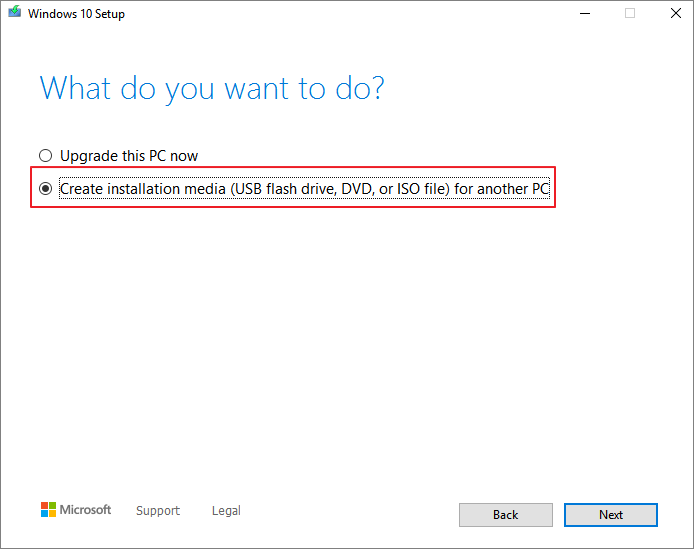
After creating an ISO file, you need to burn the Windows 10 64/32 bit ISO file to a blank USB using burning tools like Rufus.
Step 3. To install the operating system, insert the installation USB flash drive or DVD into your PC and boot your PC into the BIOS settings.
Step 4. To start the installation, go to the Boot Menu and select the option to boot from the USB or DVD media. This will allow the installation process to begin.
Step 5. To install Windows 10 on your PC, simply follow the on-screen instructions provided.
Method 3. Run Windows 10 Media Creation Tool
Microsoft offers a Windows 10 Media Creation Tool that allows users to install Windows 10 on their device or create a bootable installation USB drive, DVD, or ISO file to install Windows 10 on another computer.
Step 1. Download Windows 10 Media Create Tool.
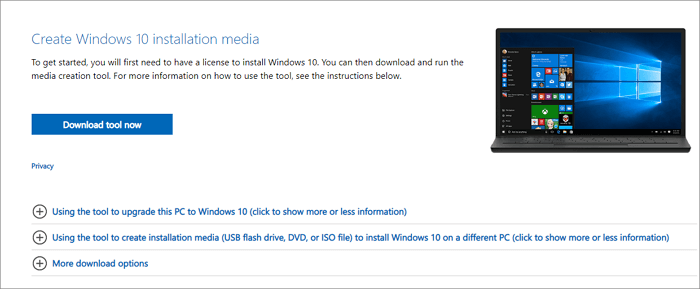
Step 2. Run the Windows 10 Media Create Tool
To install Windows 10 from a bootable USB drive, follow these steps: First, create a bootable USB drive using the Media Creation Tool, and then restart your computer. Next, enter the BIOS settings by pressing the appropriate key (usually F2, F12, or Del), and set the USB drive as the first boot device.
Method 4. Migrate Windows 10 with Disk Cloning Software
If you have Windows 10 installed on an old PC, you can use Windows 10 cloning software to transfer the operating system to a new SSD or HDD, which can then be inserted into a new PC, instantly giving it a working Windows 10 installation.
Method 5. Free Download Windows 10 ISO with Windows 10 Downloader
You can also get a Windows 10 full version using a Windows 10 ISO downloader, such as Qiling OS2Go, which can download Windows 11/10/8.1/8 ISO files and create bootable Windows USB drives, allowing you to run a Windows environment on your USB flash drive and use it on Windows or Mac devices.
- Download the Windows ISO file and use a tool like Rufus or PowerISO to create a bootable USB drive or CD/DVD, making it easy to install Windows 11/10/8.1/8 on your computer with minimal effort.
- To migrate Windows 11 to a portable drive, you'll need a compatible external drive with sufficient storage space. Ensure the drive is formatted to the NTFS file system, as required by Windows.
- You can restore the cloned Windows operating system to a different computer anytime and anywhere, making it easy to set up a new device with the same operating system and settings.
- To run Windows 11 on older computers without UEFI secure boot or TPM 2.0, you can use a virtual machine or a dual-boot setup. This allows you to create a virtual environment for Windows 11, or install it alongside your existing operating system.
- You can run Windows 11 on a Windows 10 or Windows 7 computer without encountering booting issues.
To download Windows 10 full version without burning the ISO files, follow these steps: you can download the Windows 10 full version from Microsoft's official website, and then use the Media Creation Tool to create a bootable USB drive or ISO file, but instead of burning the ISO file, you can use the USB drive to install Windows 10 directly on your computer. This way, you can avoid burning the ISO file and still get a full version of Windows 10.
Step 1. Install Qiling OS2Go on your Windows computer. Plug in a USB drive or external hard drive that is large enough.
Step 2. To create a Windows installation drive, select the "Windows Install Drive Creator" tab and choose the desired Windows versions to install, such as Windows 11, 10, or 8.1. You can also select a local ISO file. Once you've made your selections, click the "Create" button.
Step 3. After selecting the disk you want to erase, you will see a safety warning message. This message warns that all data on the selected disk will be deleted. To proceed, click the "Continue" button.
Step 4. Qiling OS2Go will create a Windows Installation media on your USB drive, which may take a while to download the ISO file, depending on your operating system and network conditions. Once the progress reaches 100%, your USB drive should be bootable.
Step 5. To install Windows, you'll need to start the installation process by inserting the Windows Installation media into your computer. This typically involves putting the installation DVD or USB drive into your computer's disc drive or USB port, respectively.
After using the solutions above, you can activate Windows 10 with your old license key and successfully run Windows 10.
How to Recover Data After Windows 10 ISO Installation
If you're installing Windows 10 on a new PC, you're unlikely to face data loss issues. However, if you're using an older PC for the installation, a clean install may result in data loss. In this case, running Qiling data recovery software can help recover lost files, including pictures, documents, and videos, after deletion, formatting, partition loss, virus attacks, and other data loss scenarios.
To recover data in Windows 10, download and install a data recovery tool. This tool can help retrieve lost or deleted files from your computer.
Step 1. Launch Qiling file recovery software on your Windows computer, select file types and click "Fast Scan" to start the recovery process.

Note: You can choose different search modes based on where and why the data was lost.
Step 2. To recover lost files, choose the drive where they were lost and start scanning. This software can recover data from various devices, including hard drives, solid-state drives, USB drives, SD cards, pen drives, and cameras.

Step 3. Qiling data recovery software allows you to browse full scan results and filter by file type, supporting over 1000 file types including photos, videos, documents, emails, audio files, and more.

Step 4. To preview and recover files, select the desired files, click "Recover", and specify a storage location to save the recovered data.
If you're unable to recover lost data from Windows 10, consider seeking help from data recovery services, such as Qiling, which can assist with challenging situations like reformatting drive, RAW disk, partition loss, and system boot errors.
Consult with Qiling Data Recovery Experts for one-on-one manual recovery service, which includes a free diagnosis and the following services after that.
- Repair corrupted RAID structure, unbootable Windows OS, and damaged virtual disk files (.vmdk, .vhd, .vhdx, etc.) with ease.
- Recover/repair lost partition and re-partitioned drive.
- Unformat hard drive and repair raw drive(Bitlocker encrypted drive)
- Fix disks that become GPT-protected partitions
Windows 10 Tips and FAQs
To troubleshoot Windows 10 issues, consider running the Windows Update Troubleshooter, resetting Windows Update components, disabling and re-enabling the Windows Update service, checking for conflicting software, running the System File Checker (SFC) tool, running the DISM tool, checking for hardware issues, resetting Windows 10, performing a clean boot, and checking for BIOS updates. These steps can help identify and resolve problems related to Windows updates, system files, hardware, and software.
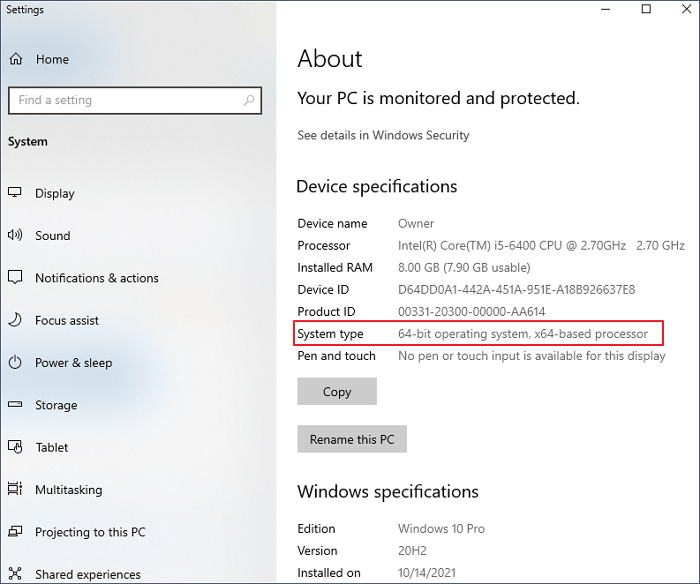
1. How to check Windows 10 system type?
To check if you've downloaded and installed the 64-bit or 32-bit Windows 10, follow these steps:
- The steps to open the "About your PC" window are to click the Start menu, type in "about", and then click on the "About your PC" option that appears in the search results.
- Then you can see your system type under Device specifications.
2. How to upgrade Windows 10 from 32-bit to 64-bit?
If your computer meets the system requirements, you can refer to upgrading 32 Bit to 64 Bit in Windows 10 without losing data.
3. How to stop Windows from the automatic update?
If your Windows 10 upgrades to the newest version without asking you, you can disable Windows 10 automatic updates in every way.
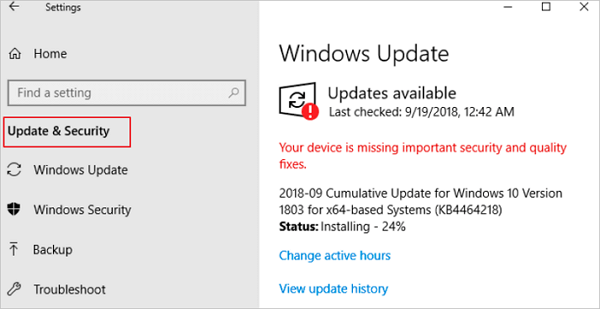
4. How to make Windows 10 up-to-date?
You can download the Windows 10 update from Microsoft's official website or upgrade it directly on your PC.
- Click the "Start" icon
- To check for Windows updates, go to the "Settings" menu, then select "Update & Security settings", and finally click on "Windows Update".
Conclusion
You can download Windows 10 64/32 bit full version for free using four practical methods, allowing you to install it on your PC and enjoy its features. If you encounter issues with activation, you can activate Windows 10/11 with a product key or digital license.
Related Articles
- [Solved] USB Pen Drive Not Showing Data, Files, and Folders
- Fix Corrupted Database/Data Error on PS4
- OneDrive Recycle Bin Retention | Recover Deleted Files in OneDrive
- Halo Infinite Won't Download? Download Halo Infinite Free
- Solved: Files Saved to Desktop Not Visible in Windows 10/8/7
The issue of files saved to the desktop not being visible or showing up in Windows 10 has been resolved. A simple tutorial can be followed to easily make saved and downloaded files appear normally on the desktop. - How to Find a File in Linux Using Terminal and Commands
To find a file in Linux without knowing the path, you can use the terminal and command. If you're unable to locate a file, you can also use Qiling data recovery software to restore deleted or lost files.
Products
Articles & Tutorials
- Data Recovery
- Data Backup
- File Recovery
- File Backup
- System Backup and Restore
- Disk and Partition Clone
- Technical articles
- Mobile articles
- Disk Master Help
- Windows Data Recovery Tutorials
- Windows Secure Delete Tutorials
- Windows Partition Management Tutorials
- Windows File Backup and Restore Tutorials
- Windows System Backup and Restore Tutorials
- Windows Disk Backup and Restore Tutorials
- Windows Clone Tutorials