Solved: Files Saved to Desktop Not Visible in Windows 10/8/7
Quick Navigation: How to Fix Files Saved to Desktop Not Visible
If you are experiencing the issue of files saved to your desktop not being visible, there are several solutions you can try on Windows 11/10/8/7. Below are five effective methods to resolve the problem.
| Workable Solutions | Step-by-step Troubleshooting |
|---|---|
| Fix 1. Recover Desktop Saved Files | Run Deep Data Recovery, select location to scan lost folder...Full steps |
| Fix 2. Search for Missing Files | Open Windows File Explorer by double-clicking "This PC". Follow the paths...Full steps |
| Fix 3. Show Hidden Files | Open Windows Explorer > Go to Views > Options > Folder Options > Go to View Tab...Full steps |
| Fix 4. Switch User Account | Click the Windows icon and click your username at the top. Select the other visible account...Full steps |
| Fix 5. Check Hard Drive Errors | Run SFC CMD to fix file system error and run Disk Error Check...Full steps |
Files and Folders Saved to Desktop Not Visible in Windows 10
Some files and folders don't appear on the desktop, but are visible in Windows Explorer, leaving space on the actual desktop. Is that your issue?
"I saved a modified PDF and Excel documents to the desktop in Windows 10. But they are not there when I revert back to the desktop. What's worse, I could neither find the saved files elsewhere on the computer hard drive. How I can get the disappeared files back?"
The issue of files saved to the desktop not being visible can be attributed to two primary symptoms. Firstly, the file may not be saved to the desktop in the first place, often due to incorrect file saving settings or a malfunctioning desktop.
- 1. Files on the C drive, including those on the desktop, are still intact and can be accessed through Windows Explorer, ensuring they are not lost.
- 2. The saved files are showing up neither on the specified location nor anywhere on the entire computer hard drive. They are completely lost.
To resolve the issue of saved files not showing up on the desktop, first identify the cause and then apply the related solution to restore the invisible files.
Reasons for Files Saved on Desktop Are Not Showing Up
The symptoms are not unique, making it challenging to pinpoint a single cause. Various factors could be contributing to this problem, including the reasons listed below.
- Saved files were lost
- Files and folders were hidden
- Save path error
- Logged into a wrong user account
- Hard drive file system error
If you're still experiencing issues with missing files on your Windows 10/8/7 desktop, don't worry! Follow the provided solutions in the next part to quickly resolve the problem and bring your files back. Stay calm and take action now.
5 Fixes for "Files Saved to Desktop Not Visible" Issue
If you're missing files on your Windows 10, 8, or 7 desktop, We've can help with several practical solutions to help you find your saved files and folders. Follow the steps to recover your missing files and get back to work.
# 1. Recover Missing, Disappeared, Lost, or Invisible Desktop Saved Files
Before trying other solutions, this one is the most recommended. It allows you to find and recover invisible files simultaneously, making it a convenient and effective option.
Your Best Choice - Deep Data Recovery
Deep Data Recovery is a reliable file recovery software that specializes in scanning selected devices to find lost, invisible, or missing files saved on Windows hard drive, computer desktop, or external storage devices.
You can use this data recovery software to scan the C drive and find not showing files on the desktop by following these steps:
Step 1. Run Deep Data Recovery. Select file types and click "Fast Scan" to start.

Note: You can choose different search modes based on where and why the data was lost.
Step 2. Choose "Select Folder" under Specify a location. Browse for the location where you lost the folder and click "Scan" to scan.

Step 3. You can search for the target folder or use the Filter feature to quickly find specific types of files within it.

Step 4. After running the recovery software, you can preview the recovered folder. To complete the process, click "Recover" and select a new and secure location on your PC to store the recovered data.
# 2. Search for Missing Files and Folders Manually
Due to a Windows upgrade, saved files on the desktop may sometimes disappear, but they are often just relocated to a different path.
If you're a Windows 10 user, you can try manually searching for not showing files or folders by following these steps: simply press the Windows key + R to open the Run dialog box, type "explorer" in the text field, and press Enter to open File Explorer. Alternatively, you can right-click on the Start button, select "File Explorer" from the context menu, or use the search bar on the taskbar to search for the missing files or folders.
Step 1. Open Windows File Explorer by double-clicking "This PC".
Step 2. To open the folder where Windows stores desktop files, follow these steps:
- C:\Users\Public
- C:\Users\UserName\Documents
Step 3.To find your missing files, open the listed folder and search directly at the right search bar for invisible files.
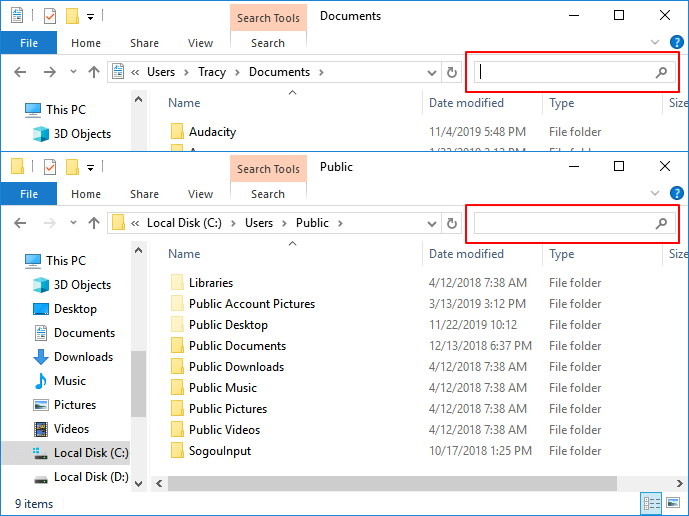
If you're unable to find the invisible saved files on your PC, try searching again or use other methods for assistance.
# 3. Show Hidden Files
If you've hidden files on your Windows computer, you won't be able to see them. To make them appear, follow these steps:
Step 1. To access the View tab in Folder Options, open Windows Explorer, go to Views, then click on Options, and finally navigate to the Folder Options window, where you can select the View tab.
Step 2. Check the box to show hidden files, folders and drives, and uncheck the option to hide protected operating system files, then click OK to save the changes.
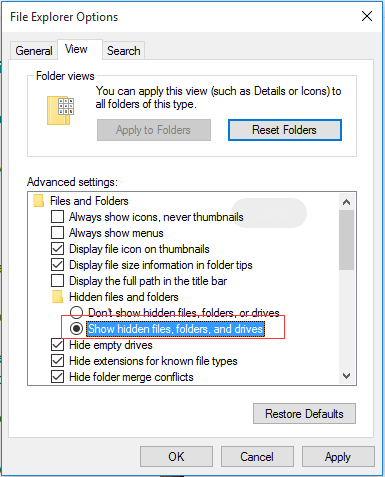
Step 3.Close the Folder Options window and go back to the desktop to see if you can find the saved documents and files.
# 4. Switch User Account to Find Missing Files Saved on Desktop
When you have multiple user accounts and log in to the wrong one, it's not uncommon for saved files on your desktop to disappear.
Step 1. To access your user account settings, click the Windows icon in the bottom left corner of the screen, and then click on your username at the top of the menu that appears.
Step 2. To switch to the other visible account on the list, click on it to select it. This will allow you to view and interact with the new account.
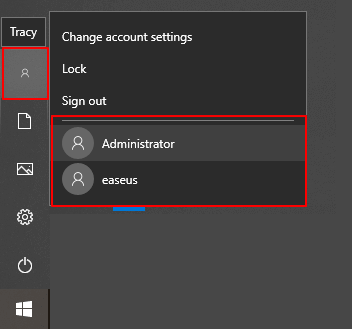
Step 3. Sign in with the password of the other user account.
After this, your files and folders should be available again.
# 5. Check Hard Drive Errors
If your system's hard drive contains file system errors or bad sectors, you may experience issues accessing and viewing desktop saved files and folders. To resolve this, you can try two quick methods to check and repair hard disk errors on your own:
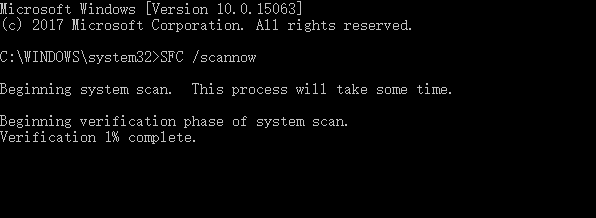
Method 1. Run SFC CMD to Fix File System Error
Step 1. Type cmd in the search box in Windows 10.
From the result, right-click on the Command Prompt and choose "Run as Administrator".
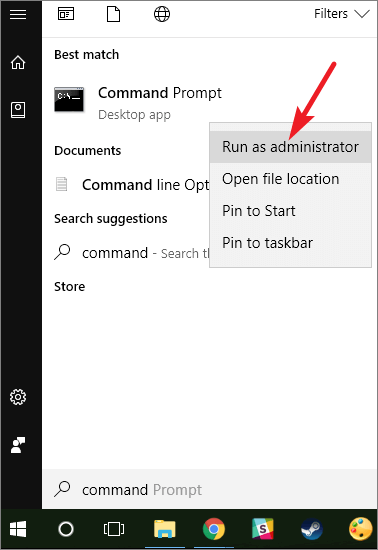
Step 2. Type sfc /scannow in the Command Prompt window and press Enter.
Wait for the process to complete.
Method 2. Run Disk Error Check in File Explorer
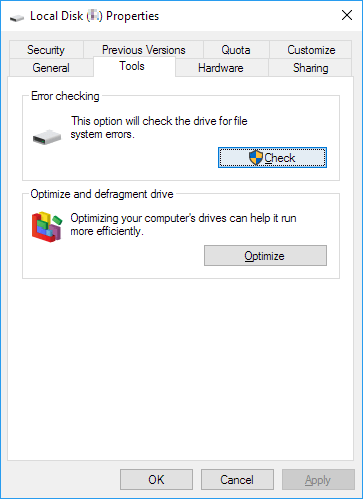
Step 1.To access the properties of the C: drive, open My Computer/This PC, right-click on the C: drive, and select "Properties".
Step 2.To correct errors on your drive, click on "Tools" under Error-checking and select the option to scan existing errors in your drive.
- On Windows 7, click "Check now" to continue.
- On Windows 10/8.1/8, click "Check" to start the process.
Step 3.The utility can scan and repair any found hard drive errors, ensuring that your system remains stable and secure. This feature is particularly useful for users who frequently transfer files, run resource-intensive programs, or experience system crashes.
On Windows 7, select the "Automatically fix file system errors and Scan for and attempt recovery of bad sectors" option and click "Start".
On Windows 10/8.1/8, click "Scan drive" to begin the scan.
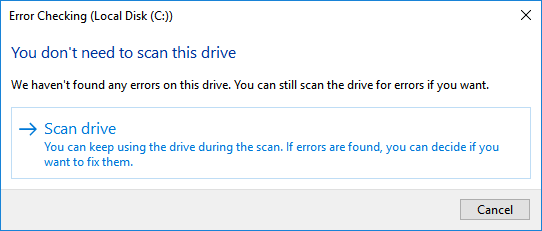
Once the scanning and repair process is complete, you can return to your desktop to verify if the files have been successfully located.
Bonus Fixes for Missing or Disappeared Desktop Icons
Sometimes, when the Desktop icons disappeared on Windows PC, users may also have problems accessing their saved files. If you're experiencing this issue, try running the Task Manager, closing any unnecessary programs, and restarting your PC. You can also try checking the System Restore point, enabling the "Show desktop icons" option, and checking for any corrupted system files.
Fix 1. Show desktop icons
Step 1. To hide desktop icons, right-click on the desktop, go to View, and uncheck "Show desktop icons." This is an important step, as simply unchecking the box may not be enough to completely hide the icons.
Step 2. Try multiple times repeatedly to re-check and uncheck the box.
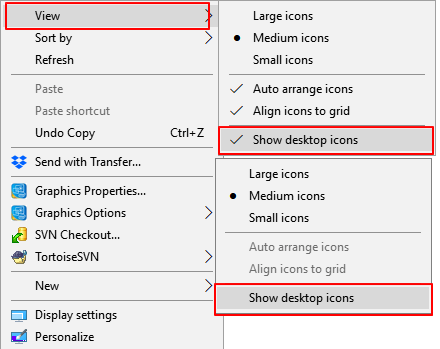
Sometimes, the invisible desktop files would then reappear after some refresh.
If the first view option fails, try the other option in the same way in View - Auto arrange icons:
Step 1. Right-click on your desktop, select "View".
Step 2. Check or uncheck "Auto Arrange Icons".
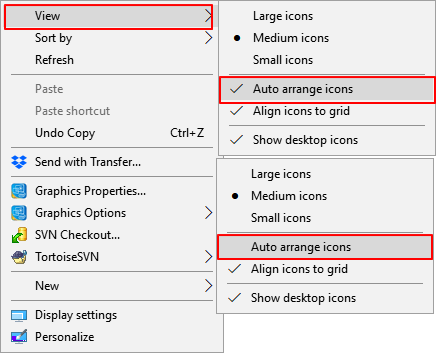
You can make all files and folders appear on the left side and drag and drop them to their desired location.
Fix 2. Manually Check and Set Windows Icons to Show Up
This would reset your desktop icons and finally saved files show up.
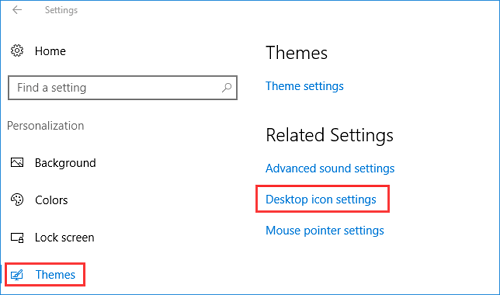
Step 1. Open "Settings" and click on "Personalization".
Step 2. Click "Themes", then click "Desktop icons settings".
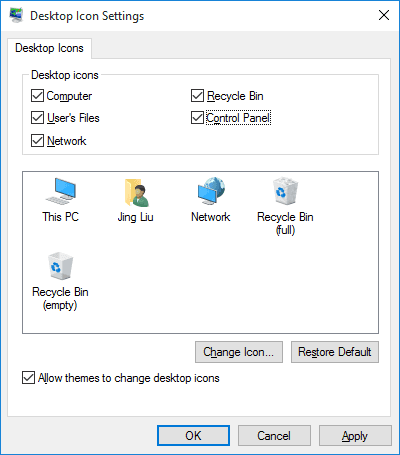
Step 3. To customize the desktop icons, select the icons you want to display, such as Computer (This PC), User's Files, Network, Recycle Bin, and Control Panel.
Click "Apply", then "OK".
If the saved files are still missing on the Desktop, go back to Method 1 and apply Deep Data Recovery to scan and restore all your missing files immediately.
Related Articles
- How to Recover and Repair Corrupted Excel Files in Windows 10/11
- How to Repair/Recover Corrupted PDF Files
- How to Open ISO File in Windows 10/11 Without Burning
- Fixed: Recover Lost Google Play Music Files
- How to Recover a Deleted/Lost Partition on External Hard Drive
You can recover a deleted or lost partition on an external hard drive using either a Windows PC or Mac. To do this, you'll need to download free lost external hard drive partition recovery software to retrieve it. - How to Recover Deleted and Unsaved Notepad Text Files in Windows 10/7 [2021]
Whatever reason it is to lose the text files, the associated anxiety is the same. If you experience this, you can use an effective method in this article to recover deleted text files in Windows 7 and Windows 10.
Products
Articles & Tutorials
- Data Recovery
- Data Backup
- File Recovery
- File Backup
- System Backup and Restore
- Disk and Partition Clone
- Technical articles
- Mobile articles
- Disk Master Help
- Windows Data Recovery Tutorials
- Windows Secure Delete Tutorials
- Windows Partition Management Tutorials
- Windows File Backup and Restore Tutorials
- Windows System Backup and Restore Tutorials
- Windows Disk Backup and Restore Tutorials
- Windows Clone Tutorials