Files/Folders Keep Reappearing After Deletion in Windows 10/8/7
Why Deleted Files Keep Reappearing After Deletion?
"Hi, I'm using Windows 10. I did an update recently and I don't know whether it's the trigger for the problem I'm going to state. Since yesterday, when I deleted some of my files they insisted on reappearing, typically audio files and images. This happened right after I refreshed or restarted the computer. I tried to empty the recycle bin, but the files still came back. How can I fix this issue?"
Getting rid of unwanted files on a computer can be frustrating, especially when deleted files keep reappearing on Windows 10. This issue can be a hassle, but fortunately, there are solutions to fix it. To resolve the problem of deleted files coming back after deletion, you can try four different approaches, which can be found on this page. By implementing these solutions, you should be able to permanently get rid of unwanted files and folders.
| Workable Solutions | Step-by-step Troubleshooting |
|---|---|
| Fix 1. Fix A Corrupted Recycle Bin | Run Command Prompt and type the command rd /s /q C:\$Recycle.bin...Full steps |
| Fix 2. Check Permissions | Right-click the file and choose Properties > click Security and choose...Full steps |
| Fix 3. Run Microsoft Safety Scanner | Select the type of scan you want to run among Quick, Full or Customized...Full steps |
| Fix 4. Turn off Cloud Services | Are you currently using a cloud syncing service? If yes, it may be the culprit...Full steps |
How to Fix Deleted Files/Folders Keep Coming Back on Windows 10/8/7
We've identified some clues that may be causing deletion issues in Windows 10. Depending on your specific situation, you may need to try different solutions to resolve the problem.
Fix 1. Fix A Corrupted Recycle Bin
If files and folders in the Windows Recycle Bin keep reappearing after refreshing, it's likely due to a corrupted Recycle Bin application. To resolve this issue, you can fix the corrupted Recycle Bin in Windows 10 by using the Command Prompt.
Step 1. Run "Command Prompt" as an administrator in Windows 10.
Step 2. Type the command rd /s /q C:\$Recycle.bin and press "Enter".
Step 3. Type exit to close the Command Prompt window.
Fix 2. Check Permissions
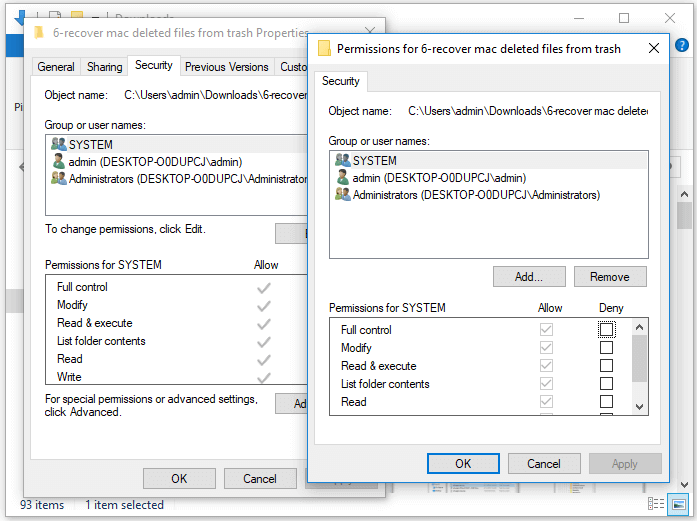
If you're unable to make changes to files or folders due to system restrictions, you can't directly remove items from your computer. First, check your system permissions to see if you have the necessary access rights. On Windows 10, you can do this by right-clicking on the file or folder, selecting "Properties," and checking the permissions under the "Security" tab. If you're still unable to modify or delete the item, you may need to contact the system administrator or take alternative steps to resolve the issue.
Step 1. Right-click on the file/folder you want to delete, then choose "Properties".
Step 2. Click the "Security" tab and choose "Advanced" at the bottom.
Step 3. Click the link "Change" next to "Owner".
Step 4. In the box, input everyone and click "OK".
Step 5. Go back to the "Security" tab, click "Edit" to change permissions.
Step 6. In the "Permissions for SYSTEM" section, select "Allow" for all permissions.
Fix 3. Run Microsoft Safety Scanner
"Deleted files or folders keep coming back" can also be caused by a virus or malware, which can be removed using Microsoft Safety Scanner. This tool can scan and remove viruses and other malware, making it effective in solving the problem of deleted files or folders persisting.
Step 1. Microsoft Safety Scanner is not a built-in tool in Windows, so you'll need to download it from Microsoft's official site.
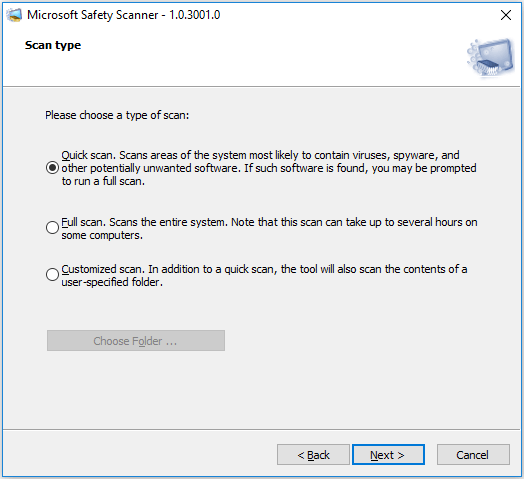
Step 2. Run the tool, select the type of scan, and click "Next".
Step 3. Wait for the scanning process to complete. Once it's done, the scanner will inform you that no virus was found or that it has removed the deleted viruses, spyware, and other potentially unwanted software. If malware was deleted and removed, you can click "View detailed results of the scan" to check for more information.
If your files and folders are infected by a virus or malware, they may be removed by the Microsoft Safety Scanner, which can result in data loss. In this case, you can use Deep Data Recovery, a hard drive recovery software, to recover your lost data.
Fix 4. Remove/Turn Off Syncing Services
If you're experiencing issues with deleted files and folders reappearing, it's likely due to a cloud syncing service, whether it's Windows 10's cloud storage or a third-party app. Uninstalling the cloud storage or turning off the syncing service should resolve the issue without affecting your files.
Bonus Tip - How to Recover Deleted Files in Windows 11/10/8/7
To recover files that were permanently deleted after emptying the recycle bin, you can use Qiling data recovery software. This tool can restore lost files from a hard drive, SSD, SD card, and more.
Second-to-none Recovery Tool
- Data recovery tools can help recover lost data due to sudden deletion, formatting, hard drive corruption, virus attacks, or system crashes, providing support under various situations.
- You can recover files from a formatted hard drive, emptied recycle bin, memory card, flash drive, digital camera, and camcorders using data recovery software. This software can scan the device for deleted or lost files and recover them in their original format.
- Restore deleted files, including photos, Word documents, videos, audio files, Excel data, and other important documents, from your storage media.
Step 1. Select file types and click "Fast Scan" to start
To begin the Deep Data Recovery process, launch the application, select the desired file types, and click "Fast Scan" to initiate the recovery process.

Note: You can choose different search modes based on where and why the data was lost.
Step 2. Select a location and start scanning
To recover deleted files, hover over the partition/drive where the files were stored, and click "Scan" to initiate the scanning process to find the lost files.

Step 3. Select the files you want to recover
Once the scanning process is complete, select the deleted files you want to recover. You can filter the results by file type or search for specific files using the "Search files or folders" box. This is a quick way to find the target file if you remember its name.

Step 4. Preview and recover deleted files
After identifying the recoverable files, select the ones you want to restore and click "Recover" to transfer them to a new storage location, bypassing the original disk where the data was lost.
The Bottom Line
Formatting the hard disk partition where the issue occurs is a common suggestion when files persistently return after deletion. However, this approach may only be effective when hard drive corruption is the underlying cause of the problem.
If you've attempted to format your hard drive and lost all your data, don't worry! You can still recover it with the right software. Download Qiling hard drive recovery software to easily recover the formatted hard drive and get your data back.
Related Articles
- How to Fix Windows 10 Error Code 0xc00000e Without Data Loss
- How to Fix File Explorer Won't Open in Windows 10 or Windows 11
- How to Use CMD to Remove Virus from Any Drive in Windows 10/11
- Fixes for External Hard Drive Not Formatted/Won't Format Error
- Sony Xperia Data Recovery – Recover Data from Sony Xperia Internal Memory
If you're looking for Sony Xperia recovery software, you can free download the best Sony Xperia data recovery software to recover data from Sony Xperia internal memory even it broken screen, dead or broken. - How to Recover Data from WD My Book Essential/Live
The WD My Book Essential and Live are excellent options for storing files, but knowing how to recover data from WD My Book is just as important. If you've lost access to your files, deleted them, or are experiencing other issues, having a plan in place for data recovery is crucial.
Products
Articles & Tutorials
- Data Recovery
- Data Backup
- File Recovery
- File Backup
- System Backup and Restore
- Disk and Partition Clone
- Technical articles
- Mobile articles
- Disk Master Help
- Windows Data Recovery Tutorials
- Windows Secure Delete Tutorials
- Windows Partition Management Tutorials
- Windows File Backup and Restore Tutorials
- Windows System Backup and Restore Tutorials
- Windows Disk Backup and Restore Tutorials
- Windows Clone Tutorials