How to Use CMD to Remove Virus from Any Drive in Windows 10/11
If you're struggling with a virus and need to remove it, Qiling file recovery software can help. To get started, you can try four practical methods to clean up the virus and restore deleted or removed files. By following these fixes, you can bring your files back and get your system up and running smoothly again.
| Workable Solutions | Step-by-step Troubleshooting |
|---|---|
| Fix 1. Remove Virus with CMD | Run Command Prompt as Administrator or Qiling M Tool to clear viruses.attrib -s -h -r /s /d *.*...Full steps |
| Fix 2. Run Antivirus | Run installed antivirus software, execute clean operation if the virus is detected...Full steps |
| Fix 3. Run Windows Defender | Go to Settings > "Update & Security" > "Windows Security" > "Virus & threat protection"...Full steps |
| Fix 4. Format Infected Device | If the hard drive partition or external storage device was infected by a virus, formatting it can help...Full steps |
What Damage Could Viruses Do
Computer viruses can damage your computer by behaving in different ways, such as causing undesirable actions, deleting or encrypting files, and giving hackers access to personal information. They can be a great nuisance and some types, like ransomware, can even demand payment in exchange for restoring access to your files.
How to Recover Files Deleted/Hidden by Viruses
Using CMD commands can only help remove the virus but can do nothing to restore damaged and lost files for the virus infection. Deep Data Recovery can recover lost data in various severe cases.
Qiling data recovery software
- Recover lost or deleted files due to virus attack
- Recover files from the emptied Recycle Bin on Windows 10/11 or Trash Bin on Mac by using a data recovery software. This can help restore deleted files that were mistakenly or intentionally sent to the recycle or trash bin.
- Recover lost files from various storage devices, including hard disk drives (HDD), solid-state drives (SSD), USB flash drives, pen drives, SD cards, external hard drives, and more, with our efficient file recovery solutions.
- Support repairing corrupted files after the data recovery
Learn the 3-step file recovery in the following guides.
Step 1. Select file types
Run Qiling virus file recovery software on your Windows PC, select the desired file types, and click "Fast Scan" to initiate the recovery process.

Note: You can choose different search modes based on where and why the data was lost.
Step 2. Select the virus infected drive to scan
To scan for lost or hidden files, select the disk attacked by the virus. Note that this process may be time-consuming and may not find all files, but it can help recover some of the data.
- If the HDD has been compromised by a virus that deleted or hid files, it's recommended to install any software on a separate volume or an external USB drive to prevent data overwriting.
- If the infected device is an external hard drive, flash drive, or memory card, you should install the software on the local drive of the computer, not on the device itself.

Step 3. Check all scanned results
Deep Data Recovery will immediately start a scan process to find deleted or hidden files on a virus-infected hard drive, with features like filtering or type grouping to quickly locate specific files like pictures, videos, documents, or emails.

Step 4. Preview and recover deleted/hidden files
Once the scanning process is complete, you can preview the recovered files, select the ones you want to recover, and click the "Recover" button. It's essential to save the recovered files to a different location on your computer or storage device, not the original location where they were lost, to ensure their safety.
Removing a virus is a top priority, and many users try to do so using the Command Prompt (CMD).
Why Can You Remove a Virus Using CMD
To show hidden virus files using CMD, you can use the attrib command to display them, and then delete the suspicious files. This process helps to achieve the goal of removing viruses by making them appear, allowing you to target and eliminate the malicious files.
The attrib command is used to display, set, or remove file and folder attributes. By canceling the "hidden" attribute of a virus, you can see it in the folder, and then remove it. This allows you to find and eliminate the virus.
How to Remove Virus Using CMD
Now, follow the steps below to delete viruses from your computer or storage device using CMD.
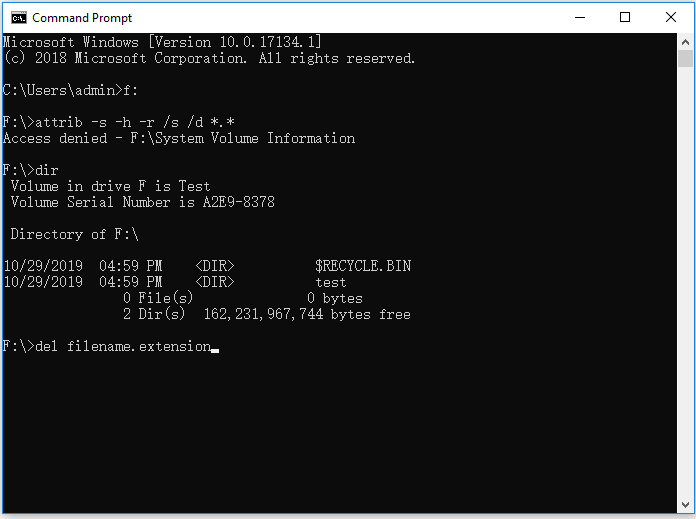
Step 1. Type cmd in the search bar, right-click "Command Prompt" and choose "Run as an administrator".
Step 2. Type F: and press "Enter". (Replace "F" with the drive letter of the infected partition or device.)
Step 3.The command `attrib -s -h -r /s /d *.*` is used to remove the system, hidden, and read-only attributes from all files and subfolders in the current directory and its subdirectories. The `/s` and `/d` options are used to apply the command to subdirectories and their contents.
Step 4. To view all the files under a specific drive, type the command "dir" and press Enter. This will display a list of files and subdirectories in the current directory.
Step 5. If you find suspicious files with names like "autorun" and extensions like ".inf", type "del autorun.inf" to remove the virus.
Here are the basic attributes of the 'attrib' command:
R The "Read-only" attribute, represented by
H – the "Hidden" attribute.
A – stands for "Archiving" which prepares a file for archiving.
S The "System" attribute changes the selected files or folders from user files into system files.
I - "not content indexed file" attribute.
The "attrib" Syntax:
ATTRIB [+ attribute | – attribute] [pathname] [/S [/D]]
In the above command, let's see what the different parameters and switches are:
'+ / –': To enact or to cancel the specified attribute.
'attribute': As explained above.
'/S': Searching throughout the entire path including subfolders.
'/D': Include any process folder.
'pathname': Path where the target file or folder is located.
Here is the proper syntax order for attrib command:
ATTRIB [+R | -R] [+A | -A ] [+S | -S] [+H | -H] [+I | -I] [drive:][path][filename] [/S [/D] [/L]]
- Warning
- Be cautious when using the Command Prompt, as improper use can cause system damage. Before attempting the CMD method, ensure you have a backup of your data to recover in case something goes wrong. This precautionary measure can help prevent potential issues.
If you receive the message "Access denied", you should:
- Make sure you have run Command Prompt as an administrator
- Make sure the file/folder is not in use
- Check the permission of the current account and ensure you have full control over the file/folder by right-clicking on it and going to "Security".
- To check for file system errors, run the Command Prompt and enter the command "chkdsk /f [drive letter]:", replacing [drive letter] with the letter of the drive you want to check. This will scan the drive for errors and attempt to fix them.
Manual execution of the command line is not recommended for non-professionals due to the risk of causing more harm than good. Instead, using a tool like Qiling CleanGenius is suggested, which can perform tasks such as checking and fixing file system errors, enabling or disabling write protection, and updating the system with just one click, making it a more user-friendly and secure option.
To show hidden files using this 1-click-fix software, simply follow these simple steps.
Step 1. DOWNLOAD Qiling CleanGenius for Free.
Step 2. Start Qiling CleanGenius, choose "Optimization" on the left panel. Next, click "File Showing" on the right panel.
Step 3. Select the hard drive and click "Execute".
Step 4. After the operation completes, click the here link to check the hidden files.
3 Other Ways to Remove Virus
Besides using the Command Prompt, there are other ways to remove a virus from your computer or storage device, such as using antivirus software, Windows Defender, or even formatting the storage device.
Method 1. Run Antivirus
Most computers have antivirus software installed. If your computer is infected with a virus, running the antivirus software may help remove the infection.
Method 2. Run Windows Defender Antivirus
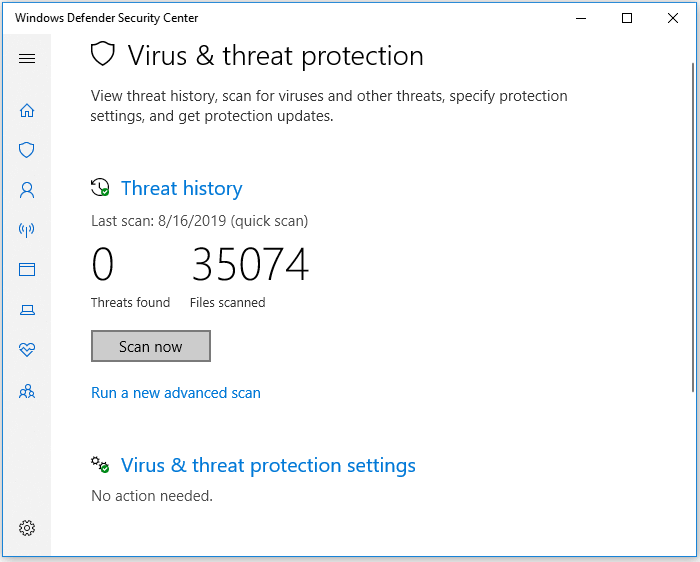
Windows Defender Antivirus is the built-in antivirus protection in Windows 10/11, providing protection against viruses, malware, and spyware for your computer and connected devices. If you don't have third-party antivirus software, using the built-in utility is advisable.
Step 1. Go to "Settings" > "Update & Security" > "Windows Security".
Step 2. Click "Virus & threat protection".
Step 3. In the "Threat history" section, click "Scan now" to scan for viruses on your computer.
Method 3. Format the Infected Device
Formatting a partition or drive is a process of erasing all existing files and data on it, which can remove a virus, but also results in data loss, so it's essential to ensure no important files are stored on the device before proceeding.
How to Prevent Virus or Malware Infections
Here are some tips to prevent virus infection on your computer or external storage device:
Install professional antivirus software on your computer and keep it updated to protect against malware and other online threats.
Be cautious with the origins of the programs you want to install, as some may be malware or contain viruses that could compromise your device's security. Always check the website's authenticity and look for reviews or ratings from other users before downloading and installing any software.
Avoid suspicious websites and think before you make a click
Make sure the network connection is safe
Regularly making backups of your files with free backup software is also recommended to avoid complete data loss that may be caused by a virus infection.
The Bottom Line
Removing a virus using CMD can be a roundabout solution, but it may work in some cases. If the attrib command fails, you can try other tips to get rid of the malicious file. However, virus attacks often result in data loss, and in such cases, using hard drive recovery software like Qiling Data Recovery Software can help rescue lost files as soon as possible.
Related Articles
- How to Enter BIOS in Windows 10/11 on HP, Dell, Lenovo, Acer, Asus
- Locked Out Of Windows 10? We Got It! [Solved]
- Sticky Notes Not Available Error in Windows 11, 10, 8, 7 Without Losing Data
- [Fixed] Google Chrome Not Downloading Files
- How to Convert Raw to NTFS in Windows 10 Without Data Loss
To convert a RAW file system to NTFS in Windows 10 without losing data, download and use Qiling raw drive recovery software. This tool allows for easy recovery of all your data in just 3 simple steps, giving you a chance to back up your files before formatting and converting the file system. - How to Copy Linux Directory and Contents
Linux offers multiple commands to copy directories and contents from one location to another, making it easy to transfer files and folders.
Products
Articles & Tutorials
- Data Recovery
- Data Backup
- File Recovery
- File Backup
- System Backup and Restore
- Disk and Partition Clone
- Technical articles
- Mobile articles
- Disk Master Help
- Windows Data Recovery Tutorials
- Windows Secure Delete Tutorials
- Windows Partition Management Tutorials
- Windows File Backup and Restore Tutorials
- Windows System Backup and Restore Tutorials
- Windows Disk Backup and Restore Tutorials
- Windows Clone Tutorials