How to Convert Raw to NTFS in Windows 10 Without Data Loss
Can I Convert RAW to NTFS in Windows 10 Without Losing Data
Yes, it is possible to convert a RAW drive to NTFS without losing data, but you need to take precautions to avoid overwriting any existing data. If your drive is showing as RAW, it is likely that Windows cannot read it due to file system corruption. To convert it to NTFS, you can first use a data recovery tool like Qiling to recover your files from the RAW drive, then format the drive to NTFS. Alternatively, you can try the built-in "Check" and "Repair" options in Disk Management, or use a third-party tool like Qiling Partition Recovery to scan and repair the drive without formatting.
If the RAW problem happens on the system partition instead of a USB or data drive, follow this separate guide to recover data from a RAW C drive before attempting boot repair or formatting.
If a drive becomes RAW due to a corrupted DBR or file system, it becomes inaccessible. To access the drive, you can convert RAW to NTFS or FAT32, but formatting will erase all files. To troubleshoot and convert RAW to NTFS without losing data, you can use Qiling raw hard drive recovery software, which can recover data from the RAW drive with a high recovery rate, allowing you to recover your files before formatting the drive to NTFS for reuse.
This video tutorial explains how to convert a RAW file system to NTFS and recover data from a RAW system. The guide provides a step-by-step walkthrough on how to change the RAW file system to NTFS in Windows 10, allowing users to access and recover their important files.
How to Convert RAW to NTFS in Windows 10 Without Data Loss
Before formatting the RAW drive to NTFS, you can use a professional data recovery tool like Qiling to recover files from the RAW partition in advance. This user-friendly tool enables you to recover lost files from various storage devices due to formatting, deletion, partition loss, software crash, virus infection, unexpected shutdown, or other unknown reasons.
Download the free RAW drive recovery software and follow these steps to recover files effortlessly.
Step 1. Choose file types and click "Fast Scan" to start
Launch Deep Data Recovery. Choose file types and click "Fast Scan" to begin the recovery process.

Note: You can choose different search modes based on where and why the data was lost.
Step 2. Select and scan the RAW partition
If the RAW partition has a label, you can select it from the drive list and click "Scan" to search for lost files. If the RAW partition is unlabelled, it will be listed as a "Lost Partition" and you can select that and click "Scan" to perform a full scan of the drive.

Step 3. Preview found data from the scan result
After the scan is completed, all available files on the RAW hard drive will be displayed, allowing you to view and select the files you want to recover. You can sort the scanned data by file format or use the "Search files or folders" box to search directly for specific files.

Step 4. Recover data from RAW partition
To recover data from a RAW drive, select all files and click "Recover" to retrieve all the data. Then, choose another internal or external hard drive to save the recovered data and click "OK" to initiate the RAW drive recovery process.
If data recovery software can't restore RAW files, Qiling RAW recovery services can still help retrieve the data.
Consult with Qiling data recovery experts for one-on-one manual RAW recovery service. After a free diagnosis, we can offer the following services:
- Repair damaged RAW drive without formatting
- Recover data from RAW drive, including BitLocker encrypted drives
- Recover RAW partition, RAW USB, RAW flash drive, RAW external hard drive, and more
Format and Convert RAW to NTFS in Windows 10
After recovering data from a RAW partition in Windows 10, you can fix the issue by formatting the partition, which will restore its original state and functionality.
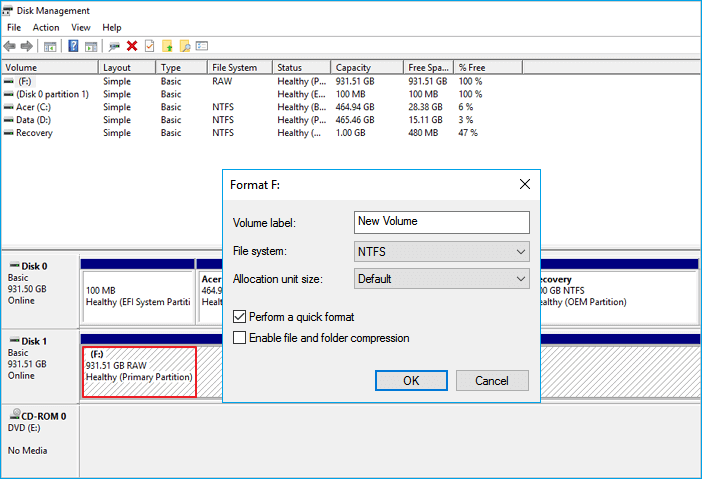
1. To format a RAW partition in Windows 10, go to This PC or Disk Management, right-click on the RAW partition or drive, and select "Format".
2. To format the drive, set the volume label, file system (NTFS), and allocation unit size. The default format option is Quick Format, which can be selected for a faster formatting process. Click "OK" to initiate the formatting operation.
After reformating, you can access the RAW file system partition or drive as normal.
Related Articles
- Download Qiling Data Recovery Crack 15.2 with Serial Keygen [2022 Official]
- MP4 Repair| Repair Corrupted MP4/MOV File on Windows and Mac
- Email Password Recovery: How to Recover Gmail Account and Password
- Free Download | Undelete Files with Windows Undelete Software
- How to Remove Recycle Bin from Desktop Windows 10/11 in 3 Ways
The Recycle Bin icon comes with Windows and can be found on the desktop, but it can also be hidden or removed in simple ways. This article will guide you on how to get rid of Recycle Bin on desktop in Windows 11, Windows 10, and Windows 7. - How to Remove Shortcut Virus from PC/Laptop in Windows 11/10/8/7
To remove a shortcut virus from Windows 10/8/7, you can use a shortcut virus remover tool, which quickly removes the virus, or use a data recovery tool to recover lost data during the removal process.
Products
Articles & Tutorials
- Data Recovery
- Data Backup
- File Recovery
- File Backup
- System Backup and Restore
- Disk and Partition Clone
- Technical articles
- Mobile articles
- Disk Master Help
- Windows Data Recovery Tutorials
- Windows Secure Delete Tutorials
- Windows Partition Management Tutorials
- Windows File Backup and Restore Tutorials
- Windows System Backup and Restore Tutorials
- Windows Disk Backup and Restore Tutorials
- Windows Clone Tutorials