Email Password Recovery: How to Recover Gmail Account and Password
The Google platform's mail service, Gmail, has made human work easier and more accessible due to its user-friendly interface and availability on every internet browser, making it a popular and efficient choice for many people.
Forgetting your Gmail account password is a common issue, especially if you haven't saved it. Fortunately, this article provides a step-by-step guide on how to recover your Gmail account, making it easy to regain access to your email.
How to Recover Gmail Password with a Recovery Email
When creating a new Gmail account, you're asked to provide a recovery email ID in case you forget your password. This allows you to easily access your account even if you've forgotten your password, by using the recovery email ID to regain access. In this section, we'll provide instructions on how to recover your Gmail account using the recovery email ID.
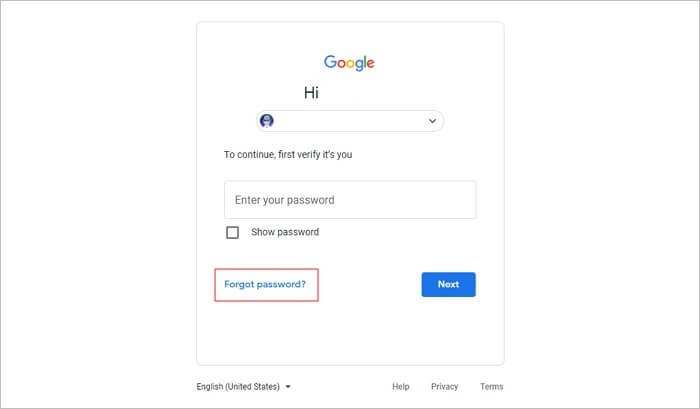
Step 1. Click on "Forgot Password"
To reset your Gmail password, start by navigating to the Gmail log-in page on your internet browser. If you've forgotten your email password, simply enter your email address and click on the "Next" button, then select the "Forgot Password" option.
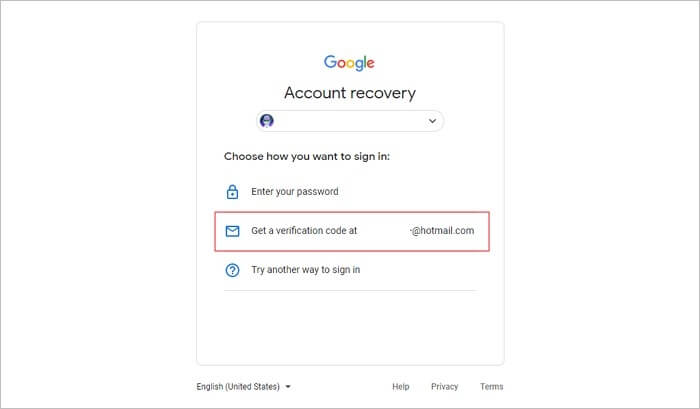
Step 2. Select Recovery Email ID
Google will display a page with multiple recovery options, and you'll need to select the one that includes your recovery email ID to receive a verification code for recovering your Gmail password.
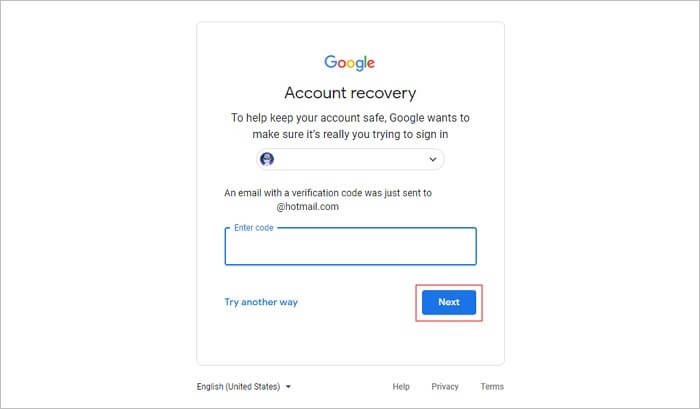
Step 3. Recover Your Gmail Password
Gmail will send an email consisting of the verification code to your recovery email account. You have to access your recovery email for the code and type that code in the password recovery wizard of Gmail. After entering the code, tap on "Next". Now you can reset your Gmail account password instantly.
How to Recover Gmail Password Without a Recovery Email
If you've forgotten your recovery email ID or can't access it, you can still recover your Gmail password with the help of a linked phone number. This alternative method allows you to regain access to your account even if you can't reach your recovery email address.
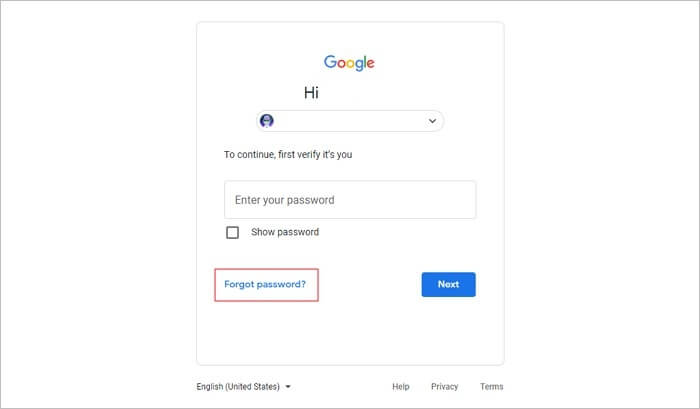
Step 1. Begin with Gmail Log-in
First, open the Gmail log-in page. Enter your email address correctly, then click on the "Next" button. If you've forgotten your password, click on "Forgot Password" below.
Step 2. Enter the Linked Phone Number
Google will ask you to enter the recovery email ID. Alternatively, tap on the "try another way" option at the bottom and Google will ask if you want to get a verification code to perform Gmail password recovery. Click on the "Send" button to proceed.
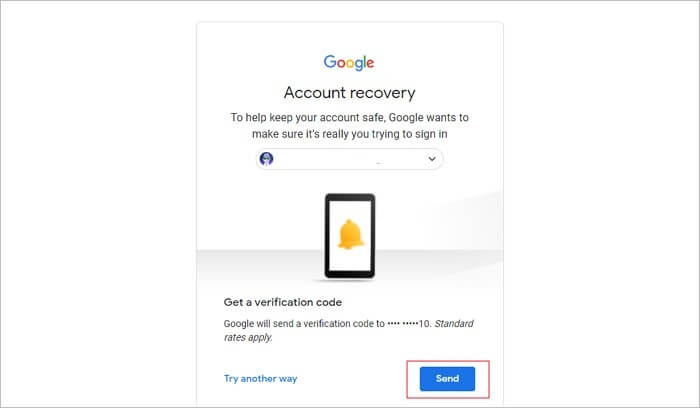
Step 3. Enter Verification Code
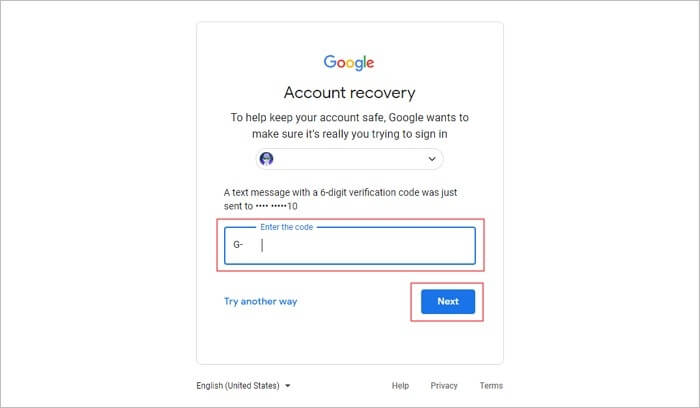
Google will send you a text message with a one-time generated code, which you can enter on the recovery wizard and tap "Next". This allows you to reset your Gmail password without using a recovery email.
Don't Miss: How to Recover Deleted Emails in Yahoo Mail
How to Reset Your Gmail Password
To prevent unnecessary email password recovery, it's recommended that Gmail users reset their password twice a month to enhance account security. By doing so, they can remember their password and reduce the chances of hacking, thus protecting their account.
To reset your Gmail password, follow these steps: go to the Gmail login page, click "Forgot password," enter your email address, and click "Next". Then, enter the recovery email address or phone number associated with your account and click "Next".
Step 1. Sign in to Your Gmail Account
To access your Google account settings, start by signing in to your Gmail account by entering your email ID and password. Then, click on the "Profile" icon displayed in the top right corner and select "Manage your Google account".
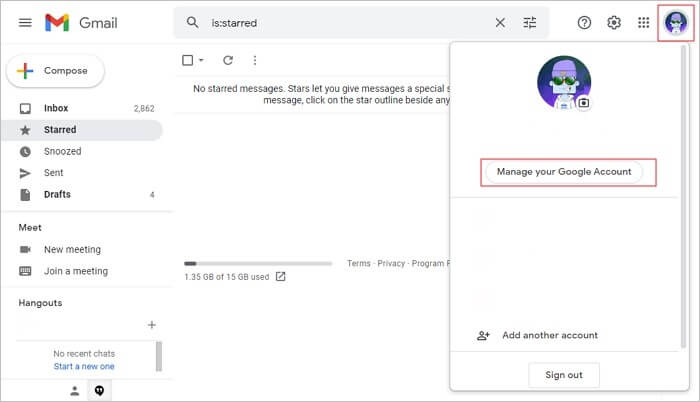
Step 2. Select the Security Tab
To update your Google password, go to the Security tab and click on the "Signing in to Google" section, then select the "Password" button. Enter your current password and tap "Next" to proceed.
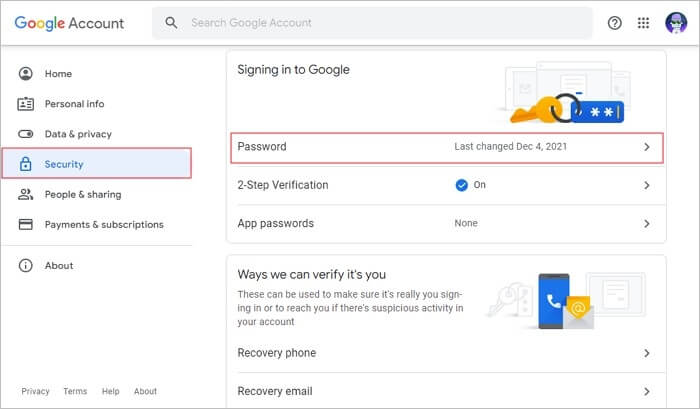
Step 3. Reset Your Password
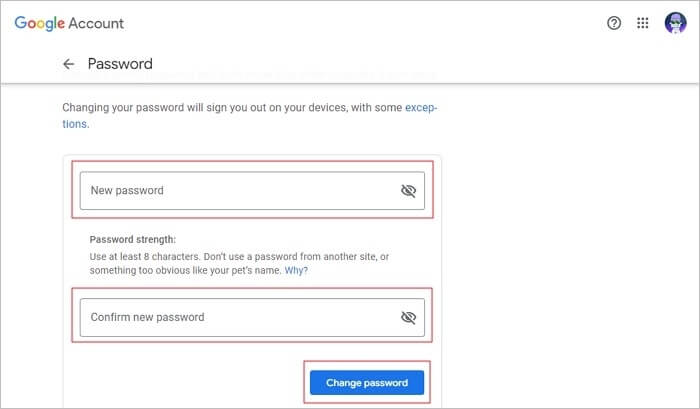
Google will now let you change the password. So, create a new password and enter it again for confirmation, then tap on "Change Password", and your password will be reset. You'll need to enter the new password on devices where you've used Google to log in.
Pro Tip: How to Recover Permanently Deleted Emails
If you've lost email data on Outlook due to a corrupted file or accidental deletion, you can recover it using the Deep Data Recovery Software. This software can help you retrieve lost data from Outlook, allowing you to regain access to your important emails and files. The process of recovery may vary depending on the specific circumstances of your data loss, but the Deep Data Recovery Software is a reliable tool that can help you get your data back.
Qiling data recovery software is an efficient tool that can instantly recover deleted email data from the Outlook file, including email messages, calendars, contacts, notes, and attachment files in their original state.
This software is designed to recover email data from severely corrupted or damaged Outlook files, making it easy to retrieve mail data without complications, even in the event of a virus attack.
Key features of Deep Data Recovery:
- Recover deleted files of all types, including Word, Excel, PPT documents, PDFs, photos, videos, audio files, and emails, among many others, with our advanced data recovery software.
- You can recover data from emptied Recycle Bin, HDD, SSD, USB flash drive, SD card, and external hard drives using data recovery software. This software can scan the device for deleted files and recover them, even if they have been emptied from the Recycle Bin.
- Restore lost data on various Windows versions, including Windows 10, 8.1, 8, 7, Vista, XP, and Windows Server 2003, with a tool that can recover deleted files, formatted drives, and corrupted partitions.
- Retrieve deleted files from a Mac computer running macOS 11.2 to 10.9 using data recovery software. First, ensure that Time Machine backups are enabled on your Mac, or use a third-party data recovery tool to scan and recover lost files.
Steps to Recover Lost Email Data from Outlook Using Qiling Email Recovery Software
To recover lost email data from Outlook files, follow these steps. First, ensure that you have backed up your data regularly, as this will make the recovery process much easier. If you haven't backed up your data, you can try using the built-in recovery tools in Outlook, such as the "Recover Deleted Items" feature.
Step 1. Launch Qiling file recovery software on your Windows computer. Select file types and click "Fast Scan" to start the recovery process.

Note: You can choose different search modes based on where and why the data was lost.
Step 2. Choose the drive or partition where you lost email files, and click "Scan" to initiate the recovery process.

Step 3. The software will start scanning immediately. Wait for the scanning process to finish. To quickly find email files, click "Others" in the left panel and look for PST or Outlook files in the file type list.

Step 4. Choose the desired email files, click "Recover", and save them to a different location.
Conclusion
If you've forgotten your Gmail password, don't worry, as this article provides authentic instructions for email password recovery. You can easily execute Gmail account recovery using the methods outlined, and if you've lost or damaged email data from Outlook, you can recover it using the Deep Data Recovery tool.
Related Articles
- Deep Data Recovery 14.2.0 Crack with License Code 2022
- Top 10 Best Free SD Card Data Recovery Software (100% Working)
- How to Recover Data from RAID 1 Disk with Raid 1 Recovery Software
- Files Disappeared and Missing from Hard Drive
- How to Do Samsung SD Card Recovery on Windows/Mac
Samsung SD card recovery software enables the recovery of deleted photos, videos, files, and more from a Samsung SD card. The detailed guide to recover data from the SD card can be followed on both Windows and Mac operating systems. - Best 5 SD Card Photo Recovery Apps to Recover Deleted Photos from SD Card
Here are the top 5 best apps to recover deleted photos from SD card, helping you keep all the great moments safe and in good situation. They apply to the SD card photo recovery app for Android, Windows PC or Mac OS.
Products
Articles & Tutorials
- Data Recovery
- Data Backup
- File Recovery
- File Backup
- System Backup and Restore
- Disk and Partition Clone
- Technical articles
- Mobile articles
- Disk Master Help
- Windows Data Recovery Tutorials
- Windows Secure Delete Tutorials
- Windows Partition Management Tutorials
- Windows File Backup and Restore Tutorials
- Windows System Backup and Restore Tutorials
- Windows Disk Backup and Restore Tutorials
- Windows Clone Tutorials