Files Disappeared and Missing from Hard Drive
Files Missing from My Hard Drive in Windows 10
"I updated Windows 10 this morning. After restarting my computer, I found all my personal files are gone! Did Windows 10 update delete my files? I am so worried right now. Please help me find disappeared files."
Files missing from Windows can occur due to various reasons such as accidental deletion, disk formatting, or partition removal, but they don't actually disappear, they just become inaccessible from the usual locations like Desktop, Libraries, and Camera Roll.
No worry. In this step-by-step guide, you can find 8 ways to restore the missing files.
| Workable Solutions | Step-by-step Troubleshooting |
|---|---|
| Fix 1. (Fast & Easy) Use Qiling Data Recovery Software | Launch Qiling Data Recovery Software...Full steps |
| Fix 2. Other 7 Ways |
Show Hidden Files & Folders...Full steps |
Why Did Computer Files Suddenly Disappear
To restore lost items on your computer, you'll need to determine how they vanished. Common situations that might lead to lost files or personal documents, pictures, videos, installed programs, games, etc. include accidental deletion, formatting of the hard drive, virus or malware attacks, software glitches, or hardware failures. Understanding the cause will help you take the necessary steps to recover your lost data or reinstall the missing items.
- Windows 10 automatically upgrades or updates, which can lead to the removal of desktop files and installed apps.
- The virus deleted or hid personal files.
- You logged in a new user account.
- The hard drive is failing.
If you've lost files or folders in Windows 10, you can recover them using one of the following methods. Once you understand how your files went missing, you can select a method to recover deleted, hidden, or unknowingly lost files and folders without any trouble. We'll show you how to recover files that are missing from your computer's hard drive in the next part.
Method 1. Recover Files Missing by Qiling Data Recovery Software
Qiling hard drive recovery software is designed to help restore missing data by recovering files lost in various situations, including accidental deletion, formatting, virus attacks, and more.
Qiling Hard Drive Recovery Software
- You can recover data from various storage devices, including the Recycle Bin, memory cards, flash drives, digital cameras, and camcorders, even after they've been emptied.
- Users can start, stop, or restart a data recovery scan at any time to fit their data recovery schedule.
- Data recovery services can help recover lost data due to sudden deletion, formatting, hard drive corruption, virus attacks, and system crashes under various circumstances.
How to Recover File Missing from Hard Drive
Step 1. Select file types and click "Fast Scan" to start
Launch Deep Data Recovery. Select file types and click "Fast Scan" to begin the recovery process.

Note: You can choose different search modes based on where and why the data was lost.
Step 2. Scan the hard drive partition
Select the drive where you lost or deleted files, click "Scan" and let the software scan for all lost data and files on the selected drive.

Step 3. Check the results
When the scan is finished, you can apply the "Filter" feature or click the "Search files or folders" option to search for the lost files on the hard drive.

Step 4. Restore lost hard drive data
Select the files you want to recover and click "Recover" to save them to a different location.
Method 2. Show Hidden Files & Folders
There might be a chance that your computer files are just invisible, hidden silently, so you should check for hidden files and folders.
Step 1: To access your hard drive, go to "This PC" and double-click on it to open.
Step 2: To view hidden items, go to the Show/hide section and check the box next to "Hidden items".
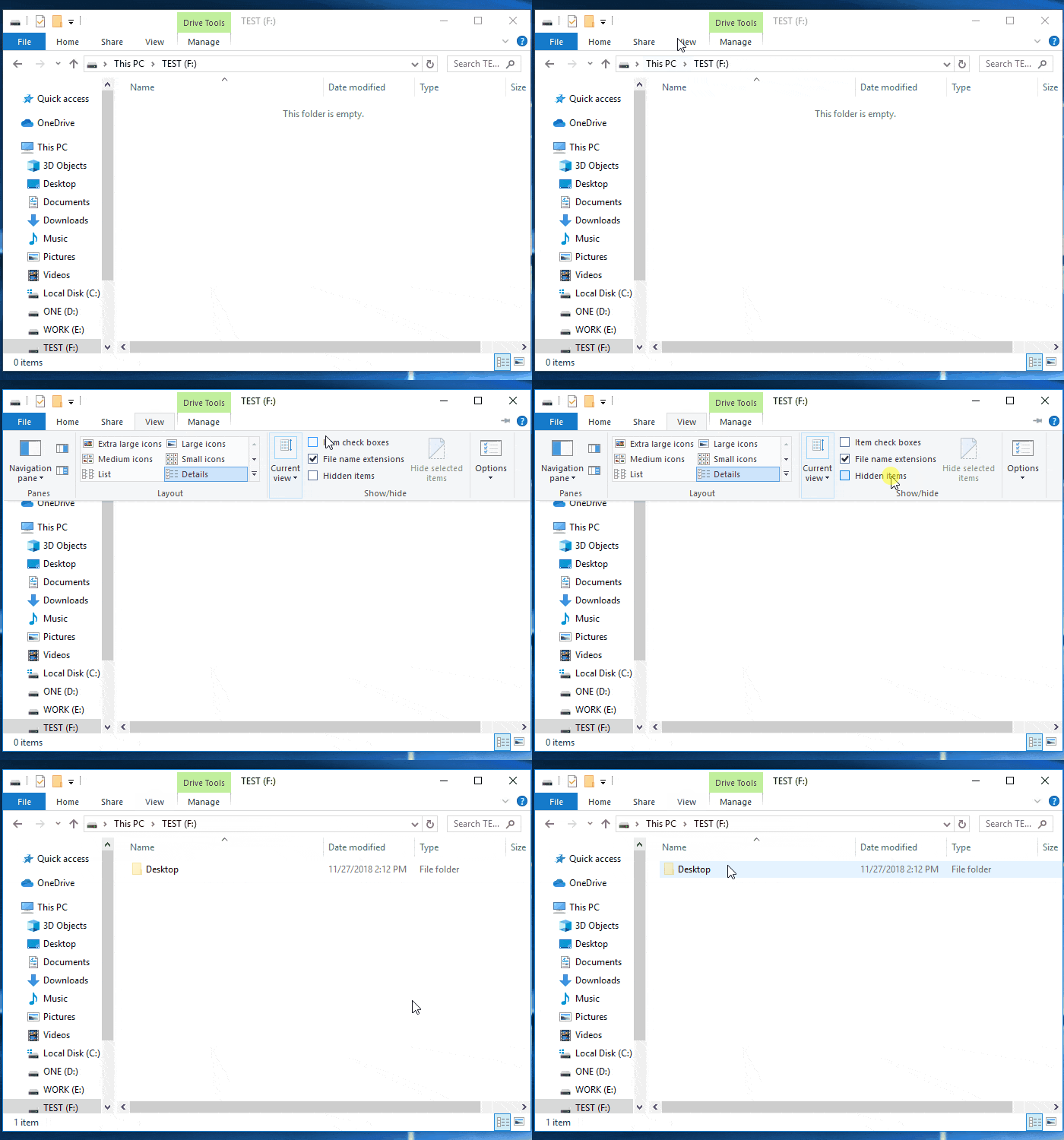
The hidden items are now visible and the ones that were previously hidden or disappeared are now reappearing. The search functionality has been updated to provide more accurate results, and the inventory system has been recalibrated to ensure that all items are accounted for.
Method 3. Switch to Your Old User Account
Windows 10 updates can sometimes create a new user account, which can lead to confusion and the loss of files, as the system may default to the new account instead of the original one. This can result in the files from the original account being inaccessible or seemingly deleted.
Step 1:To find your old user account, go to "Settings" -> "Accounts".
Step 2: Click on your old account in order to switch to it.
Missing files should show up again.
Method 4. Check Your Hard Drive
To prevent data loss, regularly check your hard drive for errors and corruption. This can be done using built-in tools or third-party software, and can help identify and fix any issues before they cause data loss. If your hard drive does get corrupted, it may be possible to recover data using specialized software or by taking it to a professional data recovery service.
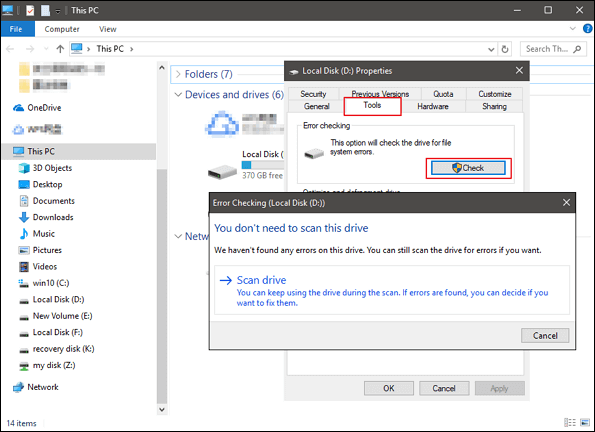
Step 1: To check the properties of a hard disk or partition, open "This PC/Computer", right-click the desired hard disk or partition, and select "Properties" from the context menu.
Step 2: Select "Tools" and click "Check" under Error-checking.
Step 3: Check Disk Options dialog will show up and select any one of the following options to check and repair hard disk.
Step 4: Select both "Automatically fix file system errors" and "Scan for and attempt recovery of bad sectors" options, then click the "Start" button.
Method 5. Check User Folder
In some cases, your files may change location, making it seem like they've disappeared from your computer.
To check the user folder on your PC, go to "This PC", then click on "Local Disk (C:)", followed by "Users", and finally "Public".
If you can't find your files, you can also try looking in the "This PC" section, specifically in "Local Disk (C:)", then "Users", followed by your "User Name", and finally "Documents".
Method 6. Find Your Files with Copy of Backup
Have you made a backup plan for your PC? If you have backed up your important files, check your backup folders to find the missing files and folders. If not, you may need to explore other methods. For data backup, we highly recommend Qiling Backup.

Method 7. Turn Off Fast Startup
To address the issue of missing files in Windows 10, it's suggested to disable Fast Startup. This can be done by following these steps:
Step 1.To access the Power Options, type "Power Options" in the search box, select it, or press Windows + X and choose Power Options from the second line.
Step 2. Select Choose what the power button does.

Step 3. Choose Change settings that are currently unavailable.
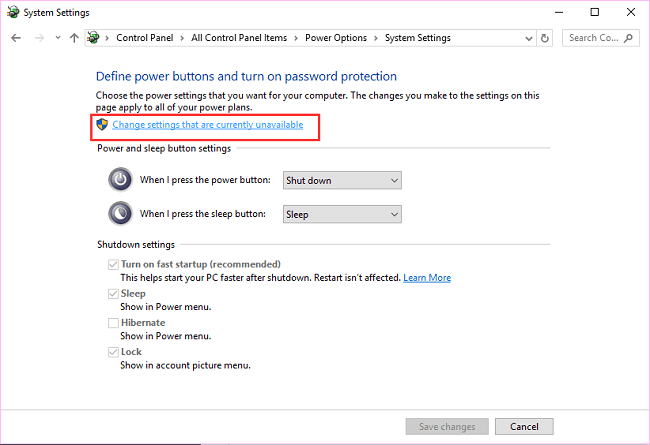
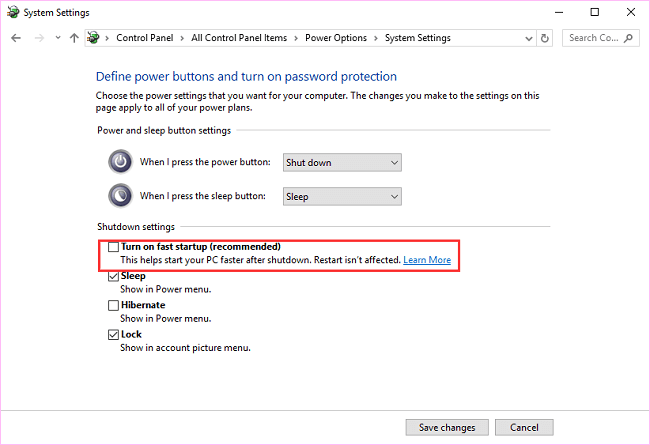
Step 4. Move to the next page, unclick Turn on fast startup.
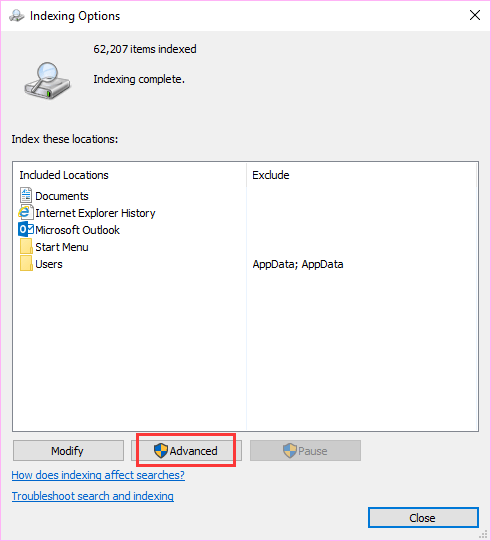
Method 8. Change Indexing Options
If your random files disappeared, you can try checking the "Change indexing option" which allows you to search for files or folders randomly. This feature may help you recover your missing files.
Step 1. Input Indexing Options on the search box.
Step 2. Click on it and the window pop up. Choose Advanced.
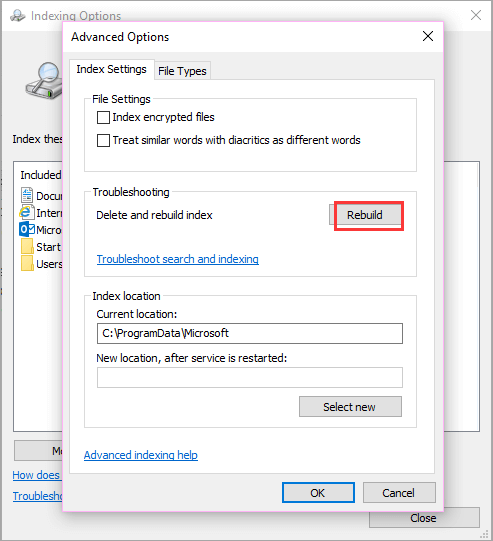
Step 3. To troubleshoot indexing settings, go to the Indexing Setting tab, then click on the "Rebuild" option in the Troubleshooting part.
Find Your Missing Files with Fast Speed
If you're experiencing the frustrating issue of a file disappearing from your hard drive, don't worry, as there are 8 effective ways to fix it. The most straightforward solution is Deep Data Recovery, which can be done with the help of Qiling, a reliable tool that can bring your data back. Additionally, there are 7 other methods that can also resolve this issue, making it a manageable problem to tackle.
If you have any questions, you can click the live chat icon on the right side or send an email to support@idiskhome.com.
Related Articles
- Fix Corrupt Master File Table. CHKDSK Aborted Error in Windows 10/8/7
- Ext4 File Recovery: How to Recover Deleted Files from Ext4 Linux
- Windows.old Restore: Restore Files from Windows.old Folder
- How to Recover Data from Western Digital Hard Disk
- How to Recover 0 Byte Word Document in Windows 10/8/7
If your Microsoft Word document shows zero bytes after saving. This issue can occur on Windows 10, 8, or 7. To recover a 0-byte Word document. you can try using Qiling data recovery software, which can help restore your lost file. - Deleted C Drive File? This Article Tells You How to Recover it!
Recovering deleted C drive files requires a special approach due to their association with the operating system and software running files. Unlike files on other drives, C drive files often have unique characteristics that make them more challenging to recover.
Products
Articles & Tutorials
- Data Recovery
- Data Backup
- File Recovery
- File Backup
- System Backup and Restore
- Disk and Partition Clone
- Technical articles
- Mobile articles
- Disk Master Help
- Windows Data Recovery Tutorials
- Windows Secure Delete Tutorials
- Windows Partition Management Tutorials
- Windows File Backup and Restore Tutorials
- Windows System Backup and Restore Tutorials
- Windows Disk Backup and Restore Tutorials
- Windows Clone Tutorials