Windows.old Restore: Restore Files from Windows.old Folder
Can I Recover Files from Windows.old Folder
You're trying to reinstall Windows 10 after a crash, but your files are still taking up space in the Windows.old folder, and you can't launch Steam games from there. You're wondering if you can restore files from the Windows.old folder to your new installation. Is that correct?
After upgrading to a new version of Windows, a Windows.old folder is automatically created, containing files and data from the previous version. This folder can be used to restore the previous version if needed, and is recommended to be kept in case of file recovery.
If you've lost the Windows.old files, we can help you recover them. You can either manually or automatically retrieve files from the Windows.old folder, which contains previous versions of your Windows installation.
Note: You can try to restore Windows.old folder with special recovery software if you deleted it by mistake.
Method 1. Manually Windows.old Restore (Easy Steps)
Step 1. To access the system partition, you can open the Computer panel and navigate to the system partition, which is typically labeled as the drive where the operating system is installed, usually denoted by a drive letter such as C:.
Step 2. Double-tap or double-click the "Windows.old" folder, then navigate to "Users", and finally, click on your username.
To retrieve files from a computer, start by opening the folders that contain the files you want to retrieve. This will allow you to easily locate and select the files you need.
Step 3.To copy and paste files from one folder to another in Windows 10, open File Explorer, navigate to the folder containing the files you want to copy, select the files by holding the Ctrl key and clicking on them, right-click on the selected files, and choose "Copy" from the context menu. Then, navigate to the destination folder, right-click inside the folder, and choose "Paste" from the context menu.
Repeat step 2 for each user account on your PC.
Method 2. Automatically Windows.old Restore
You can manually retrieve files from the Windows.old folder by navigating to C:\Windows.old\Users\username and copying the desired folders (e.g. Documents, Pictures) to their original location. However, a simpler approach is to run the "Recover personal files" troubleshooter, which will automatically retrieve your files from the Windows.old folder and restore them to their original location.
Method 3. Recover Deleted or Lost Data Without Windows.old Folder
Losing important files due to accidental deletion, disk formatting, virus attacks, software crashes, partition loss, or raw errors can be frustrating. However, recovering lost data is not as difficult as it seems, especially with the help of powerful data recovery software.
Here you can try Qiling file recovery software, which can effectively retrieve lost files from various storage devices, including hard drives, USB flash drives, and memory cards, through a simple 3-step process.
Step 1. Launch Deep Data Recovery, select file types that you want to recover

Note: You can choose different search modes based on where and why the data was lost.
Step 2. Connect the external storage device to your computer, then choose the drive where you lost files and click "Scan" to start the recovery process.

Step 3. The software rapidly scans deleted files, followed by a deep scan to find additional lost files. Once the scan is complete, users can filter specific file types using the "Filter" feature.

Step 4. To recover files, click the "Preview" button or double-click on a file for a full preview, then select the desired files, click "Recover" and choose another safe location to save all the files at once.
If you have any problems, you can watch this video for more help!
Extra Tip: Downgrade to the Previous Version
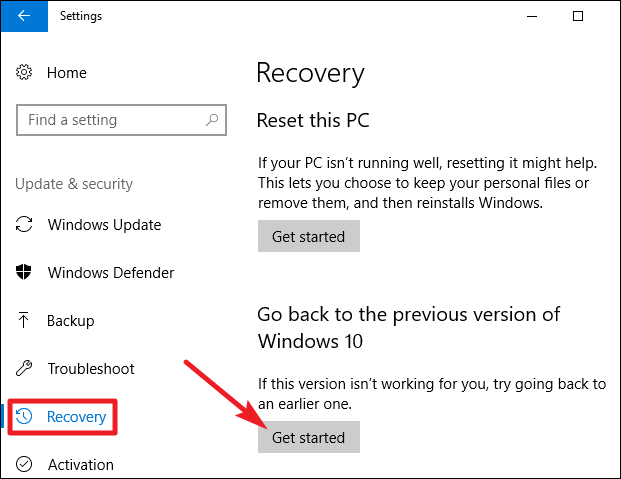
To downgrade from the new version of Windows to an older one, you can use the Windows.old folder. Go to "Settings > Update & Security > Recovery" and click the "Get Started" button under "Go back to Windows 7/8.1/10.0." to initiate the downgrade process.
Click it and Windows will restore your old Windows operating system from the Windows.old folder.
When files disappeared after a Windows 11 update rather than a reinstall, use recovering files after a Windows 11 update to check the account, backup, and available old-profile paths.
Related Articles
- How to Recover Deleted Files After Upgrading to Windows 11
- Deleted NAS Recovery: How to Recover Deleted Data from NAS Quickly
- How to Fix The Directory Name Is Invalid in Windows 10/11
- Free SanDisk Recovery Software Recovers Lost Sandisk Data
- How to Recover Permanently Deleted Photos in Windows 10
You can recover permanently deleted photos in Windows 10 by using Deep Data Recovery. This software can restore deleted photos from the previous version and backup files, allowing you to retrieve your lost images. - How to Recover Deleted Photos from Hide It Pro
You can recover deleted photos from Hide It Pro by following the steps outlined in this article, which provides guidance on how to retrieve images from Hide It Pro on both Android and iPhone devices.
Products
Articles & Tutorials
- Data Recovery
- Data Backup
- File Recovery
- File Backup
- System Backup and Restore
- Disk and Partition Clone
- Technical articles
- Mobile articles
- Disk Master Help
- Windows Data Recovery Tutorials
- Windows Secure Delete Tutorials
- Windows Partition Management Tutorials
- Windows File Backup and Restore Tutorials
- Windows System Backup and Restore Tutorials
- Windows Disk Backup and Restore Tutorials
- Windows Clone Tutorials