How to Fix The Directory Name Is Invalid in Windows 10/11
| Workable Solutions | Step-by-step Troubleshooting |
|---|---|
| Method 1. Change a USB port | You can first try to re-insert or replug the external hard drive, USB, or SD card via another USB port...Full steps |
| Method 2. Check Disk Errors | If changing another USB port or PC doesn't work, try to check and repair disk errors...Full steps |
| Method 3. Update Disk Driver | 'The directory name is invalid' might be caused by an outdated disk driver. Try to update the disk driver...Full steps |
| Recover Data from Storage Device | If the 'The directory name is invalid' problem still exists, perform data recovery to get data off...Full steps |
Some users who upgraded to Windows 10 reported encountering the "directory name is invalid" error when trying to access their USB flash drive, external hard drive, or SD card.
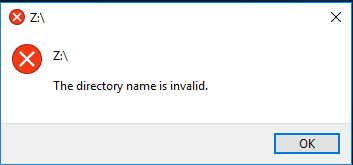
If your device is caught by a problem, you will not be allowed to open the device and access your data there. You can get help to recover data in Windows 10 or fix the problem.
Note: To protect data security on your USB flash drive or other storage devices, use data recovery software to retrieve data when you've resolved the directly name invalid error on your Windows PC.
Method 1. Change USB Port to Fix The Directory Name Is Invalid error
If Windows 10 reports a 'The directory name is invalid' error, try re-inserting or replugging the external hard drive, USB, or SD card into a different USB port, as some users have found that changing the port can resolve the issue.
Method 2. Fix The Directory Name Is Invalid by Checking Disk Errors
If the issue persists, try connecting the device to a different computer to see if it can be accessed. If it can't be accessed, check and repair disk errors in Windows 10. If it can be accessed, it suggests that the 'directory name is invalid' error is not related to disk corruption, and you should explore other solutions to resolve the issue.
Method 3. Update Disk Driver to Fix Directory Name Is Invalid
If the 'directory name is invalid' error persists after ruling out USB ports and disk issues, it's likely related to the disk driver. Try updating the disk driver to see if it resolves the issue.
Step 1. Press the "Windows + R" Key.
Step 2. Type devmgmt.msc and press "Enter" to open device manager.

Step 3. Expand "Disk Drives".
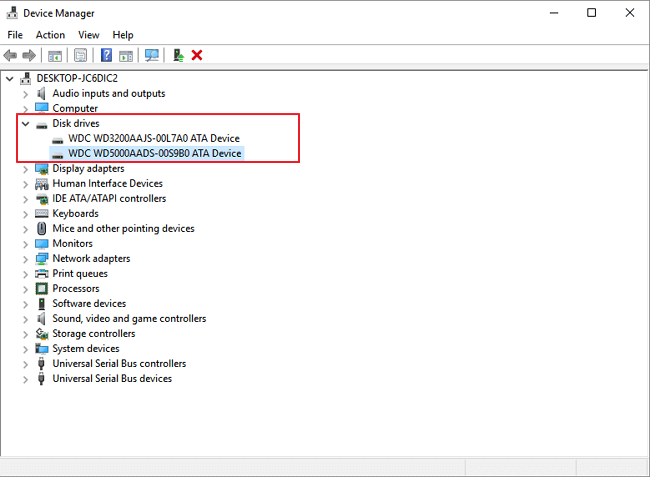
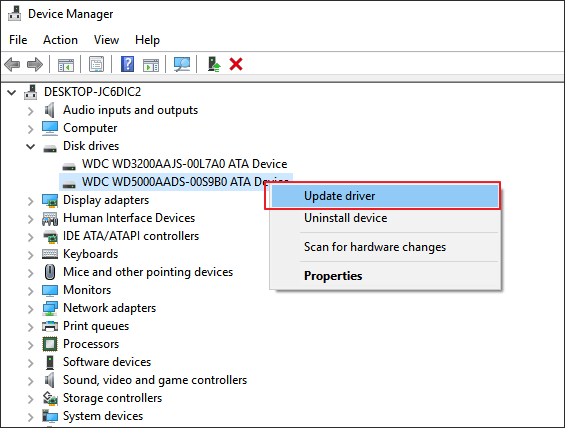
Step 4. Right-click on the external drive, USB, or SD card driver, then click on "Update Driver Software".
Recover Data from"The Directory Name Is Invalid" Error in Windows 10/11
If the issue persists or data is lost during the fix, you can use Qiling disk data recovery software to scan the drive, SD card, or USB and recover your important files.
This data recovery software allows you to easily recover over 1000 types of files and automatically repair corrupted files after recovery. You can free download this file recovery tool and follow the steps to restore your files.
Step 1. Launch Deep Data Recovery, select the desired file types, and click "Fast Scan" to initiate the recovery process.

Note: You can choose different search modes based on where and why the data was lost.
Step 2. To recover lost files, run Deep Data Recovery, select the drive where the files were lost, and start scanning. This software can recover data from various devices, including hard drives, solid-state drives, USB drives, SD cards, pen drives, and cameras.

Step 3. You can browse the full scan results and choose the file type you need by clicking on the file type filter. Qiling data recovery software supports 1000+ file types, including photos, videos, documents, emails, audio files, and many more.

Step 4. Select the files you want to preview, click "Recover", and choose a storage location to save the recovered data.
Related Articles
- 5 Ways to Access Hard Disk Data Without OS
- Undelete Windows Server 2016: Recover Deleted Files Windows Server 2016
- Top 10 Best Free SD Card Data Recovery Software (100% Working)
- Detailed Guide | How to Recover Deleted Videos from DJI
How do I recover deleted videos from DJI? For DJI users, it might be disappointing to lose images or videos on a DJI drone due to an accident. There is no need to worry. Please read this article and learn how to recover deleted videos from DJI. - How to Recover Lost Files After Windows 11 Update (5 Best Ways)
If you lost files after Windows 11 update, there is a solution. You can learn how to find or recover lost files with easy methods. Among them, Qiling data recovery software is the best recommendation. - The Best Data Recovery Software to Recover Deleted File
It's common to accidentally delete some important files on Windows computer. In such a case, you may want to find the professional data recovery software to recover deleted file. Here you can find a best file recovery tool and learn how to use it.
Products
Articles & Tutorials
- Data Recovery
- Data Backup
- File Recovery
- File Backup
- System Backup and Restore
- Disk and Partition Clone
- Technical articles
- Mobile articles
- Disk Master Help
- Windows Data Recovery Tutorials
- Windows Secure Delete Tutorials
- Windows Partition Management Tutorials
- Windows File Backup and Restore Tutorials
- Windows System Backup and Restore Tutorials
- Windows Disk Backup and Restore Tutorials
- Windows Clone Tutorials