5 Ways to Access Hard Disk Data Without OS
Can I Access Hard Disk Without OS
Q: You can try accessing your HP laptop's hard drive by booting from a Linux live USB or CD, which can allow you to access the hard drive without the need for the OS. Alternatively, you can use a data recovery software like Deep Data Recovery or Recuva to scan the hard drive and recover your data. If the hard drive is damaged, you may need to use a data recovery service or replace the hard drive.
Q: You can try using a live Linux USB or CD to access the hard drive and copy the data. This way, you can bypass the need for the password and access the files directly. There are various live Linux distros available that can be used for this purpose, such as Ubuntu or Linux Mint. You can create a bootable USB drive from these distros and use them to access and copy the data from the hard drive. This way, you can recover the data without needing to access the operating system or the lost password.
To access data from an unbootable computer, there are 5 effective ways to access hard disk data without an OS, including using a Linux live USB, a Windows installation media, a bootable USB drive, and a hardware-based solution like a USB drive or a portable hard drive. These methods allow you to bypass the OS and access the hard drive's contents.
| To Access Hard Disk | Step-by-step Troubleshooting |
|---|---|
| Fix 1. Try Another Computer | Sometimes it's just Windows OS corruption that makes your hard drive fail to boot...Full steps |
| Fix 2. Put in a Freezer | If it's the hard drive problem that disables the boot, try putting it in a freezer...Full steps |
| Fix 3. Use Data Recovery Software | Create a bootable disk > boot from the bootable USB > access the hard disk and recover files...Full steps |
| Fix 4. Use Command Prompt | Invoke Windows Command Prompt so that you can use robocopy...Full steps |
| Fix 5. Try Windows Explorer | Connect the SATA-to-USB adapter's power cable to the L-shaped power connector...Full steps |
Solution 1. Recover Hard Drive on Another Computer
If your computer's hard drive fails to boot due to Windows OS corruption, you can try connecting it to another computer to access your files and backup the data. This approach can help recover your data without requiring a replacement of the hard drive.
Solution 2. Put Your Hard Drive in a Freezer
If the hard drive is the cause of the boot issue, try putting it in the freezer for a short time. Some people claim that this can revive the hard drive, allowing enough time to copy essential data before it fails again. However, this is not a permanent solution to fix a non-bootable hard drive.
Solution 3. Recover Data from Hard Drive Without OS
To access the hard disk and recover data without booting to the Windows operating system, you can boot your hard drive from a bootable USB drive, which allows you to access the hard disk and recover data directly.
Deep Data Recovery WinPE Edition is a recommended tool for recovering data from a hard disk without booting into Windows. It allows access to and recovery of data, and can also recover data from a dead hard drive or a computer that won't boot.
Tip To create a bootable USB drive or CD/DVD, you'll need a CD/DVD-Recorder and a writable CD/DVD or USB drive. Please follow the steps below:
To access hard disk without OS:
Step 1. Create a bootable disk
To create a bootable disk using Deep Data Recovery WinPE Edition, first prepare an empty USB. If the USB already contains important data, back up the data to another device to avoid losing it, as the data will be erased during the bootable disk creation process. Once the USB is empty, you can use the software to create a bootable disk.
Connect the USB drive to your PC, then launch Deep Data Recovery WinPE Edition. Select the USB drive and click "Create" to create a bootable disk.
Step 2. Boot from the bootable USB
Connect a bootable disk to a PC that won't boot, and change the computer's boot sequence in the BIOS. This usually works when you restart your computer and press F2 at the same time to enter the BIOS.
To boot the PC from a device other than the hard drive, press F10 to save and exit the BIOS settings. This will allow you to select the boot order to prioritize a removable device, such as a USB drive, or a CD/DVD drive.
Step 3. Recover data from a hard drive that won't boot
When you boot from a USB, you can run Deep Data Recovery from the WinPE bootable disk. From there, select the drive you want to scan to locate all your lost files.

Note: You can choose different search modes based on where and why the data was lost.
Click "Scan" to start the scanning process.

After scanning, you can preview recoverable files, select desired ones, and click "Recover" to restore them. It's recommended to save recovered data to another location to avoid overwriting.

Qiling offers data recovery and Windows repair services, utilizing a professional technical team to resolve system failures, BSOD, unbootable devices, and other errors.
Consult with Qiling Data Recovery Experts for one-on-one manual recovery service. After a free diagnosis, they offer various services, including manual recovery.
- Repair corrupted RAID structure, unbootable Windows OS, and damaged virtual disk files (.vmdk, .vhd, .vhdx, etc.) with the help of specialized software. These tools can rebuild the RAID array, restore the bootable state of Windows OS, and fix virtual disk files, making them usable again.
- Recover/repair lost partition and re-partitioned drive.
- Unformat hard drive and repair raw drive(Bitlocker encrypted drive)
- Fix disks that become GPT protected partitions
Solution 4. Copy Hard Drive Files from the Command Prompt
If you have Windows installation media, try booting Windows from a bootable disc or USB drive. Then, open the Command Prompt and use the "robocopy" command to copy all folders and files from the "C:\tools" directory to the "D:\backup\tools" directory, including subfolders and files, with the command "robocopy C:\tools D:\backup\tools /e".
- The /e option in robocopy tells it to include all subdirectories, including empty ones.
- Robocopy will automatically copy hidden and system files, and create new directories if they don't exist at the target location.
Solution 5. View the Contents of a Hard Drive
When you can't access your hard drive, you can still view its contents using Windows Explorer, which makes it easy to browse through folders, assuming the hard drive is accessible.
Step 1. Convert the Internal Hard Drive to an External One
1. Connect the SATA-to-USB adapter's power cable to the L-shaped power connector on the internal SATA drive.
Note: SATA drives have two L-shaped connectors, side-by-side, with the larger one being the power connector and the smaller one being the SATA data port.
2. Connect the adapter's SATA connector to your internal hard drive's SATA data port.
3. Position the hard drive close to your computer on a level surface.
4. Plug the adapter's power cable into a wall outlet and slide the power switch to the "On" position.
5. Insert the adapter's USB cable into an available USB port on your computer and Windows will automatically recognize the drive after a few seconds.
Step 2. Open Windows Explorer
1. Click "Start" and select "PC" to open Windows Explorer.
2. Double-click the hard drive's letter from the right pane's Hard Disk Drives section to view the drive's contents, and double-click folders to view files within them.
3. To safely remove a USB drive, right-click on the drive letter in your file explorer and select "Eject". This will properly disconnect the drive from your computer, preventing any potential data loss or corruption.
Step 3. View All Files
1. To access the Folder and Search Options in Windows Explorer, click on the "Organize" button in the toolbar and select "Folder and Search Options" from the dropdown menu.
2. To view hidden files, folders, and drives, click on the "View" menu and select "Show Hidden Files, Folders, and Drives" from the Advanced Settings section.
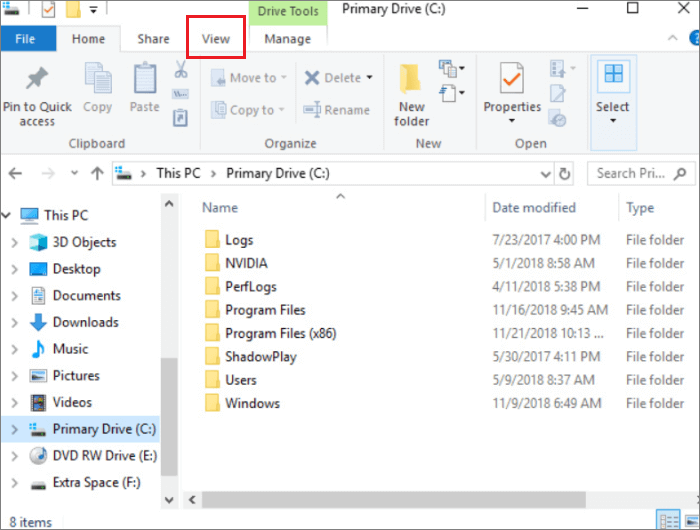
3. Uncheck the "Hide Protected Operating System Files (Recommended)" box and click "Yes" to confirm, then click "OK".
After taking the steps above, you can view all the files and folders.
People Also Ask
If you cannot access the hard drive or still have questions, read the following questions.
How do I get data off an old hard drive?
- You can connect the old hard drive to a new PC to retrieve data from it.
- To recover data from an old hard drive, you can use Qiling data recovery software, which can help you retrieve lost data without the need for technical expertise.
How do I access my hard drive without OS?
-
To access hard disk without OS:
Step 1. Create a bootable disk.
Step 2. Boot from the bootable USB.
Step 3. If your PC or laptop hard drive won't boot, you can still recover files or data from it using a few methods. One approach is to try booting from a USB drive or CD/DVD with a recovery environment, such as a Linux live CD or a Windows recovery environment.
Why my hard drive is not showing up?
If a hard drive is not detected by the system BIOS, it may be because the disk is not enabled, or if it has no partition and all disk space is unallocated, it won't show in Windows Explorer.
Can I put my old hard drive to a new computer?
You can connect an old hard drive to a new computer using a SATA-to-USB adapter. The adapter's power cable provides the necessary power for the old hard drive to function. This allows you to access and transfer data from the old hard drive to the new computer.
Related Articles
- What Is Network Attached Storage and How to Recover Lost/Deleted Data from NAS
- Top 9 Best USB Recovery Software Free Download in 2022
- [Solved] Windows Cannot Access the Specified Device Path or File
- Download Free Online Micro SD Card Data Recovery Software
- How Does An Excel File Get Corrupted? We Discussed Reasons and Fixes Here
Excel file corruption can occur due to various reasons, causing the inability to open a workbook. Common causes include file system errors, Excel add-in or plugin issues, and incorrect file format. - How Much Does It Cost to Recover Data from a Hard Drive (2022)
Data recovery services and software can vary in cost, but generally, it's a one-time fee for a successful recovery, ranging from $50 to $1,500 or more, depending on the type of device, the extent of the damage, and the complexity of the recovery.
Products
Articles & Tutorials
- Data Recovery
- Data Backup
- File Recovery
- File Backup
- System Backup and Restore
- Disk and Partition Clone
- Technical articles
- Mobile articles
- Disk Master Help
- Windows Data Recovery Tutorials
- Windows Secure Delete Tutorials
- Windows Partition Management Tutorials
- Windows File Backup and Restore Tutorials
- Windows System Backup and Restore Tutorials
- Windows Disk Backup and Restore Tutorials
- Windows Clone Tutorials