[Solved] Windows Cannot Access the Specified Device Path or File
To resolve the issue "Windows Cannot Access the Specified Device Path or File", first, check if the device or file is connected and accessible. Ensure that the drive letter is correct and the path is spelled correctly.
| Workable Solutions | Step-by-step Troubleshooting |
|---|---|
| 1. Recover the Deleted or Lost Files | Launch Qiling file recovery software on your computer. Choose the exact location where you lost...Full steps |
| 2. Gain the Permission | Right-click the file or folder and select "Properties". Under "Group or User names"...Full steps |
| 3. Check the File Location | Right-click on the problematic file or folder and select "Properties"...Full steps |
| 4. Unlock the File/Folder | Right-click the blocked file and then select "Properties". In the General tab...Full steps |
| 5. Check the Antivirus Software | You can temporarily disable the antivirus software and check...Full steps |
Error - Windows Cannot Access the Specified Device Path or File
"A permission error occurred while trying to access a file or device on your Windows system. This can be due to insufficient access rights or permissions to access the item."
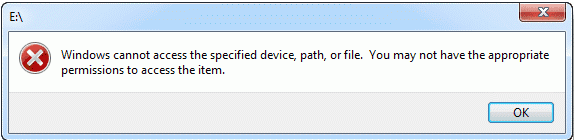
You're experiencing the "Access Denied" error on your Windows computer, and simply gaining permission isn't resolving the issue. This is a common problem that many people are encountering, and it's not just a matter of gaining permission. The error is likely due to a more complex underlying issue that requires a more detailed solution.
The error "Windows cannot access the specified device, path, or file" can occur due to various reasons. One possible cause is lack of permission to access a folder, which can be due to incorrect file permissions or ownership issues. This tutorial aims to help you understand the causes and provide effective solutions to resolve the issue, allowing you to access the specified device, path, or file.
Causes - Why Windows Cannot Access the Specified Device Path
Here are 4 reasons:
- You don't have permission to the file or file location.
- File location/path isn't accessible or even doesn't exist.
- The file has been moved or deleted.
- The files may be blocked by Windows.
- Antivirus software prevents files from opening.
Solutions - Fix Windows Cannot Access the Specified Device
Now that you know the reasons behind the "Windows cannot access the specified device path or file" error, you can take effective solutions tailored to the specific reason causing the issue, effectively resolving the problem.
Method 1. Recover the Deleted or Lost Files
If the "Windows cannot access the specified device" error was caused by accidental deletion, you can try downloading a data recovery software like Qiling to recover your lost data.
Deep Data Recovery can recover deleted files in Windows 10/8/7 from various storage devices, including HDD, SSD, USB flash drive, SD card, and external hard drive. It supports restoring a wide range of file types, such as photos, videos, audio, emails, Word, Excel, and hundreds more.
Windows 11/10/8/7 Data Recovery Software
- To restore data after formatting, emptying the recycle bin, a virus attack, system crash, or other data loss scenarios, use a data recovery software such as Deep Data Recovery or Disk Drill. These tools can scan the affected device and recover deleted, formatted, or corrupted files.
- Recover data from various brands of SD cards or memory cards, including Kingston, Sony, Samsung, and others, using a data recovery software or service.
- This software supports over 1000 types of files, including document files like DOC/DOCX, spreadsheet files like XLS/XLSX, presentation files like PPT/PPTX, and various audio and image files such as AIF/AIFF, M4A, MP3, WAV, WMA, JPG/JPEG, etc.
If your inaccessible files or folders are on a removable hard drive or flash disk, connect it to a Windows PC where Qiling hard drive recovery software is installed. To recover files that Windows cannot access normally, follow these steps.
Step 1. Run Deep Data Recovery. Select file types and click "Fast Scan" to start the recovery process.

Note: You can choose different search modes based on where and why the data was lost.
Step 2. Choose the drive where you lost files and start scanning. This software allows you to recover lost data from various devices, including HDD, SSD, USB drive, SD card, pen drive, and camera.

Step 3. You can browse the full scan results and filter by file type by clicking on the desired type. Qiling data recovery software supports over 1000 file types, including photos, videos, documents, emails, audio files, and many more.

Step 4. To preview and recover files, select the desired files, click "Recover," and then choose a storage location to save the recovered data.
Method 2. Gain the Permission of the File or Folder
To resolve the error suggesting you may not have the appropriate permissions to access an item, first check if you have permission to access the file or folder. If not, you can gain permission by following specific steps, which typically involve modifying the file or folder's permissions to grant access to your user account. This process may vary depending on the operating system or file system you're using, but generally involves right-clicking on the file or folder, selecting properties or permissions, and adjusting the access settings to include your user account.
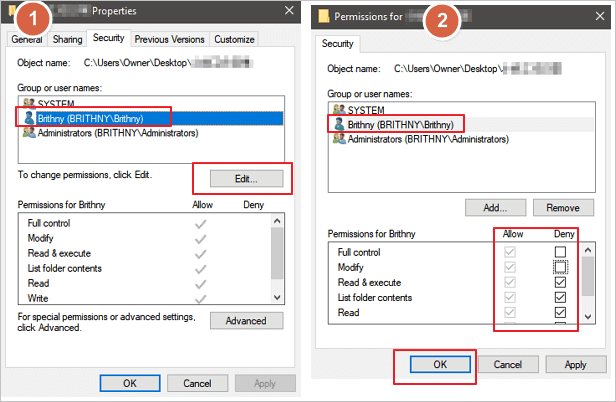
Step 1. Right-click the file or folder and select "Properties".
Step 2. Click on your name under "Group or User names" to see the permissions you have.
Step 3. To edit permissions, select "Edit" and choose the desired permissions, such as full control, modify, read & execute, read, write, or special permissions, then click "OK".
Method 3. Check the File Location
The error "Windows cannot access the specified device path or file" may occur when a shortcut or installation tries to access a location that is not currently available. This can be resolved by checking the file path and ensuring the location is accessible.
Step 1. Right-click on the problematic file or folder and select "Properties".
Step 2. Check that the file path under the General tab is correct and accessible.
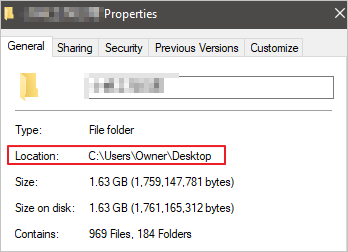
You can follow the path to find the file. If you can't find the desired file in this location, the file is very likely deleted or moved. Take the solutions below to get back deleted files.
The provided fixes and file recovery solutions aim to resolve the 'Windows cannot access the specified device, path, and file' error, which may occur on desktop contents, explorer.exe, and other locations when opening a file, installing, updating, or starting a program.
Method 4. Unlock the File/Folder
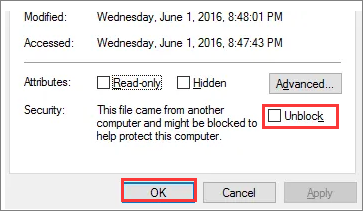
If Windows blocks a file, you'll receive an access issue, as the operating system may have mistakenly identified the file as harmful and is preventing access. To resolve this, check the file's properties, where you may find a note indicating that the file came from another computer and is blocked for protection. To unblock the file, follow the provided steps.
Step 1. Right-click the blocked file and then select "Properties".
Step 2. In the General tab, select "Unblock" if the option is available.
Method 5. Check the Antivirus Software
If the Windows antivirus software is blocking your file, it's possible that it's not actually malicious, but rather mistakenly flagged. To check, you can temporarily disable the antivirus software and see if your file becomes accessible. However, be sure to re-enable the antivirus software as soon as possible, as disabling it can leave your PC vulnerable to viruses and other threats.
Conclusion
To fix Windows issues with accessing a specified device path or file, try the solutions outlined in this article. You don't need to try every method, but rather identify the specific reason for the issue and apply the corresponding troubleshooting approach. This will help you resolve the problem efficiently.
If the error occurs due to file deletion, you can use the Qiling file recovery tool to recover lost files, which can easily recover inaccessible files and folders.
More Tips
The error "Windows cannot access the specified device, path, or files" on Windows may occur when trying to start a program or open a file, indicating a lack of permission to access the item. Relevant topics to address this issue include checking permissions, running the program as an administrator, or using the built-in Windows troubleshooter to resolve the problem.
1. How do I get permissions in Windows 10?
- To have full access to a file or folder in File Explorer, you can right-click on it and select the "Properties" option from the context menu. This will open the Properties window, where you can adjust permissions and access settings. Alternatively, you can also right-click on the file or folder and select "Properties" from the context menu, and then click on the "Security" tab to adjust permissions.
- Right-click it, and select "Properties".
- Click the "Security" tab to access the NTFS permissions.
- To select a user or group, click the "Advanced" button and then click "Find Now" on the Select User or Group page.
- To select a user account, go to the Start menu, click on "Control Panel", then select "User Accounts". Click on the user account you want to change, then click "Change my account" on the left side of the window. On the "Change your account type" page, select the new account type from the dropdown menu, then click "Change account type".
- Click "Apply", then click "OK".
2. How do I get permission to access a network computer?
- Open Windows Explorer, navigate to the folder whose permissions you want to get, and note down the folder path.
- Right-click to access the properties of a folder, click on it to select it, then right-click (or control-click on a Mac) to open the contextual menu. From this menu, choose the "Properties" option.
- To access advanced sharing settings, click the "Sharing" tab, then click "Advanced Sharing", followed by "Permissions". This will open a dialog box listing all users and groups with permission for the folder.
- When selecting a user or group, the checkboxes at the bottom of the list change to indicate the specific permissions assigned to each user or group.
- Click the "Add" button. Choose or enter the name of your computer. You will be prompted to enter a name for the computer.
- To specify which permissions to allow for the user or group, select the appropriate Allow and Deny checkboxes. This allows you to control access to specific resources or actions.
- Click "OK" to finish the process.
3. How do you fix 'you must have read permissions to view the properties of this object'?
- Take ownership of the file or folder.
- Get proper permissions.
- Recover lost data.
Related Articles
- Top 10 Best SD Card Repair Tool Download
- [Real Fix] There Is No Option to Empty Recycle Bin on Windows 10
- WD External Hard Drive Data Recovery Services (That You Can Afford!)
- Email Password Recovery: How to Recover Gmail Account and Password
- How to Fix SQL Database Page Level Corruption Automatically
MS SQL Database page level corruption can occur due to various reasons. To resolve this issue, you can either use Qiling MS SQL Recovery to automatically repair corrupted MDF/NDF files, or adopt a manual method to fix page level corruption in your SQL database. - How to Fix Microsoft SQL Server Error 5123
When trying to log in to Microsoft SQL Server, you may encounter error 5123 due to permission issues or inability to attach a database. To resolve this issue, you can try a manual method or use SQL Server recovery software/tools to fix the problem.
Products
Articles & Tutorials
- Data Recovery
- Data Backup
- File Recovery
- File Backup
- System Backup and Restore
- Disk and Partition Clone
- Technical articles
- Mobile articles
- Disk Master Help
- Windows Data Recovery Tutorials
- Windows Secure Delete Tutorials
- Windows Partition Management Tutorials
- Windows File Backup and Restore Tutorials
- Windows System Backup and Restore Tutorials
- Windows Disk Backup and Restore Tutorials
- Windows Clone Tutorials