[Real Fix] There Is No Option to Empty Recycle Bin on Windows 10
| Workable Solutions | Step-by-step Troubleshooting |
|---|---|
| 1. Restart or Reinstall Recycle Bin | Restart your computer and try again > reinstall recycle bin in Windows 10/8/7...Full steps |
| 2. Empty Recycle Bin Again | Access Settings > choose "System" to continue > choose "Storage" > open "Storage"...Full steps |
| 3. Run CMD | Go to Start, search for "Command Prompt" > right-click "Command Prompt"...Full steps |
| 4. Restore Recycle Bin Files | Launch Deep Data Recovery. Select a location and click "Scan"...Full steps |
There Is No Option to Empty Recycle Bin Windows 10
You changed the icon of your recycle bin and then tried to empty it by right-clicking and selecting "Empty Recycle Bin", but it didn't work as expected.
The "Empty Recycle Bin" option may be grayed out if the Recycle Bin is already empty, or if there's a problem with the Recycle Bin itself. Try opening the Recycle Bin, selecting all items, and then deleting them. This should resolve the issue and allow you to empty the Recycle Bin normally. If you're still having trouble, you may want to check the Recycle Bin's properties or consider resetting Windows to its default settings. If none of these solutions work, it's possible that there's a more serious issue with your computer that needs to be addressed.
If you're looking for a way to automatically empty the recycle bin on schedule, we can help.
Fix 1. Quickly Fix No Option to Empty Recycle Bin
If you're experiencing issues with your computer, try restarting it in safe mode, booting from a live USB or CD, or using a system restore point to revert to a previous state. If these steps don't resolve the issue, you can try reinstalling the operating system or seeking professional help from a technician.
Step 1. Restart your computer and try again.
Step 2. Reinstall recycle bin in Windows 10/8/7
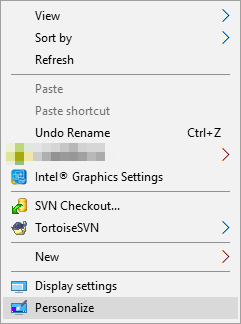
- Right-click on Desktop > Select Personalize.
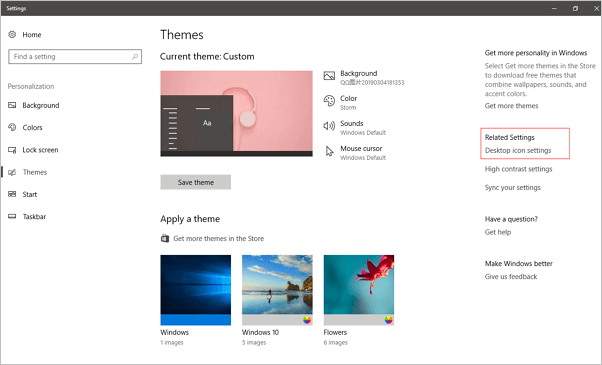
- To access the Desktop Icon settings, go to Themes and click on the option for Desktop Icon settings under Related Settings.
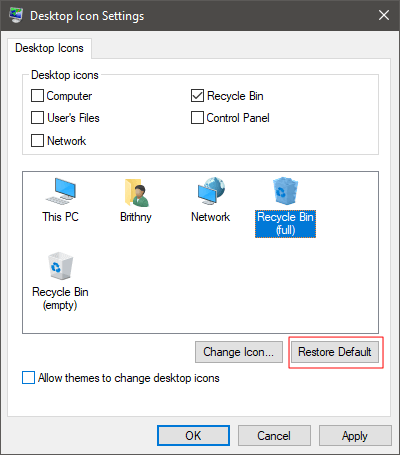
- Check Recycle Bin > Click Apply.
If the two steps above fail to help, you can try these fixes:
Fix 2. Try Another Way to Empty Recycle Bin
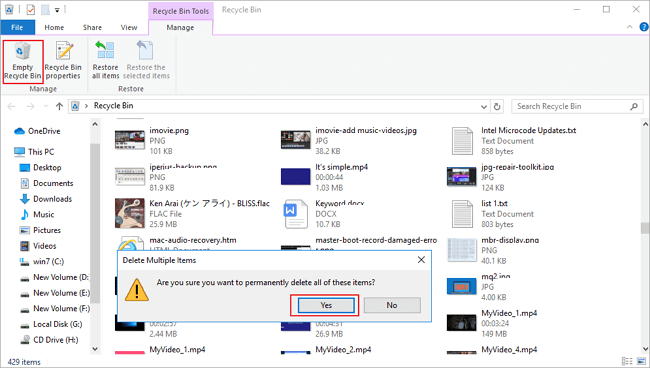
You can also empty the recycle bin by going to settings, in addition to clicking the recycle bin icon and choosing the empty option.
Step 1: Access Settings.
Step 2: Choose "System" to continue. Choose Storage.
Step 3: Open Storage, and select This PC (or a hard drive) under Storage.
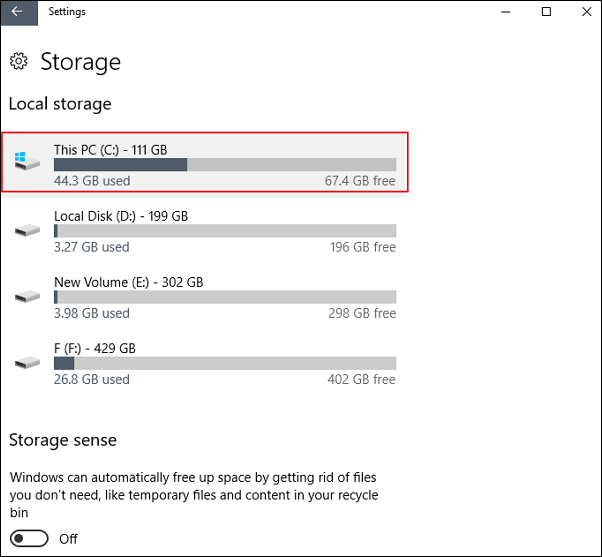
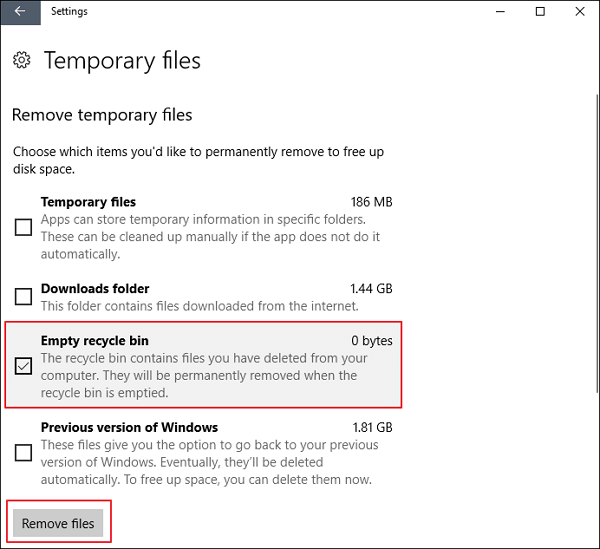
Step 4: Click Temporary files and recycle bin. Choose Empty the recycle bin and tap Remove files.
Fix 3. Run CMD to Fix Corrupted Windows 10 Recycle Bin
- Go to Start, search for "Command Prompt".
- Right-click "Command Prompt" > Select "run cmd as administrator".
- Type: rd /s /q C:\$Recycle.bin and hit "Enter".
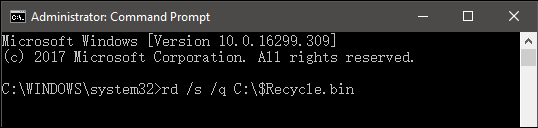
- To fix the issue, simply reboot your computer and then you should be able to reuse the Recycle Bin as usual.
If the above command doesn't work, open the Command Prompt as an administrator, type sfc /scannow and press Enter. If the System File Checker doesn't work well, refer to the article "SFC (SFC / SCANNOW) Is Not Working on Windows" for further troubleshooting steps.
Restore Deleted Files from Recycle Bin
Deep Data Recovery free can help recover deleted files from various scenarios, including accidental deletion, hard drive corruption, system crashes, and virus attacks, and is fully compatible with Windows 10/8.1/8/7 and former versions. It can be downloaded for free and restored recycle bin data in three simple steps.
1. Launch Deep Data Recovery, select a location where the Recycle Bin is, and click "Scan".
2. The software will initiate a scanning process to locate missing files.
3. Choose the file types you want to recover from the scanning results, select the files, and click "Recover" to retrieve them, saving them to a different location to avoid overwriting the original data.
Related Articles
- [Solved] - Window 10 Quick Access Files/Folders Missing
- Fix Corrupt Master File Table. CHKDSK Aborted Error in Windows 10/8/7
- A Complete Guide to Recover Data from Broken RAID 0, 1, 5, 10 [SOLVED]
- How to Fix USB Flash Drive Not Formatted Error Without Losing Data
- How to Restore Missing AppData Folder in Windows 10/11 [2022 Tips]
To resolve the issue where the AppData folder in the C drive's Users folder is unseen or deleted, you can either type %AppData% in the Windows 10 search box to unhide it, or use Qiling data recovery software to restore the missing AppData folder. - How to Tell if Your Computer Is 32 or 64 Bit Windows 10 [Full Ways]
To determine if your Windows 10 computer is 32-bit or 64-bit, you can follow various methods. You can check the version of Windows 10 you're running, which will indicate whether it's 32-bit or 64-bit. These methods also apply to Windows 11, 8, and 7.
Products
Articles & Tutorials
- Data Recovery
- Data Backup
- File Recovery
- File Backup
- System Backup and Restore
- Disk and Partition Clone
- Technical articles
- Mobile articles
- Disk Master Help
- Windows Data Recovery Tutorials
- Windows Secure Delete Tutorials
- Windows Partition Management Tutorials
- Windows File Backup and Restore Tutorials
- Windows System Backup and Restore Tutorials
- Windows Disk Backup and Restore Tutorials
- Windows Clone Tutorials