How to Tell if Your Computer Is 32 or 64 Bit Windows 10 [Full Ways]
To determine if your Windows 10 computer is 32-bit or 64-bit, you can check in four ways. First, you can check the System Type in the System Information window, which can be accessed by typing "msinfo32" in the Run dialog box.
| Workable Solutions | Step-by-step Troubleshooting |
|---|---|
| Fix 1. Check System Type from Settings | Click the Start button and then select "Settings > System". Click "About" on the left panel of the System...Full steps |
| Fix 2. Check System Version Using Command Prompt | Type cmd in the search box and press Enter. Run Command Prompt as administrator. Type systeminfo...Full steps |
|
Fix 3. Check Windows 10 System Type with Run Tool |
Press Win + R keys to open the Run tool. Type msinfo32 in the box and click "OK". The System Information...Full steps |
|
Fix 4. Check Windows System Type in Control Panel |
Open the Control Panel and choose "System". On the system settings screen, click "About". Find Device specifications...Full steps |
When using a computer, you may need to install software or device drivers, at which point you're asked whether your Windows version is 32-bit or 64-bit. Many users are unsure about this, but choosing the wrong one can cause problems and prevent you from continuing. Knowing whether your Windows version is 32-bit or 64-bit is therefore important.
You'll learn how to determine whether your computer is 32-bit or 64-bit and understand the key differences between these two types of computers in this article. If you're interested, be sure to check it out. Let's get started now.
How to Tell if Your Computer Is 32 or 64 Bit Windows 10 in 4 Ways
If you're unsure what version or architecture of Windows 10 your computer is running, you can check using one of four methods. You can check the System Properties in the Control Panel, the System Information window, the Settings app, or by looking at the Windows installation media.
Method 1. Check System Type from Settings
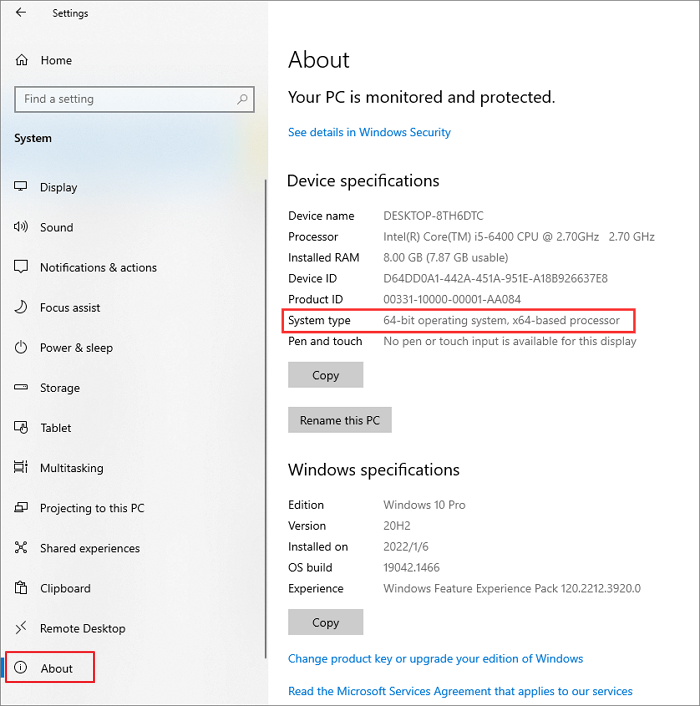
Step 1. Click the Start button and then select "Settings > System".
Step 2. To view the System Settings window, click on the Apple logo in the top left corner of the screen, then select "System Settings." Alternatively, you can use Spotlight to search for "System Settings" and click on the result.
Step 3. To check if your computer is running a 64-bit operating system, look at the Device specifications in the right pane, specifically the "System type" section, where you'll see if it's running a 64-bit OS, a x64-based processor, or neither.
Method 2. Check if the Windows 10 System Is 32-Bit or 64-Bit in CMD
Step 1. Type cmd in the search box and press Enter.
Step 2. To open the Command Prompt as an administrator, follow these steps: Click on the Start menu, search for "Command Prompt", and select the result. Then, right-click on the Command Prompt icon and choose "Run as administrator".
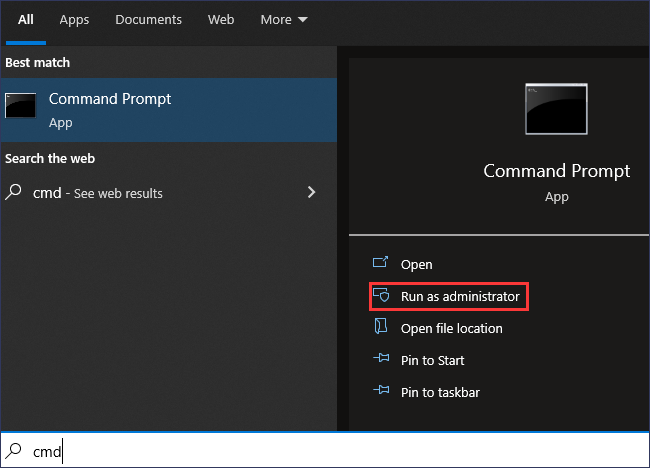
Step 3. In the Command Prompt window, type systeminfo and press Enter.

Step 4. The system information will display on the screen, and you can find the system type to check if your Windows 10 is 32-bit or 64-bit.
Method 3. Check Windows 10 System Type with Run Tool
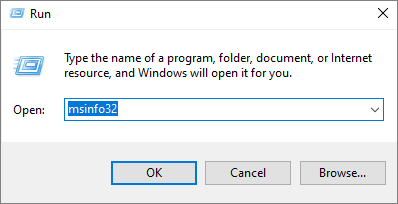
Step 1.To open the Run tool, press the Windows key and the R key at the same time. This will open a small window where you can type a command to execute a specific action or open a program.
Step 2. In the Run box, type msinfo32 and click "OK".
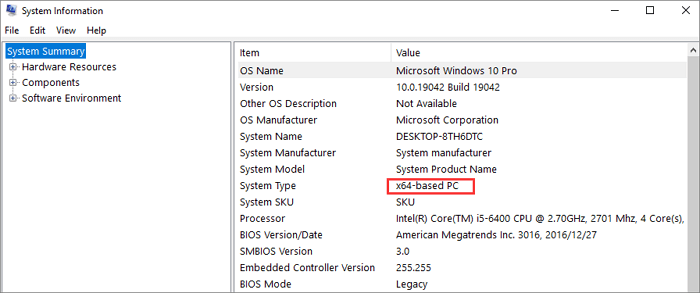
Step 3. The System Information window will pop up.
Step 4. Find "System Type" in the right dialog and check if your Windows is an x86-based PC or an x64-based PC.
Method 4. Check Windows System Type in Control Panel
Step 1. Open the Control Panel on your computer. Choose "System".
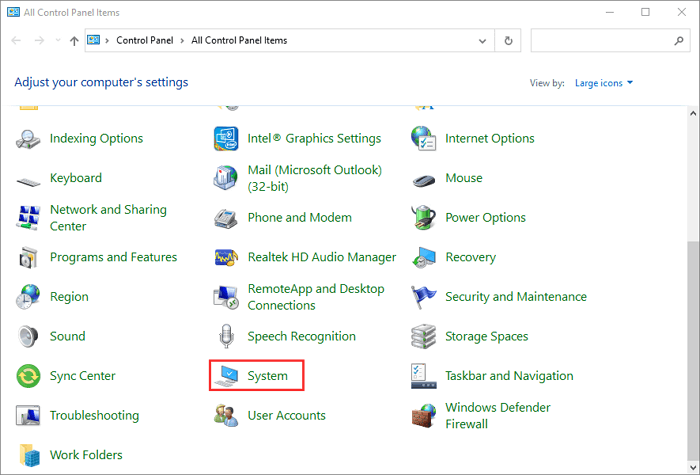
Step 2. On the system settings screen, click "About".
Step 3. To find device specifications and check the system type, follow these steps: Look for the specifications in the device's manual or documentation, or check online resources such as the manufacturer's website. On a Windows PC, you can also check the System type in the System Information window by pressing the Windows key + R, typing "msinfo32" in the Run dialog box, and clicking "OK".
Related Reading: Windows 10 64-Bit Free Download Full Version
Additional Guide: How to Perform 64-Bit or 32-Bit Windows 10 Data Recovery Without Backup
Whether your computer is 64-In Windows 10, data loss can occur unexpectedly due to system installation, hard drive issues, or software crashes. To recover data without a backup, users can try Deep Data Recovery, a tool designed to make the process easier.
Deep Data Recovery
- Recover deleted files from your computer, phone, or storage device, including Microsoft Word, Excel, PPT, PDF documents, photos, videos, audio files, emails, and hundreds of other formats.
- You can recover data from emptied Recycle Bin, HDD, SSD, USB flash drive, SD card, and external hard drives using data recovery software. These tools can scan the storage device for deleted files and recover them, even if the Recycle Bin has been emptied.
- To restore lost data on Windows, you can use the built-in File Recovery tool, which can be accessed through the File Explorer. Alternatively, you can use third-party software such as Deep Data Recovery, Recuva, or Disk Drill to recover deleted files. Additionally, you can try using the Windows Command Prompt to recover lost data by using the `chkdsk` and `sfc` commands.
- To retrieve deleted files from a Mac computer running macOS 11.2 to 10.9, you can use the built-in Time Machine feature or third-party data recovery software. First, check if Time Machine backups are available by going to System Preferences > Time Machine.
Now, free download this file recovery and repair tool to retrieve lost data on Windows 10 for any reason.
Note: To ensure a high chance of successful data recovery, install Qiling data recovery software on a separate disk, rather than the original disk where the files were lost.
Step 1. Launch Deep Data Recovery on your Windows computer, select the desired file types, and click "Fast Scan" to begin the recovery process.

Note: You can choose different search modes based on where and why the data was lost.
Step 2. Select the disk partition or storage location where you lost data and click "Scan".

Step 3. This recovery software will scan the disk to find lost and deleted files, and then allow you to filter the results by file type.

Step 4.To recover lost Windows files, you can use a file recovery tool to scan your PC and preview the scanned files. Once you've found the desired data, you can select it and click the "Recover" button to save it to a safe spot, such as another location on your PC or an external storage device.
32-Bit and 64-Bit Windows: Frequently Asked Questions
Here are more helpful answers to some common questions about the 32-bit and 64-bit versions of Windows.
1. What's the difference between 32-bit and 64-bit Windows?
The terms 32-64-bit (x64) and 32-bit (x86) refer to the way a computer's processor handles information, with 64-bit being theoretically more powerful and faster at processing data than 32-bit.
- 64-bit systems are theoretically twice as fast as 32-bit systems, and have different memory addressing capabilities. This allows them to handle larger amounts of data and potentially run applications more efficiently.
- 32-bit computers have a maximum running memory of 4G, while 64-bit computers can support up to 128G or more.
- A 32-bit computer can only run 32-bit software, while a 64-bit computer can run both 32-bit and 64-bit software.
- 32-bit computers support 32-bit systems and 64-bit computers support both 32-bit and 64-bit systems.
2. How can I tell if my computer is running a 32-bit or 64-bit version of Windows 11?
The way to check the system type of Windows 11 is the same as that on Windows 10:
Step 1. Choose "Start > Settings > System > About".
Step 2. Find System type under "Device specifications".
Step 3. See if your computer is running a 32-bit or 64-bit version of Windows.
3. Is my computer 32 or 64-Bit Windows 8?
To find the operating system information in Windows 8.1 or Windows RT 8.1, you can press the Windows key + X and then select System from the menu, or you can type "winver" in the Run dialog box (accessed by pressing the Windows key + R) and press Enter, or you can click on the Start button, right-click on the Computer icon, and select Properties, or you can go to Settings, then Update & Security, and click on the About tab.
Step 1. Select "Settings" and click "Change PC settings".
Step 2. Choose "PC and devices > PC info".
Step 3. Under PC, you will see the System type is a 32-bit or 64-bit version of Windows, indicating the architecture of the operating system installed on your computer.
4. How to tell if your computer is 32 or 64-bit Windows 7?
Step 1. Click the Windows icon. Type computer in the search box.
Step 2. Choose "Computer" from search results. Right-click it and choose "Properties".
Step 3. Under Windows edition, you'll see which version and edition of Windows 7 your computer is running, such as Home Premium, Professional, or Ultimate.
The Bottom Line
Knowing whether your computer is 32-bit or 64-bit is crucial for proper usage. The hardware and software compatibility differ significantly between the two versions. To check which version your system type is on Windows 11, Windows 10, Windows 8, and Windows 7, you can use the methods mentioned earlier. This knowledge will help you use your computer effectively.
If you have any further issues on a Windows computer, including Windows file restoration, don't hesitate to reach out to us via email or live chat.
Related Articles
- How to View/Delete Chrome History
- Fix I/O Device Error on External Hard Drive/USB Drive in Windows
- [SOLVED] The Boot Configuration Data for Your PC Is Missing
- Qiling Data Recovery Software Full Review [Tested in 2022]
- 7 Quick Ways to Reduce Chrome High Memory Usage Windows 10/11
Is Google Chrome using too much RAM on Windows 10/11? Learn 7 quick fixes to reduce Chrome's high memory usage, including closing tabs, disabling extensions, enabling hardware acceleration, clearing cache, and more. - Command Prompt for USB Recovery: Recover Files Using CMD
This page provides command prompts for USB recovery, allowing you to recover files from a USB flash drive, pen drive, hard disk, or external hard drive using the Command Prompt and the attrib command.
Products
Articles & Tutorials
- Data Recovery
- Data Backup
- File Recovery
- File Backup
- System Backup and Restore
- Disk and Partition Clone
- Technical articles
- Mobile articles
- Disk Master Help
- Windows Data Recovery Tutorials
- Windows Secure Delete Tutorials
- Windows Partition Management Tutorials
- Windows File Backup and Restore Tutorials
- Windows System Backup and Restore Tutorials
- Windows Disk Backup and Restore Tutorials
- Windows Clone Tutorials