Windows 10 ISO Download 64-Bit Full Version for Free [Latest]
What Is the Windows 10 ISO File
An ISO image file, commonly known as an ISO file, is a storage format for CDs or DVDs that can be stored on computers. It is named with the suffix .iso and is based on the ISO-9660 standard for CD-ROM file systems.
An ISO image file is a complete copy of a CD-ROM's file information, which is loaded using virtual CD-ROM drive software. Many downloadable operating systems, including Windows 10, are released as ISO files.
You can download the Windows 10 ISO file from Microsoft's official website, even if you've already activated Windows 10 Pro, and use it to create a DVD/CD or USB installation media to upgrade or install Windows 10 on another PC.
Windows 10 ISO Download 64-Bit for Free
Before performing Windows 10 free download, make sure that you:
- Have an Internet connection.
- To download and install Windows 10, ensure you have sufficient available data storage space on your computer, USB, or external drive. This will allow you to download the Windows 10 installation files and store them on your chosen device.
- To create media, use a blank storage device such as a USB drive with at least 8GB of space or a blank DVD, and a DVD burner if needed. This will erase any existing files on the device.
- When burning a DVD from an ISO file, use a dual-layer (DL) DVD medium if the system reminds you that the image file is too large for a standard DVD. This ensures the image is burned successfully.
Windows 10 download instructions:
Step 1. Go to Microsoft Windows 10 download page.
Step 2. Click "Download tool now" to download Windows 10 64-bit full version free. Run the downloaded tool as an administrator.
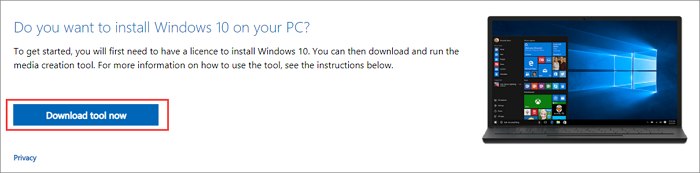
Step 3. Accept Microsoft software license terms as required.
Step 4. Choose "Create installation media (USB flash drive, DVD, or ISO file) for another PC" on the What do you want to do? window and click "Next".
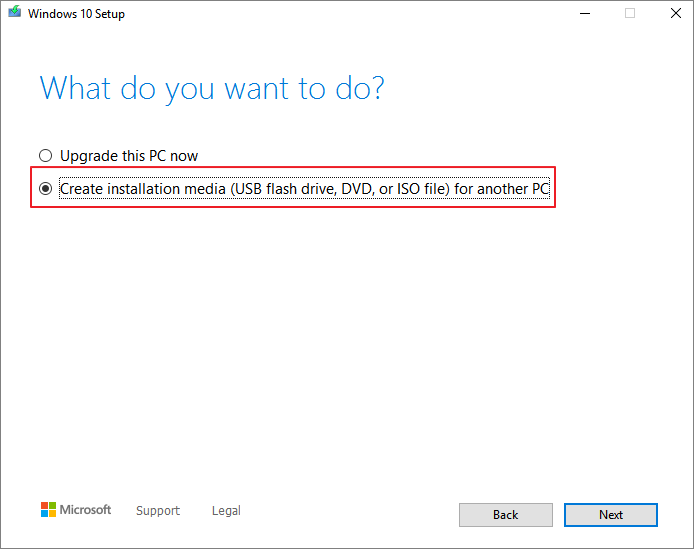
Step 4. Select language, architecture - 64-bit, and edition - Windows 10.
Step 5. To create a bootable USB or DVD, select the "ISO file" option from the "Choose which media to use" window. This will allow you to burn the ISO file to a DVD later.
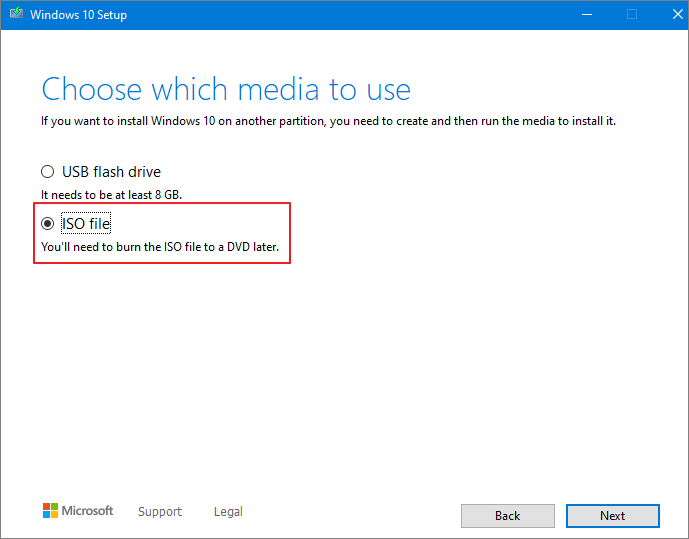
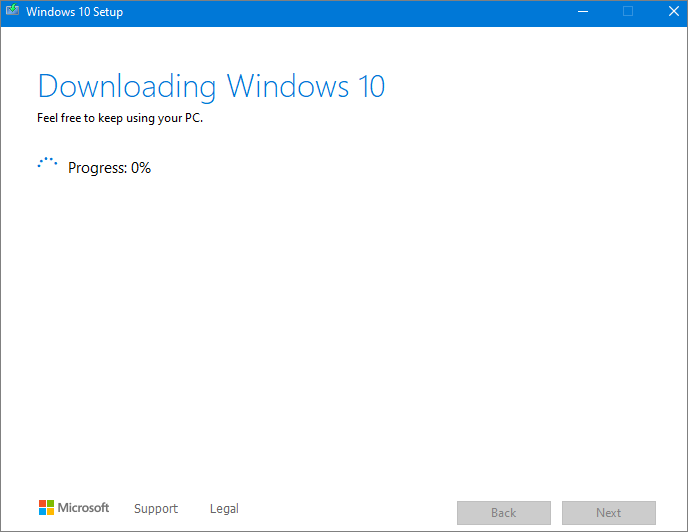
Step 6. Set a file path and start to download Windows 10 ISO file.
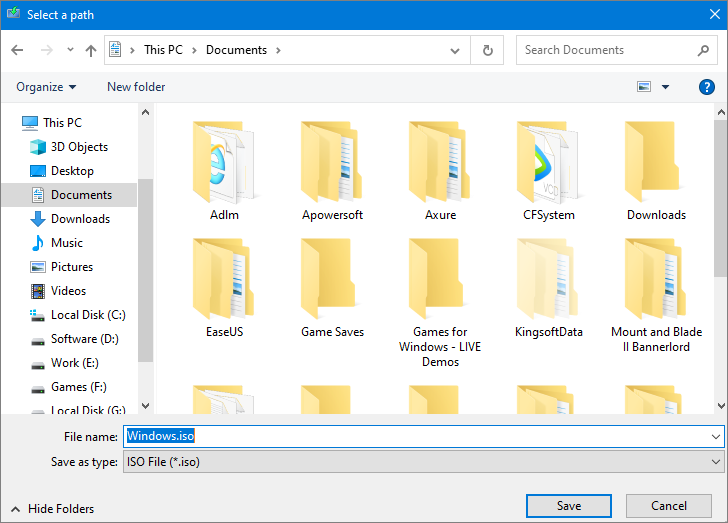
How to Burn Windows 10 ISO File to DVD
After downloading the Windows 10 ISO file, you can burn it to a DVD in two ways.
If you have a DVD burning program installed on your computer that you prefer to use, you can open it by going to the location where the ISO file is saved and double-clicking the ISO file. Alternatively, you can right-click the ISO file and follow the steps to open and burn the ISO file.
Step 1. Go to the location where the ISO file is stored.
Step 2. Right-click the ISO file, select "Properties", click "General", then "Change" and finally "Apply".
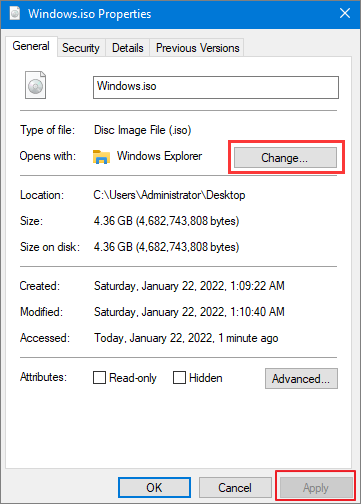
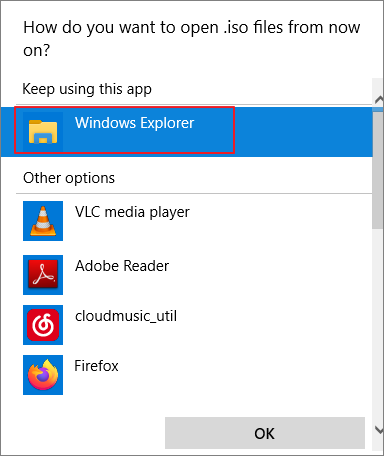
Step 3. To set up Windows to open ISO files with Windows Explorer, select Windows Explorer as the program to use for opening ISO files and click OK.
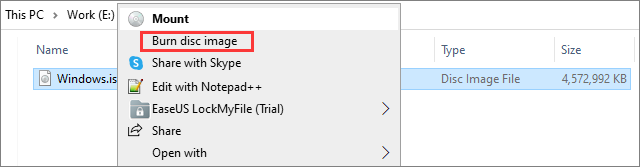
Step 4. Right-click the ISO file and select "Burn disc image".
How to Install Windows 10 from Installation DVD
Before installing Windows 10, save all your work and back up your computer to ensure a smooth and successful installation process.
Important:
If you forgot to export your important files before installing a new operating system and lost them, use professional data recovery software to recover your data right away.
Step 1. Insert the Windows 10 ISO disc image DVD to the computer.
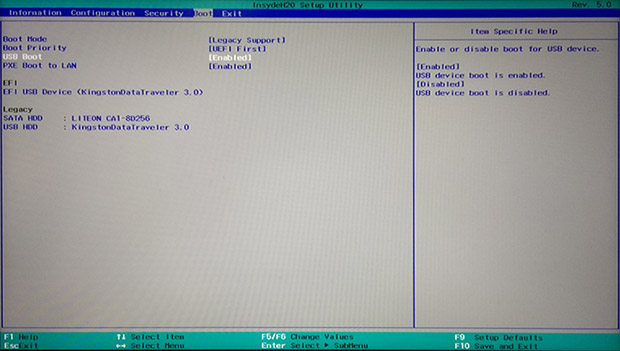
Step 2.To start the installation process, boot your computer from the installation disc. If it doesn't boot from the disc, you'll need to access the BIOS or UEFI settings by restarting your computer and pressing a key (such as F2, F12, Delete, or Esc) before it boots normally. Once in the BIOS, change the boot order to prioritize the installation disc, then restart your computer and proceed with the installation.
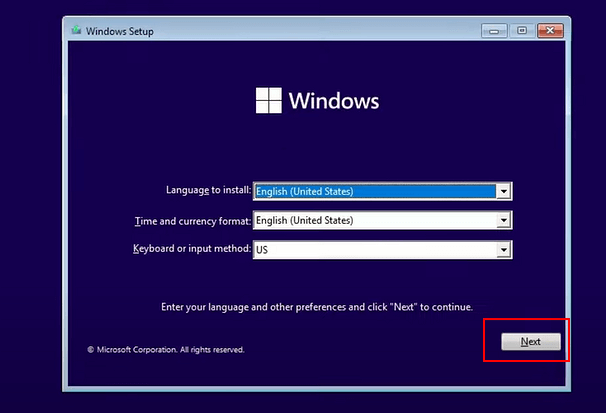
Step 3.To begin the Windows 10 installation process, press any key to continue as required. This will prompt the Windows 10 installation wizard to appear. From there, you can select the language, time and currency format, and keyboard input settings that you need.
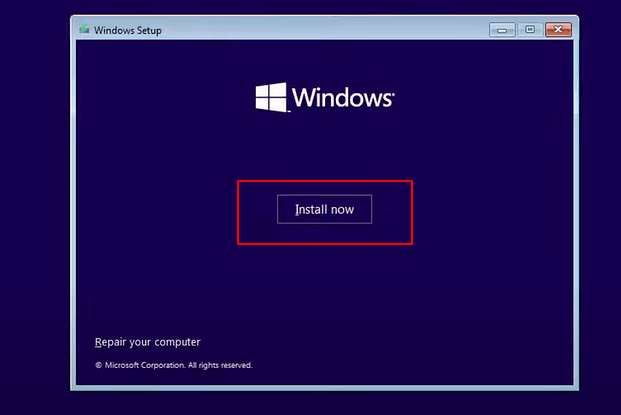
Step 4. Click "Install now" to begin the Windows 10 installation.
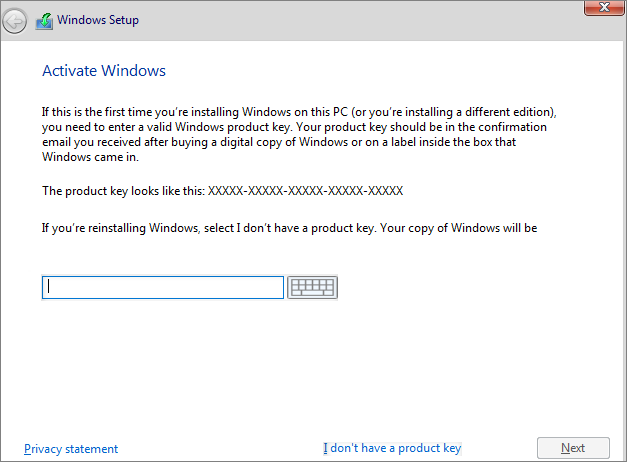
Step 5. You can skip entering the Windows license key during the installation process. However, keep in mind that you will eventually be prompted to activate Windows, and if you don't, you will receive notifications and eventually, system functionality may be impacted. If you choose to skip it, you can activate Windows later by going to Settings > Update & Security > Activation.
Step 6. Choose the Windows 10 edition you want to install, which ranges from Windows 10 Home to Windows 10 Education and all the way to Windows 10 Pro.
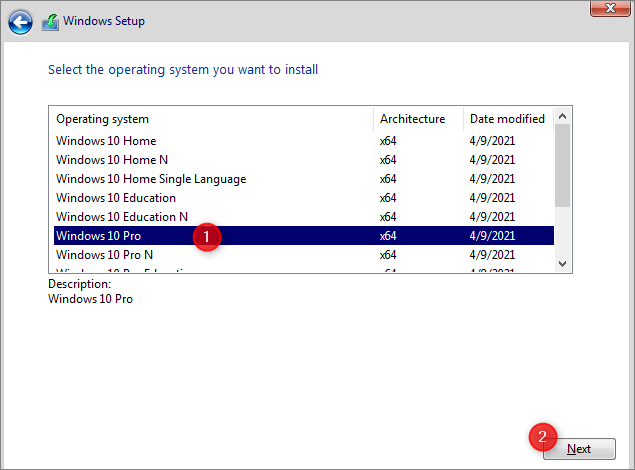
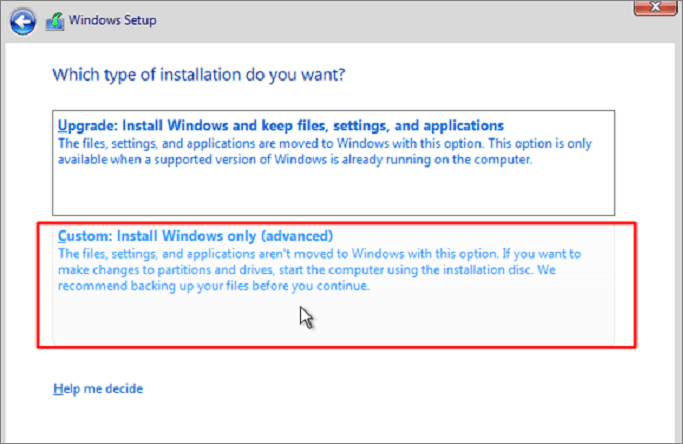
Step 7. Accept the license terms. Choose the type of installation you want to proceed with. Clean install without keeping any files and settings, or install Windows only and keep data.
Step 8. Select the drive or partition you want to install Windows 10 on, ideally an SSD for improved performance, and let the installation process complete.
If you're experiencing unexpected issues with Windows installation and are at risk of losing data, you can contact our technical support team for a manual data recovery service and get immediate help.
Consult with Qiling data recovery experts for one-on-one manual recovery service, which includes a FREE diagnosis and the following services:
- Repair corrupted RAID structure, unbootable Windows OS, and corrupted virtual disk file (.vmdk, .vhd, .vhdx, etc.) by using a bootable USB drive or CD/DVD with a Linux-based live system, such as Ubuntu or a Windows-based live system, such as Hiren's BootCD. Utilize tools like fsck, chkdsk, or diskpart to scan and repair disk errors, and then attempt to boot the system or restore the virtual disk file.
- Recover/repair lost partition and re-partitioned drive.
- Unformat hard drive and repair raw drive(Bitlocker encrypted drive)
- Fix disks that become GPT-protected partitions
How to Mount Windows 10 ISO Image to Install Windows 10
If you choose to download Windows 10 and install it directly from the ISO file without burning it to DVD, you can complete the operation by mounting the ISO file, which will perform an upgrade of your current operating system to Windows 10.
Step 1. Navigate to the Windows 10 ISO file, right-click it, and select "Properties".
Step 2. Click "General" > "Change" > "Apply".
Step 3. To open the ISO file, select "Windows Explorer" and choose "OK.
Step 4. Right-click the ISO file and select "Mount".
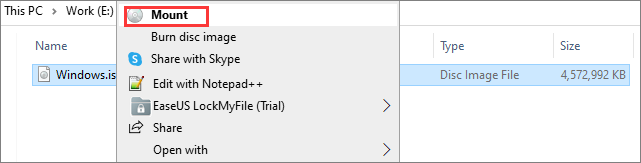
Step 5. Create a virtual bootable disc by opening the disc image file and running setup.exe to start Windows 10 setup, following the same steps as before.
How to Recover Lost Data on Windows 10 for Installation
If you lose files and applications during a Windows 10 installation due to incorrect operations, such as selecting a cleaning install, which can delete all your data, you can use data recovery software to help you get your data back.
Deep Data Recovery is effective in retrieving lost data due to various issues such as Windows installation problems, OS crashes, accidental deletions, hard drive formatting or corruption, virus attacks, and more. It can recover deleted files or permanently deleted data from a range of storage devices including HDD, SSD, USB drives, SD cards, pen drives, cameras, and others.
Qiling data recovery software cannot only recover deleted data but also repair corrupted files, including videos, pictures, and documents in various formats.
Get this free file recovery tool to recover lost or deleted files on your Windows and Mac.
Note: To increase the chances of successful data recovery, install Qiling data recovery software on a separate disk, rather than the original disk where the files were lost.
Step 1.Launch Deep Data Recovery on your computer, select the file types you want to recover, and click "Fast Scan".

Note: You can choose different search modes based on where and why the data was lost.
Step 2.Select the disk partition or storage location where you lost data and click "Scan".

Step 3. This recovery software will start scanning the disk to find all lost and deleted files, and then allow you to specify the types of lost files you want to recover.

Step 4.You can restore lost Windows files by previewing the scanned files, selecting the target data, and clicking the "Recover" button to save them to a safe spot.
Windows 10 Download FAQs
If you're looking for simple tips about downloading a Windows 10 ISO file, check out the following information.
1. How do I get a Windows 10 ISO file?
To download Windows 10 ISO, go to the Windows 10 download page, download the download tool, run it as an administrator, select Create installation media for another PC, choose the language, architecture, and edition, select the ISO file to download, choose a location, and start downloading the Windows 10 ISO file.
2. Is a Windows 10 ISO free?
You can download the Windows 10 ISO for free, but you'll need an activation key for subsequent installation and use. Microsoft allows you to download the ISO file and create installation media on a DVD or USB drive without charge.
3. How many GB is Windows 10 ISO?
The Windows 11 ISO image is over 5GB in size, so ensure the computer, USB, or external hard drive used to download it has sufficient storage space.
4. Can you download Windows 10 ISO without Media Creation Tool?
The official and legal way to download Windows 10 is through the Windows 10 ISO Media Creation Tool. While there may be alternative methods to download the ISO, it's not recommended as it can pose a security risk to your PC.
Final Verdicts
If you need to download the Windows 10 ISO file and install it, we have complete guides available. If you encounter any issues during the process, don't hesitate to reach out to us for assistance. Additionally, if you experience data loss, consider using Qiling data recovery software to recover your files.
Related Articles
- Hard Drive Clicking? See How to Fix Click Hard Drive On Your Own
- How to Convert/Change RAW File System to NTFS Without Data Loss
- Fix Can't Find or Open Recycle Bin Windows 10
- Fix No Writable WD Smartware Partition Found and Recover Data
- How to Show Hidden Images in Word and How to Unhide a Word
If images are not showing in Word 2007, 2013, or 2016, you can try to show hidden pictures or text by checking the “Show/Hide” button in the Home tab, or by pressing Ctrl+Shift+8. For more detailed instructions, you can refer to the full guide on this page. - How to Fix a Slow WD External Hard Drive Without Losing Data
If you're facing a slow WD external hard drive that takes a long time to open files or boot the operating system, there are solutions to help. However, if you lose important data during the process, consider using Deep Data Recovery Free for assistance.
Products
Articles & Tutorials
- Data Recovery
- Data Backup
- File Recovery
- File Backup
- System Backup and Restore
- Disk and Partition Clone
- Technical articles
- Mobile articles
- Disk Master Help
- Windows Data Recovery Tutorials
- Windows Secure Delete Tutorials
- Windows Partition Management Tutorials
- Windows File Backup and Restore Tutorials
- Windows System Backup and Restore Tutorials
- Windows Disk Backup and Restore Tutorials
- Windows Clone Tutorials