Fix Can't Find or Open Recycle Bin Windows 10
The Windows Recycle Bin is a feature that saves deleted files, allowing users to restore them or permanently delete them by emptying the bin.
The Recycle Bin can sometimes become corrupted or the icon may be missing, preventing access to recovered deleted files. This can occur on Windows 10, 8, or 7, and may be due to various reasons. To resolve this issue, it's essential to understand the root cause, recover the missing Recycle Bin icon, and learn how to recover lost files from it. By doing so, you can restore access to the Recycle Bin and retrieve deleted files, making it a crucial step in maintaining a healthy and functional Windows system.
Here are the three advanced troubleshooting methods to help you find your Recycle Bin icon:
| Workable Solutions | Step-by-step Troubleshooting |
|---|---|
| Fix 1. Via Desktop Icon Settings | Select Start > Settings > Personalization > Themes > Desktop icon settings...Full steps |
| Fix 2. Restore by Recreation | Follow the path This PC > View > Options > Show hidden files...Full steps |
| Fix 3. Repair with System File Checker | Enter Command Prompt and run as administrator, and type the command lines...Full steps |
Why Can't You Find Recycle Bin in Windows 10/8/7
If your Recycle Bin shortcut has suddenly disappeared from your desktop, there is a solution. It's usually due to accidental deletion or unknown errors. Fortunately, there are several ways to get your Recycle Bin back, and you can easily restore it to its original place on your desktop.
3 Fixes for "Can't Find Recycle Bin" in Windows 10/8/7
If the recycle bin icon is missing from the desktop, you can try to show all desktop icons by right-clicking on a blank space from the desktop and choosing "View" > "Show desktop icons". If only the recycle bin is missing, you can restore it in Windows using one of the methods provided.
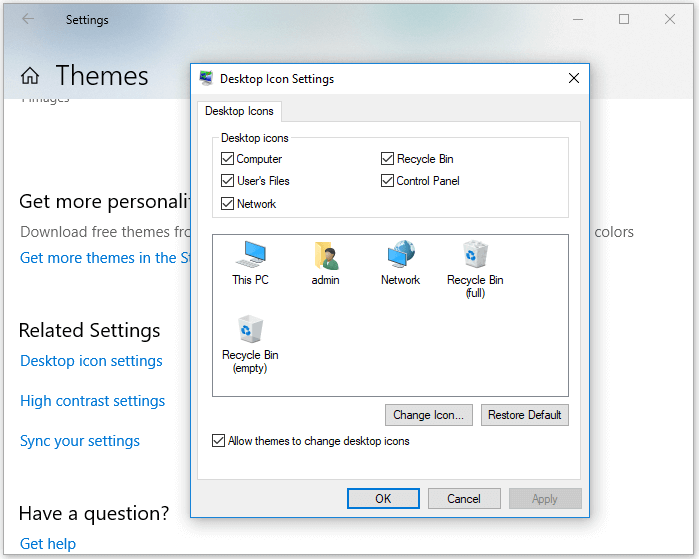
Method 1. Get Recycle Bin Back via Desktop Icon Settings
To restore the Recycle Bin icon on your Windows desktop, check the desktop icon settings. In Windows 10, for example, you can do this by clicking on the Start button, then clicking on "Personalization," followed by "Themes," and finally "Desktop icon settings." Make sure the box next to "Recycle Bin" is checked, and the icon should reappear on your desktop.
Step 1. To start, right-click on an open space on your desktop and select "Personalize" from the context menu.
Step 2. After that, click on "change desktop icons."
Step 3. Check the box right next to "Recycle Bin."
Step 4. Finally, click "Apply", and then "Ok."
Method 2. Restore Recycle Bin Icon by Recreation
When a program is installed, its icon can be sent to the desktop for easy access. Likewise, the Recycle Bin icon can be sent back to the desktop if it's missing.
Step 1. To view the "Options" for "This PC", go to the "This PC" window, click on the "View" tab, and then select "Options" from the dropdown menu.
Step 2. In the Folder Options window, go to the "View" tab.
Step 3. Check the box next to "Show hidden files, folders, and drives" and uncheck the box next to "Hide protected operating system files (Recommended)".
Step 4. The "$Recycle.Bin" folder is located on the C drive, where deleted files are temporarily stored.
Step 5. To create a shortcut of the Recycle Bin on the desktop, open the folder, right-click on "Recycle Bin" and select "Send to" followed by "Desktop (create shortcut)".
Step 6. To avoid deleting protected system files, go back to the folder options and uncheck the "Hide protected operating system files (Recommended)" option. This will allow you to see the files you are deleting and avoid accidental deletion.
Method 3. Repair Recycle Bin in Windows 10 with System File Checker
Missing or corrupted system files may cause the "can't find Recycle Bin" issue in Windows 10/8/7. The built-in Windows System File Checker tool can be used to check and repair problematic system files, which can help resolve the issue.
Step 1. Enter command prompt in the Windows search box.
Step 2. Right-click "Command Prompt" in the search results and select "Run as administrator" from the context menu.
Step 3. To protect your data, you can use the DISM command to create a Windows image. First, run the command `dism /capture-image -imagefile:C:\Capture.wim -capturepath:C:\ -compress -quiet` to capture the system image. Then, run the command `dism /apply-image -imagefile:C:\Capture.
DISM.exe /Online /Cleanup-image /Restorehealth sfc /scannow
How to Recover Deleted Files from Recycle Bin
When you can't find the Recycle Bin in Windows, you can't restore deleted files. However, you can use Deep Data Recovery, a hard drive recovery software, to recover files from the Recycle Bin or after emptying it, even if the program is missing and not opening.
Step 1. Run Deep Data Recovery and select the file types you want to recover. Click "Recycle Bin Scan" to start the scan.

Note: You can choose different search modes based on where and why the data was lost.
Step 2. To recover files from an emptied Recycle Bin on Windows, hover the mouse pointer over the "Recycle Bin" option under the "Locations" section and click "Scan".

Step 3. Qiling data recovery software starts a quick scan for deleted files, followed by a deep scan to find more lost files. After scanning, you can filter by file type, such as pictures, word documents, or videos.

Step 4. Once you've located the files you want to restore, you can double-click them for a full preview. Select the target files and click "Recover". To avoid data overwriting, save the recovered files to a different volume or an external USB drive.
Extra Tips Related to Recycle Bin in Windows
In addition to "Can't find Recycle Bin", there are other questions or issues related to this application that are frequently asked.
"Where is the Recycle Bin folder?"
The Recycle Bin location for each partition on your computer is a hidden folder, protected by the operating system, which can be accessed by unhiding it.
Step 1. To access the "Options" in "This PC", go to the "View" tab and select "Options".
Step 2. In the Folder Options window, go to the "View" tab.
Step 3. Check the box next to "Show hidden files, folders, and drives" and uncheck the box next to "Hide protected operating system files (Recommended)".
Step 4. The "$Recycle.Bin" folder is a system folder that stores deleted files and items in Windows operating systems. It's located on the root of every drive, including the system drive, and is used to store files that have been deleted but not yet permanently removed.
"Where can I find Recycle Bin in Mobile?"
Unfortunately, neither Android nor iPhone devices have a recycle bin, which means that if you accidentally delete files, you won't be able to recover them without using specialized software, such as Android or iOS data recovery software.
"Why can't I open Recycle Bin in Windows 10?"
Many Windows users face a frustrating issue - they can't find the Recycle Bin icon or can't open it even when they try to double-click on it. The application either won't open or keeps crashing, creating an endless loop. In such cases, it's essential to resolve the issue to access and recover data within the Recycle Bin.
If you can't open Recycle Bin, do as follows:
Step 1. Run "Command Prompt" as an administrator.
Step 2. Type the command rd /s /q C:\$Recycle.bin and press "Enter".
Step 3. Type exit to close the Command Prompt window.
The Bottom Line
When you can't find Recycle Bin in Windows, don't get annoyed. There are workable solutions for Recycle Bin recovery, be it recovering the icon on the desktop or recovering the files in Recycle Bin. For your information, there are other questions related to Recycle Bin is provided, too. The methods above should help resolve the issue.
Related Articles
- 2022 USB Data Recovery | How to Recover Files from USB [ 5 Ways]
- Windows 11 vs Windows 10: Differences in Features, Performance, Gaming, and More
- How Do I Repair a Corrupted DOCX File? [6 Reliable Fixes Available]
- Fix 'Windows Explorer has stopped working' in Windows 11/10/8/7
- How to Recover Deleted Tweets and Twitter Photos/Pictures/Images
If you've accidentally deleted your tweets or memories on Twitter, there is a solution. You can recover them using the methods outlined in this tutorial. First, learn how to retrieve deleted Twitter pictures using two methods, and then discover how to recover deleted tweets. - Accidentally Erased Hard Drive in Disk Utility
If you've accidentally erased a hard drive using Disk Utility on your Mac. You can use the powerful Mac data recovery software - Deep Data Recovery to recover your files with simple steps. This software can help you get back your lost data quickly.
Products
Articles & Tutorials
- Data Recovery
- Data Backup
- File Recovery
- File Backup
- System Backup and Restore
- Disk and Partition Clone
- Technical articles
- Mobile articles
- Disk Master Help
- Windows Data Recovery Tutorials
- Windows Secure Delete Tutorials
- Windows Partition Management Tutorials
- Windows File Backup and Restore Tutorials
- Windows System Backup and Restore Tutorials
- Windows Disk Backup and Restore Tutorials
- Windows Clone Tutorials