Windows 11 vs Windows 10: Differences in Features, Performance, Gaming, and More
Windows 11 is a personal computer operating system developed by Microsoft, designed for use on computers and tablets. It features a redesigned look, incorporating all the security and functionality of Windows 10, along with new tools, sounds, and apps, aiming to enhance the overall computer experience.
Windows 11 was released on October 5, 2021, and is available as a free upgrade to Windows 10 users whose computers meet the minimum device specifications.
If you're considering upgrading from Windows 10 to Windows 11, you can find answers to your questions about the differences between the two operating systems here. The key differences include features, performance, gaming, and other points, so you can make an informed decision about whether to upgrade.
Windows 10 vs Windows 11 Features
Interface redesign
Windows 11 features a redesigned user interface with soft rounded corners for windows and menus, giving it a more modern look. Additionally, the Taskbar's Start menu has been relocated from the bottom left corner to the center, enhancing user experience and efficiency.
Widgets
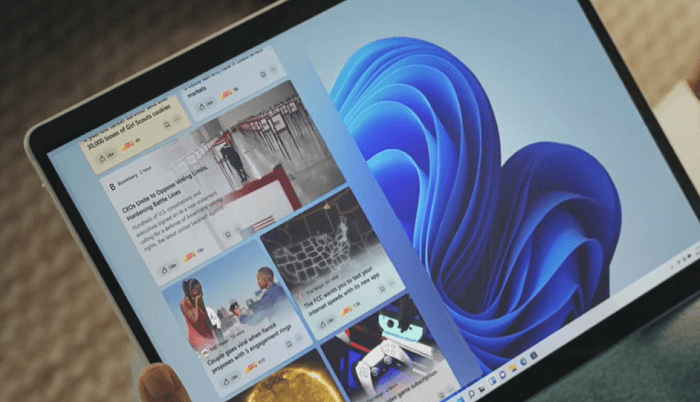
Windows 11's widget feature has replaced dynamic tiles, offering a range of interactive and customizable elements, including a calendar, itinerary, photos, and more, in addition to news and weather, with enhanced extensibility and interactive capabilities.
Android Apps
Windows 11 now natively supports Android apps, allowing you to run them directly on your computer. This means you can add Android apps to your taskbar and start menu, just like any other program, making it seamless to switch between your computer and phone. The main highlight of this new system is that you can now access your Android apps from your computer screen, eliminating the need to constantly switch between devices.
Microsoft Store
The new Microsoft Store is a significant improvement, offering a faster, better-designed, and more user-friendly experience, with a wider selection of apps available. This revamped store also provides developers with more opportunities to monetize their apps, supporting not only UWP applications but also Win32 apps, PWAs, .apk files, and other formats for download.
Snap Layouts and Snap Groups
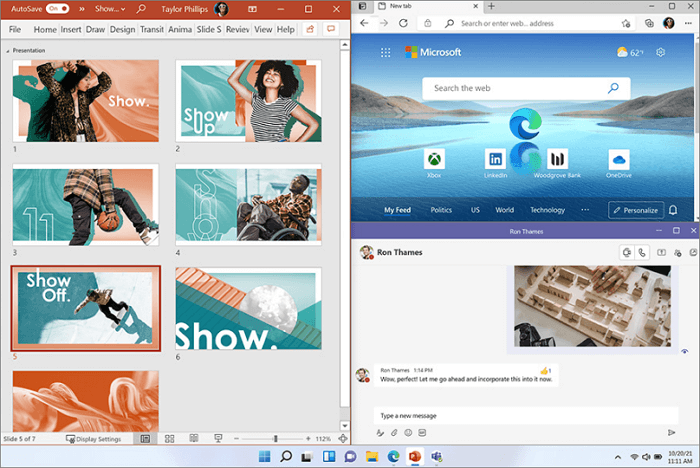
Windows 11 introduces Snap Layouts or Snap Groups, which is an improved version of the Snap feature in Windows 10. This feature allows users to efficiently arrange applications and other Windows on the screen in a more logical and organized way.
Snap Layouts allow users to arrange applications and windows in a customized grid, enabling them to organize their screen exactly as they prefer, with different layout options available based on the screen size.
Windows 10 vs Windows 11 Performance
Windows 11 has a faster kernel than Windows 10, prioritizing foreground apps and allocating more resources to them, making them run faster and smoother.
When you open multiple tabs and start multiple tasks in the Edge browser on Windows 11, they will launch quickly and without delay. This is because Windows 11's system mechanism allows these applications to run in the foreground, making them start faster. As a result, the overall experience of Windows 11 will be more responsive, especially when launching multiple applications.
Microsoft has enabled the sleep tab in Edge by default in Windows 11, allowing devices to recover from sleep faster.
Windows 10 vs Windows 11 Gaming
Windows 11 offers improved gaming capabilities with features like DirectX 12, auto-enabled Auto HDR, and faster loads, while also integrating XBOX GAME PASS, providing access to over 100 games across various genres for a monthly fee, offering a library of free games.
Read the full information about Windows 11 gaming optimization.

Windows 11 Essential: Download Deep Data Recovery to Recover Deleted or Lost Files
For users who already have Windows 11 installed, they can enjoy the new and improved features that focus on enhancing work efficiency. If data loss occurs due to accidental deletion, emptying the Recycle Bin, device formatting, or a virus attack, professional data recovery software can be used to help recover lost data.
Deep Data Recovery is a Windows 11 tool that helps users recover over 1000 types of files from various storage devices.
This software is capable of restoring data from cloud storage and NAS, allowing users to recover permanently deleted files from OneDrive.
To recover lost files, follow the step-by-step guide using the Qiling data recovery program, which can be found in the video and text guides. The process involves using the program to scan for and retrieve deleted files, following the instructions provided in the guides to ensure successful recovery.
Step 1. To recover data from a deep scan, run the Deep Data Recovery tool, select the desired file types, and click "Fast Scan" to initiate the process.

Note: You can choose different search modes based on where and why the data was lost.
Step 2. To recover lost files, choose the drive where the files were lost and start scanning. This software can recover data from various devices, including hard disk drives (HDD), solid-state drives (SSD), USB drives, SD cards, pen drives, cameras, and more.

Step 3. You can browse the full scan results by choosing the file type you need, which Qiling data recovery software supports, including 1000+ file types such as photos, videos, documents, emails, audio files, and many more.

Step 4. Select the files you want to preview. Click "Recover" and set a storage location to save the recovered data.
Should I Upgrade to Windows 11
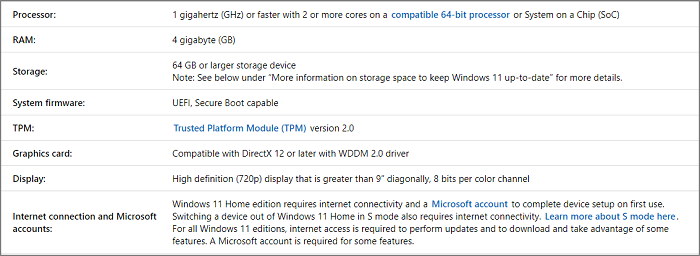
Windows 11 offers improved performance compared to Windows 10, and users can upgrade from Windows 10, Windows 8, or even Windows 7 to Windows 11 if their device meets the minimum requirements.
The new operating system is still in its early stages, which means it can be quite unstable and has some bugs. It might be best to wait for Microsoft to iron out the kinks before upgrading.
Microsoft recommends that you wait until your PC is notified via Windows Update that it is ready to upgrade if you are upgrading from Windows 10.
Related Articles
- League of Legends Replays & Highlights, Where to Find and How to Recover
- Fix a Broken USB Stick and Recover Data
- How to Format SD Cards in All Devices
- It Takes Two Lost Save File, How to Recover?
- Easy Ways to Fix Recovery Pending State in SQL Server 2014/2016/2017
Recovering pending state in SQL server can be a technical issue, but it can be resolved with possible solutions. If you're not experienced in solving SQL database issues, you can use Qiling MS SQL Recovery to help you recover pending state effortlessly. - Fix SanDisk Cruzer Not Recognized Issue
If your computer is not reading your SanDisk Cruzer flash drive, or it's not recognized by your PC, this article will help you troubleshoot the issue and fix the problem, allowing you to read the data on the flash drive.
Products
Articles & Tutorials
- Data Recovery
- Data Backup
- File Recovery
- File Backup
- System Backup and Restore
- Disk and Partition Clone
- Technical articles
- Mobile articles
- Disk Master Help
- Windows Data Recovery Tutorials
- Windows Secure Delete Tutorials
- Windows Partition Management Tutorials
- Windows File Backup and Restore Tutorials
- Windows System Backup and Restore Tutorials
- Windows Disk Backup and Restore Tutorials
- Windows Clone Tutorials