How to Format SD Cards in All Devices
| Workable Solutions | Step-by-step Troubleshooting |
|---|---|
| Part 1. Format SD Card on Windows 10 | Method 1. Format Using Windows Explorer...Full steps Method 2. Format Using Disk Management...Full steps |
| Part 2. Format SD card on the Camera | Press the camera Menu button...Full steps |
| Part 3. Format SD Card on Android Phone | Go to Settings on your phone, find Device Care...Full steps |
What Does 'Format SD Card' Mean
Formatting an SD card essentially wipes out all existing data, making it impossible to recover any files. This process also erases any file system, such as FAT32, exFAT, or NTFS, and replaces it with a new one, effectively rendering the card reusable for storing new data. When you purchase a new SD card, it's usually pre-formatted, allowing you to use it immediately for storing files.
Part 1. How to Format SD Card on Windows 10
Before formatting your SD card, it's essential to back up its contents to prevent data loss. To format your SD card on a Windows computer, follow these steps:
Preparations:
- USB card reader: To insert the SD card to your computer's USB port.
- Micro SD card adapter: To insert the micro SD card into the SD card port on your computer, you can simply insert the card into the port, making sure it is fully seated and secure. The micro SD card should fit snugly into the SD card port, and you may hear a slight click as it is recognized by the computer.
- USB micro SD card reader: The device allows you to insert the micro SD card directly into the USB port, eliminating the need for an adapter or separate reader.
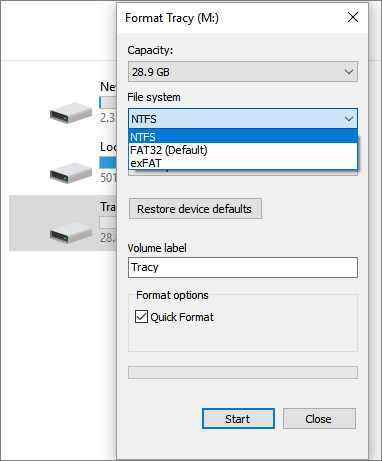
Method 1. Format SD Card Use Windows Explorer
Step 1. Insert the SD card into the SD card reader, and then connect the SD card reader to your computer using a USB cable. Make sure the SD card reader is securely connected to the computer to ensure proper data transfer.
Step 2. To format your SD card, go to "This PC" and open Windows Explorer, right-click on your SD card, and select "Format" from the menu. This will erase all data on the card.
Step 3. To format your SD card, open the Disk Utility app, select the SD card from the list on the left, click "Erase", choose the file system (such as APFS or exFAT), and set a new label to identify the card. Then, click "Start" and confirm the formatting by clicking "OK".
FAT32 is used for SD cards with storage capacity up to 64GB, while exFAT is used for SD cards with storage capacity over 64GB.
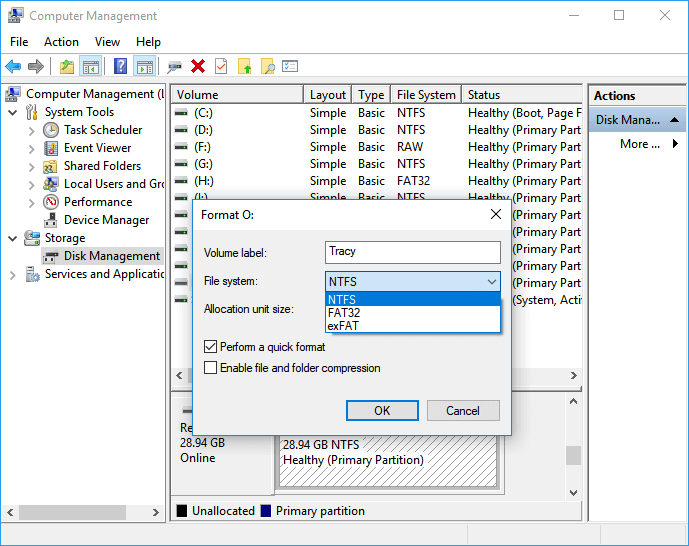
Method 2. Format SD Card Use Disk Management
Step 1. To transfer files from your SD card to your computer, insert the SD card into a card reader and connect the reader to your computer using a USB cable. This will allow your computer to recognize the SD card and access its contents.
Step 2. Right-click "This PC", choose "Manage", enter "Disk Management".
Step 3. Locate and right-click on your SD card, choose "Format".
Step 4. To continue, click "Yes" to confirm the format, then select a new label for the card. Next, choose a file system, such as exFAT, FAT32, or NTFS, and click "OK" to format the SD card.
Part 2. How to Format SD card on the Camera
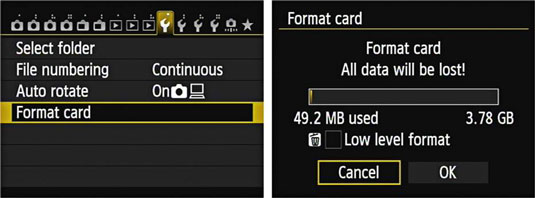
If your SD card is for the camera, you can directly format it inside your camera. Here we take the Canon camera as an example, but the settings on other camera brands will be very similar.
Step 1. Press the camera Menu button.
Step 2. Press multi-controller and head to Camera Settings 1.
Step 3. With the multi-controller, choose the "Format Card" option.
Step 4. Select "OK" to start the format.
Part 3. How to Format SD Card on Android Phone
You can format your SD card on an Android phone, but first, make sure your phone has the necessary feature enabled. For example, if you're using a Samsung phone, you can follow these steps: go to Settings, then Storage, and finally, the option to format the SD card should be available. If you're using a different phone, you may need to check your phone's manual or manufacturer's website for instructions. Once you've confirmed your phone can format the SD card, you can proceed with formatting it using your phone's built-in formatting tool.
Step 1. To access Device Care, go to the Settings app on your phone, find the option labeled "Device Care" or similar.
Step 2. Select Storage and tap the Advanced option.
Step 3. Under Portable storage select SD Card.
Step 4. Tap "Format", and tap "Format SD Card" to confirm.
To find the SD card on your mobile phone, navigate to the Settings app, which may vary depending on the model of your phone. The core of this method is to locate the SD card within the Settings app, where you can access and manage its contents.
How to Unformat an SD Card and Restore Data
If you've misformatted your SD card and want to recover your data, don't worry - it's still possible to unformat the card and restore your files. To do this, you'll need to follow a specific process that involves using a data recovery software to scan the card for recoverable data. This software can help you identify and retrieve your files, even if the card has been reformatted. By following the correct steps and using the right tools, you may be able to recover at least some of the data that was lost due to the misformatting.
Formatting a memory card does not truly erase data, as it can be recovered if not overwritten by new content. To maximize the chances of recovering files, stop using the device and perform data recovery immediately.
Method 1. Run Format Data Recovery Software
Using professional data recovery software like Deep Data Recovery can be an effective way to undo formatting. This software can scan your formatted device thoroughly and recover lost files according to your needs.
Deep Data Recovery also allows you to recover formatted files, in addition to its formatted file recovery feature.
- Recover files after reinstalling Windows, OS crash, virus attack, and other tough data loss situations with ease.
- To recover deleted files in Windows 10, you can use the Shift-Delete key combination or empty the recycle bin. This will allow you to restore deleted files to their original location.
- A data recovery software can help recover lost photos, videos, audio files, Microsoft Office files, Adobe files, emails, and more than 200 other file types.
The software can be downloaded to restore files from a formatted SD card. This should be done as soon as possible to minimize data loss.
Step 1. Launch Deep Data Recovery, select file types, and click "Format Scan" to initiate the recovery process.

Note: You can choose different search modes based on where and why the data was lost.
Step 2.Connect your USB drive to your computer and launch Deep Data Recovery. Select the formatted SD card, USB flash drive, or Pen drive from which you want to restore lost files and click "Scan".

Step 3. After the scan is complete, all scan results will be displayed on the screen, and you can use the "Filter" or "File Type" feature to quickly find your target files.

Step 4. After choosing the files you want to recover from your formatted external drive, click "Recover". A new window will appear where you need to select a new location to store the files, and then click "OK" to confirm.
Bonus Tips: SD Card Best Practices
Formatting an SD card involves understanding what it means, how to do it, and how to recover data if it gets unformatted. It's also crucial to know how to optimize your SD card's performance.
1. Format instead of Erase
To give your old SD card a fresh start, it's best to format it instead of just erasing or deleting content. Formatting the SD card will completely clear it of any leftover data, making it like new again. This is a more thorough method than just deleting files, which may not remove all traces of previous data.
2. Format New Cards Before Using
When you purchase a new SD card, it's a good idea to format it before using it to ensure it's ready for your device.
3. Make Regular Backups
Regularly backing up your important content with professional file backup software ensures that your data is safe and secure, in case of any unexpected events or losses. This helps to prevent data loss and ensures business continuity.
With the provided methods and tips, you should be able to effectively format and unformat your SD card, ensuring it works well.
Related Articles
- Recuva Review (Free Download)
- Restore Deleted/Lost ASUS Data with ASUS Data Recovery Software
- 4 Efficient Ways Are Ready! Fix Compile Error in Hidden Module
- Elden Ring Lost Progress or No Longer Available on Xbox/PS4/PC
- The Legend of Zelda: Tears of the Kingdom Lost Progress, How to Fix? [PC/Switch]
My game - The Legend of Zelda: Tears of the Kingdom lost progress. What can I do? This post describes the recovery of the game progress. You can use Qiling Data Recovery Wizard to recover lost game data if you accidentally removed it. - [Full Guide] 10TB/12TB Internal and External Hard Drives
Compare 10TB and 12TB internal and external hard drives, usable space, prices, and ways to recover lost data from large drives.
Products
Articles & Tutorials
- Data Recovery
- Data Backup
- File Recovery
- File Backup
- System Backup and Restore
- Disk and Partition Clone
- Technical articles
- Mobile articles
- Disk Master Help
- Windows Data Recovery Tutorials
- Windows Secure Delete Tutorials
- Windows Partition Management Tutorials
- Windows File Backup and Restore Tutorials
- Windows System Backup and Restore Tutorials
- Windows Disk Backup and Restore Tutorials
- Windows Clone Tutorials