4 Efficient Ways Are Ready! Fix Compile Error in Hidden Module
When discussing MS Office error messages, it's a long story, with hundreds of different errors reported when opening Word, Excel, or PowerPoint. Some common errors like Runtime Error 1004 or add-in template is not valid have been addressed, but this time, we'll focus on the Compile error in hidden module.
Users often received this error message when they start Excel. In rare times, when users start MS Word, this error would also pop up. Usually, users would see one of the following error messages:
- Compile error in hidden module: AutoExec
- Compile error in hidden module: AutoExecNew
- Compile error in hidden module: DistMon
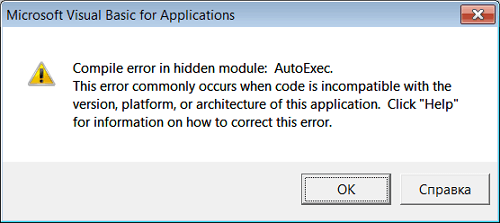
The error messages with different suffixes indicate that there are multiple issues to address. Each suffix suggests a different cause, leading to various solutions to resolve the problem. Before exploring these solutions, it's essential to understand the reasons behind the error messages.
Why Do I See the Error Message of Compile Error in Hidden Module?
The "Compile error in hidden module" error message in Office 2016 is typically caused by 32-bit add-ins that are incompatible with the 64-bit version of the software. This occurs when there are older 32-bit add-ins on the computer that are not compatible with the upgraded 64-bit version of Office 2016.
Two common conditions that would cause this error are as follow:
1. When MS Excel startup folder contains both the Adobe Acrobat PDF Maker add-in and a template file, it may cause issues.
- Pdfmaker.dot
- Pdfmaker.xla
2. Your computer has installed the Norton Anti-virus software.
After knowing what causes this error message, now it's time to apply the solutions. Here we have listed four solutions, you can try them one by one until you solve the problem.
Method 1. Re-register OCX Files with CMD
You can try to re-register some basic Excel function files by applying Windows Command Prompt. This is the first solution to try.
Step 1. To open the Command Prompt, press the Windows key + R keys at the same time, and then type "cmd" in the Run box that appears.
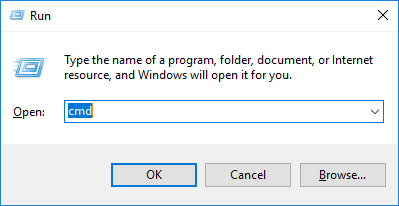
Step 2. Type the following command and press Enter.
For 32-bit:
regsvr32 -u c:\windows\system32\mscomctl.ocx
regsvr32 c:\windows\system32\mscomctl.ocx
For 64-bit:
regsvr32 -u c:\windows\system64\mscomctl.ocx
regsvr32 c:\windows\system64\mscomctl.ocx
Step 3. Now run MS Excel again to check if the error message still exists.
Method 2. Delete .exd Files
The exd file is a cache file created by Microsoft Office when a user inserts an ActiveX control into a document using the Control Toolbox. Deleting this cache file may resolve the Compile error in the hidden module error.
Step 1. Press the Windows key + R keys at the same time. Type %appdata% in the run box. This will open the AppData folder, where you can find various files and folders related to your user account.
Step 2. To access the Microsoft Forms folder in your AppData folder, you can follow these steps: It will open your AppData folder. From there, navigate to Roaming > Microsoft > Forms. This will allow you to view and manage your Microsoft Forms content.
Step 3. To resolve the issue, locate the .exd files on your system, specifically the comctllib.exd and mscomctllib.exd files, and delete them. This should resolve the problem.
Step 4. Restart your Excel and check if the problem is solved.
Method 3. Move PDF Maker Files
One reason you may see the error message is due to the presence of two template files on Adobe Acrobat PDF Maker add-in. To resolve this issue, you can move the PDF Maker files to another location, which should fix the problem.
Step 1. Open Windows File Explorer, search pdfmaker.* on your computer.
Step 2. To create a PDF file, choose the pdfmaker.dot and pdfmaker.xla files, right-click on both files, and select cut.
Step 3. Paste these two files to your Desktop.
To resolve the issue, you can try restarting the MS Excel application. This will close all open workbooks and refresh the program, which may resolve the problem.
Method 4. Update to the Latest Adobe Acrobat
If the above methods fail to resolve the Compile error in hidden module issue, the last resort is to update Adobe Acrobat to the latest version, as this problem is often associated with outdated versions of the software installed on your computer.
To update Adobe Acrobat, go to the Adobe official website, find the latest version, download and install it on your computer.
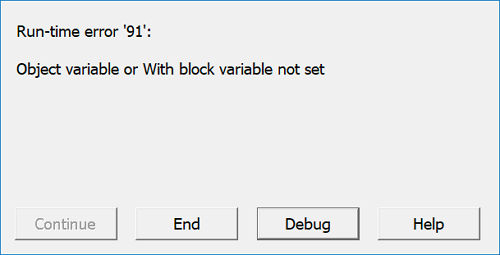
How to Fix Word Runtime Error 91?
A runtime error is a common issue that occurs in Microsoft Office software, typically due to a problem with a particular program or feature. This error can be caused by various factors, including corrupted files, outdated software, or conflicts with other programs. To resolve this issue, users can try restarting their computer, updating Microsoft Office to the latest version, or uninstalling and reinstalling the affected program.
Bonus Solution: Repair Damaged or Corrupted MS Excel Efficiently
If you've encountered the Excel Compile error in the hidden module issue, you may have resolved it using the methods provided. Additionally, a useful bonus tool to consider is the Qiling file repair tool, which can also help address this issue.
This is an advanced file repair software that is a specialized fix tool enabling you to repair corrupted PDF documents and Office files in multiple formats. If your documents got damaged, this software will scan and repair them efficiently.
If you want to try out this file repair software, you can download it and follow the guide to see how to use it, with a step-by-step guide on how to repair Excel documents.
Step 1. Launch Deep Data Recovery, select the file types you want to recover and click "Fast Scan" to begin the recovery process.

Note: You can choose different search modes based on where and why the data was lost.
Step 2.To repair corrupted files, select a disk location where the damaged files are saved, then click "Scan" to start the file repair process. Qiling file repair tool can fix broken documents, videos, and pictures in various formats.

Step 3.After scanning, you can quickly find corrupt data by file type. This feature is particularly useful for repairing damaged documents, such as Word and Excel files, as well as PDFs, which can be selected and filtered by category. Additionally, for pictures and videos, the software supports a wide range of common file types, including JPEG, PNG, BMP, MOV, MP4, GIF, and more.

Step 4.Qiling file repair software will automatically fix broken files, allowing you to preview the repaired files before recovery. Once you're satisfied, simply click "Recover" and save the recovered files to a different location to avoid data overwriting.
The Bottom Line
The Compile error in hidden module error message can be frustrating, but understanding its causes and solutions can help you fix the issue. This error often occurs when a VBA project is not properly closed, leading to a hidden module being compiled. To resolve this, you can try closing and reopening the VBA editor, or using a file repair tool like Qiling to fix corrupted documents, including Word, Excel, PPT, and PDF files. By applying this tool, you can effectively repair your files and get back to work.
Related Articles
- 2022 Quick Format Recovery: Recover Data/Files from Hard Drive after Quick Format
- How Do I Fix Word Experienced An Error Trying to Open the File? Here Is the Guide
- Fix Error 0x80070490 in Windows Update, Mail App, and Xbox
- Files/Folders Keep Reappearing After Deletion in Windows 10/8/7
- Undelete Partition Windows 10 - How to Recover Deleted Partition in Windows 10
If you accidentally deleted a partition in Windows 10, it's crucial to learn how to recover the deleted partition to avoid permanent loss. To do this, you can use undelete partition software to quickly restore the lost partition on your Windows 10 hard drive. - How to Recover Deleted Photos from Camera 360 on iPhone/Computer/Android Phone
This article is a detailed guide for how to recover deleted photos from Camera 360 on iPhone, how to recover deleted photos from Camera 360 on Android phone and how to recover Camera 360 photos in computer. Check it out.
Products
Articles & Tutorials
- Data Recovery
- Data Backup
- File Recovery
- File Backup
- System Backup and Restore
- Disk and Partition Clone
- Technical articles
- Mobile articles
- Disk Master Help
- Windows Data Recovery Tutorials
- Windows Secure Delete Tutorials
- Windows Partition Management Tutorials
- Windows File Backup and Restore Tutorials
- Windows System Backup and Restore Tutorials
- Windows Disk Backup and Restore Tutorials
- Windows Clone Tutorials