Restore Deleted/Lost ASUS Data with ASUS Data Recovery Software
Overview of ASUS Data Recovery
ASUS users may experience data loss on their devices, and a simple solution is to use data recovery software to restore lost data. This software can recover data from ASUS desktops, laptops, and other storage devices running Windows 10/8/7. By following the recommended method, users can easily recover lost data on their ASUS computer or storage devices.
How to Retrieve Lost Data on ASUS Laptop/PC
There are four ways to recover data on your ASUS computer, each suitable for different situations. You can recover deleted, formatted, or lost data on your ASUS computer or external storage devices using one of these methods.
Method 1. Recover Files with ASUS Data Recovery Software
Using ASUS data recovery software is the most straightforward way to recover data on ASUS devices, and Deep Data Recovery is one of the best choices. Not exclusively designed for ASUS devices, it fully supports ASUS data recovery, allowing for the recovery of data from ASUS devices.
- Recovering files lost due to deletion, formatting, emptying the recycle bin, hard disk damage, OS crash, or virus attack can be a challenging task, but it's not impossible.
- Recovering almost all existing file types, including photos, videos, audio files, documents, emails, and Adobe files, among others.
- Data recovery involves retrieving information from various storage devices, including computers, external hard drives, USB flash drives, SD cards, memory cards, and other conventional storage media.
Download and follow the step-by-step guide to recover files on ASUS devices.
Simple steps to recover data from the ASUS computer:
Step 1. Run Deep Data Recovery on your computer, select the desired file types, and click "Fast Scan" to initiate the recovery process.

Note: You can choose different search modes based on where and why the data was lost.
Step 2. To recover lost files, select the drive where the files were lost and click "Scan". If the lost files were on an external storage device, connect it to the computer before scanning.

Step 3. The software rapidly scans deleted files, followed by a deep scan to locate additional lost files. Upon completion, a "Filter" feature allows for the quick filtering of specific file types.

Step 4. To recover your files, click the "Preview" button or double-click on a file for a full preview. Then, select the desired files and click "Recover" to save them to a safe location. All selected files will be saved at once.
You also interested in:
To recover deleted files on PC Windows 10/8/7, first, stop using the affected drive to prevent overwriting of data. Then, use built-in File History feature or third-party software like Deep Data Recovery Wizard to scan the drive for deleted files.
You can recover deleted files from the recycle bin, backups, or use deleted file recovery software that works even if the files have been permanently removed without a backup.
Method 2. Recover Deleted Data from Recycle Bin in ASUS computer
This method can only be applied to recover temporarily deleted files on your computer, which are stored in the Recycle Bin, and can be easily recovered from there. If you want to recover permanently deleted files or retrieve deleted files from an external storage device, using Method 1 will be helpful.
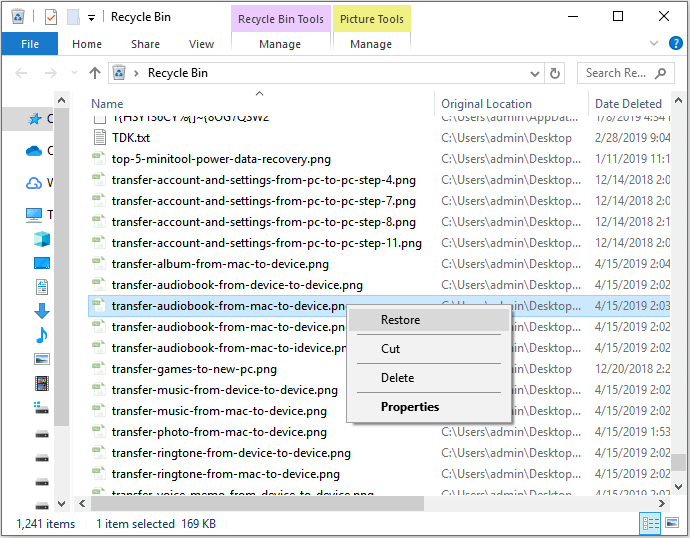
To recover deleted files on your ASUS computer from the Recycle Bin, you can follow these steps: first, check if the files you want to recover are still in the Recycle Bin by opening the Recycle Bin folder, then right-click on the file you want to recover and select "Restore" to move it back to its original location. If the files are not in the Recycle Bin, you can try using a file recovery software like Deep Data Recovery Wizard to scan your computer for deleted files and recover them.
Step 1. To restore deleted files, open the Recycle Bin, which is typically found on the desktop or in the Start menu, depending on your operating system. Once the Recycle Bin is open, you'll see a list of deleted files and folders.
Step 2. Right-click the selected files and then click "Restore".
Step 3. The files that were deleted will be restored to their original location from the Recycle Bin.
Method 3. Restore Lost Files from the Previous Version in ASUS
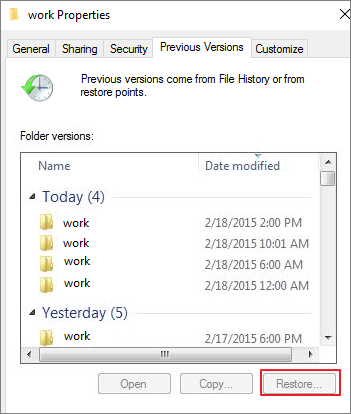
If you have backed up your files using Windows' File History feature, you can recover deleted files from your ASUS computer using the backup. If you don't have a backup, you can use the Qiling ASUS data recovery software to help with the recovery process.
Step 1. To recover deleted or lost files, open "This PC" and navigate to the file folder where the missing files were stored.
Step 2. Right-click on the file folder, select "Properties", and then click on "Previous Versions".
Step 3. Then select an earlier version before the day or moment you deleted files from it and click "Restore".
Method 4. Recover deleted files from Backup and Restore
You can restore your files by going to Control Panel > System and Security > Backup and Restore (Windows 7), or System Protection (Windows 8 and later), and clicking on the "Restore my files" or "System Image" option, depending on what type of backup you made. If you made a system image, you can also use the "System Image" option to restore your entire system. If you made a file backup, you can browse through the backup files and select the ones you want to restore.
Step 1. Input Control Panel on the search bar > System and Security > Backup and Restore (Windows 7)
Step 2. Choose Restore my files and select your deleted files.
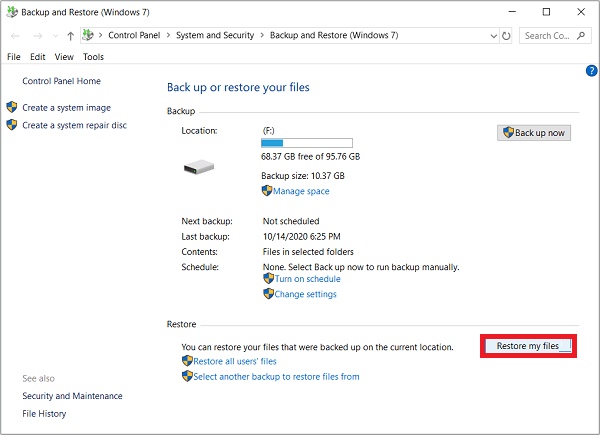
After this, you can open the file folder to check out where your lost files were restored or not now.
All four methods to recover data from ASUS computers are feasible, but using Qiling data recovery software is the most popular choice among users. This software allows for data recovery on ASUS computers as well as other brands and non-computer devices, making it a versatile option for retrieving lost data.
Recommended: Free ASUS Backup and Recovery Software
Qiling Backup is a free software that allows ASUS users to back up their computers regularly, enabling them to save data to local hard drives, external drives, USB drives, cloud storage, and more. This helps protect against data loss.
Related Articles
- How to Recover Deleted Zoom Recording/meeting | Zoom Video Recovery
- How to Fix Recuva Deep Scan Stuck or Frozen
- What Is Dynamic Disk | Everything About Windows Dynamic Disk
- How to Recover Corrupted Macro Enabled Excel File with Top 5 Ways
- What Is Apple Universal Control, All You Need to Know
Apple Universal Control is a feature that allows users to control multiple Apple devices with a single keyboard and mouse, making it easy to switch between Mac and iPad. - B550 vs. X570 [Full & Detailed Comparison]
X570 and B550 are both AMD chipsets. Some users want to know how they differ and which one they should pick. You are coming to the right place if you're one of them. Read this article to learn more about B550 vs. X570.
Products
Articles & Tutorials
- Data Recovery
- Data Backup
- File Recovery
- File Backup
- System Backup and Restore
- Disk and Partition Clone
- Technical articles
- Mobile articles
- Disk Master Help
- Windows Data Recovery Tutorials
- Windows Secure Delete Tutorials
- Windows Partition Management Tutorials
- Windows File Backup and Restore Tutorials
- Windows System Backup and Restore Tutorials
- Windows Disk Backup and Restore Tutorials
- Windows Clone Tutorials