What Is Apple Universal Control, All You Need to Know
What Is Apple Universal Control
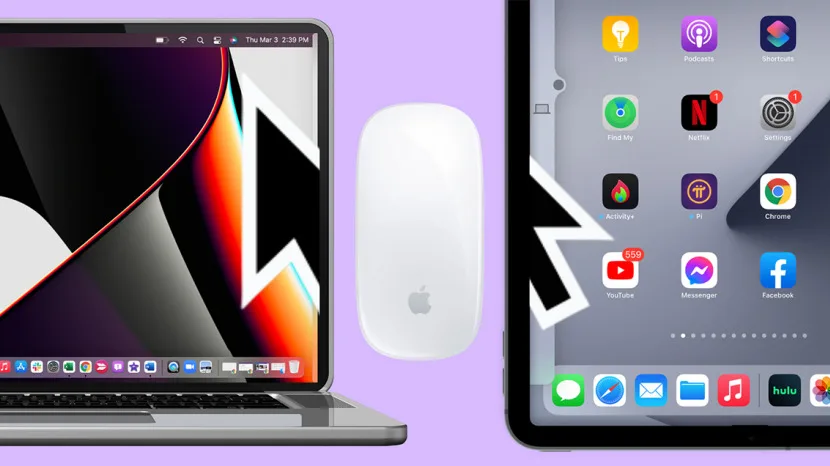
Apple introduced Universal Control with the release of iPadOS 15.4 and macOS Monterey 12.3, allowing users to control multiple Macs and iPads with a single mouse, trackpad, or keyboard. Apple Universal Control enables a seamless workflow across devices, letting you move your cursor from one screen to another and type on any nearby Mac or iPad without switching input devices.
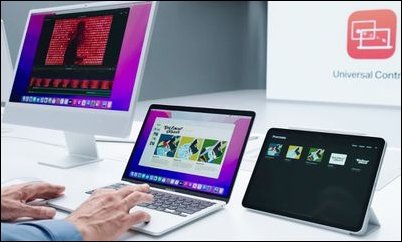
With Universal Control, you can control multiple Macs or Macs and iPads with one cursor or keyboard, as long as they are signed into the same iCloud account and within 10 meters (30 feet) of each other.
Here are some important points to keep in mind about Universal Control:
- Apple Universal Control is only compatible with Mac and iPad devices, and does not allow iPhone control with a single mouse or keyboard for Mac/iPad use.
- Universal Control allows users to control multiple Apple devices with a single mouse, keyboard, or trackpad, but it does not support Apple Pencil as an input device for this feature.
- Universal Control is not available on Windows systems. However, you can search for alternative applications to Universal Control on Windows.
Universal Control Supported Devices [Macs and iPads]
Apple Universal Control only works with specific devices and operating systems, requiring at least one Mac and up to two other Mac or iPad devices. It requires macOS Monterey 12.4 or later on the Mac, and compatible devices include the following Macs and iPads. No other devices or operating systems are supported.
- MacBook released in 2016 or later
- MacBook Pro released in 2016 or later
- MacBook Air released in 2018 or later
- Mac Mini released in 2018 or later
- iMac released in 2017 or later, including iMac (21.5-inch, 2017), iMac (27-inch, 2017), iMac (Retina 5K, 27-inch, Late 2015), and iMac Pro
- Mac Pro released in 2019 or later
- Mac Studio
Universal Control on iPads requires devices running iPadOS 15.4 or later, including:
- iPad Pro (all models)
- iPad (6th generation) or later
- iPad Air (3rd generation) or later
- iPad mini (5th generation) or later
How to Use Apple Universal Control
When using Universal Control, you can work across multiple devices by using a single keyboard, mouse, or trackpad to control them. Each device displays its own screen and apps, allowing you to easily move the pointer, type, and copy content between devices.
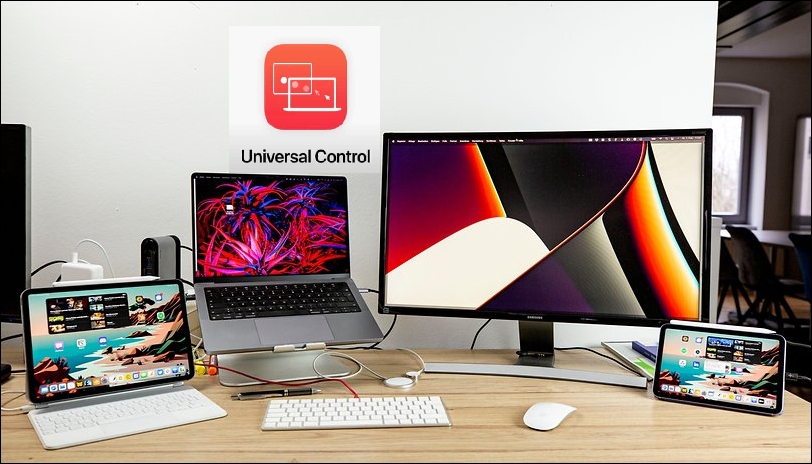
Note: If you want to mirror the desktop of your Mac or extend your iPad, use Sidecar instead.
To enable Apple Universal Control, follow these steps:
Turn on Apple Universal Control
To turn on Universal Control, ensure each device meets the system requirements and is signed in with the same Apple ID. Then, follow the steps below for each device.
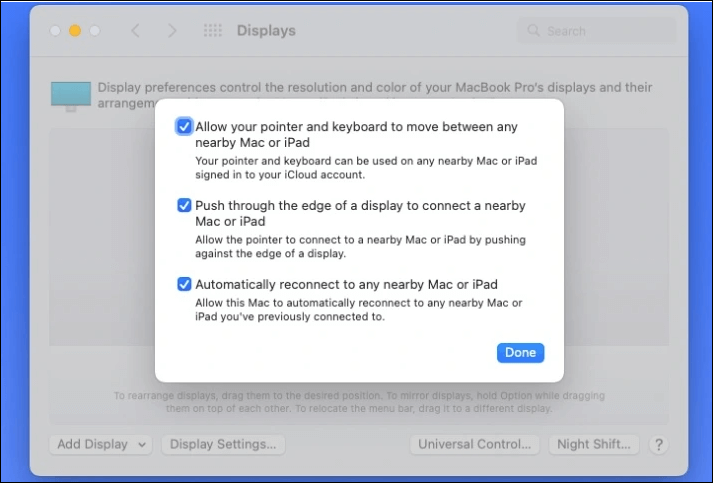
Turn on Universal Control on Mac:
Step 1. Go to the Apple menu, and find System Settings/Preferences.
Step 2. Click Displays.
Step 3. If using macOS Ventura or later, click "Advanced" at the bottom of Settings.
Step 4. To enable the feature, select the "Allow your pointer and keyboard to move between any nearby Mac or iPad" option and toggle it on.
Turn on Universal Control on iPad:
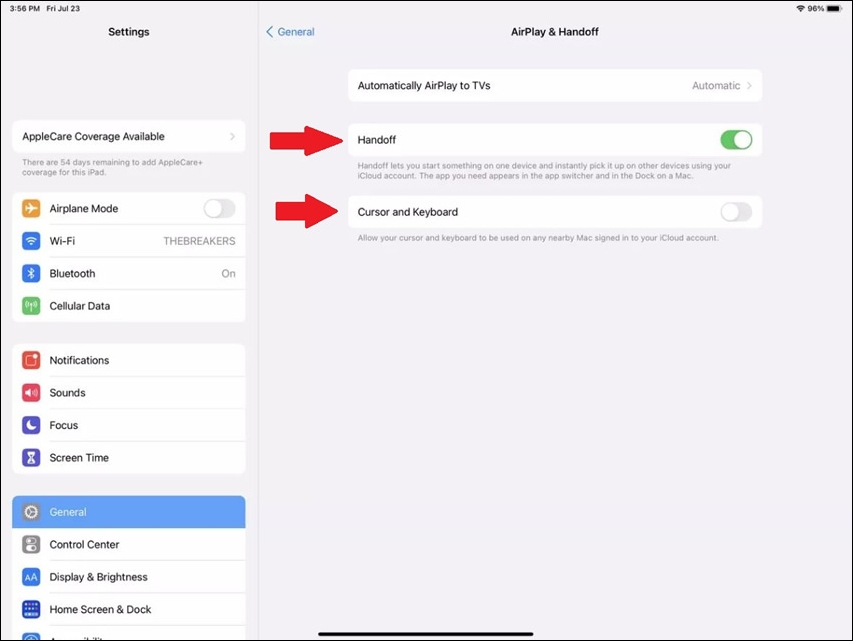
Step 1. Open the Settings app.
Step 2. Tap General, then tap AirPlay & Handoff.
Step 3. To support Universal Control, turn on "Cursor and Keyboard", available only on compatible iPad models.
Connect Your Mac and iPad
Once Universal Control is turned on, place your devices near each other and follow the steps below to connect them. Universal Control uses your existing keyboard, mouse, or trackpad without requiring additional pairing.
Step 1. Put your devices near each other when they are unlocked.
Step 2. To move the pointer past your screen's left or right edge, use your mouse or trackpad to drag it across the screen's edge. The pointer will then reappear on the adjacent device's screen, allowing you to control it.
Step 3. Move the pointer across all screens as needed.
If a prohibitory icon appears when you are dragging, the item cannot be dropped at the current location. Instead, use the keyboard to copy the object with "Command + C" and then paste it with "Command + V" on the other device. This functionality is available when using any connected device's keyboard, mouse, or trackpad while devices are linked with Universal Control.
Disconnect Your Mac and iPad
To disconnect a specific device from your Mac, you can take the following actions:
- Put the device you want to disconnect in sleep mode.
- To disconnect a Mac or iPad from your keyboard and mouse, go to the Control Center, click on "Display," and then select the device you want to unlink from your keyboard and mouse.
To disconnect all devices, you can press Control+Option+Command+Delete on your Mac keyboard to disconnect without affecting other system functions.
Automatically Reconnect to a Nearby Device
To connect to nearby Mac or iPad devices, push the trackpad or mouse cursor to the edge of the display towards the other device. This will establish a connection. After the first connection is made, you can set your devices to automatically reconnect to any nearby Mac or iPad.
To enable automatic reconnections on Mac, go to System Preferences, choose Display Settings, click Advanced, then check the box next to "Reconnect to any nearby Mac or iPad automatically" and click Done.
How to Fix Universal Control Not Working on Mac/iPad
To get Universal Control working, ensure your devices are connected to the same Wi-Fi network. Also, check that Bluetooth and Wi-Fi are enabled on both devices, and that Handoff is turned on. If you are still experiencing issues, try restarting both devices and verifying your Universal Control settings.
- Check the compatibility of your devices by referring to the Universal Control Supported Devices list mentioned earlier in this article.
- Ensure all devices are signed in with the same Apple ID.
- Ensure that your Mac and iPad are within 30 feet (10 meters) of each other, and that Bluetooth, Wi-Fi, and Handoff are enabled on both devices.
- To check if iPads and Macs share a cellular and internet connection, go to System Preferences on your Mac, click on Sharing, and then select Internet Sharing. If the iPad is connected to the Mac via Wi-Fi, it should show up in the list of devices.
Here are some common problems that may occur when using Universal Control and their solutions:
- The issue with Drag and Drop on iPad is that you need to open the app compatible with the file type first. On Mac, you can directly drag and drop files of different types onto the desktop. This limitation is due to the fact that the iPad's Home Screen only supports specific file types.
- Some multitouch gestures on an iPad are unavailable or slightly different from those on a Mac, such as Mission Control gestures.
- The "copy and paste" feature between devices may occasionally experience minor inconsistencies depending on the apps being used. If you encounter issues, try using the keyboard shortcuts again.
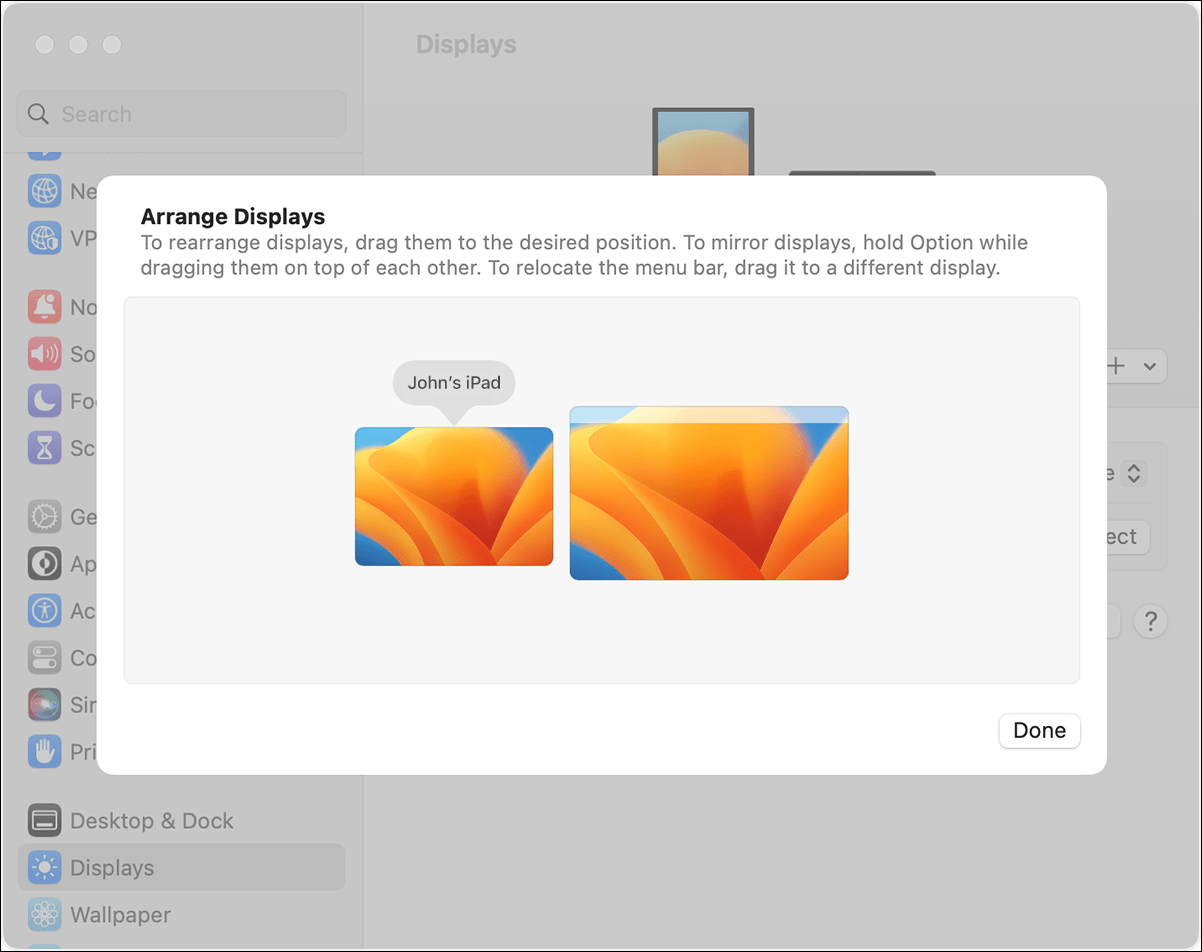
- The cursor exits one display and appears on another, but its position does not align with the physical arrangement of both displays. To fix this, go to your Mac's System Preferences and use the Displays section to rearrange your devices.
Apple Universal Control VS Sidecar
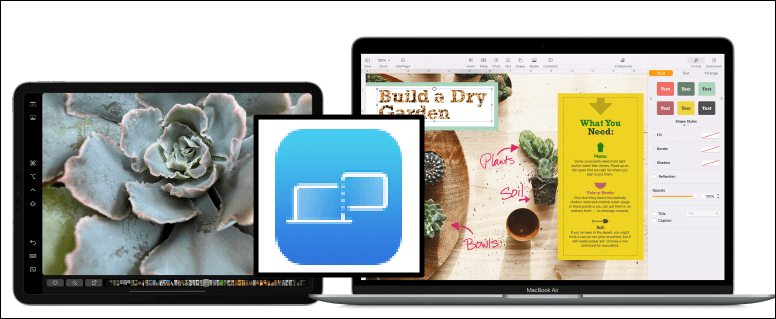
Sidecar, developed by Apple, allows users to use an iPad as an external display for a Mac. It was introduced as part of macOS Catalina and iPadOS 13. This feature enables users to either mirror their Mac's display to their iPad or use it in "extended mode" for an additional screen.
Differences Between Universal Control and Sidecar
The key difference between Sidecar and Universal Control lies in their functionality. Sidecar transforms your iPad into an external display for your Mac, essentially turning it into a second screen. In contrast, Universal Control allows you to use your Mac's trackpad, mouse, or keyboard to control your iPad without mirroring the Mac's display. Instead, it enables you to utilize the full potential of your iPad with the added resources of your Mac.
| Universal Control | Sidecar | |
| Purpose | Use your Mac's mouse, trackpad, and keyboard to control nearby Macs and iPads, enabling seamless cross-device workflow | Makes iPad a secondary display for Mac |
| Mac-to-Mac Compatibility | Can work between two Macs | Cannot work between two Macs |
| Number of Devices | Can connect up to three devices at once, with at least one of them being a Mac | Limited to one connected iPad only |
| File Sharing | Can drag and drop files between Mac and iPad | Cannot share files between Mac and iPad |
| Apple Pencil Support | Does not support Apple Pencil | Supports Apple Pencil as input |
| Wire Support | Wireless only | No limitation |
| Gesture Support | Does not support macOS gestures on iPad | Can use all macOS trackpad gestures |
| Connect Settings | Connects automatically once setup | Requires manual setup every time |
Use Universal Control or Sidecar
If you frequently use Apple Pencil, consider using Sidecar. This feature allows you to utilize powerful Mac apps like Photoshop on your iPad with the Apple Pencil, making it an ideal choice for those who want to extend their Mac desktop space to their iPad's screen and do not require the features of iPadOS.
If your workflow involves using multiple Macs or you want to utilize the power of your iPad and Apple's creativity apps, consider using Universal Control. This feature allows you to use one keyboard and mouse for all devices, eliminating the need to manually switch between them.
Conclusion
Apple's Universal Control feature allows seamless control of multiple Macs and iPads using a single mouse, trackpad, or keyboard. To use it, simply turn on Universal Control on all devices, ensure the settings are correct, and connect them. This enables effortless control of all your Apple devices with one input device.
Related Articles
- [Solved] What Happens If I Interrupt System Restore Windows 10?
- TOP 10 FREE PHOTO EDITORS LIKE PHOTOSHOP
- What Is An Expansion Card? (One-Stop Info Collection)
- Tape Backup VS NAS, Which One Is Better?
- How to Fix 'Switch User' Option Missing in Windows 10/11
Fix the Switch User option missing in Windows 10 or 11. Check user accounts, policies, services, and system settings to restore switching. - How to Fix WAN Miniport Driver Issues in Windows OS [Updated 2023]
If you're experiencing issues with the Wan Miniport driver in Windows OS, we're here to help. Let us know how we can assist you in resolving this problem.
Products
Articles & Tutorials
- Data Recovery
- Data Backup
- File Recovery
- File Backup
- System Backup and Restore
- Disk and Partition Clone
- Technical articles
- Mobile articles
- Disk Master Help
- Windows Data Recovery Tutorials
- Windows Secure Delete Tutorials
- Windows Partition Management Tutorials
- Windows File Backup and Restore Tutorials
- Windows System Backup and Restore Tutorials
- Windows Disk Backup and Restore Tutorials
- Windows Clone Tutorials