macOS Ventura: Preview, Features and Downloading
macOS Ventura, the latest operating system for Macs, is the 13th version of macOS and promises a wide array of new features to help users. It is expected to eventually replace macOS Monterey and was initially announced at the Worldwide Developers Conference (WWDC) 2022.
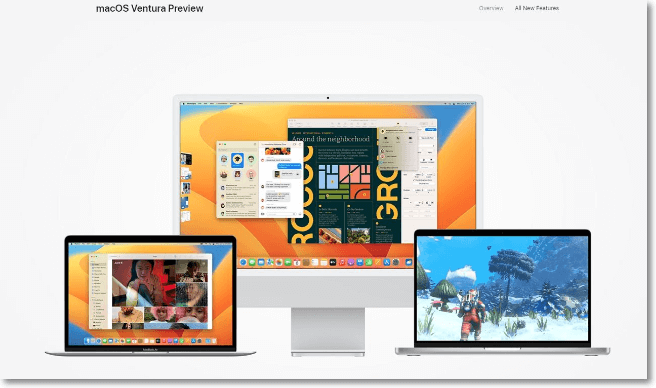
macOS 13 Ventura is the next major operating system release from Apple, based on the company's tradition of naming operating systems after places in California. It is scheduled to be released in October 2022.
Preview of macOS Ventura (Release Date and Availability)
macOS Ventura, the latest version of the Mac operating system, is set to be released in October 2022. Announced on June 6, 2022, at WWDC, the 19th release of macOS has been available in beta form since its announcement, with the developer version released on June 6 and the public beta version released on July 11, 2022.
What Is New in macOS Ventura (10 Best Features)
macOS Ventura comes with a wide array of new changes and features. Here, we will talk more about these new features. These are:
- 1. Stage Manager
- 2. Continuity Camera
- 3. iCloud Shared Photo Library
- 4. System Settings
- 5. Freeform
- 6. Passkeys
- 7. Spotlight
- 8. Live Text
- 9. Visual Look Up
- 10. Focus
Stage Manager
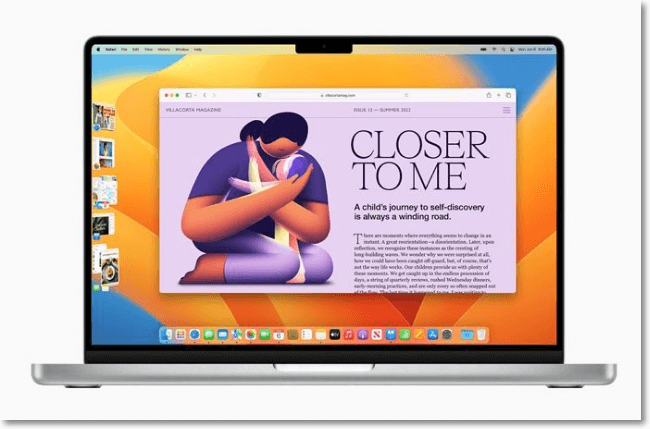
The Stage Manager feature in Ventura allows users to multitask by viewing multiple windows and apps in a single view, enabling them to switch between different apps while keeping the main app open. This feature also includes additional sub-features such as a center app, fast access to windows and apps, resizable windows, spaces integration, and easy mode switching.
Continuity Camera
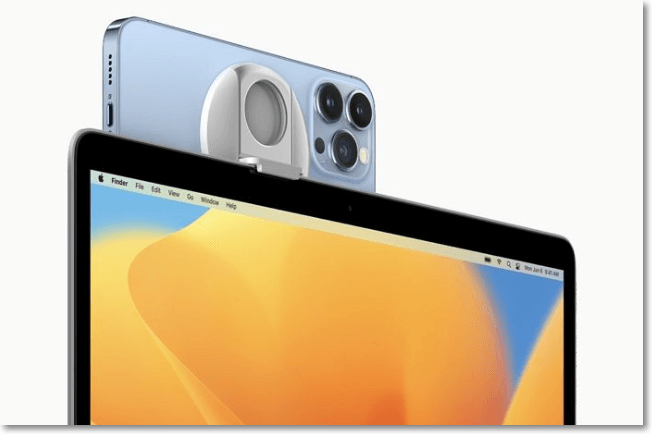
The iPhone can be used as a webcam and microphone for video conferencing with the Mac, either connected via cable or wirelessly, and can be used in close proximity to the Mac.
iCloud Shared Photo Library
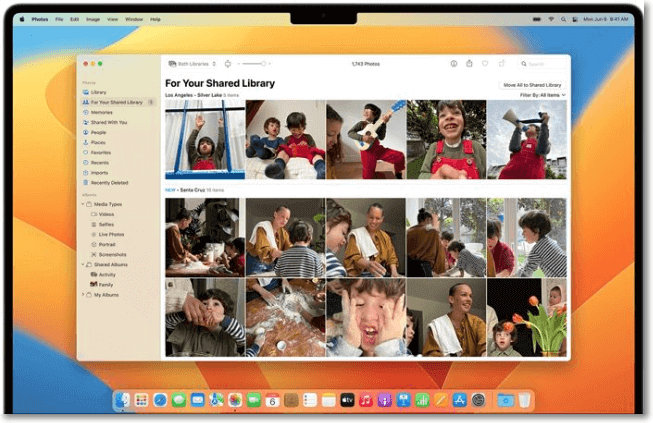
With the iCloud Shared Photo Library, you can share photos with up to six people, allowing them to edit, add, delete, and more. You can also set up automatic sharing based on date using Smart setup rules, or rely on Smart sharing suggestions for a more hands-off approach. This feature offers a convenient way to collaborate and share memories with loved ones.
System Settings
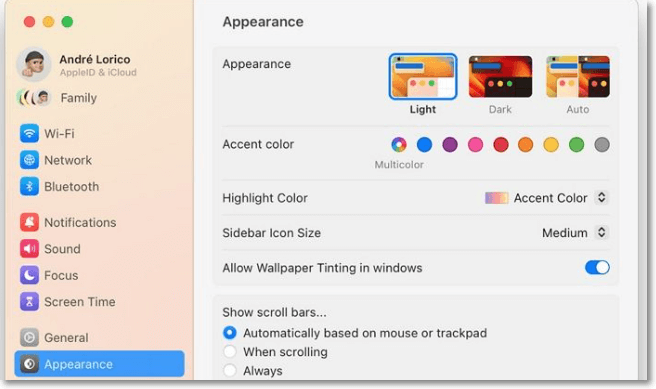
System Settings, formerly known as System Preferences, has been revamped with a new look and improved search functionality. The interface now resembles iOS, featuring a sidebar with various settings categories and a more efficient search option that allows users to find settings by entering simple keywords.
Freeform
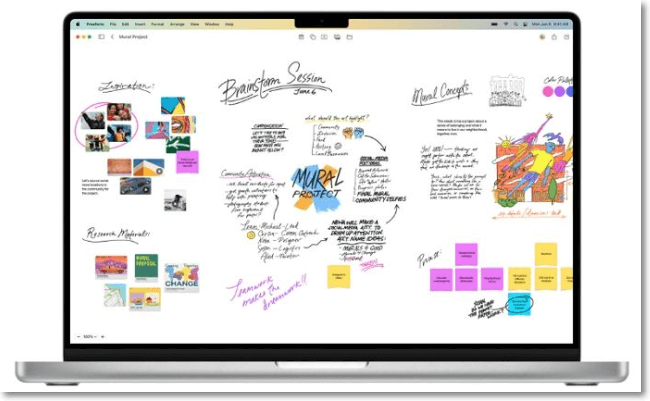
Freeform is a collaborative app that allows users to brainstorm, draw, and collect ideas in a whiteboard-style interface. With real-time collaboration capabilities, users can work together seamlessly, and the canvas supports adding various media types such as images, audio, video, and PDFs. The app leverages the Messages Collaboration API to enable FaceTime and Messages integration, making it a versatile tool for creative work.
Passkeys
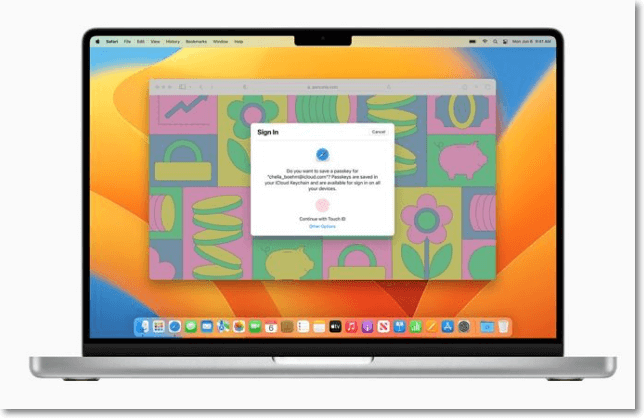
macOS Ventura replaces conventional passwords with passkeys, syncing them across Apple devices via iCloud keychain for enhanced security against phishing and malware attacks, and allowing creation with Face ID or Touch ID.
Spotlight
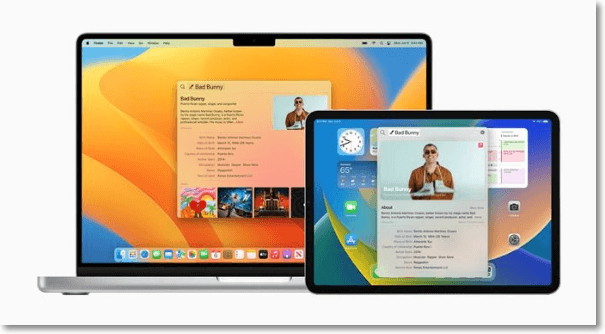
In macOS Ventura, the Spotlight feature has been improved, allowing users to access Quick Look by tapping the space bar to preview files, and enabling Quick Actions to perform tasks like activating Focus or using Shortcuts, as well as searching the web.
Live Text
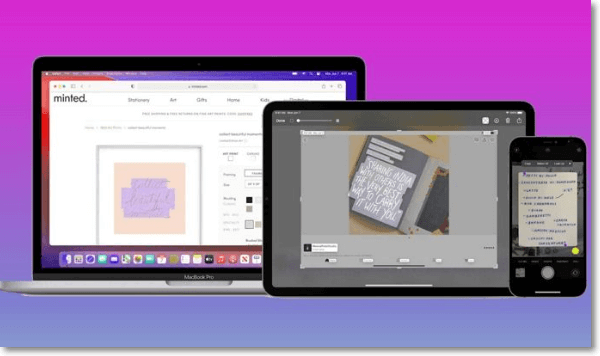
Apple's Live Text feature has been expanded to work with videos, allowing users to pause videos and look up, copy or paste text within them on their Mac. This feature is compatible with Quick Look, Photos, Safari, and other apps, and has been updated to recognize text in Korean, Ukrainian, and Japanese languages.
Visual Look Up
Users can now pick up subjects from pictures and paste them elsewhere, and also remove backgrounds from photos, with Visual Look Up, which works seamlessly with other apps like Screenshot, Safari, and Photos, and can even recognize specific items like insects, statues, and birds.
Focus
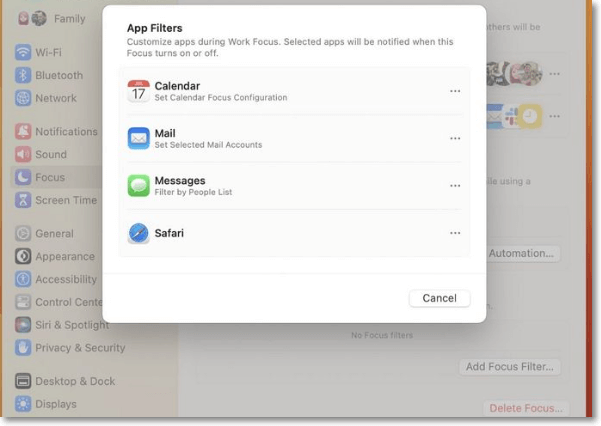
The addition of filters has significantly enhanced the Focus feature, allowing for easier personalization. Additionally, users can utilize silence and allow lists to control app notifications, either blocking or allowing them.
How to Download and Install macOS Ventura
To download and install macOS Ventura, follow these steps: Go to the Apple website and sign in with your Apple ID. Click on the "Download macOS Ventura" button and follow the prompts to begin the download. Once the download is complete, click on the "Install" button to start the installation process. Make sure your Mac is compatible with Ventura by checking the system requirements.
- 1. Preparations for Updating macOS Ventura
- 2. How to Get macOS Ventura Developer Beta?
- 3. How to Get the macOS Ventura Public Beta?
- 4. How to Update macOS Beta Versions?
Preparations for Updating macOS Ventura
Here are the four preparations that are a must to update your existing system to macOS Ventura:
- Compatible Devices: To ensure your Mac can run macOS Ventura, check the Apple menu, select "About This Mac," and verify the year of your Mac, then compare it to the list of compatible devices.
- Sufficient Disk Space: Ensure the system has enough space for the update, with a minimum of 20-25GB of free space required for a smooth and hassle-free update.
- Mac Backup: Upgrading the system might lead to accidental loss of data. That is why it is critical to back it up. For that, you can opt for the Time Machine.
- Secure and Reliable Network Connection: If the network connection is not stable, it might lead to interruptions mid-update, leading to the entire process's restart. Data corruption can also create problems with the new OS. The best solution is to choose an Ethernet connection. But, if you choose Wi-Fi, ensure the network is private and the signal is strong and stable.
How to Get macOS Ventura Developer Beta?
To install macOS 13 Ventura Developer Beta, follow these steps after downloading the operating system.
Step 1. To join the Apple Developer program, start by going to the "Start Your Enrolment" option and pay the $99 fee.
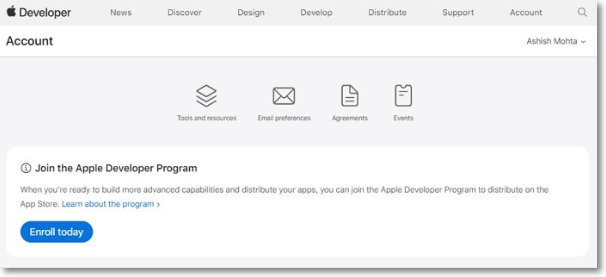
Step 2. Now, visit developer.apple.com.
Step 3. To log in to your Apple ID account, enter your Apple ID and password in the respective fields, then click on the "Log in" button.
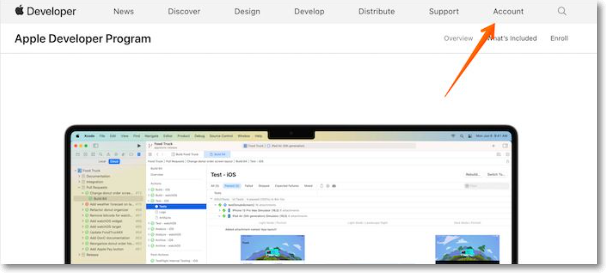
Step 4. Choose the Discover option from the top menu.
Step 5. To download the app on macOS, click on the download button and log in with your developer account.
Step 6. Choose the Install Profile option and download the new macOS Ventura Developer Beta Access Utility.
Step 7. To access the macOS Ventura Developer Beta, go to the Downloads section on your system, then tap the new macOS Ventura Developer Beta Access Utility.
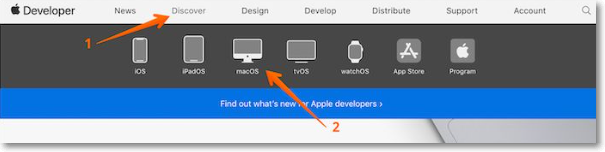
Step 8. Double-click on the macOSDeveloperBetaAccessUtility.pkg, then wait for the installation of the macOS beta to finish.
Step 9. Software Update checks for new updates, and tapping the Update option downloads the latest version.
Step 10. You will be asked to install the beta version of Ventura, so click on Continue. Then, accept the terms and conditions.
Step 11. Click install to get the macOS Ventura Developer Beta version.
How to Get the macOS Ventura Public Beta
To get the macOS Ventura Public Beta, you must enroll in the Apple Beta Software Program. Enroll in the Apple Beta Software Program to get the macOS Ventura Public Beta version. Take a look at these steps.
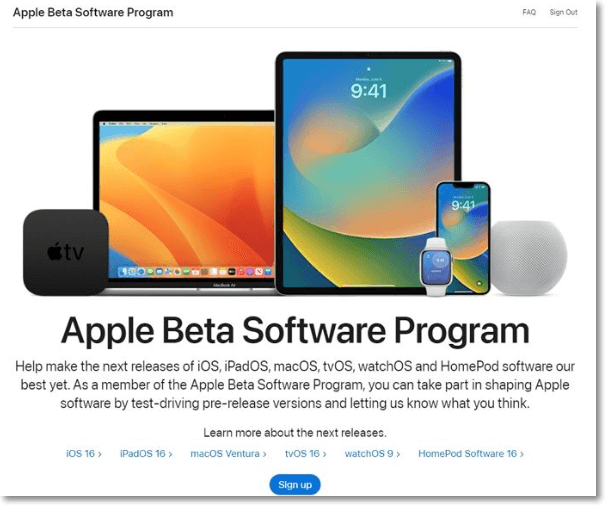
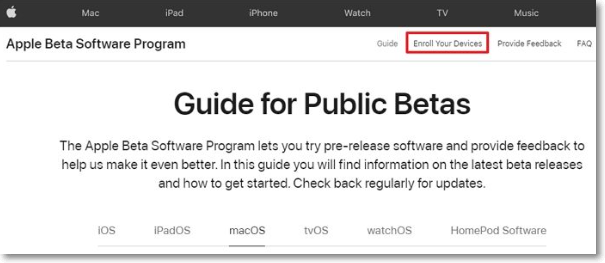
Step 1. On the Beta website, go to the macOS section, click on "Enroll your Mac".
Step 2. To download the macOS Public Beta Access Utility, press the "Download the macOS Public Beta Access Utility option" and click "Allow" if a pop-up appears.
Step 3. Double-click on the beta installer to open it, then double-click on the .pkg file to run it. A warning will appear asking you to back up your data, click OK to proceed.
Step 4. Click on Continue. Again, select the Continue option.
Step 5. Agree to the software license agreement with Apple.
Step 6. Tap the Install button, enter the admin password if prompted, and wait for the OS to download the installer.
Step 7. To download the public beta version, click on the Upgrade Now option in the System Preferences Software Update panel.
Step 8. After the download is complete, the system will restart, and the macOS 13 installer will start automatically. Follow the steps mentioned and click Continue when required.
Step 9. To use the beta version, you must agree to the terms and conditions, then click the Install option.
Step 10. To complete the update, type the administrator password and click the Ok button, then click on Restart and wait for the system to be rebooted.
The installation of macOS 13 will occur, and your Mac will run with the public beta version of macOS Ventura after installation, or we have solutions if you can't install macOS Ventura OS.
How to Update macOS Beta Versions?
To update your macOS, install the beta version first, as it's essential for receiving updates. Once installed, the system will automatically notify you of available updates, which you can access through System Preferences and Software Update.
How to Downgrade from the macOS Ventura?
Apple strives to ensure compatibility of macOS upgrades with older devices, but despite efforts, various issues can still occur.
- The new operating system may cause problems within the existing system, possibly due to hardware or software compatibility issues.
- Upgrading to a new operating system can sometimes result in a frozen system, which can severely impact the system's performance and efficiency.
To avoid compatibility issues, it's recommended to downgrade macOS Ventura and use the version of the operating system that is fully compatible with your device's hardware specifications.
Final Verdict
macOS Ventura, Apple's latest operating system for Macs, is set to be released in October 2022, following beta versions. It boasts a range of exciting new features, making it a compelling option for users.
Related Articles
- Types of Network Switches That You Need to Know
- What Is File Explorer? [Everything You Should Know]
- Windows 11 Download: How to Download and Install Windows 11 [3 Ways]
- What Is Vulkan Run Time Libraries and Do I Need or Remove It? [Updated 2022]
- 2 Ways to Log in as Administrator in Windows 10
An administrator account in Windows 10 possesses all the privileges.The are two primary ways to log in as an administrator in Windows 10. This article will share how to log in as an administrator in Windows 10 using Microsoft or a local account. - How to Make Bookmark Folders to Organize Bookmarks
Bookmark folders provide great utility to manage all your bookmarks in an efficient way. This article discusses how to make bookmark folders in top-tier browsers like Google Chrome, Safari, and Firefox.
Products
Articles & Tutorials
- Data Recovery
- Data Backup
- File Recovery
- File Backup
- System Backup and Restore
- Disk and Partition Clone
- Technical articles
- Mobile articles
- Disk Master Help
- Windows Data Recovery Tutorials
- Windows Secure Delete Tutorials
- Windows Partition Management Tutorials
- Windows File Backup and Restore Tutorials
- Windows System Backup and Restore Tutorials
- Windows Disk Backup and Restore Tutorials
- Windows Clone Tutorials