2 Ways to Log in as Administrator in Windows 10
In Windows 10, an administrator account has complete control over the system, allowing users to make changes to security and configuration settings, install and remove software, and manage access for other users.
Windows 10 asks to set up an administrator account after installation. This administrator account can then create additional "administrator" or "standard" accounts. If you're using Windows 10 and want to log in as an administrator to make necessary changes, this article will guide you through the process.
Login As an Administrator From Control Panel
To access the Control Panel as an administrator, simply log in from the Control Panel in five easy steps.
Step 1. To open the Control Panel in Windows 10, type "Control Panel" in the search bar and select the result to access the Control Panel interface.
Step 2. Click on the "User Accounts".
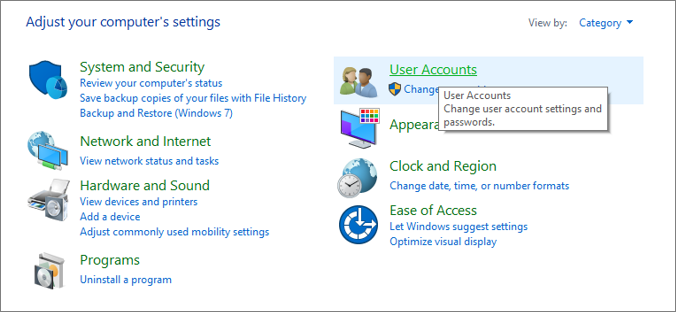
Step 3. To confirm if you are logged in as an administrator, click on "User Accounts", then check if your account name and account type show that you are logged in as an administrator. If it does, you are already logged in as an administrator.
Step 4. You can also confirm the status of other accounts by clicking "Manage another account".
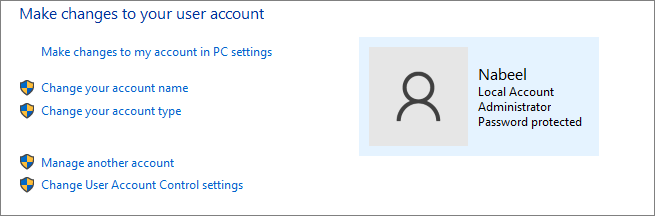
Step 5. To change the status of your account if you're not an administrator, you can follow these steps:
- Click on your current profile
- Select "Change the account type"
- Click the "Administrator option"
- Enter the admin password when prompted
Login As an Administrator From Command Prompt
To log in as an administrator from the command prompt, type "net user administrator /active:yes" and press Enter. This will enable the built-in administrator account. Then, type "net user administrator
Step 1. To run the Command Prompt as an administrator, search for "cmd" in the search bar, then right-click the search result and click "Run as Administrator". Additionally, allow this app to make changes to your system.
Step 2. To activate the default Windows 10 administrative account, type "net user administrator /active:yes" in the cmd interface and press Enter. This will display "The command completed successfully". You can also change the password by typing "net user administrator *".

Step 3. To log out of your current session, click on the Windows icon, then your profile picture icon, and select the "Sign out" option.
Step 4. After the sign-out, click the Administrator user account.
Step 5. Type the password for the account (if you set up any) to log in as an administrator.
Conclusion
In Windows 10, you can create a user account in two ways: a Microsoft account or a local account. Additionally, you can choose to log in as either an administrator or a standard user. This article discusses two simple methods to log in as an administrator, and also provides steps to easily change a standard user to an administrator account.
FAQs
1. Can you change the status of your account?
If you have the password to the administrator's account, you can change the status of your account.
2. How many ways to create a user account in Windows 10?
In Windows 10, there are only two ways to create a user account: either by using a Microsoft account or a local account.
3. How many users can I have on Windows 10?
There is no limit on the number of accounts you can have in Windows 10.
Related Articles
- How to Turn Off Sleep Mode on Mac/MacBook Air/iMac
- How to Check RAM on MacBook Pro/Air | 3 Tested Ways to Free Up It
- Fix App Store Not Working on Mac: 5 Quick Solutions and 4 Practical Fixes
- Samsung T5 VS T7: Which One to Choose?
- Forgot Google Drive Password? Here's What to Do
Did you forget your Google drive password? Do you need to recover your Google drive password without much complexity? Then follow this guide to recover the password from the PC easily, or you can use other account recovery methods depending on the data like username or email id you have with you. - Forgot Microsoft Account Password? Here's What to Do
Forgot Microsoft account password? Recover it with 3 methods: use Qiling Key Finder, reset via verification email, or recover through the Microsoft account recovery form. Step-by-step guide.
Products
Articles & Tutorials
- Data Recovery
- Data Backup
- File Recovery
- File Backup
- System Backup and Restore
- Disk and Partition Clone
- Technical articles
- Mobile articles
- Disk Master Help
- Windows Data Recovery Tutorials
- Windows Secure Delete Tutorials
- Windows Partition Management Tutorials
- Windows File Backup and Restore Tutorials
- Windows System Backup and Restore Tutorials
- Windows Disk Backup and Restore Tutorials
- Windows Clone Tutorials