Forgot Google Drive Password? Here's What to Do
| Workable Solutions | Step-by-step Troubleshooting |
|---|---|
| #1. Qiling Key Finder | Step 1. Click "Internet & Network" under Password; Step 2. Check Browser Accounts & Passwords...Full steps |
| #2. Recover Password by Account Recovery | Step 1: Visit the Google sign-in page and click Need help? Under the login field. You have to put...Full steps |
| #3. Recover Username by Account Recovery | Step 1: To recover the username of your Google Drive account, you have to visit Google...Full steps |
| #4. Reset Password | Step 1: Go to the Gmail login page, put your email address and click on the forget password....Full steps |
Google Drive is a cloud storage service that allows users to store and access files online, syncing them across multiple devices, and integrating with other services like OneDrive, Dropbox, and iCloud.
Forgetting the password to Google Drive is a common issue, often due to passwords being saved in the browser or set up a long time ago, making them difficult to recall when needed on a new PC.
If you've forgotten your Google Drive password, there are solutions available. You can recover your password by following the steps outlined in this post, which will provide you with effective methods to regain access to your Google Drive account.
What to Do if You Forgot Google Drive Password
Google Drive, a free and secured storage service, is used by many to save important documents and photos. If you've forgotten your Google Drive password, there are four methods you can follow to recover it.
#1. Use A Third-party Recovery Tool - Qiling Key Finder
If you have no technical knowledge and want to recover your Google Drive password quickly, you can use the Qiling Key Finder tool, which is a reliable and reputed third-party tool that can help you recover your password swiftly.
The software is user-friendly and features a password finder and Adobe serial number checker, with no need for a secondary email address to access it.
Now follow the steps below to recover your Google Drive Password by using this tool.
Step 1. Click "Internet & Network" under Password.
Step 2. Check the browser accounts and passwords of Chrome, Edge, Firefox, and Internet Explorer to ensure they are secure and up-to-date.
"Copy" - Click it, then directly paste.
"Save" - Save as a PDF file.
"Print" - Connect Printer to print.
#2. Recover Google Drive Password by Account Recovery
To recover your Google Drive password using the account recovery method, follow these steps: you can reset your password using the account recovery method by visiting the Google Account recovery page, selecting the reason for your account recovery, and following the prompts to verify your account and reset your password. This method comes in handy when you know your Google Drive email username but forgot the password.
Step 1:To access Google Drive, visit the Google sign-in page and click on "Need help" under the login field. Then, enter your Google Drive connected email address and click the "Next" button.
Step 2:You'll enter your last remembered password, then click Next. If you can't recall it, you'll click Try a different question and be given alternative options such as entering the account creation date or receiving a verification code via recovery email.
Step 3:If you have a recovered email address, enter it to receive a verification code to reset your password. If not, provide an alternative email address or phone number to receive the verification code.
Step 4:Once you have got the code, type it and click Next. You will be redirected to a new page where you can type your new password. In the first box, you will be asked to re-enter the password, so type the same password again and click on Change password. Your password has been successfully changed.
#3. Recover Username by Google Account Recovery
If a user enters a wrong username, they can recover it using Google's account recovery method. To do this, follow these steps:
Step 1:To recover your Google Drive account username, visit the Google username recovery page, enter the recovery email or phone number associated with your account, and submit it to proceed with the recovery process.
Step 2:To recover your username, you'll need to enter your email address, then provide your first and last name associated with that account. After submitting, you'll receive a verification code via the recovery email or SMS to your registered mobile number. Once you've verified the code, you can proceed with the username recovery process.
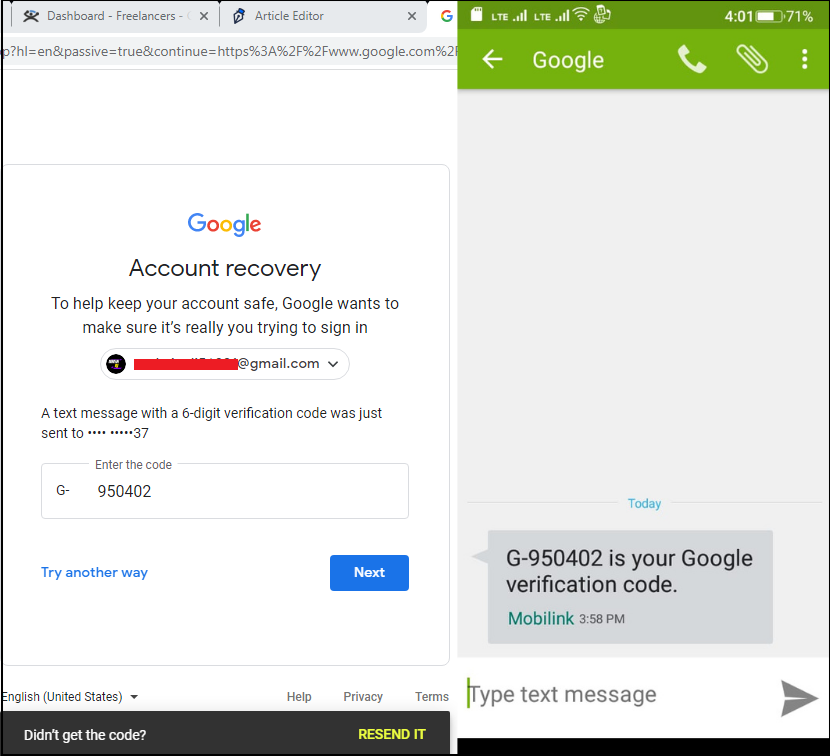
Step 3:The feature will display a list of accounts associated with the recovered email or phone number, allowing you to see which accounts were linked to the particular account that was recovered.
Step 4:To recover a username, click on the account whose username you want to recover, then enter your correct login password to access it.
#4. Reset Google Drive Password
If you've forgotten your Google Drive password, you can reset it. To do this, sign in to your Google account on the Google Account website, click on "Forgot password," and follow the prompts to reset your password. Alternatively, you can also use the Google Account app on your mobile device to reset your password.
Step 1:To reset your Gmail password, go to the Gmail login page, enter your email address, and click on the "Forgot password" option to proceed further.
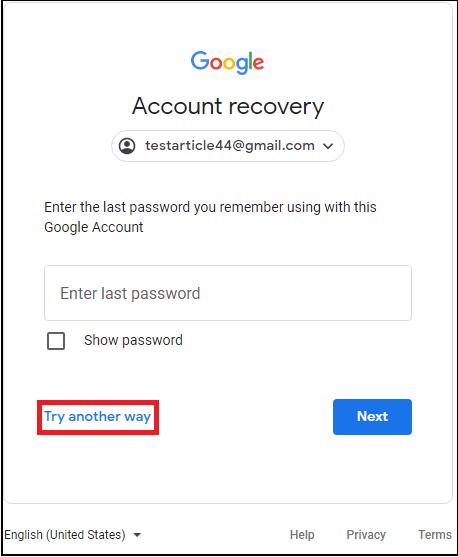
Step 2:After entering the wrong password, the system will redirect you to another page where it will ask for the last password you could remember. You don't need to fill in anything in that box. Below that, you'll see an option to try another way, click on that to proceed.
Step 3:You will receive a notification on your screen asking you to confirm that you were trying to recover your account. Click yes to confirm your identity, and Google will approve your sign-in request.
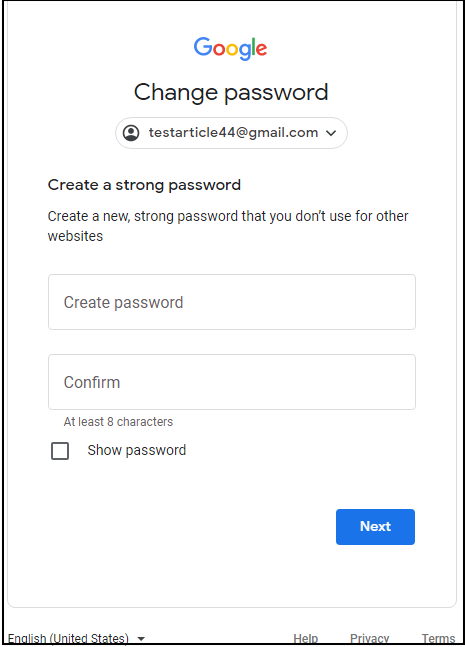
Step 4:To reset your password, go to the password reset option, where you'll be asked to create a new password that you'll confirm twice.
Conclusion
If you're still reading, you probably have a better understanding of how to recover your Google Drive password. If you have technical knowledge, you can try methods 2, 3, and 4; otherwise, method 1 is a quick solution.
To recover your Google Drive password, we recommend using the Qiling Key Finder tool, which is the best product key finder that can find Windows server products key, retrieve product licenses, and recover saved passwords on popular web browsers like Chrome, Edge, Firefox, and Internet Explorer.
Related Articles
- Adobe Serial Number Checker Free Download | Find Adobe Software Serial Key in Windows
- How to Check and Find Exchange 2016 Product Key/License
- 2 Easy Ways to Recover Ubisoft Account and Password
- How to Find Windows Server Product Key [6 Ways] - Qiling
- What Is Rsync Windows And How to Use It? [Quick Tips]
Don't know what is Rsync and how to use it on Windows? Read this article as we tell you everything about Rsync and how to install and use it on Windows - What Is Rufus? Your Best Answers in 2024
Do you need to install Windows on your system, and someone recommended Rufus? If you are wondering what is Rufus, it is a free tool to create bootable USB drives. Learn more about Rufus and its features in this article.
Products
Articles & Tutorials
- Data Recovery
- Data Backup
- File Recovery
- File Backup
- System Backup and Restore
- Disk and Partition Clone
- Technical articles
- Mobile articles
- Disk Master Help
- Windows Data Recovery Tutorials
- Windows Secure Delete Tutorials
- Windows Partition Management Tutorials
- Windows File Backup and Restore Tutorials
- Windows System Backup and Restore Tutorials
- Windows Disk Backup and Restore Tutorials
- Windows Clone Tutorials