What Is Rufus? Your Best Answers in 2024
Rufus, introduced in 2011, has become the most used software for creating bootable USB drives, replacing HP USB Disk Storage Format Tool due to its outdated interface.
If you're new to Rufus, this article will help you understand what it is and its features, and then provide a detailed walkthrough of using it to create a bootable USB drive.
What Is Rufus
Rufus is a free, open-source program for Windows that creates bootable USB drives. The acronym "Rufus" stands for "The Reliable USB Formatting Utility with Source." It was developed by Pete Batard and first released in late 2011.
The tool initially only supported MS-DOS, but has evolved over time to support various operating systems and features, including FreeDOS, ISO, UEFI, Windows To GO, and more, and is also used for Linux installation, while also allowing the creation of bootable USB drives and formatting the drive.
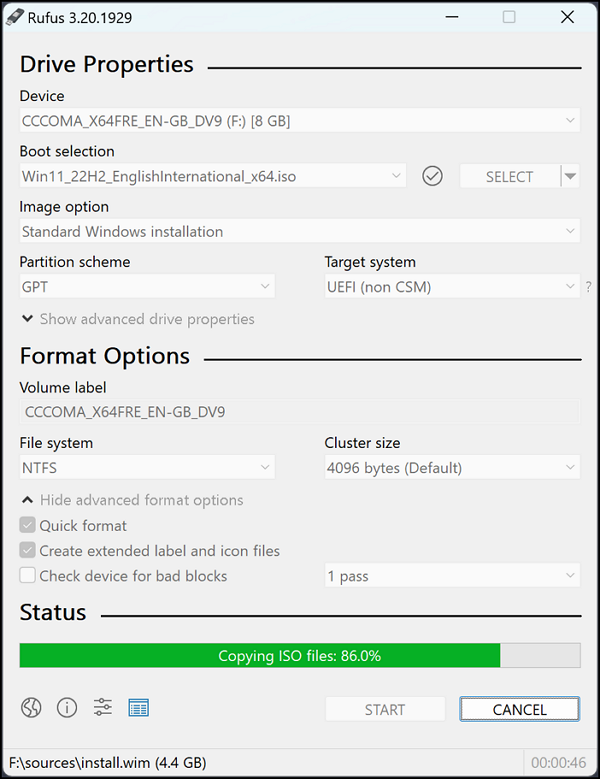
Rufus System Requirements
Rufus is a Windows application that supports all major versions of Windows. To use Rufus, ensure you meet the following system requirements:
- Rufus is a Windows application that supports all major versions of the operating system. It is compatible with Windows 11, 10, 8.1, and 7, and supports both 32-bit and 64-bit versions.
- A USB drive with at least 8GB of storage is required to use Rufus for creating a bootable drive.
What Are the Features of Rufus
Rufus is a complete package tool for creating a bootable USB drive or live USB, offering multiple booting options and support for various file systems.
- No Installation: You can download a lightweight tool that doesn't require installation, allowing you to directly create a bootable USB drive using an ISO file on your computer by simply downloading and using it.
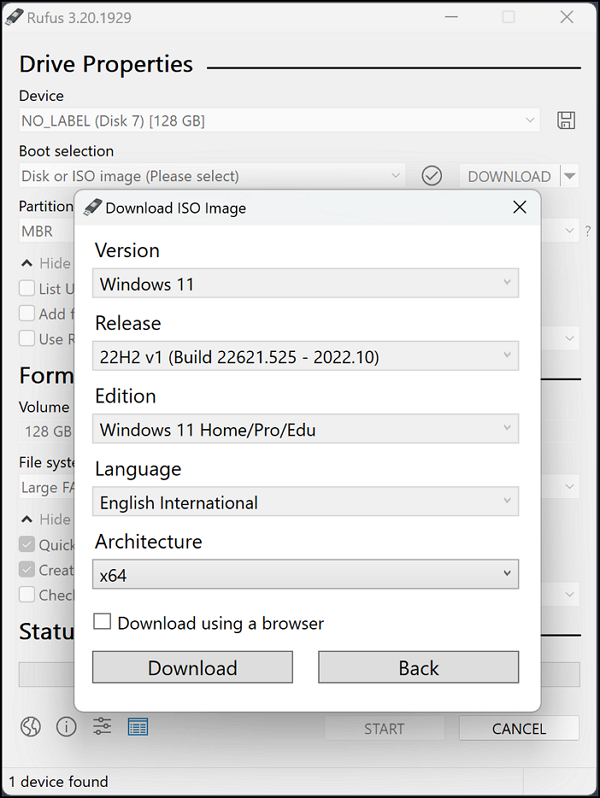
- Download Windows ISO File: Rufus can download Windows ISO files if you don't have them, allowing you to download Windows 8.1, Windows 10, and Windows 11 ISO files, but it requires PowerShell 3.0 to function.
- Multiple File Systems: Rufus supports various file systems and partition schemes to ensure a smooth bootable USB flash drive creation process, including FAT, FAT32, UDF, exFAT, ReFS, and NTFS file systems, as well as GPT (GUID Partition Table) and MBR (Master Boot Record) partition schemes.
- Advanced Boot Selection: This tool offers advanced boot options, allowing you to create a bootable drive tailored to your needs. You can utilize various boot options, including ReactOS, Syslinux 4.07, Syslinux 6.04, Grub 2.04, UEFI: NTFS, and Grub4DOS 0.4.6a.
- File Integrity: To ensure a secure and issue-free Windows boot, the system runs MD5, SHA-1, and SHA-256 checksums, verifying the integrity of files during the OS installation process.
How to Use Rufus
To create a bootable USB using Rufus, follow these easy steps. It will take a little time, but with Rufus' help, you can create a bootable USB flash drive quickly and reliably.
First, download and run Rufus, then select your USB drive and the ISO file you want to boot from. Next, choose the correct settings for your drive, and finally, start the process to create a bootable USB.
Step 1: Download Rufus from its official website, run it, attach your USB drive, and let the program detect it. If there are multiple USB drives, choose the correct one.
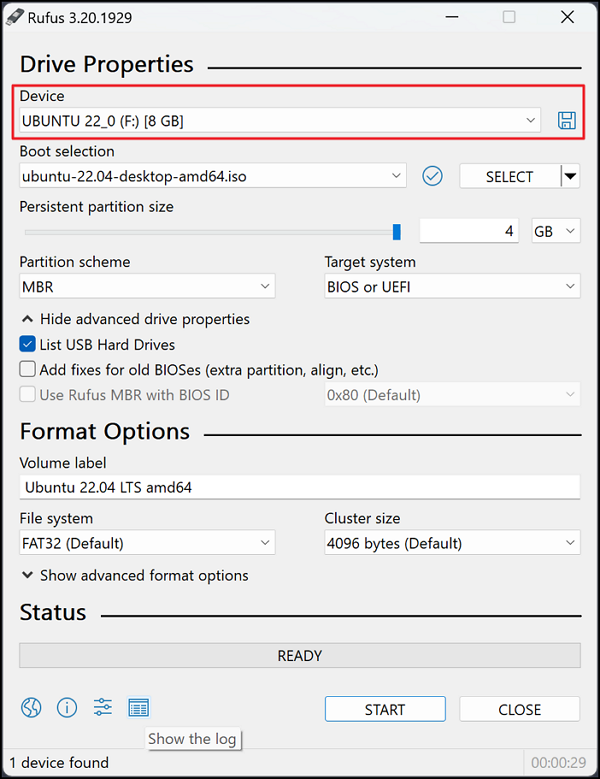
Step 2: Select the ISO file of the operating system using the "Select" button, or download it for Windows 8.1 and later if compatible. Then, choose your desired partition scheme and target system.
Step 3: To create a bootable USB drive, you'll need to format your USB drive, which requires defining the appropriate parameters in the "Format Options."
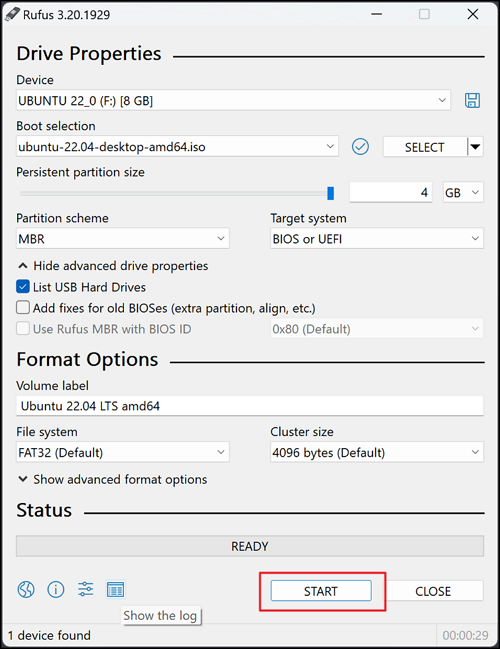
Once the process is initiated, a progress bar will appear at the bottom of the program window, showing the status of the task. When the progress bar reaches 100%, the bootable USB drive creation is complete, and you can safely remove your USB drive.
If you don't trust Rufus or don't want to use it, you can use Qiling Disk Master Free, a tool that allows you to create a bootable USB drive without Rufus and also offers features like checking disk health, repairing file systems, and changing partition schemes.
Conclusion
Rufus is a great tool that offers many utilities at no cost, making it an ideal solution for various tasks, including creating a bootable USB flash drive, live USB, and formatting a USB drive. As an open-source tool, it can be modified to suit individual needs, and its no-installation requirement is a significant advantage for users with limited storage space.
Related Articles
- What Is a Bup File? How to Open and Convert It?
- Activity Monitor Mac: How to Open and Use It [3 Tips to Optimize Mac]
- Fix: System Restore Failed To Extract the File
- MS-DOS Commands [Everything You Need to Know]
- How to Fix Spotlight Search Not Working Ventura/Sonoma
How to fix Spotlight Search not working? Keep reading this article to know why a malfunctioned Spotlight Search option exists and the solutions below. Also, if you have lost data while implementing these fixes, there's a professional data recovery platform, Deep Data Recovery for Mac. - What's The Best SSD Allocation Unit Size in Windows 11/10
Learn the best SSD allocation unit size for Windows 10 or 11, how cluster size affects storage, and when to change it.
Products
Articles & Tutorials
- Data Recovery
- Data Backup
- File Recovery
- File Backup
- System Backup and Restore
- Disk and Partition Clone
- Technical articles
- Mobile articles
- Disk Master Help
- Windows Data Recovery Tutorials
- Windows Secure Delete Tutorials
- Windows Partition Management Tutorials
- Windows File Backup and Restore Tutorials
- Windows System Backup and Restore Tutorials
- Windows Disk Backup and Restore Tutorials
- Windows Clone Tutorials